The short answer
Partly. Power Automate cloud flows are built on the Power Automate website, so they work from a Mac browser. Power Automate for desktop, the part that clicks and types in apps, is a Windows application, and Microsoft lists only Windows 10, Windows 11 and Windows Server. On a Mac, Incredible does that desktop-style work: hold fn, say the job, and it clicks and types in your apps and your own browser.
Free for 7 days. Mac and Windows.
Power Automate for desktop is Windows only. What a Mac user can still do with Power Automate, and the Mac tools that click and type for you instead.
You have a Mac, a job that is the same forty clicks every week, and a colleague who keeps saying "just use Power Automate." So you search for the download and find it is for Windows.
Here is the plain answer. Power Automate cloud flows, the ones that connect online services, are built on Microsoft's website and work from a Mac. Power Automate for desktop, the part that clicks and types in apps for you, is a Windows application. On a Mac, Incredible does that kind of work: hold the fn key, say the job, and it clicks and types in your apps and your own browser.
Everything below about Microsoft, Apple and Keyboard Maestro comes from their own pages, read on 28 October 2026.
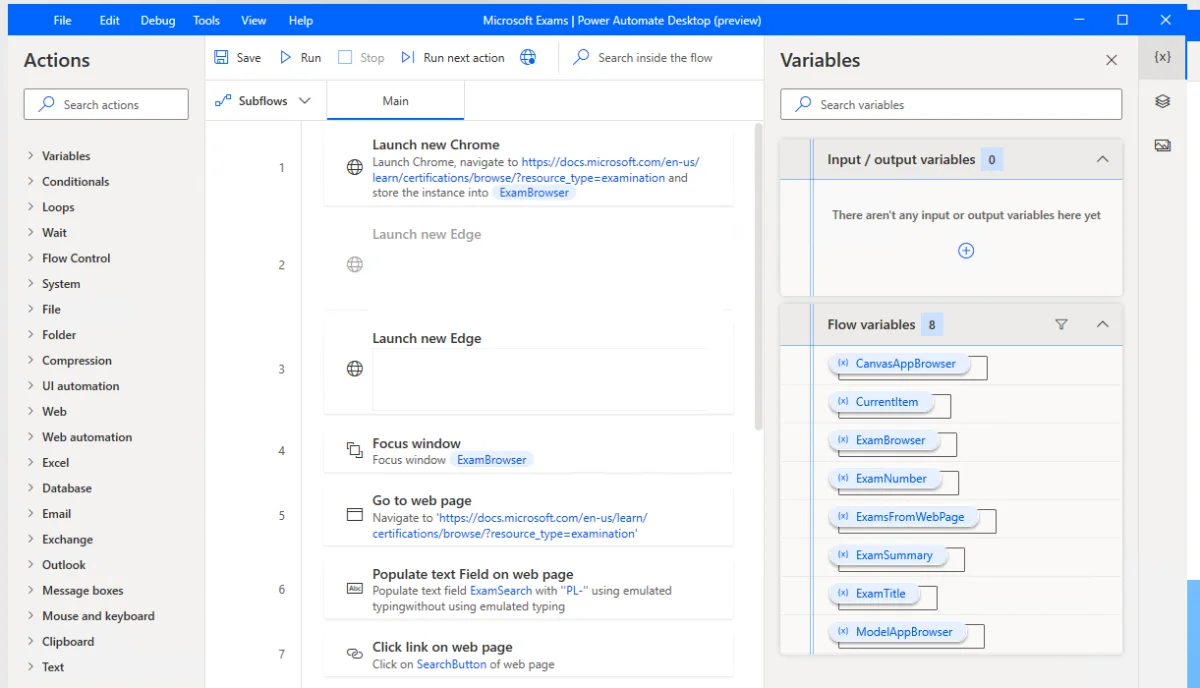
Half of it is. Power Automate has two kinds of flows, and only one of them needs a program on your computer.
Microsoft's training material says it directly: "The Power Automate for desktop app is a Microsoft Windows application that you can use to create, edit, and run desktop flows." Its requirements page lists Windows 10 and 11 (Home, Pro and Enterprise) and Windows Server 2016, 2019, 2022 and 2025, and adds that devices with ARM processors aren't supported. macOS is not on the list.
Desktop flows are the part people usually mean. Microsoft describes them as automation "where no connector or API is available": the app records your mouse clicks, keyboard input and data entry, and you edit the recorded steps into a flow.
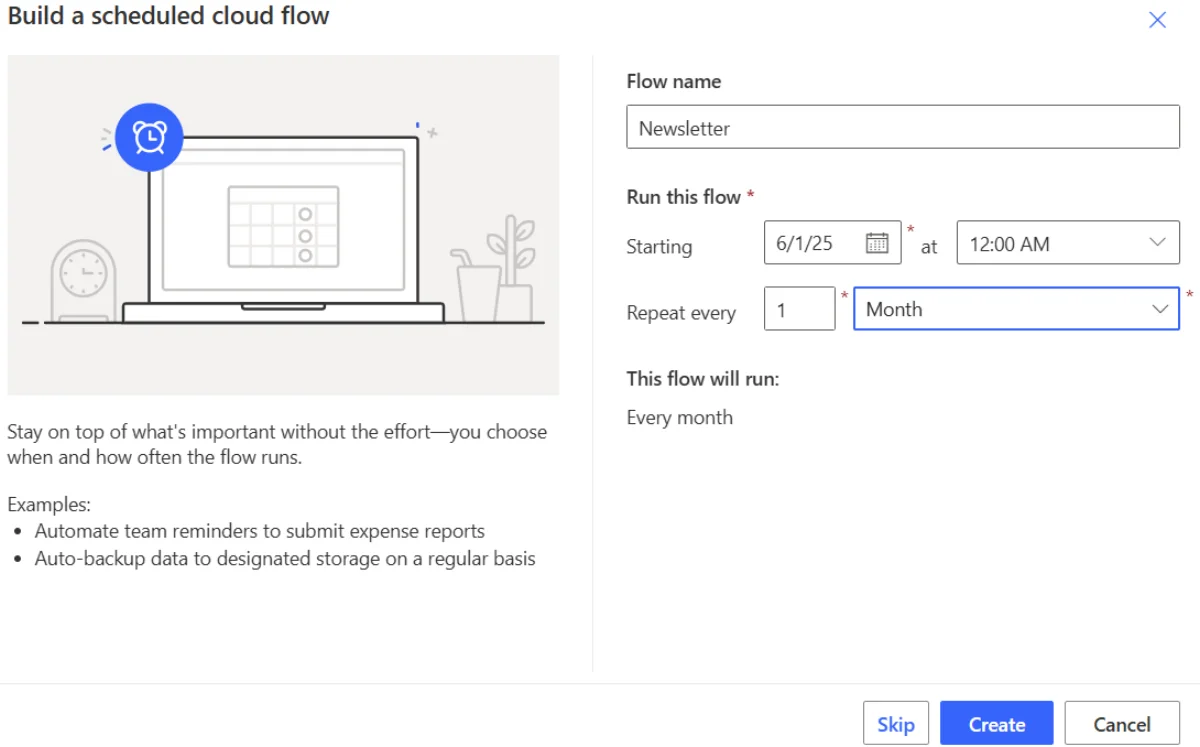
Cloud flows live on the Power Automate website, make.powerautomate.com, so you sign in from Safari or Chrome on a Mac like any other web app. Microsoft's overview describes three kinds:
You can build one from scratch in the designer or describe it to Copilot in plain words, which is on unless your admin has turned it off. Either way, a cloud flow connects apps and services through their connectors. If both ends of your job have one, such as Outlook and SharePoint, a Mac is no obstacle.
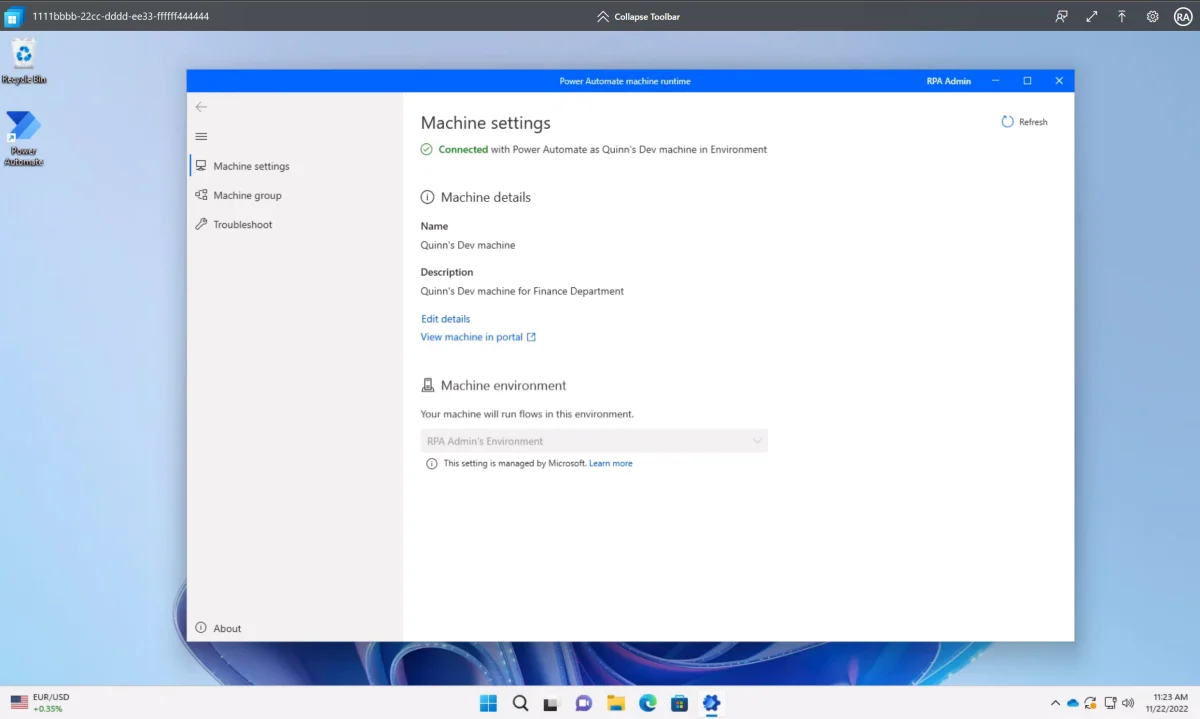
If you need desktop flows and only have a Mac, the flows have to run on a Windows machine somewhere. Microsoft's own route is hosted machines. Power Automate sets up a Windows machine through Windows 365, and you reach it from the machine's page with Open in browser. Inside it you build and test desktop flows in Power Automate for desktop.
It is made for companies, and the requirements show it. You need the Power Automate Hosted Process license, plus Windows, Intune and Microsoft Entra ID licenses, and the Premium user plan to build and manage desktop flows on the Power Automate portal. Microsoft says a new machine can take over 30 minutes to be ready, and only the person who created it can sign in to it.
The other catch is reach. A hosted machine automates the apps installed on that Windows machine, not the apps and files on your Mac.
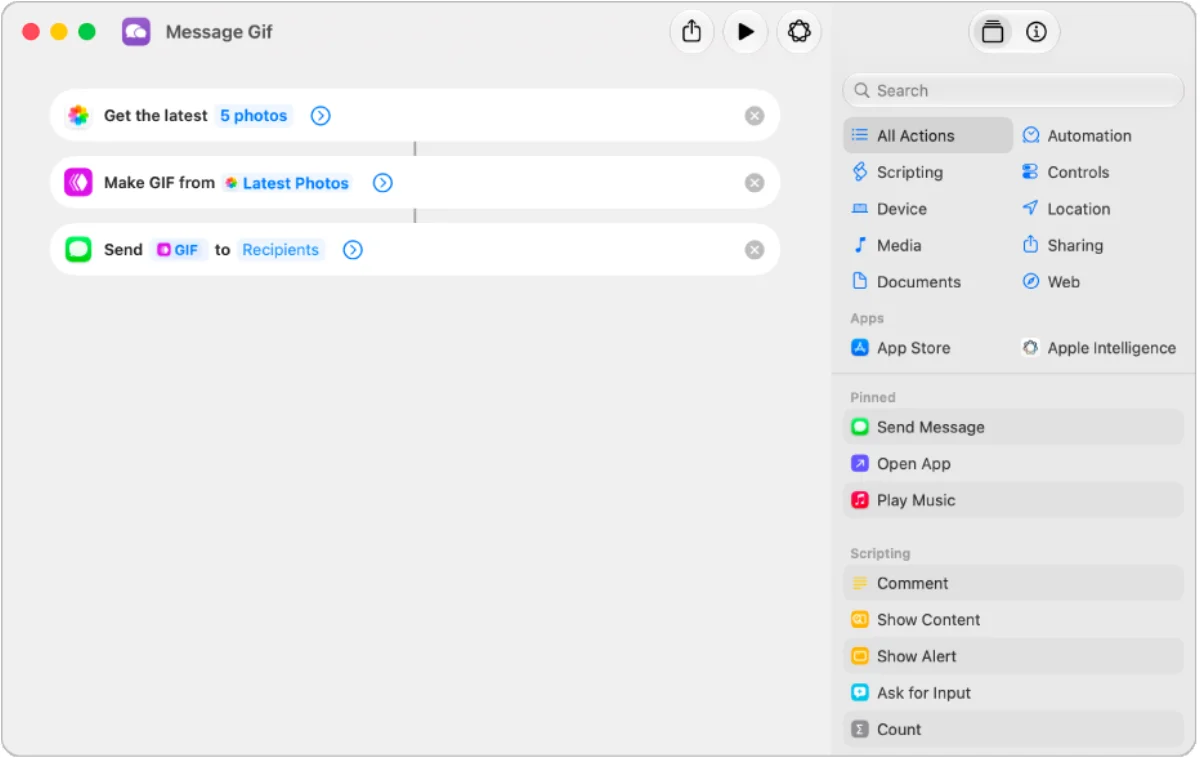
Apple's own answer is the Shortcuts app. Its user guide describes a shortcut as a way to "get things done with your apps, with just a click or by asking Siri", chaining several steps across apps. You can run one from the menu bar, Spotlight, a keyboard shortcut, Siri or the Terminal.
Shortcuts can also start by themselves. Automations run on events "such as time of day, arrival at a location, or the opening of an app", and on a Mac you get a notification asking you to run each one.
What a shortcut can do depends on the actions apps offer. For websites there is the Run JavaScript on Webpage action, which reads or changes a page in Safari, and that means writing JavaScript.
Automator, the older tool, is still documented. Apple's Automator guide says you can build workflows without programming, and that Automator workflows can be imported into Shortcuts.
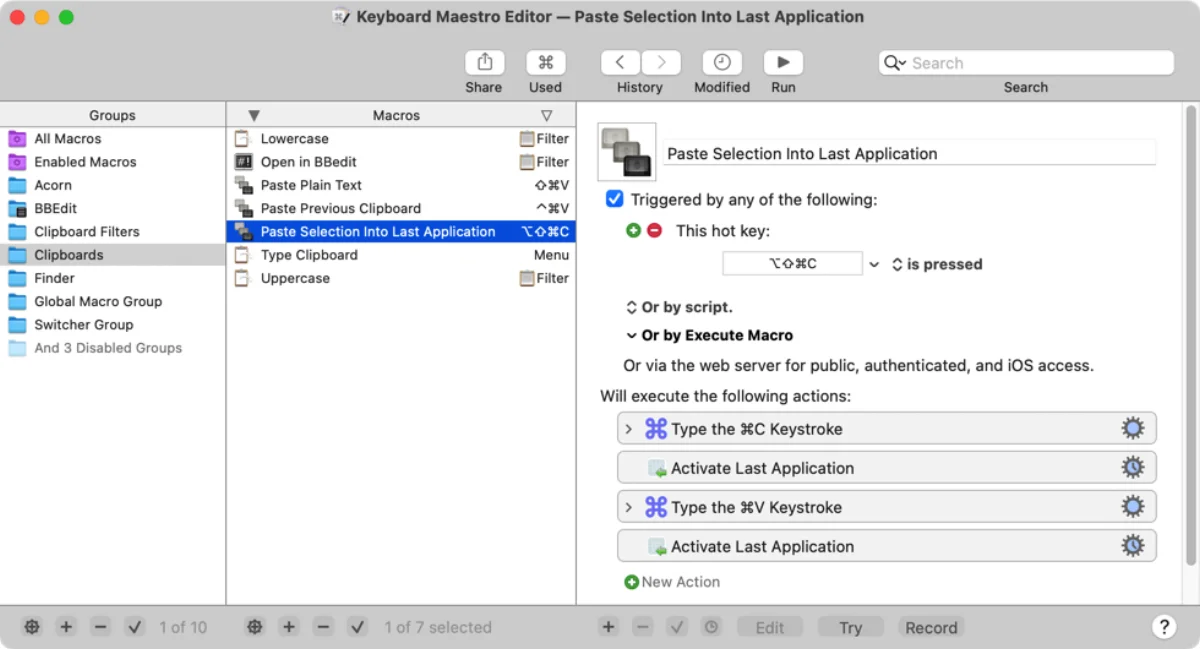
The closest thing to a desktop flow on the Mac is a macro tool. Keyboard Maestro calls itself "The Premier Mac Automation Software" and says it can "automate applications or web sites, text or images, simple or complex, on command or scheduled", including filling in web forms.
Like a desktop flow, a macro is a list of steps you build and keep up to date yourself. Keyboard Maestro 11 is a one-time purchase of US$36, with a free trial, and needs macOS 10.13 High Sierra or later.
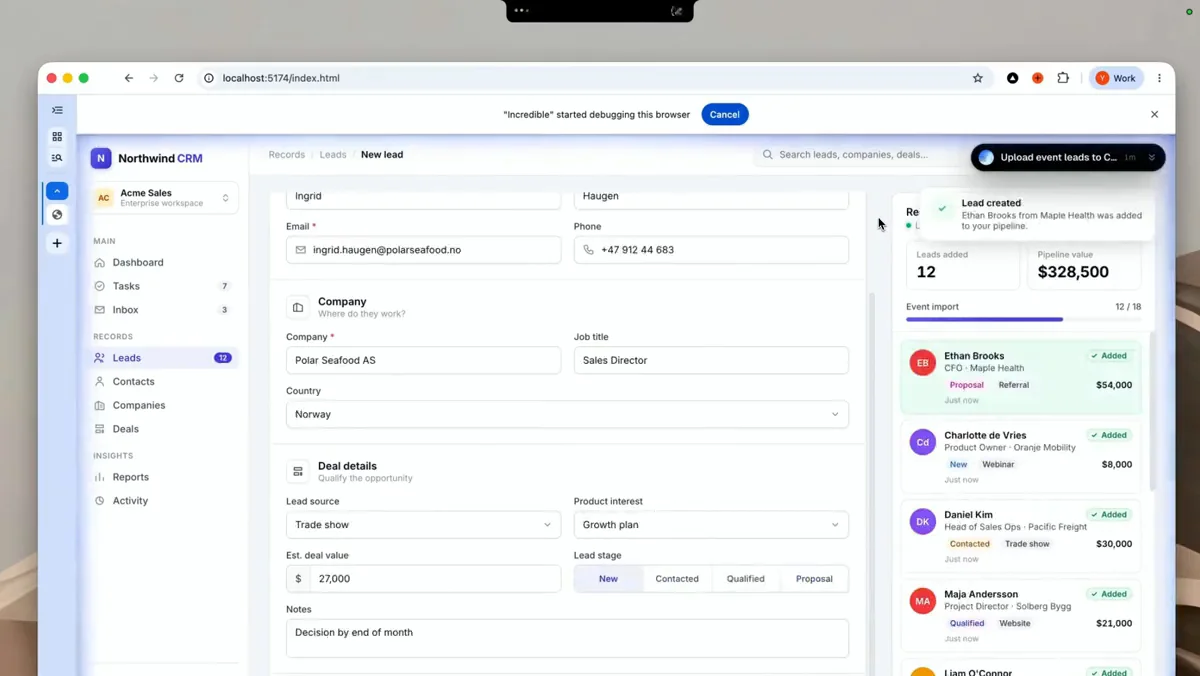
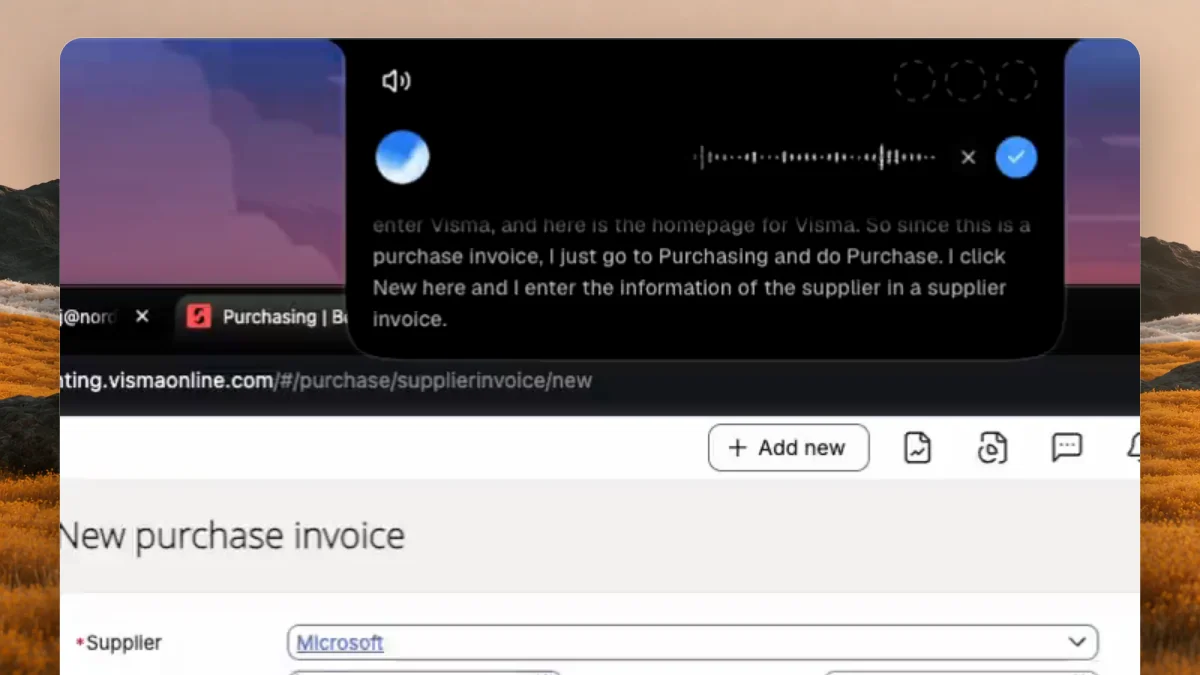
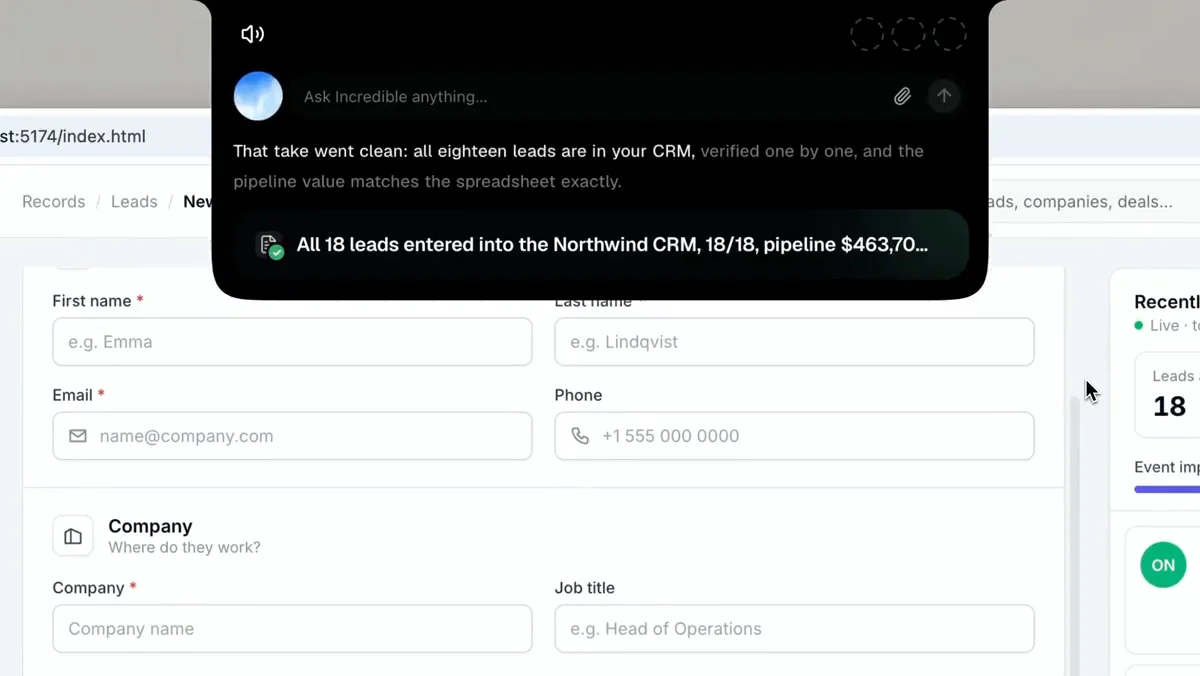
Incredible does the clicking and typing a desktop flow would do, without a flow. Open the apps, hold fn and say what you want. Here the request was to take the leads in a spreadsheet and add each one to the CRM, filling in all the details and clicking Create lead. Incredible enters them one by one, then checks each against the sheet.
It works in your own browser, signed in as you, so the website needs no connector, API or import. That covers the supplier portals, admin panels and old business systems that Power Automate would reach with a desktop flow. It asks before anything is sent, and you can approve the step, change it first, or stop. The Browser guide shows how to connect your browser.
Incredible runs on macOS 13 or later, and on Windows 10 or later, so a team with both kinds of computers uses the same tool.
“It’s Copilot on steroids.”
Kyle Rademacher, Office Manager, ProGuard Security Services
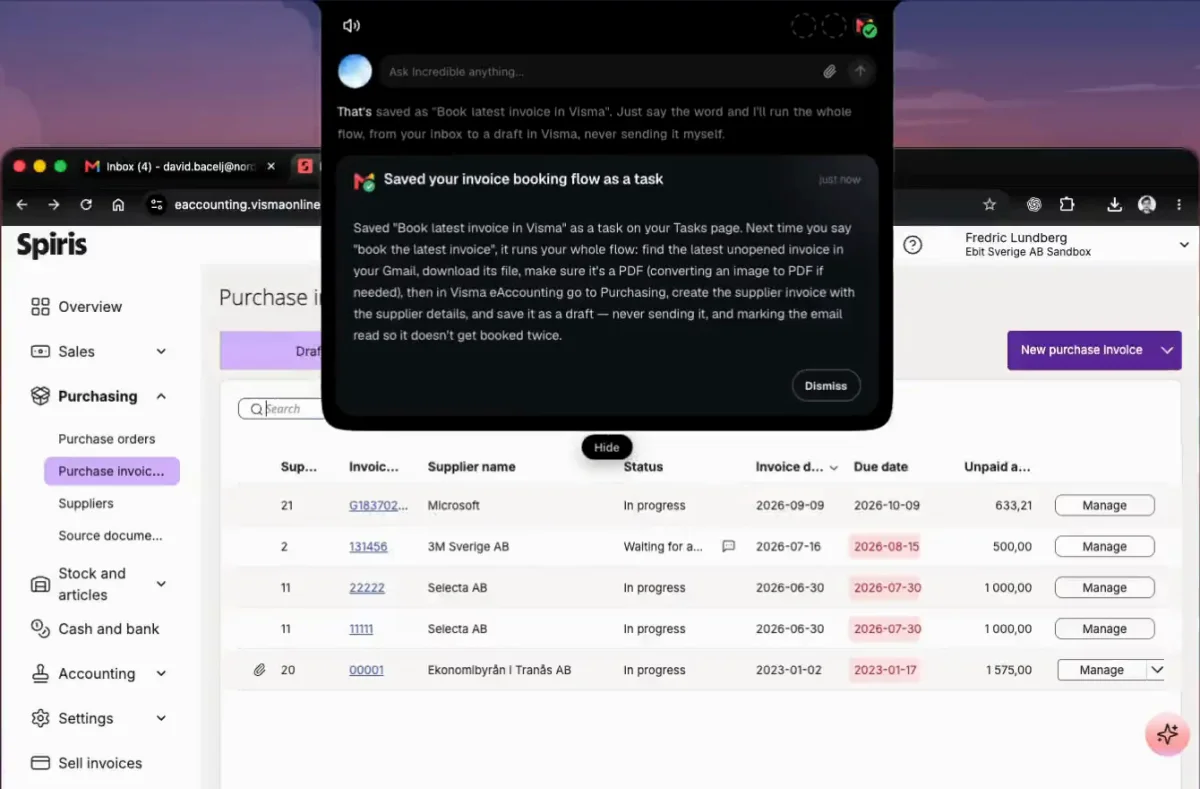
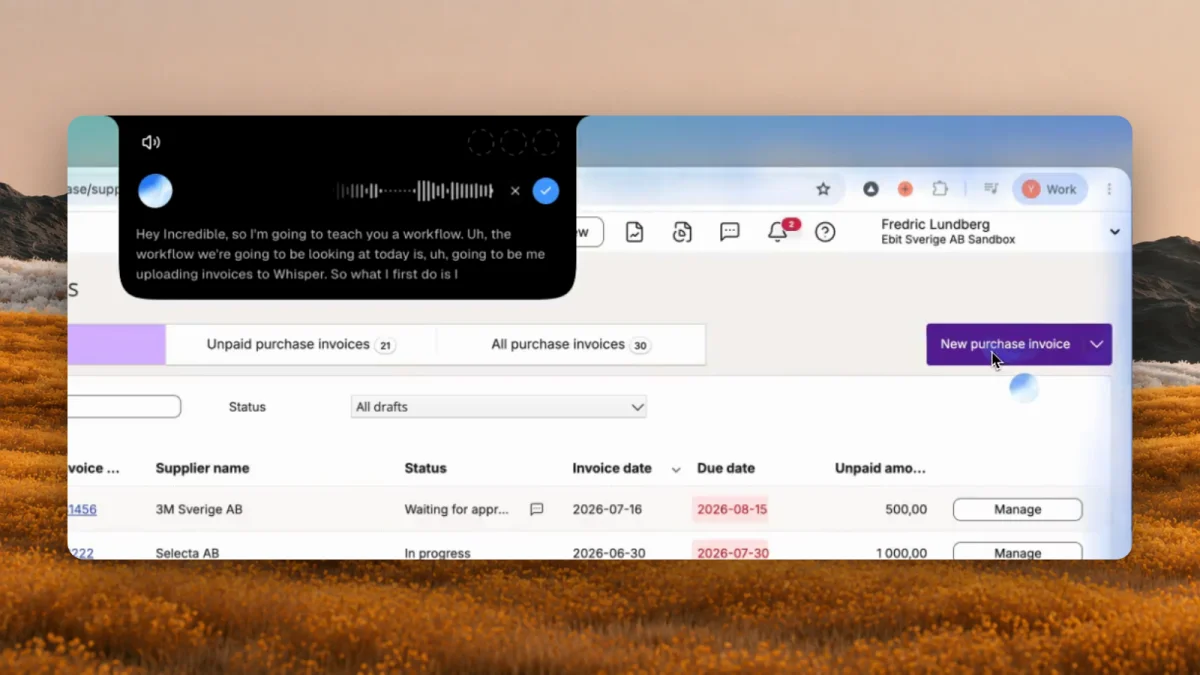
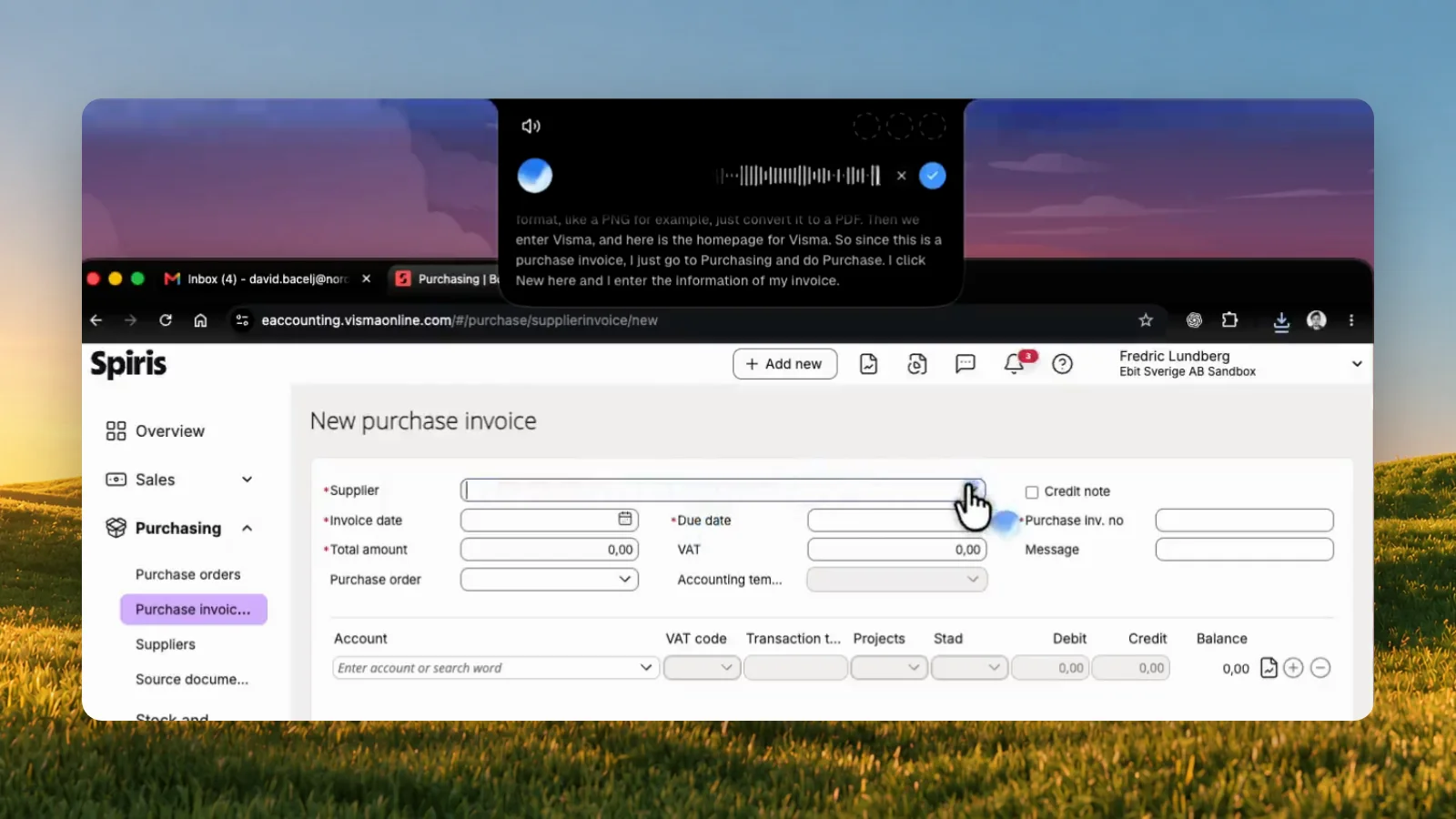
The part of Power Automate people miss most is the recorder: do the job once, and it is saved. Incredible has the same idea, in words. Do the job while Incredible watches and say out loud what you are doing and why, as you would for a new colleague. It saves the job as a task and does it the same way from then on. More in how to automate a repetitive task by showing it once.
A saved task can run on a schedule, such as every Friday at 9, or on Autopilot, where it runs each time something happens in an app you have connected, such as an invoice email arriving. When a page changes, there is no flow to repair, because Incredible reads the screen each time.
| Incredible | Power Automate | Shortcuts | Keyboard Maestro | |
|---|---|---|---|---|
| On a Mac | Yes, macOS 13 or later | Cloud flows only | Yes | Yes, macOS 10.13 or later |
| To start | Say the job | Build a flow | Build a shortcut | Build a macro |
| Websites with no connector | Clicks and types in your browser | Desktop flows, on Windows | JavaScript in Safari | Macro steps |
| Runs by itself | Schedule or Autopilot | Automated and scheduled flows | Automations, after a notification | On command or scheduled |
For the wider field, see AI that can control your Mac, and if your data starts in a spreadsheet, how to get spreadsheet rows into a website with no API.
Try this now. Open the spreadsheet and the website you copy between every week, hold fn and say: "Enter these rows into the form in my other tab." Incredible is free for 7 days. Download it, or read the Quickstart first.
Paying for an automation tool already? See Zapier vs an AI agent that uses your computer.
Partly. Cloud flows are built on the Power Automate website, so you can make them from a Mac. Power Automate for desktop is a Windows application, and Microsoft lists Windows 10, Windows 11 and Windows Server 2016 to 2025 as the systems it runs on.
Only on a Windows machine somewhere else. Microsoft offers hosted machines: Power Automate sets up a Windows machine in the cloud that you open in a browser tab. It needs the Power Automate Hosted Process license, plus Windows, Intune and Microsoft Entra ID licenses.
Apple’s Shortcuts app chains steps across apps and can run on a schedule or when an app opens. Keyboard Maestro runs macros of keystrokes and actions. Incredible clicks and types in any app and website on your Mac when you say the job, with nothing to build.
Yes. Incredible runs on macOS 13 or later and on Windows 10 or later, so a team with both kinds of computers can use the same tool.
It clicks and types in your browser, files and apps, exactly like you do.
Requires macOS 13 or Windows 10, or later.
 Download for Mac
 Download for Windows