 Download for Mac
 Download for Windows
Get started
Quickstart
Go from download to your first finished task.
Install Incredible
Get started below to create your account, then download the app.
macOS
- macOS 14 (Sonoma) and later
- Apple Silicon and Intel
- Mac installer (.dmg)
Windows
- Windows 10 and later
- Windows installer (.exe)
On first launch, Incredible asks for three permissions: the microphone to hear you, screen recording to see what you're looking at, and accessibility to click and type for you. It only reads your screen while you're holding the talk key.
Once it's running, Incredible sits as a small bar at the top of your screen. Move your mouse to the top edge and it opens.
Press, speak, release
Hold the talk key, say what you want, and let go. On a Mac the key is fn. On Windows it's Ctrl + Space. The microphone opens while you hold the key and closes the moment you release it. If you'd rather type, open the bar and write your request instead.
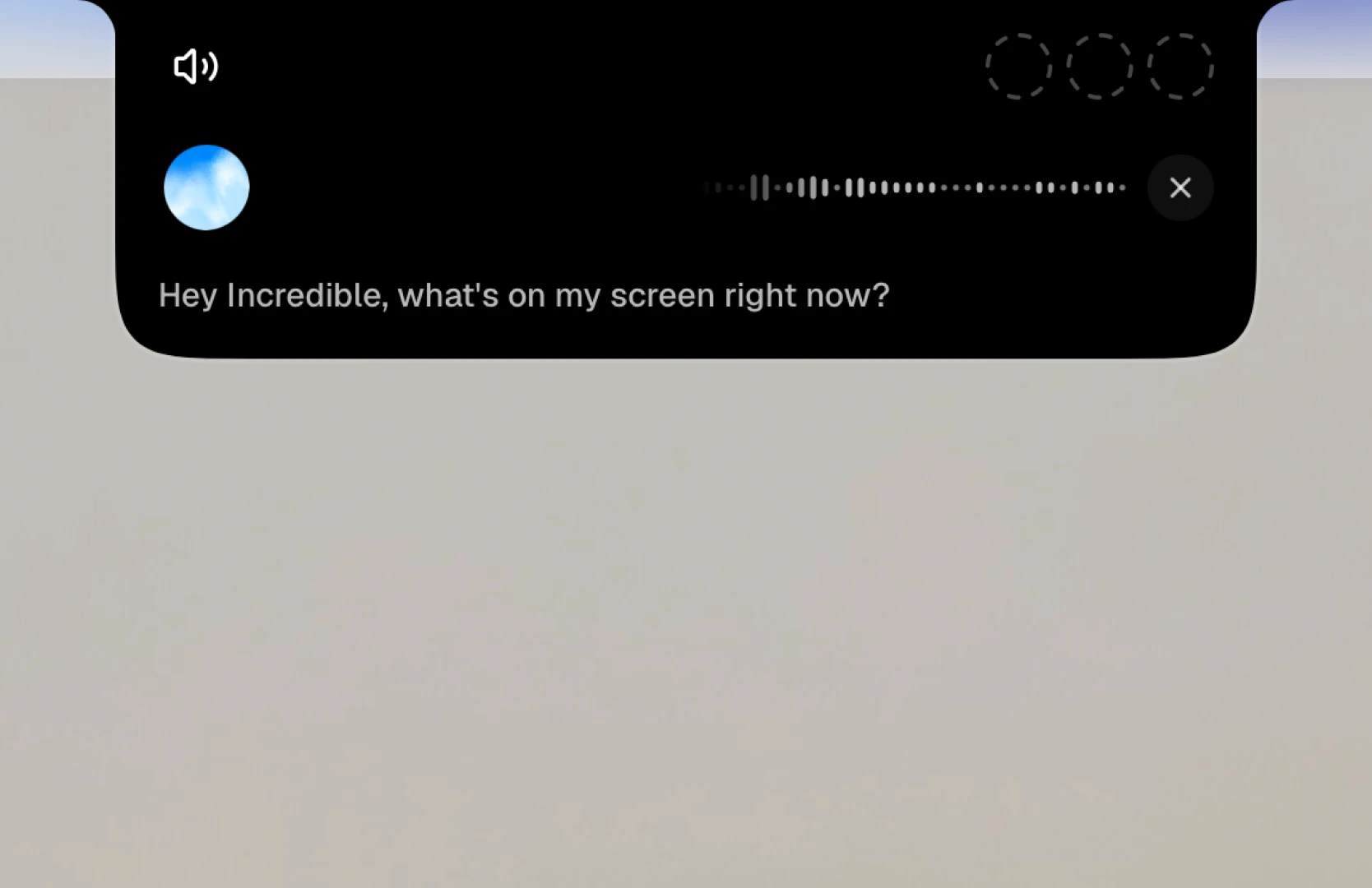
Start with a question that only looks at things, so you can see how it answers. Have an email thread or a spreadsheet open, and refer to it as "this".
"Hey Incredible, what's on my screen right now?"
 Try in Incredible
Incredible reads your screen and tells you what it sees. It works in over 100 languages, so try whichever one you think in.
Hand it one small task
Now give Incredible a task that ends in a finished result. Pick something easy to check, like researching a question, summarizing what you find, or pulling details out of a page you have open.
"Search the web for the latest news about AI and give me a short summary of the three most important stories, with links to the sources."
Try in IncredibleEvery task you run lands on Home, grouped by day, and you can follow up on it there. The Tasks guide covers how a task runs and how to save the ones you repeat.