 Download for Mac
 Download for Windows
You do not have to plan every agent yourself. Incredible has two places with agents that are ready to go: Use cases, a library made by the Incredible team, and Suggestions, agents and tasks Incredible picks for the way you work.
Both work the same way. You open an agent to see what it does, then click one button, and Incredible makes it for you.
At the end of the welcome tour, Explore ready-made ones opens Use cases and Find agents for me opens Suggestions.
Use cases
Use cases is the same library for everyone: ready-made agents and tasks from the Incredible team.
To open it, click your profile menu at the bottom of the sidebar, then Use cases.
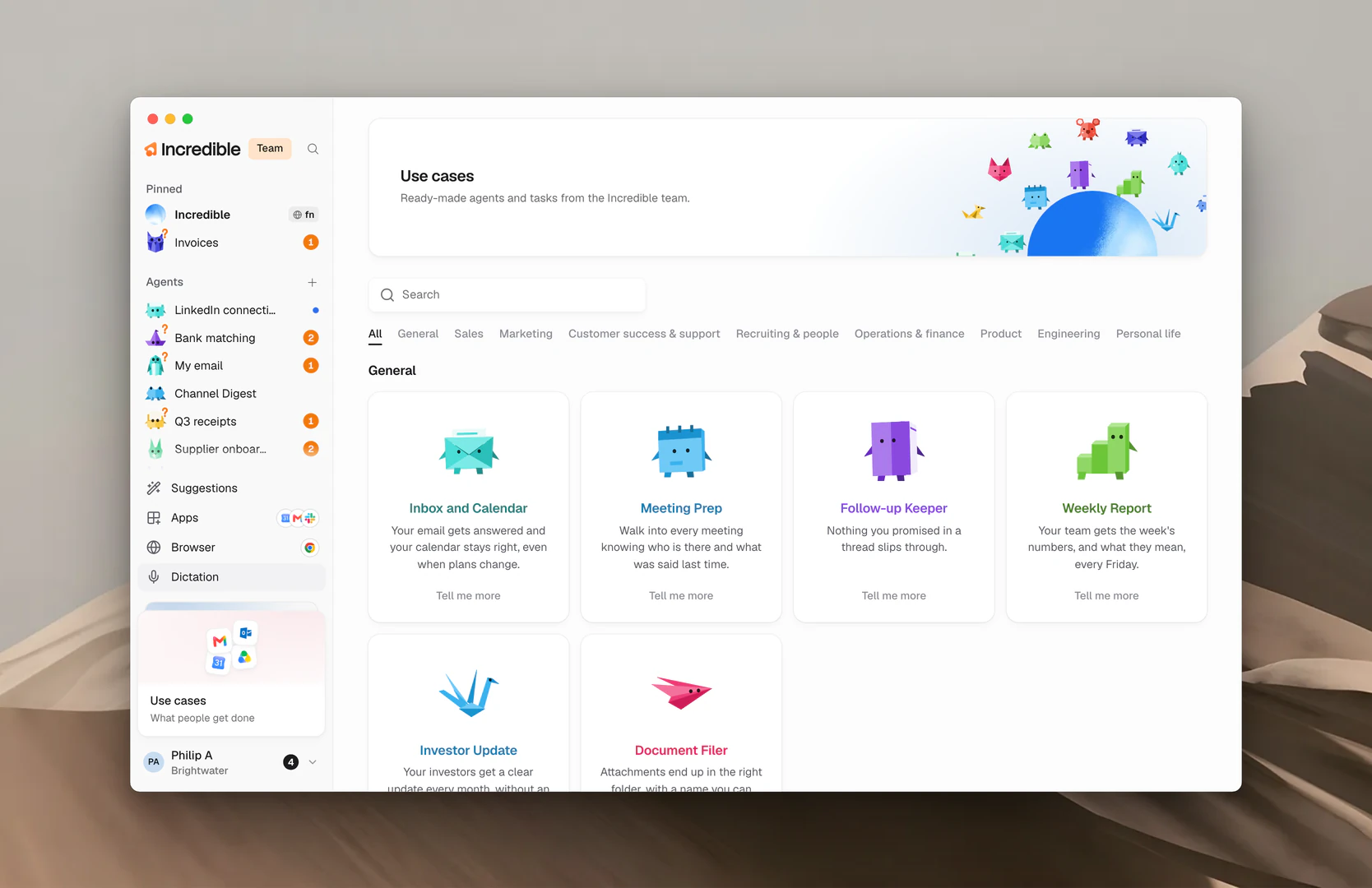
The library is sorted into categories: General, Sales, Marketing, Customer success & support, Recruiting & people, Operations & finance, Product, Engineering and Personal life. Click a category to see only its agents, or use Search to find one by what it does.
The library has two kinds of use cases:
- Agents: helpers that keep working on one job, on their own schedule.
- Tasks you can try: one-off jobs you can hand over in a sentence.
Add a ready-made agent
- Click an agent's card, or Tell me more on it.
- Read what it does. The sheet shows what you get, what it does, when it runs, what it asks you first and when it stays quiet.
- Click Add.
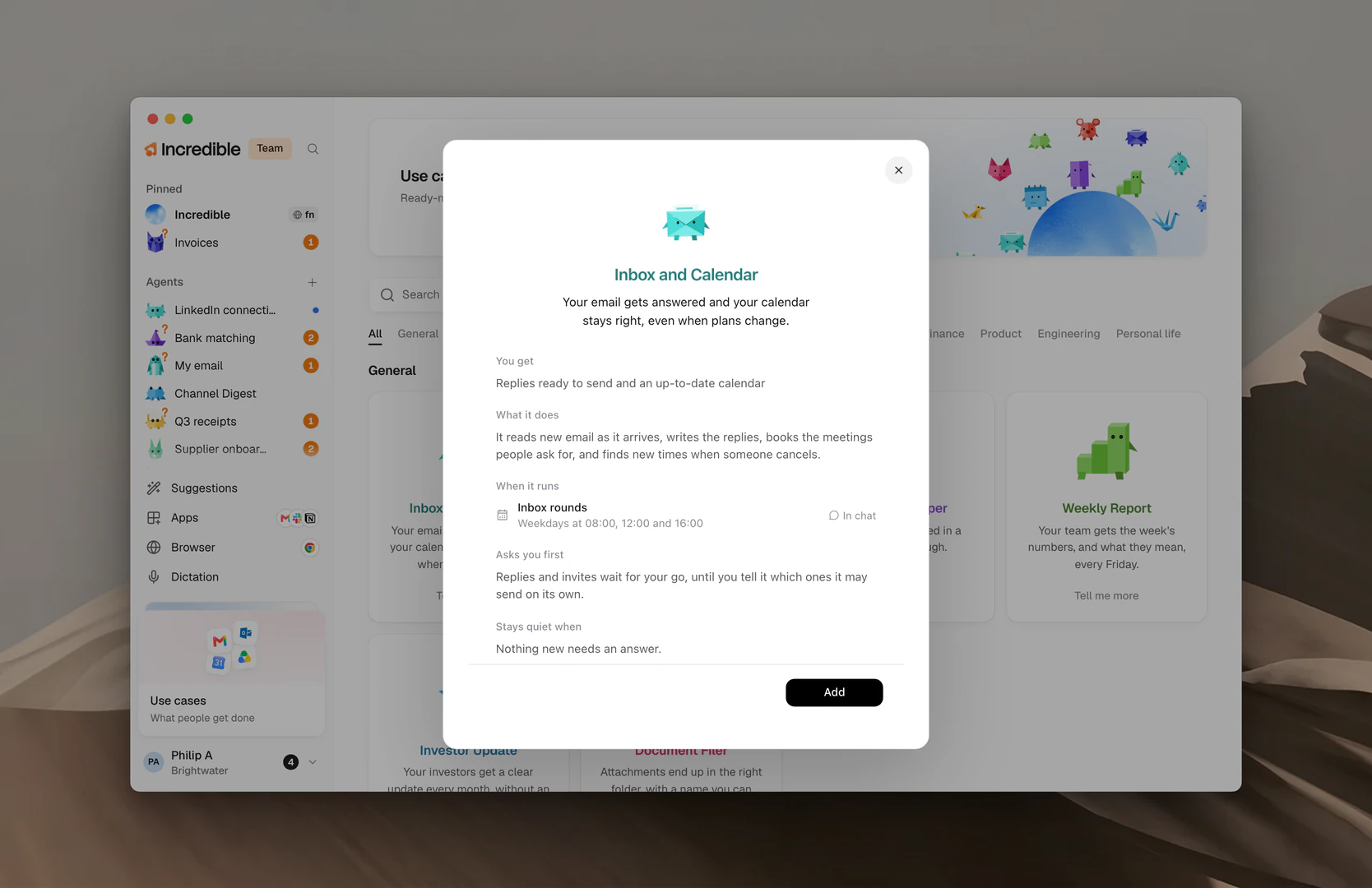
Incredible takes the request to its chat and makes the agent, with the same name and look you saw. The button says Setting up while it works, and Open it once the agent is ready.
The new agent shows in the sidebar under Agents. From there it works like any other agent, and you can change it the same way. See Agents.
To run a task from the list instead, click Try it next to it. Incredible gets the words as if you had typed them.
Suggestions
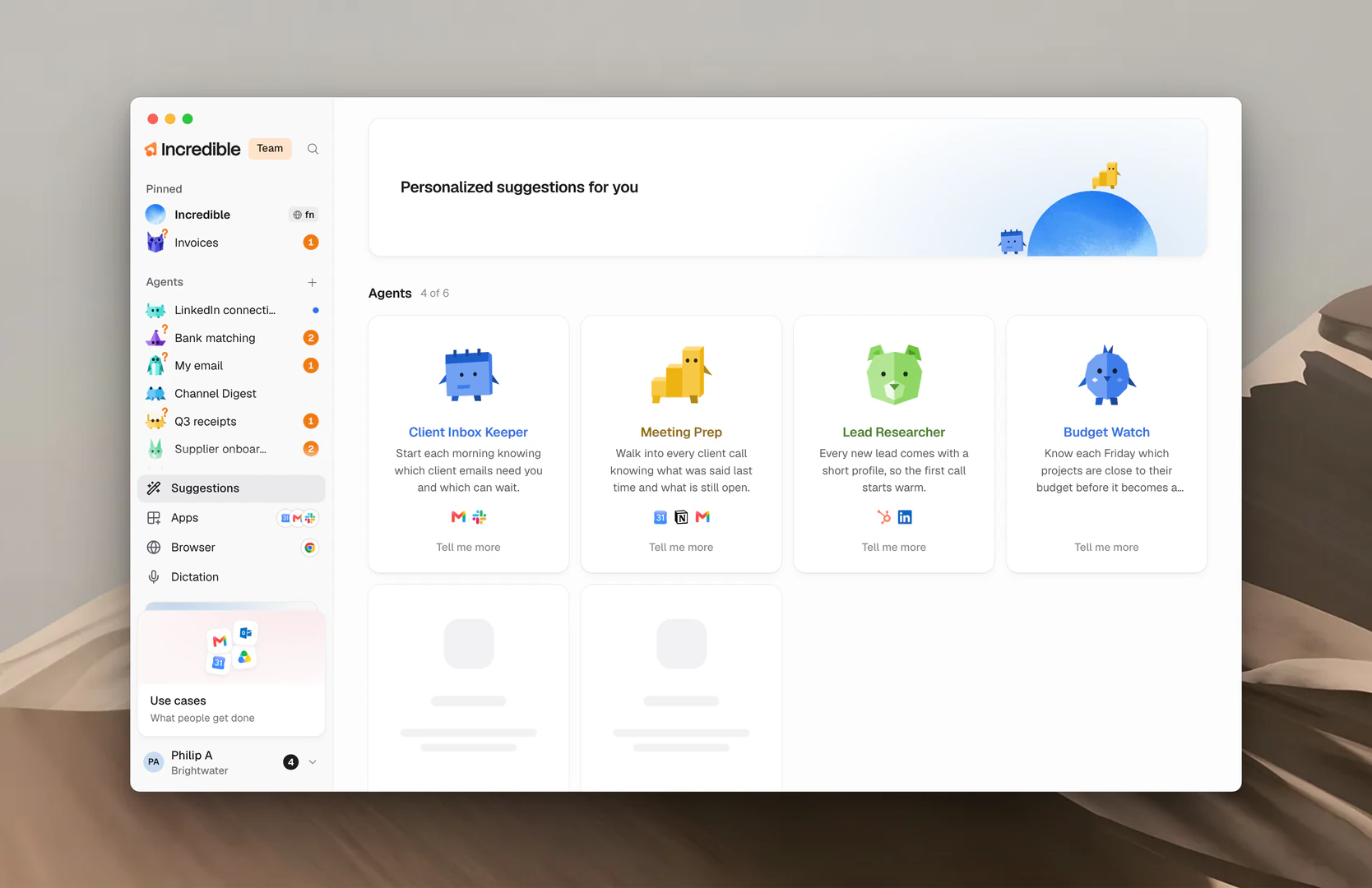
Suggestions are agents and tasks picked for you, based on the apps you have installed and what you do in your web browser. They are off until you turn them on.
To open them, click Suggestions at the bottom of the sidebar.
Turn on suggestions
- Click Suggestions at the bottom of the sidebar.
- Click Turn on.
- Read how your recommendations are handled, then click Turn on again. Click Not now to leave them off.
Incredible starts picking agents and tasks for you right away. It takes about half a minute.
To set up a suggested agent, open it and click Set it up. It works the same way as Add in Use cases. To run a suggested task, click Try it.
When you want new picks, click Refresh at the top of the page.
What Suggestions looks at
To guess which tasks would help you most, Incredible looks at general information on your computer, such as which apps are installed and your web browser activity (sites and page titles).
Only you can see your recommendations, and they are not shared with anyone.
Turn off suggestions
There are two ways:
- On the Suggestions page, open the ⋯ menu at the top and click Turn off personalized recommendations.
- Open Settings → Data and privacy and turn off Personalized recommendations.
Turning it off deletes your recommendations.
Read more about ready-made agents
These guides walk through setting up one ready-made agent, step by step:
- An agent that runs your inbox and calendar
- An agent that prepares you for every meeting
- An agent that researches every new lead
- An agent that runs your social media
- An agent that handles support tickets
- An agent that gets your invoices paid
- An agent that handles your receipts
- An agent that writes your weekly report
Related guides
- Agents: what an agent is, and how to make one yourself
- Give an agent work: talk to an agent once it is set up
- Routines: change when an agent runs
- Apps: connect the apps a ready-made agent works in