 Download for Mac
 Download for Windows
Incredible lives in a small orb in the bottom-left corner of your screen. The orb is how Incredible talks to you while you work in other apps: it listens when you hold the talk key, shows its replies beside it, and tells you when an agent needs you.
At rest there is nothing on your screen. The orb shows itself when your mouse comes near it, when you talk, when Incredible talks, and when something arrives. A moment later it fades away again.
What the orb shows
When you talk. Hold the talk key (fn on a Mac, Ctrl+Space on Windows) and your words show beside the orb as you say them. Incredible's reply shows there too, and Incredible reads it out loud.
When work goes to an agent. Under Incredible's message, the orb shows Started or Sent to and the agent's name. Click it to open that agent.
When something needs you. The orb carries a number for everything that waits on you: a question, a plan or draft to approve, or an app to connect. The number stays until you deal with the items. Looking at them does not clear it.
Hover over the orb
Move your mouse onto the orb to see what is waiting for you and the last things Incredible said. If an agent needs an answer, you can answer it right there. Click an item to open it in the app.
Two buttons sit under the messages:
- Write a message opens a message box in the middle of your screen. Type and send, and the answer arrives beside the orb.
- Open Incredible opens the app. When more than three agents have something for you, it says See all and the number instead.
If nothing is waiting, the orb says "Nothing new. Hold your key and talk, or write a message."
Click, drag or right-click the orb
Click the orb to open Incredible. While Incredible is speaking, a click stops its voice and puts away what is on screen.
Drag the orb to put it anywhere on your screen. It stays where you drop it.
Right-click the orb for its menu:
- Open Incredible opens the app.
- Hide for 30 minutes puts the orb away for half an hour. It comes back sooner if you talk to Incredible.
- Keep on this screen keeps the orb on the screen it is on, even when your mouse moves to another screen. A tick shows when it is on.
Change when and where the orb shows
Open Settings → Incredible. The settings are under On your screen.
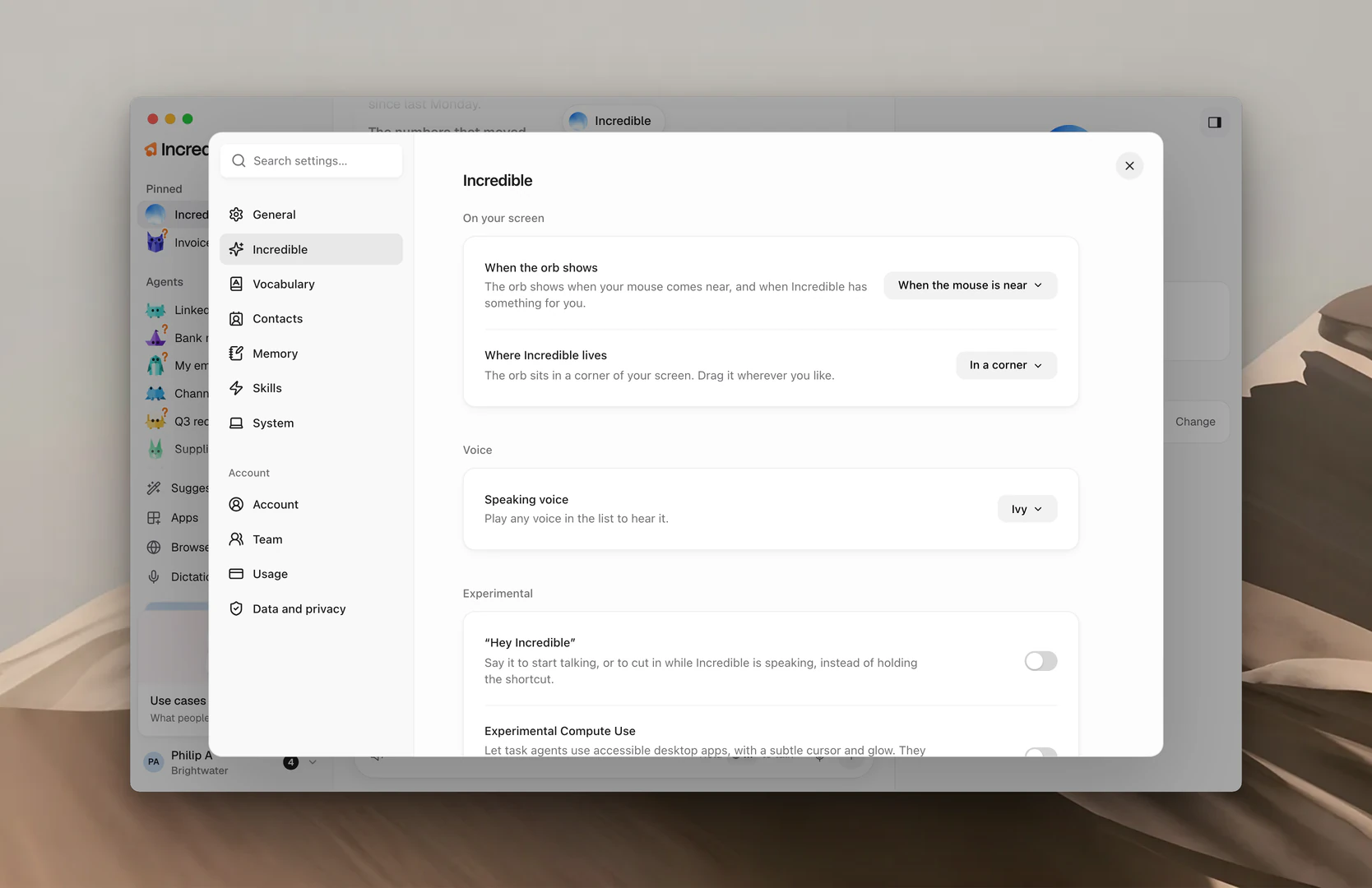
When the orb shows has three choices:
- Always: the orb stays in its corner of your screen.
- When the mouse is near: the orb shows when your mouse comes near, and when Incredible has something for you. This is the default.
- Never: nothing shows on your screen. You can still talk with your key, and replies are in Incredible's chat.
Where Incredible lives has five:
- In a corner: the orb sits in a corner of your screen. Drag it wherever you like.
- Top or Bottom: move your mouse to the top or bottom of the screen, in the middle, to open Incredible.
- Left side or Right side: move your mouse to that edge of the screen, halfway down, to open Incredible.
Reset, next to When the orb shows, puts the orb back in its starting place and sets both choices back to their defaults.
Change Incredible's voice
Open Settings → Incredible and find Speaking voice under Voice. There are 13 voices to choose from, and the default is Ivy.
Open the list and play any voice to hear it before you choose one.
Mute Incredible's voice
When Incredible is muted, it stops speaking out loud. Its replies still show on screen and in its chat.
In Incredible's message box. Click the speaker button beside the attach button. Its tooltip says Mute Incredible's voice. While Incredible is muted, the button says Voice off, and clicking it again turns the voice back on.
In Settings. Open Settings → General and find Volume. Click the speaker button next to the slider to mute or unmute. Drag the slider to change how loud Incredible speaks, and click Hear it to test it.
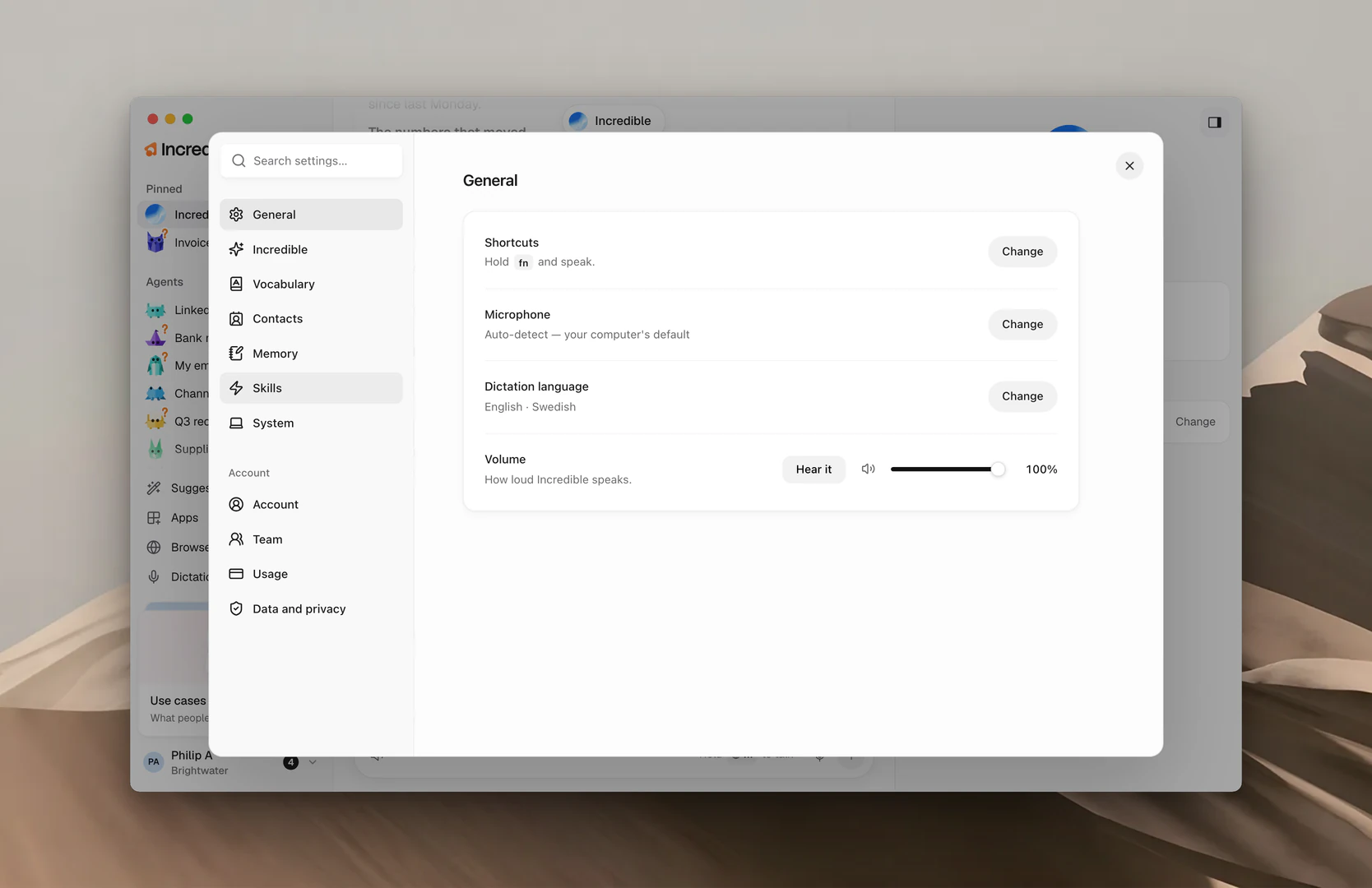
Note: Settings → System has two more sound settings. Mute sound while you talk makes music and video go silent while Incredible listens to you. Mute sound effects turns off the little sounds when you start talking, stop, or get a reply.
Related guides
- Quickstart: set up Incredible and try it for the first time
- Needs you and approvals: answer what an agent asks for
- Shortcuts: the talk key and every other shortcut
- Settings: everything you can change in Incredible