 Download for Mac
 Download for Windows
Sometimes an agent can't go on without you. It may have a question, a draft it wants your OK to send, a plan it wants to check with you, or an app it needs you to connect. Each of these waits in the agent's Needs you list until you answer it.
An agent asks before it sends, changes or deletes anything, so most of what lands here is a quick yes.
Where to find what needs you
- In the sidebar. An orange number on an agent's row is how many things it needs from you. Rest the mouse on the row to read the first one, and click Open to go to it.
- In the agent's chat. The items wait in a tray just above its message box. With more than one, the tray shows "1 of 2" and arrows to move between them.
- In the corner of your screen. The orb in the bottom-left corner shows a number too, and you can answer from there, as explained below.
- Beside Incredible's chat. When the panel beside Incredible's chat shows its tabs, the Needs you tab lists every agent's items, newest first. Click one to open that agent's chat at it.
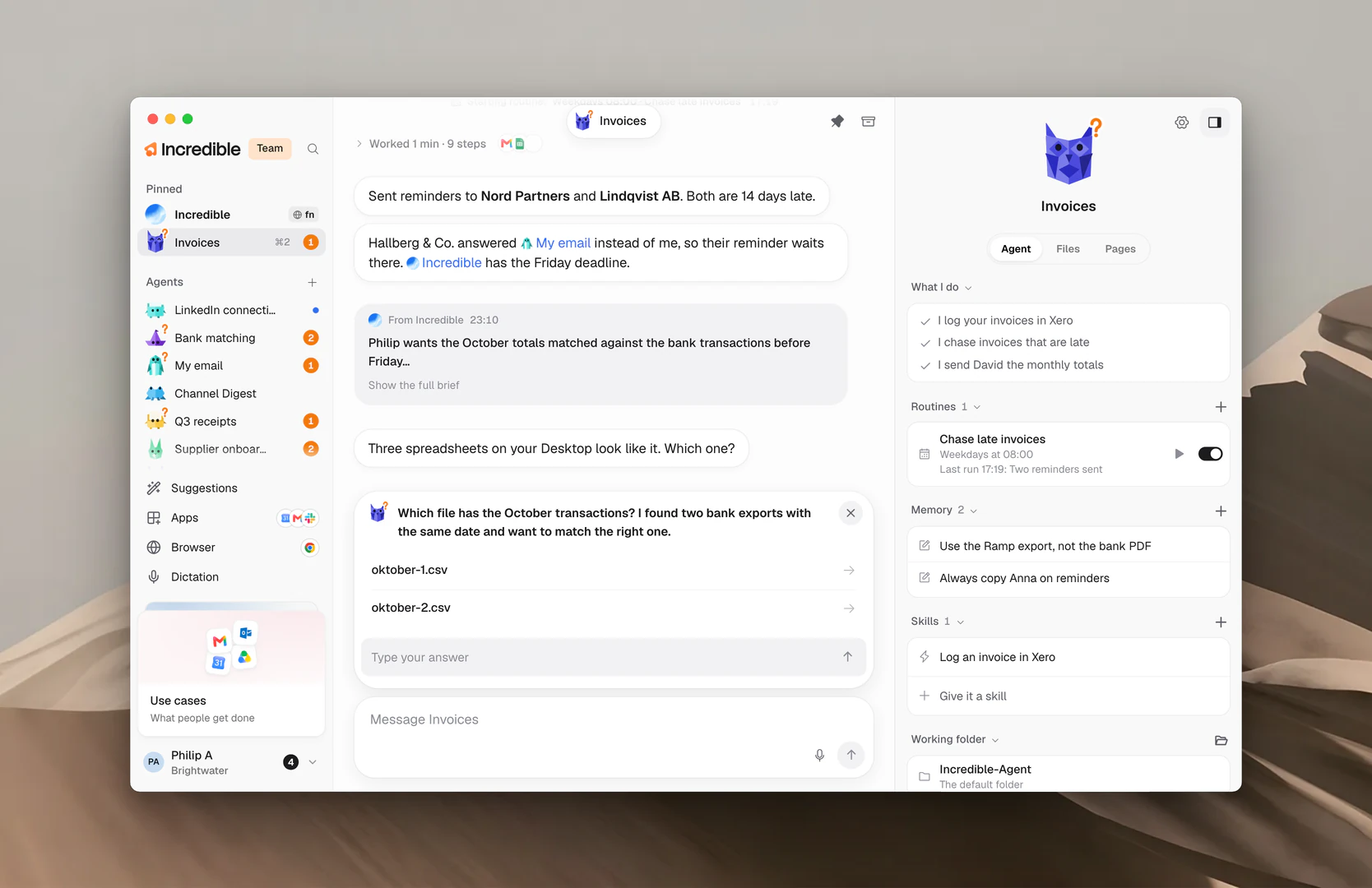
Answer a question
A question comes with buttons for the likely answers. Click one and the agent carries on.
If none of them fits, write your own in Type your answer and press Enter. Your answer shows in the chat as a message from you.
Approve a draft or a plan
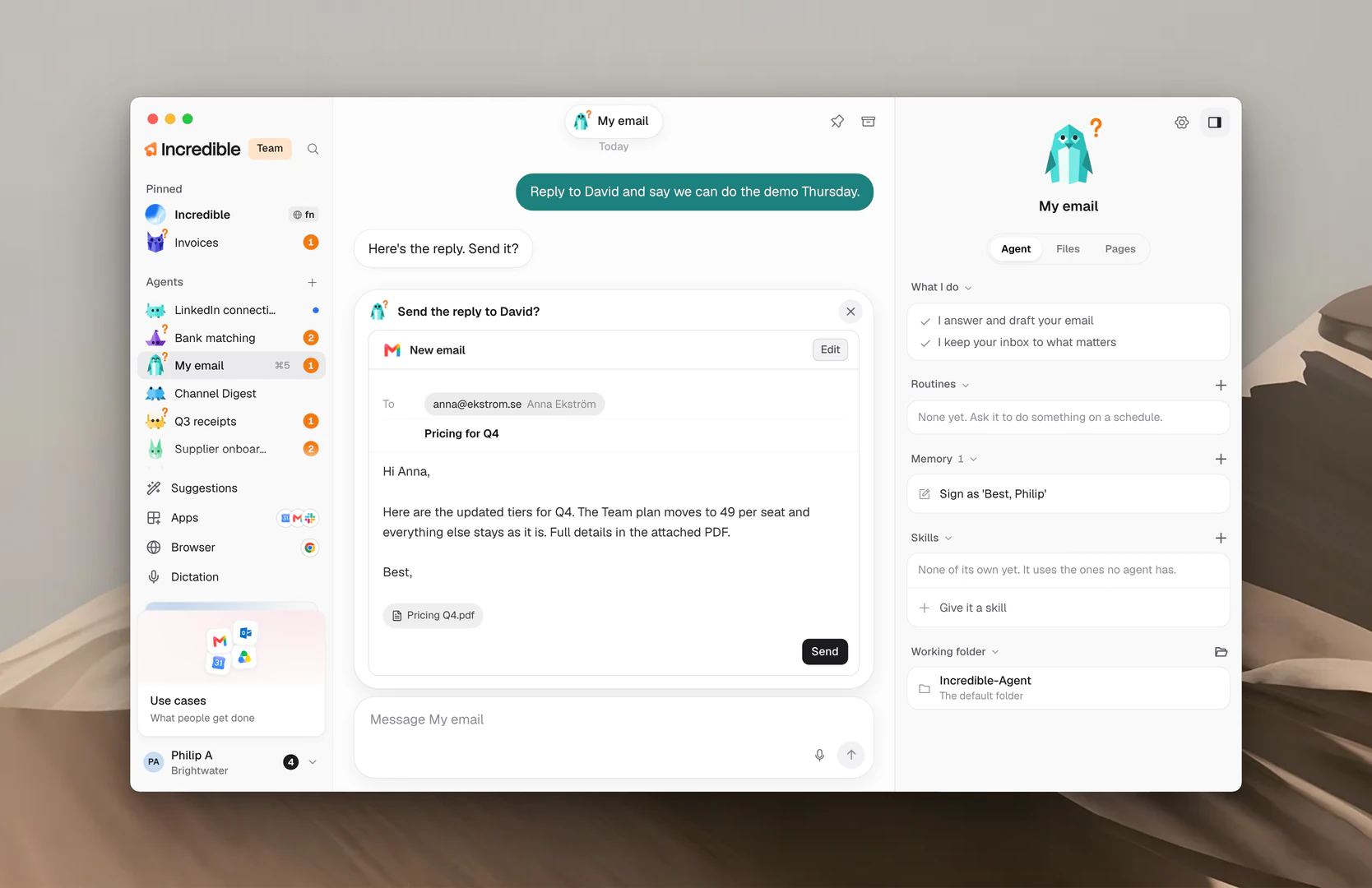
A draft shows exactly what will go out: an email, a message or a calendar event. Its button says what happens when you click it:
- Send for an email or a message.
- Add to calendar for a new event.
- Update event for a change to an event that already exists.
A plan lists the steps the agent wants to take. Click Go ahead to let it start, or the button the agent named for that plan.
To change a draft first, click Edit. Make your changes, then click Save changes, or Revert to go back to what the agent wrote. After you send it, the item reads "Sent".
Connect an app
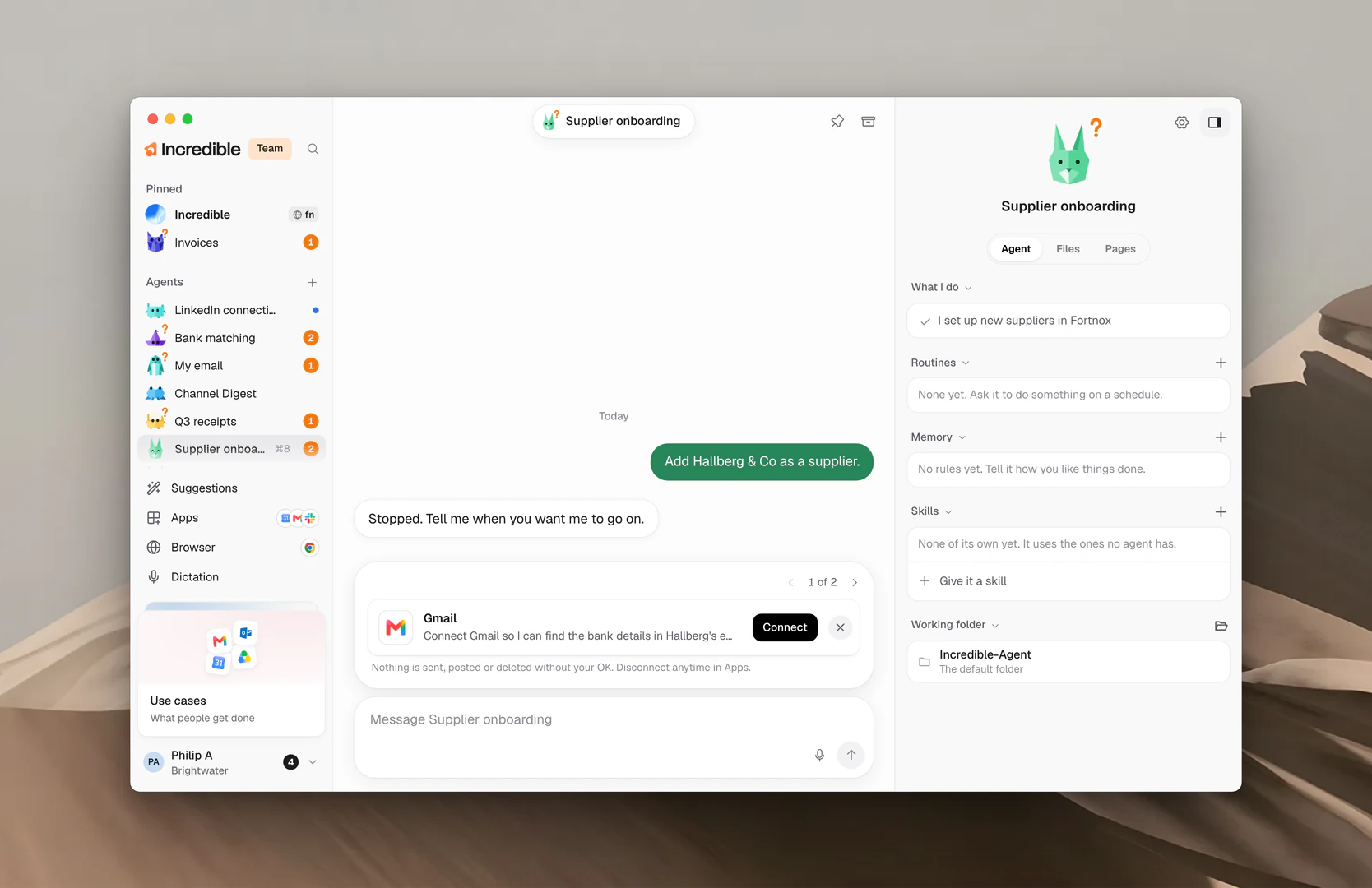
When an agent needs an app you haven't connected yet, it asks for it with the app's name and the reason.
Click Connect. A short sheet explains what connecting means. Click Continue and sign in to the app in your browser. The agent picks up where it stopped.
Under the item, Incredible reminds you: "Nothing is sent, posted or deleted without your OK. Disconnect anytime in Apps." Apps explains connecting in more detail.
Answer from the corner
You can answer most things without opening the app. Move the mouse onto the orb in the bottom-left corner of your screen, and a card shows the first item.
The card names the agent and the kind of item: Question, Plan to approve, Draft to send or App to connect. With more than one, it shows "1 of 3" and arrows.
- A question has the same buttons and Type your answer box as in the app.
- A draft or plan shows exactly as it does in the app, with its button.
- An app to connect has Connect in Incredible, which opens the agent's chat at the item.
The arrow at the top of the card (Open in Incredible) opens the agent's chat. Incredible on your screen explains the orb.
Say no, or not now
Every item has an X at its top right. Click it to close the item. Nothing is sent or done.
The agent hears about it the next time it works, and it may ask again later. If you want it to do something different, tell it in its chat.
"Don't send it yet. Wait until Anna replies."
How often agents ask
In a team, owners and admins choose how often agents stop to ask. Open Settings → Team → Settings and find Review before acting. It applies to everyone on the team.
- Standard: "Asks before anything risky you did not ask for."
- Careful: "Also asks before every message it sends and every change in another app or website, even when you asked for it."
- Strict: "Also asks before everything it checks: messages, changes in connected apps, commands that change something, and deletes outside its workspace. Reading, and ordinary clicks and typing on websites, don't ask."
A stricter level means more items in Needs you. Teams explains team settings.
Related guides
- Give an agent work: ask, follow along and stop
- Routines: work an agent does on its own, and what it asks first
- Apps: connect the apps your agents work in
- Incredible on your screen: the orb in the corner
- Teams: settings for everyone on your team