 Download for Mac
 Download for Windows
You give an agent work by telling it what you want, the way you would brief a colleague. The agent does the work in its own chat, one step at a time, and writes back when it's done or when it needs you.
Ask for work
There are three ways to hand work over.
Talk to Incredible. Hold the talk key (fn on a Mac, Ctrl+Space on Windows) and say what you want. Your voice always goes to Incredible. It does quick things itself and hands ongoing work to an agent: a new one, or the one that already does that work.
Under Incredible's reply you see where the work went, as Started or Sent to with the agent's name. While the agent is busy, the same line shows Working or Needs you. Click it to open the agent.
"Catch me up on the emails I got today."
 Try in Incredible
Type on the agent's page. Open the agent from the sidebar and type in its message box, which says "Message" and the agent's name. What you type there goes straight to that agent.
"Find three hotels near the conference venue and compare their prices."
Use @ in Incredible's chat. Type @ in Incredible's message box and pick an agent. The message goes straight to that agent, and Incredible's chat shows To with its name.
To give an agent a file, drag it onto the chat or click Attach a file in the message box. Files and working folders explains where an agent keeps what it makes.
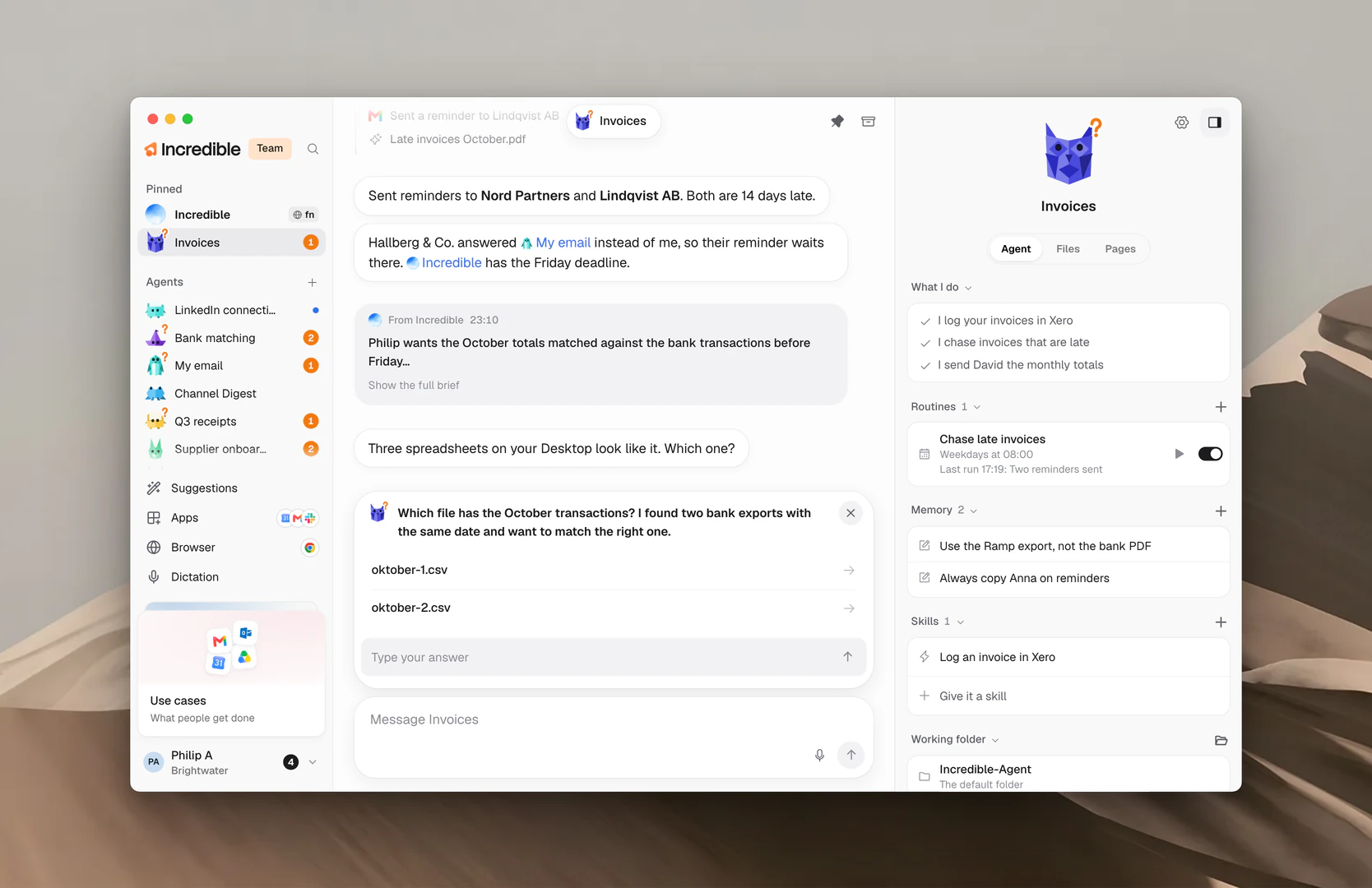
When Incredible passes work to an agent, the agent's chat shows it as From Incredible with a one-line summary. Click Show the full brief to read everything Incredible passed on.
What a run looks like
Each piece of work shows in the agent's chat as one block. While the agent works, the block is open and grows as it goes, with the newest step at the bottom. Each line is something it did, like an app it used or a page it opened, or a short note on what it's about to do.
When the work is done, the block folds into one line, like "Worked 8 min · 58 steps". Click the line to open it and see every step.
A run that ended early says how, in the same line:
- "Stopped after…": you stopped it.
- "Didn't finish…": something went wrong before the end.
- "Cut off when Incredible closed…": the app closed while it worked.
- "Paused partway…": it reached the most steps one run can take.
After the run, the agent writes what it did in its chat.
Follow along while it works
You don't need to stay on the agent's page. A spinning ring on its row in the sidebar means it is working. Rest the mouse on the row to see the step it is on.
When it writes something new, its row gets a dot. When it needs an answer from you, the row shows an orange number. See Needs you and approvals.
See the browser while it works
When an agent works on a website, a small live picture of the page sits in a corner of its chat. It goes away when the agent is done with the browser.
- Click the picture (See it larger) to see it big. It keeps updating. Press Esc to close it.
- Click Open in browser, when it shows, to bring the agent's tab forward in your browser.
- Drag the picture to another corner if it covers something. It stays in that corner for every agent.
Browser explains how agents use your browser.
Stop it
While an agent works, its message box shows a Stop button whenever the box is empty. Click it to stop the work now. You can also right-click the agent in the sidebar and click Stop.
The agent keeps its chat. The run shows "Stopped after…", and you can tell the agent what to do instead.
Follow up
Your next message carries on from where the agent is. It already knows what it did, so ask for a change, a question about the result, or the next step.
"Make the summary shorter and send it to me as a list."
If you write while the agent is still working, your message shows Queued. The agent reads it when the work it is on now ends.
When agents message each other
Agents can ask each other for help. If your Invoices agent needs a date from your Calendar agent, it sends Calendar a message and waits for the reply.
Each of these messages shows in the chat as one quiet line: Sent to, From or Reply from, with the other agent's name. Click the name to open that agent's chat. Messages between an agent and Incredible show the same way.
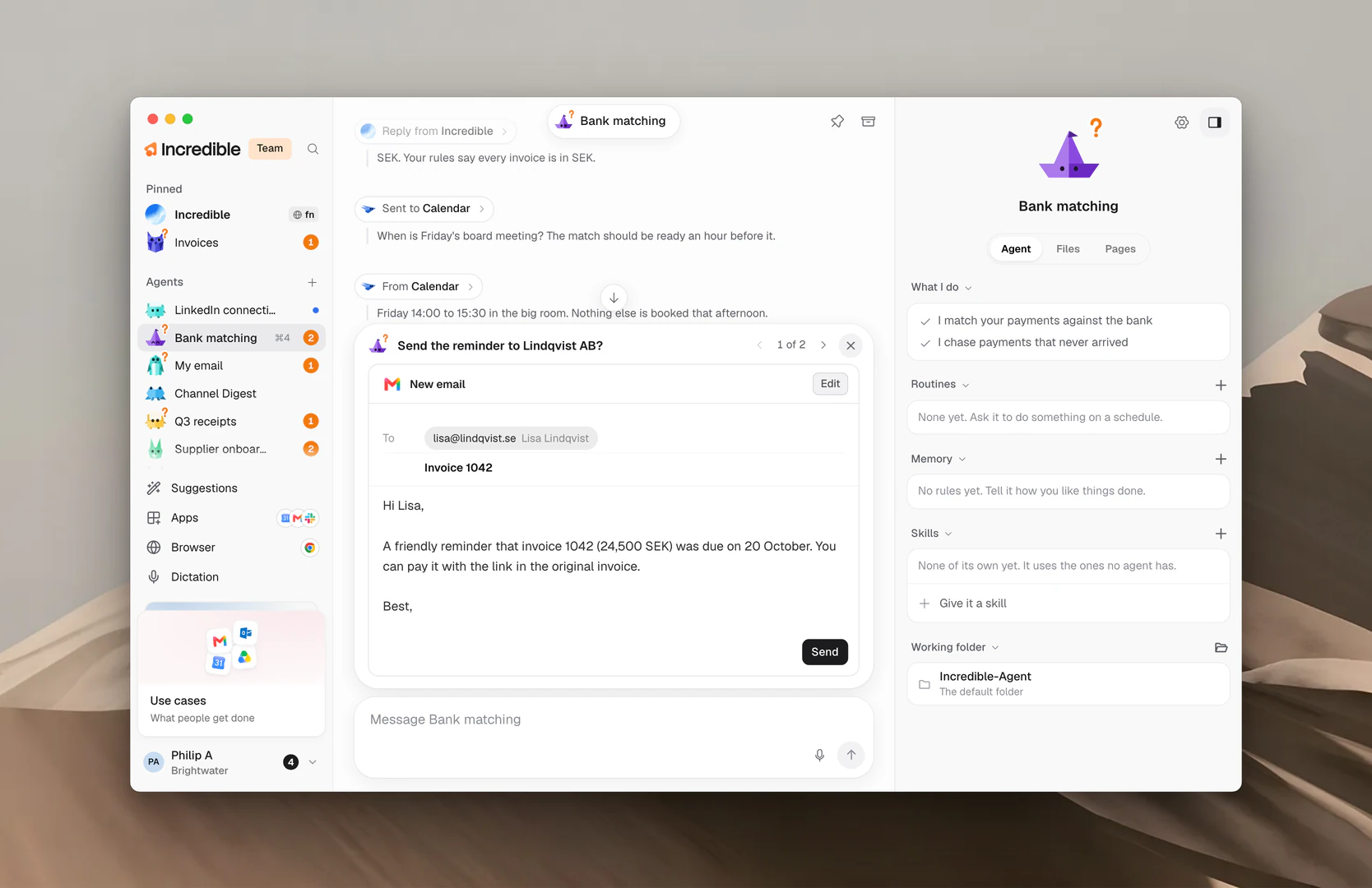
To point an agent at a colleague yourself, type @ in its message box and pick the other agent.
Related guides
- Agents: make agents and find them in the sidebar
- Needs you and approvals: answer what an agent asks you
- Routines: work an agent does on its own, on a schedule
- Browser: how agents work on websites
- Files and working folders: what an agent makes and where it keeps it