 Download for Mac
 Download for Windows
Incredible and your agents work directly with the files on your computer: documents, spreadsheets, presentations, plain text, code and images. They can make new files, change the ones you have, sort folders and convert between formats.
Each agent keeps track of every file it made, changed or got from you, in its Files tab. Each agent can also have a working folder: the folder you would like it to keep its files in.
Give an agent a file
Open the agent, then do one of these:
- Click the paperclip in its message box (Add files) and pick the files.
- Drag files from your desktop or a folder onto its chat. It says Drop to add to and the agent's name.
Then say what to do with them, and send.
Ask for a file
The quickest way to see it work is to ask for a file that does not exist yet. Say what should be in it and where it should go.
"Create an Excel file tracking this quarter's marketing spend, with columns for date, channel, amount and notes, and save it to my Desktop."
 Try in Incredible
You get a real Excel file in the place you named, ready to open. The same works for a Word document, a slide deck, or anything else in the list of formats below.
Editing works the same way. Point at a file you already have and describe the change.
"Add a totals row to the bottom of that spreadsheet and bold the header."
Get a folder sorted
Filing is easy to describe and slow to do by hand.
"Find every loose file on my Desktop from this month, rename them by date and subject, and sort them into the right project folders."
Renaming and moving files changes things you may care about, so look over the result before you rely on it.
Convert between formats
Converting works where the files already are, across a whole folder if you want.
"Convert every PNG in this folder to WEBP and keep the originals."
The same works for a document to PDF, a spreadsheet to CSV, or an image to a different size.
The Files tab
Open an agent and click Files at the top of its panel. It lists every file the agent worked with, newest first, grouped by day. Pinned files come first.
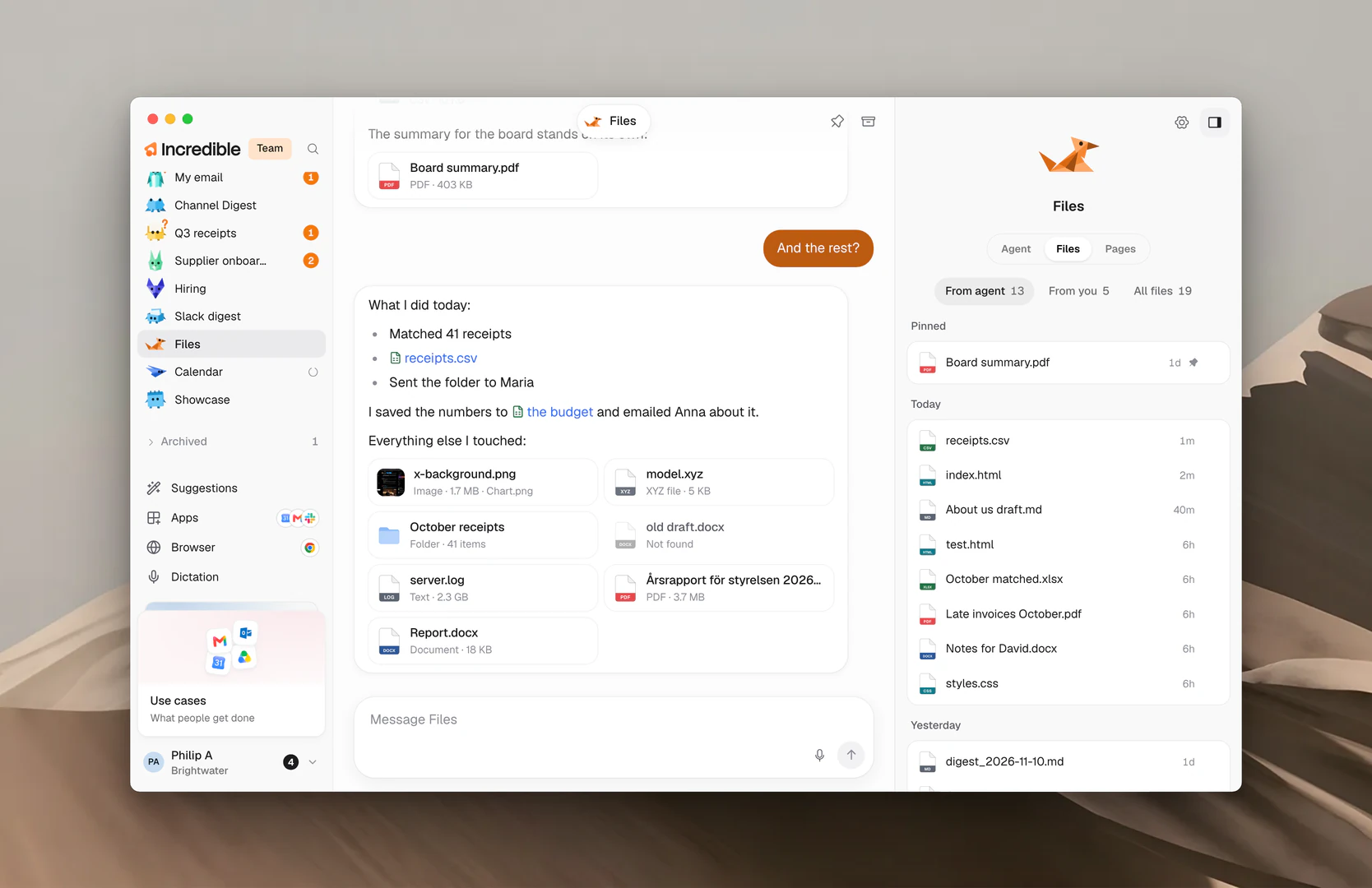
Three filters sit at the top:
- From agent: files the agent showed you in its chat. This is where the tab opens.
- From you: files you sent it with a message.
- All files: everything it worked with, including files it opened or used.
Rest your mouse on a file to see a preview of it. Click ⋯ on a file for more:
- Open opens the file.
- Show in Finder (Show in File Explorer on Windows) opens the folder it is in.
- Copy path copies where the file is.
- Pin keeps the file at the top of the list. Unpin puts it back.
A file that was moved or deleted since shows as Gone.
Choose a working folder
A working folder is where you would like an agent to keep the files it makes, or the project you mean when you talk about your files. It is a preference: the agent can still work with files in other places when the job needs it.
- Open the agent and find Working folder on the Agent tab of its panel.
- Click the folder button next to the heading (Choose a folder), or click the folder shown.
- Pick a folder and confirm.
The row then shows the folder's name, with a line under it such as "Where Invoices keeps its files" for an agent called Invoices. Rest your mouse on it to see the full path.
To go back to the default folder, click the X next to the folder (Use the default folder).
If the folder is moved or deleted, the row says "This folder can't be found right now". Choose it again, or choose another.
Formats it can work with
Documents
- DOCX (Microsoft Word)
Spreadsheets and data
- XLSX (Microsoft Excel)
- CSV
- JSON
- XML
- YAML
- TOML
Presentations
- PPTX (Microsoft PowerPoint)
Text and notes
- TXT
- MD (Markdown)
Code
- PY (Python)
- JS (JavaScript)
- TS (TypeScript)
- HTML
- CSS
- SQL
- Other plain-text and code files
Images
- PNG
- JPG and JPEG
- WEBP
- GIF
- BMP
- TIFF
- SVG
Related guides
- Pages: when an agent puts its work on the web instead
- Give an agent work: talk to an agent and follow its work
- Memory: files you want every agent to know about
- Browser: for pages and tools with no connector