 Download for Mac
 Download for Windows
Customize Incredible
Browser
Browser lets Incredible work in your own web browser, signed in as you. It clicks, types, reads pages and fills in forms the way you would. This works on any website, including ones with no app connection, like a supplier portal, an admin panel or a booking site.
Connect your browser
Here's a step-by-step guide to setting up Incredible in your browser.
Add the extension
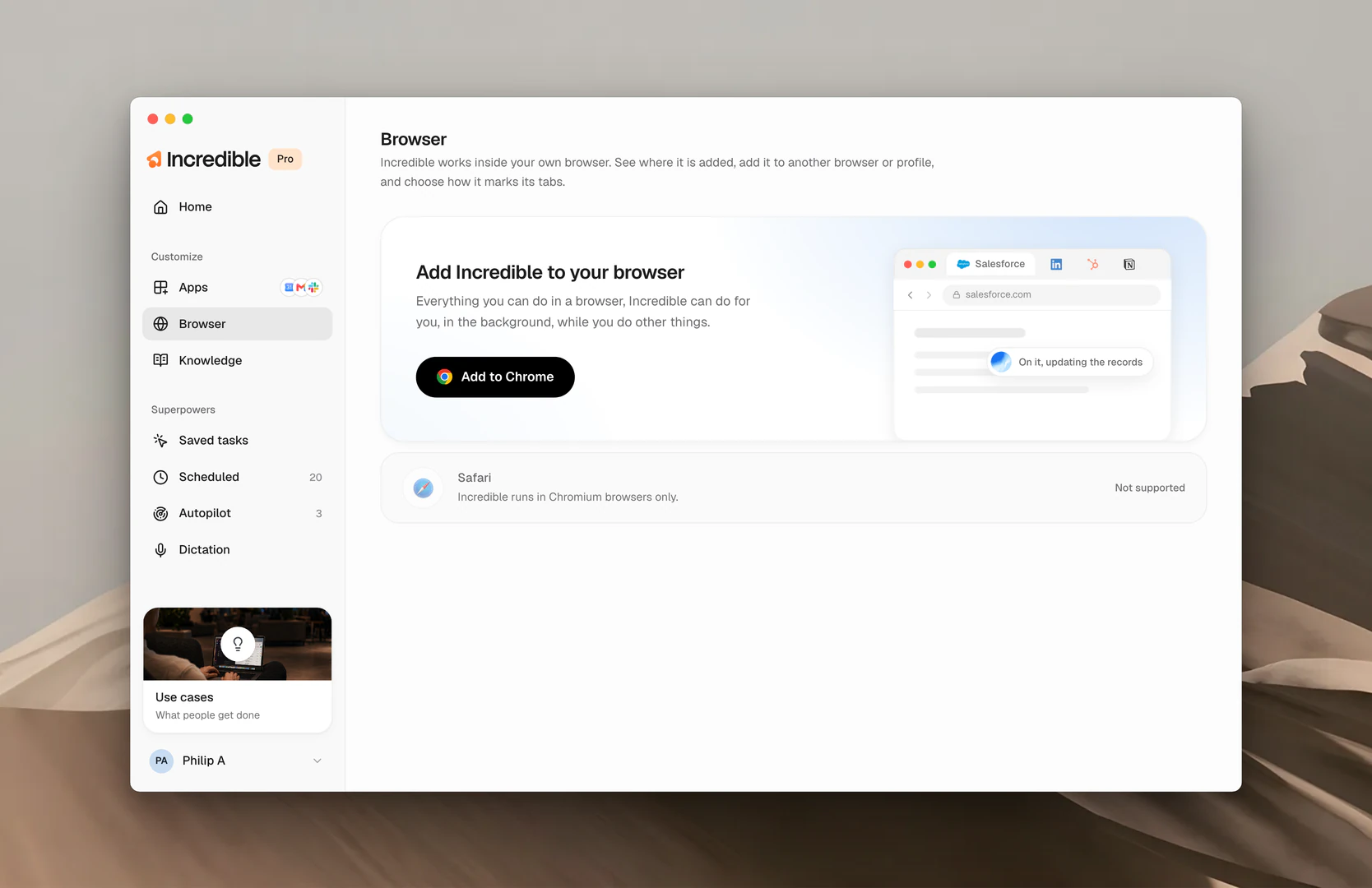
The first time a task needs your browser, Incredible shows a Connect your browser card. Click Connect, add the extension from the store page that opens, and Incredible carries on by itself. You can also do this ahead of time: click Browser in the sidebar, under Customize, then Add to Chrome (or your browser).
To install it straight from a store, get Incredible for Chrome from the Chrome Web Store, or Incredible for Edge from Edge Add-ons.
The first time, Incredible explains what it can see in your browser. Click Accept & continue.
Incredible works in Google Chrome and other Chromium-based browsers, including Microsoft Edge, Brave, Arc, Vivaldi and Opera. Safari and Firefox aren't supported. The Browser page shows each profile as Ready, Turned off or Not added.
Talk to Incredible
Ask for something specific on a website.
"Open Incredible's website, find the pricing page, and give me a short comparison of the plans."
 Try in Incredible
Incredible opens its own tabs, grouped together under Incredible, and does the work while you keep using your browser. Prefer a marker on each tab? On the Browser page, turn on Mark the agent's tabs with an icon instead of grouping them.
Go bigger
The same thing works across many sites at once.
"Open the websites of the 20 biggest AI companies, pull every pricing tier from each one, and put the comparison in a table."
Try in IncredibleWhat the extension can see
The extension talks only to the Incredible app on your own computer, and never sends anything to the internet on its own. When a task needs what's on a page, the desktop app sends only the parts needed to carry out your request to the AI services that power the assistant, which is covered in the privacy policy. Anything you type into a password or other security field is stripped in the browser before it leaves the page. What it reads is saved to your account, and the AI services are not allowed to train on it.
Related guides
- Apps: for the tools that do have a connector
- Working with Files: for the documents on your own machine