 Download for Mac
 Download for Windows
Customize Incredible
Apps
Apps is where you connect the tools you already use, like Gmail, Slack, Google Calendar and Notion, so Incredible can act in them for you.
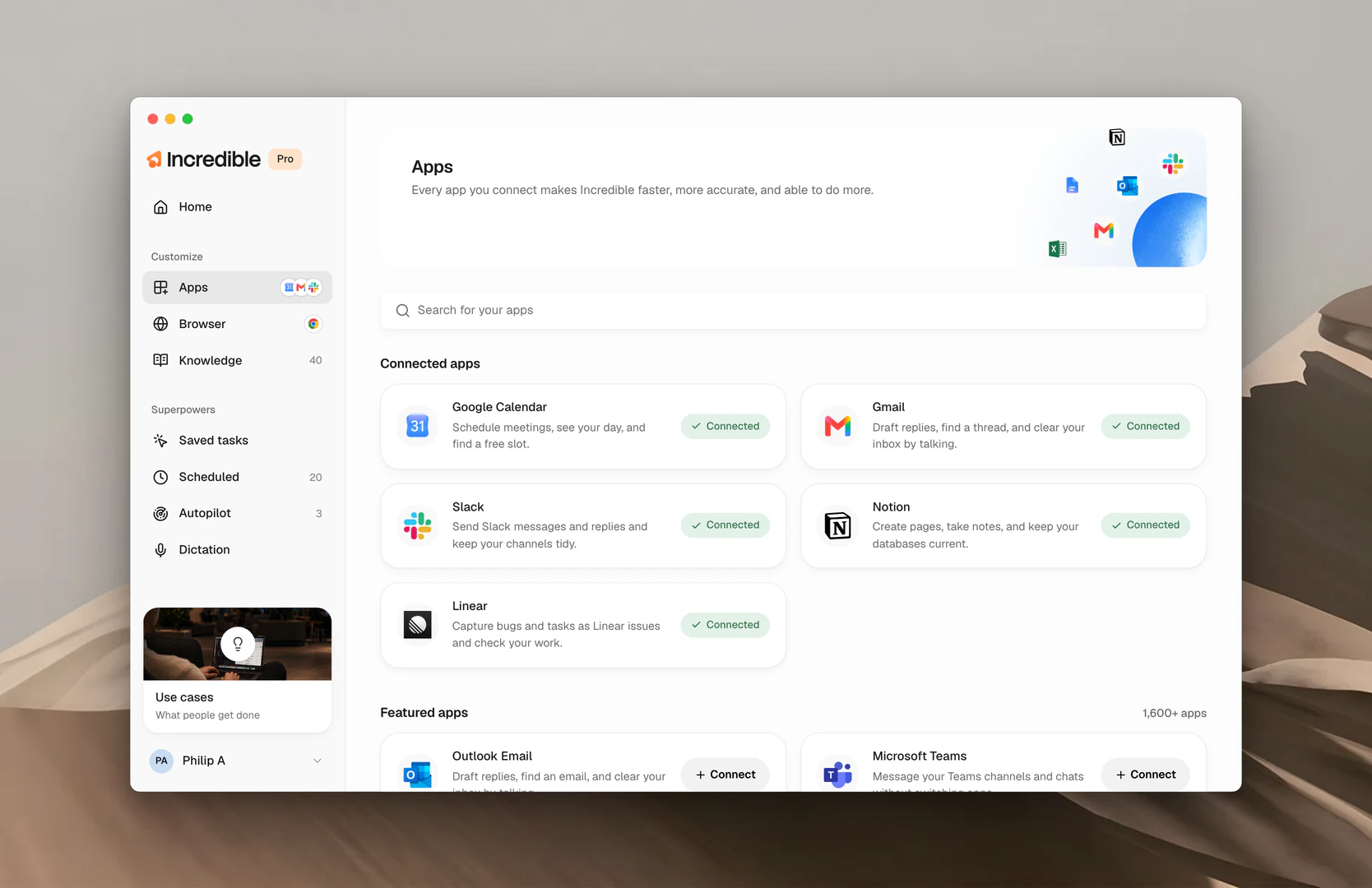
Connect an app
Here's a step-by-step guide to connecting an app in Incredible.
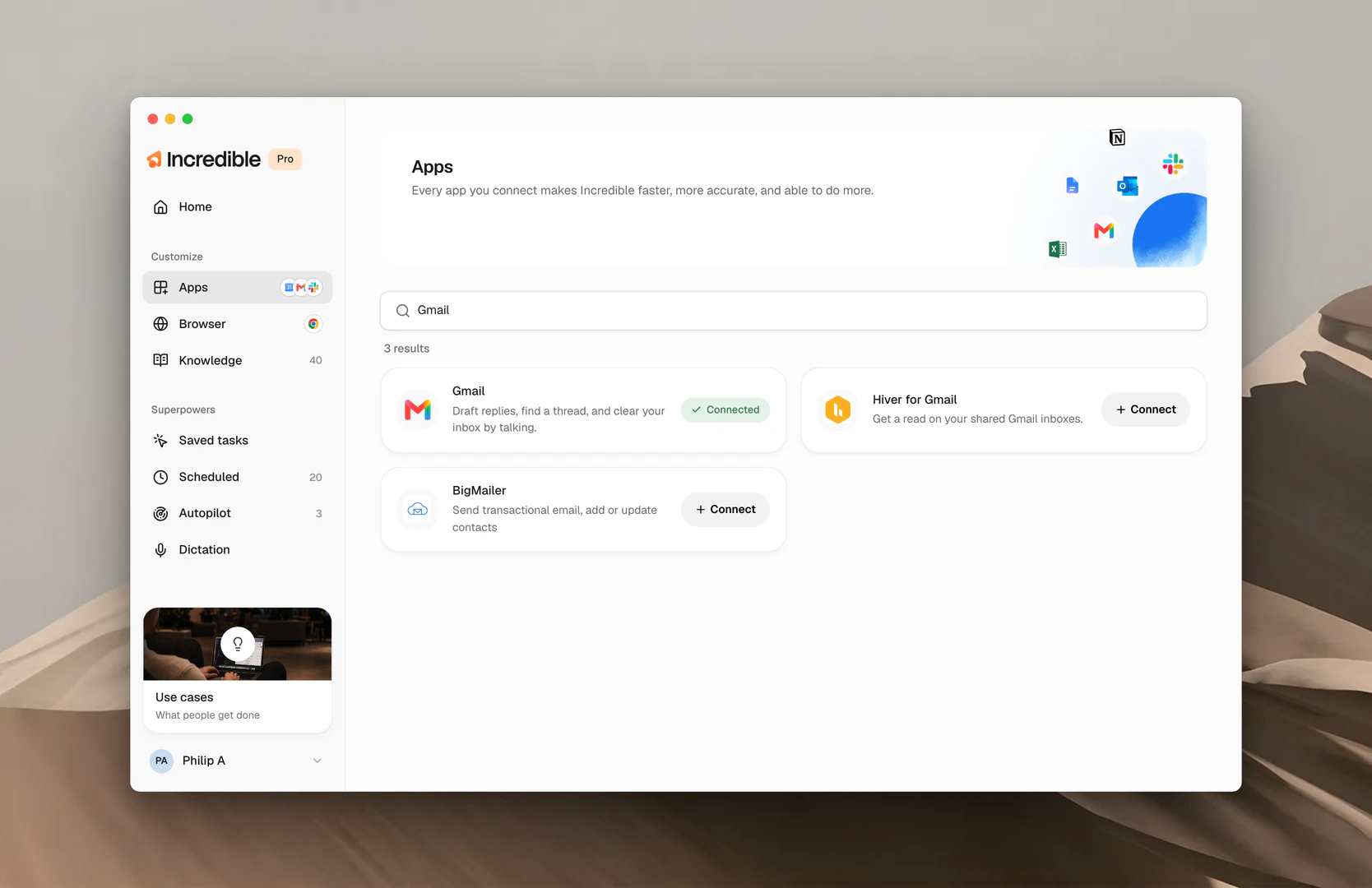
Find the app you need
- Click Apps in the sidebar, under Customize.
- Type the app's name in Search for your apps, or scroll through Featured apps and click Show more.
See what it can do
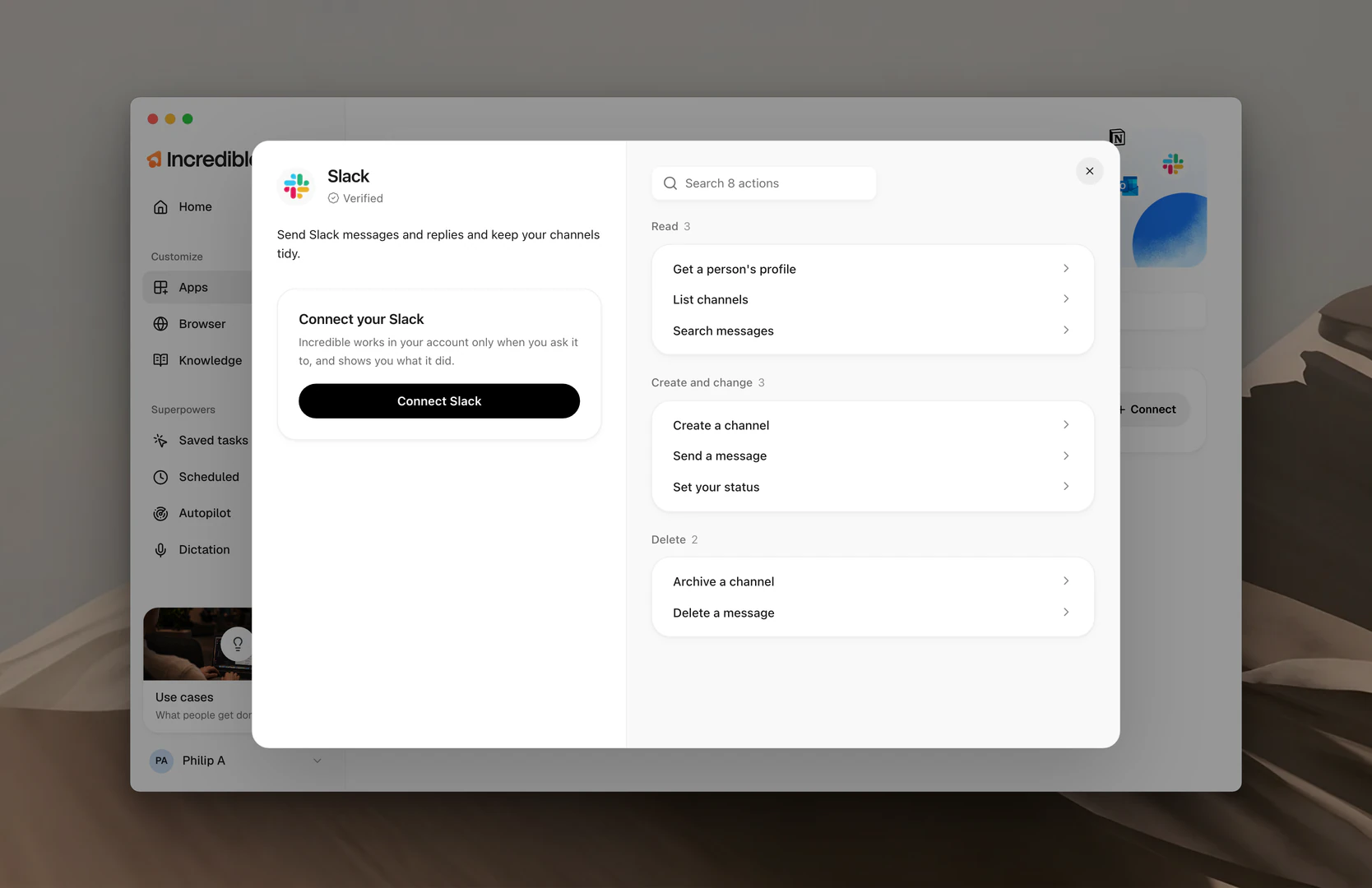
Click on any app and a panel opens. On the left, a few lines on what you can do in that app by talking. On the right, every action you can do with that app, grouped by the kind of thing they do:
- Read. Finding, listing and looking things up. Nothing in the app changes.
- Create and change. Drafting, sending, labelling, moving. Incredible shows you what it will do first.
- Delete. Removing something. Incredible always asks first.
You can also try searching through the actions to check whether the app can do a specific task you need.
Apps marked Beta are newer connections; most things work, but some actions can still be rough.
Sign into your account
Click Connect (in the panel it says Connect Gmail, for example). Incredible opens the sign-in page in your browser. Sign in there, come back, and click Let's go. You do this once per app.
Note: Incredible works with a partner service called Pipedream to power its app connections. That's why the Google sign-in screen asks you to trust Pipedream rather than Incredible.
Talk to Incredible
"Get all my latest unread emails for me."
 Try in Incredible
Incredible works out which app is needed, does the work in it, and shows you anything that will be sent before it goes. If the app you need isn't connected, Incredible shows a Connect card for it. Click Connect, sign in, and it picks up where it left off.
"Connect Trello."
Try in IncredibleNot sure what an app covers? You can always ask Incredible.
"What can I do with Gmail now that it's connected?"
Try in IncredibleManage a connected app
Open the app's panel and click Disconnect to remove it. Your account isn't touched, and you can reconnect anytime. For Gmail and Outlook, the panel's Settings is also where your Email signature lives.
Have your own MCP server? Click Add it here at the bottom of Apps, or read how to add an MCP server.
Related guides
- MCP servers: add a tool that isn't in the catalog
- Browser: for pages and tools with no connector
- Contacts: the people Incredible learns from your connected apps
- Working with Files: for the documents on your own machine