 Download for Mac
 Download for Windows
Incredible is the assistant you talk to. An agent is a helper for one area of your work, like invoices, hiring or your inbox. Each agent has its own name, its own face and its own chat that keeps going, so it remembers what you have worked on together.
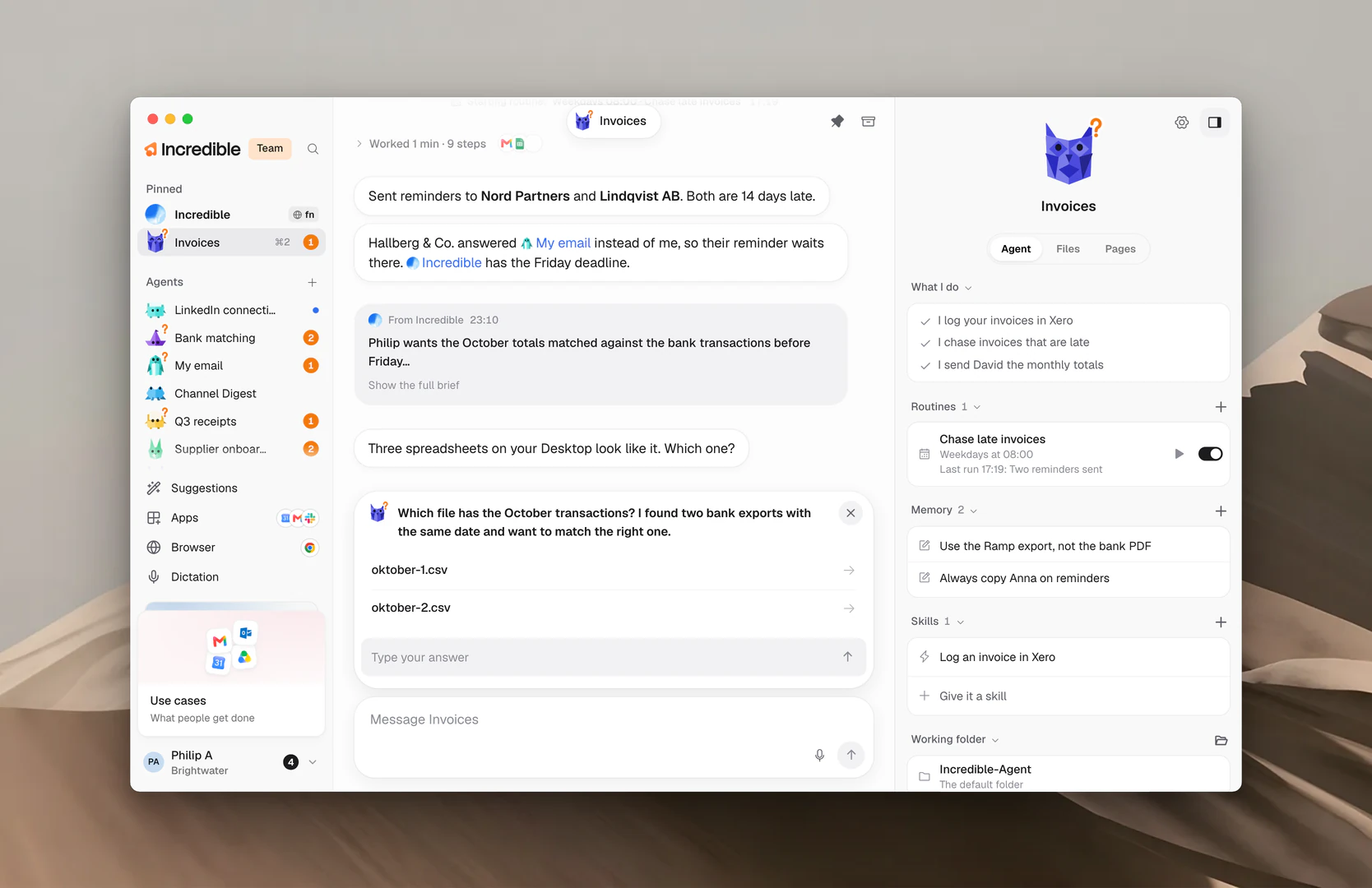
Incredible and your agents
Incredible is always first in the sidebar. It is one chat that never ends, and its panel sums up its job: "I handle what you ask for right away", "I hand ongoing work to an agent" and "I know what every agent is doing".
Ask Incredible something quick and it does it. Give it work that goes on, like keeping track of invoices, and it starts an agent for that work or passes it to the agent that already does it.
Under its reply, Incredible shows where the work went: Started or Sent to, then the agent's name. Click it to open that agent.
Every agent has:
- a name, a character and a colour
- What I do: a few lines about its work, written by Incredible and the agent as it goes
- its own chat, where you give it work and see what it did
- its own routines, rules, skills and working folder, in its panel
The panel on the right of an agent's page has three tabs: Agent, Files and Pages. Click Hide panel at the top right to fold it away, and Show panel to bring it back.
Make an agent
You can make an agent yourself, ask Incredible for one, or start from one that's ready-made.
Click + next to Agents. In the sidebar, click + beside the Agents heading. The New agent window opens with a character and colour already picked. Type a name, change the look if you want, and then:
- Create makes the agent right away and opens its chat. It introduces itself and asks the one thing it needs to get going.
- Create with Incredible asks Incredible, in its chat, to help you set the agent up. It uses the name you typed, if any.
Ask Incredible. Hold the talk key (fn on a Mac, Ctrl+Space on Windows) and say what you want the agent to do, or type it in Incredible's chat.
"Set up an agent that helps me write blog posts."
 Try in Incredible
Start from a suggestion. Click Suggestions at the foot of the sidebar. Incredible suggests agents for the work you do; click Set it up on one you like.
Add a ready-made agent. Open your profile menu and click Use cases. These are agents the Incredible team made. Open one and click Add. Ready-made agents explains more.
Add an agent someone shared with you. In the New agent window, click Add from a link and paste the link. Share an agent explains how.
Change its name and look
At the top of an agent's panel, click its character to change its look, or click its name to rename it. Both open the agent's Settings on Name and look.
Pick a Character and a Colour, change the Name, and click Save. Back to its own look puts back the look it started with.
You can also right-click the agent in the sidebar and click Rename. Agent settings and models covers the rest of its Settings.
Find your way in the sidebar
The sidebar has three sections:
- Pinned: Incredible, then any agents you pinned.
- Agents: everyone else, with the most recently active at the top.
- Archived: agents you put away. Click it to fold it open.
Each row shows at most one mark at its right end:
- An orange number: how many things the agent needs from you. See Needs you and approvals.
- A dot: the agent wrote something you haven't read yet.
- A spinning ring: the agent is working right now.
Rest the mouse on a row to see a card about that agent. It says what the agent is doing right now, what it is waiting for, or what it does and when its next routine runs.
You can also move around with the keyboard:
- ⌘1 (Ctrl+1 on Windows) opens Incredible.
- ⌘2 to ⌘9 (Ctrl+2 to Ctrl+9) open your agents in sidebar order.
- Esc on an agent's page takes you back to Incredible.
- Shift+F10 on a row opens its menu.
Right-click an agent
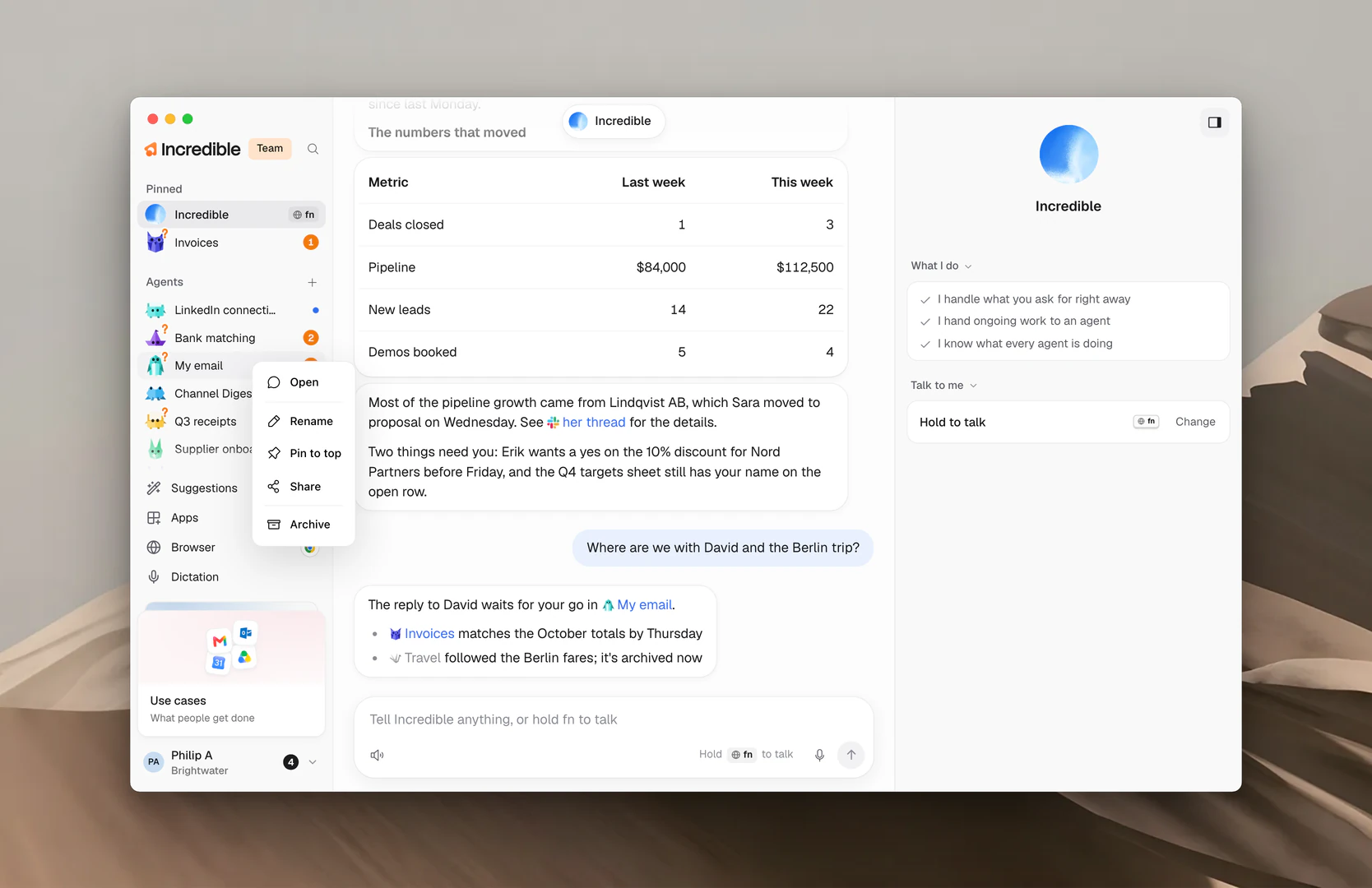
Right-click an agent in the sidebar to see what you can do with it:
- Open opens its chat.
- Mark as read or Mark as unread.
- Rename opens its name and look.
- Pin to top or Unpin.
- Share makes a link others can use to add a copy.
- Stop stops the work it is doing now. It shows only while the agent works.
- Archive, or Bring back for an archived agent.
Pin and reorder
Drag a row to put it where you want it. With the keyboard, move to the row and press Alt+↑ or Alt+↓. Drag a row above the Agents heading to pin it, and below the heading to unpin it.
You can also pin an agent from its own page: click Pin to the top of the sidebar, the pin at the top of the page.
Mention an agent with @
In Incredible's message box, type @ and pick an agent from the list. Your message goes straight to that agent, and Incredible's chat shows To with the agent's name.
"@Invoices which invoices are still unpaid?"
In an agent's own message box, @ another agent to tell it which colleague to talk to. Give an agent work explains how agents message each other.
Archive an agent and bring it back
Archive an agent you don't need right now. Right-click it and click Archive, click Archive at the top of its page, or drag it onto Archived. Incredible asks first and tells you what will happen: its routines pause and its Needs you list clears.
Agents also archive on their own after five weeks with nothing happening, unless they are pinned or have routines.
To bring one back, right-click it under Archived and click Bring back, or open it and click Bring back at the top. Sending it a message brings it back too. Its routines switch back on.
Note: There is no way to delete an agent. Archive it instead, and it stays out of your way until you need it again.
Related guides
- Give an agent work: ask, follow along and stop
- Needs you and approvals: answer an agent's questions and drafts
- Routines: work an agent does on its own, on a schedule
- Agent settings and models: name, look, model and usage
- Share an agent: give someone a copy with a link
- Ready-made agents: agents the Incredible team made for you