 Download for Mac
 Download for Windows
Every agent has its own Settings. This is where you change what the agent is called and how it looks, choose how much model power its work gets, and see how much of your usage it takes.
Open an agent's Settings
Open the agent and click the gear (Settings) at the top right of its panel. You can also click the agent's character or name at the top of the panel, which opens Settings on Name and look.
The pages are down the left side: Name and look, Model, Usage and Share.
Name and look
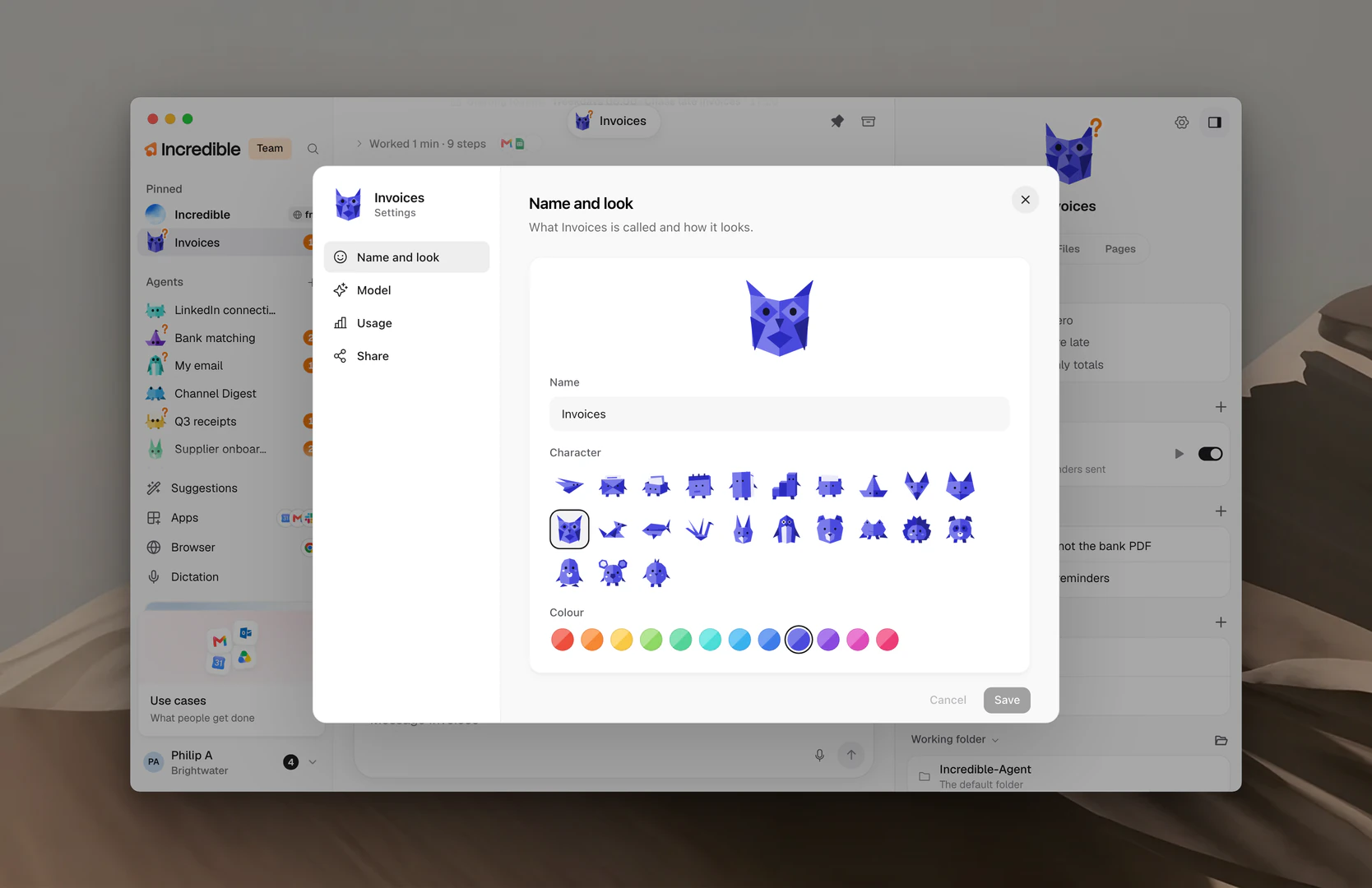
This page sets what the agent is called and how it looks. The character at the top shows each change as you make it.
- Type a new Name.
- Pick a Character and a Colour.
- Click Save.
Cancel puts back what was saved. Back to its own look returns the agent to the look it started with.
Model
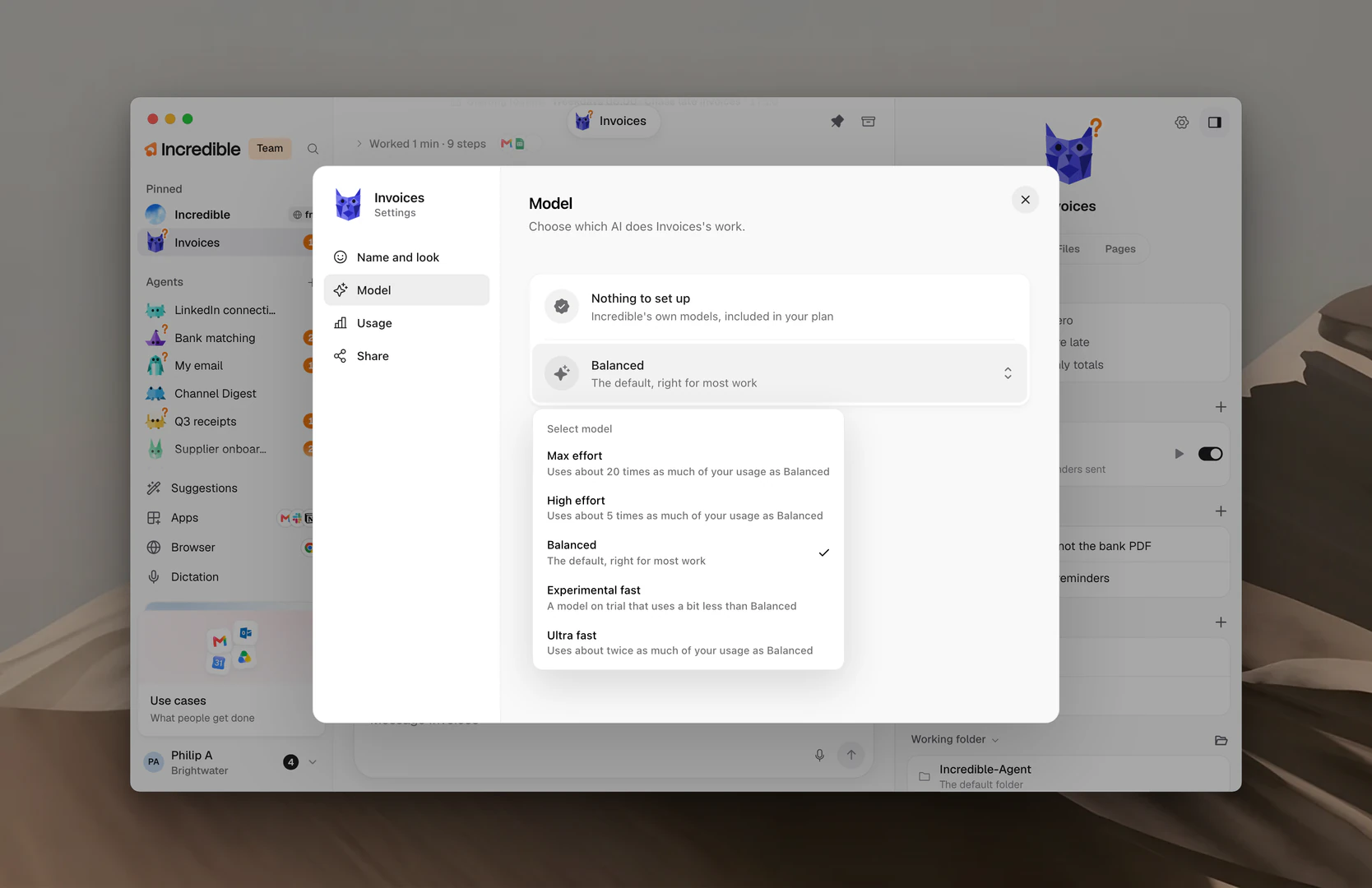
This page sets which AI does the agent's work. The first row reads "Nothing to set up" and "Incredible's own models, included in your plan".
Under it is the agent's level, which sets how much model power its work gets. Click the level to open the list, then click the one you want:
- Max effort: "Uses about 20 times as much of your usage as Balanced".
- High effort: "Uses about 5 times as much of your usage as Balanced".
- Balanced: "The default, right for most work".
- Experimental fast: "A model on trial that uses a bit less than Balanced".
- Ultra fast: "Uses about twice as much of your usage as Balanced".
The change applies to the agent's next piece of work. Work it is doing right now carries on as it started.
Note: Most agents do well on Balanced. Try High effort or Max effort for hard work where quality matters most, and keep an eye on Usage when you do.
Usage
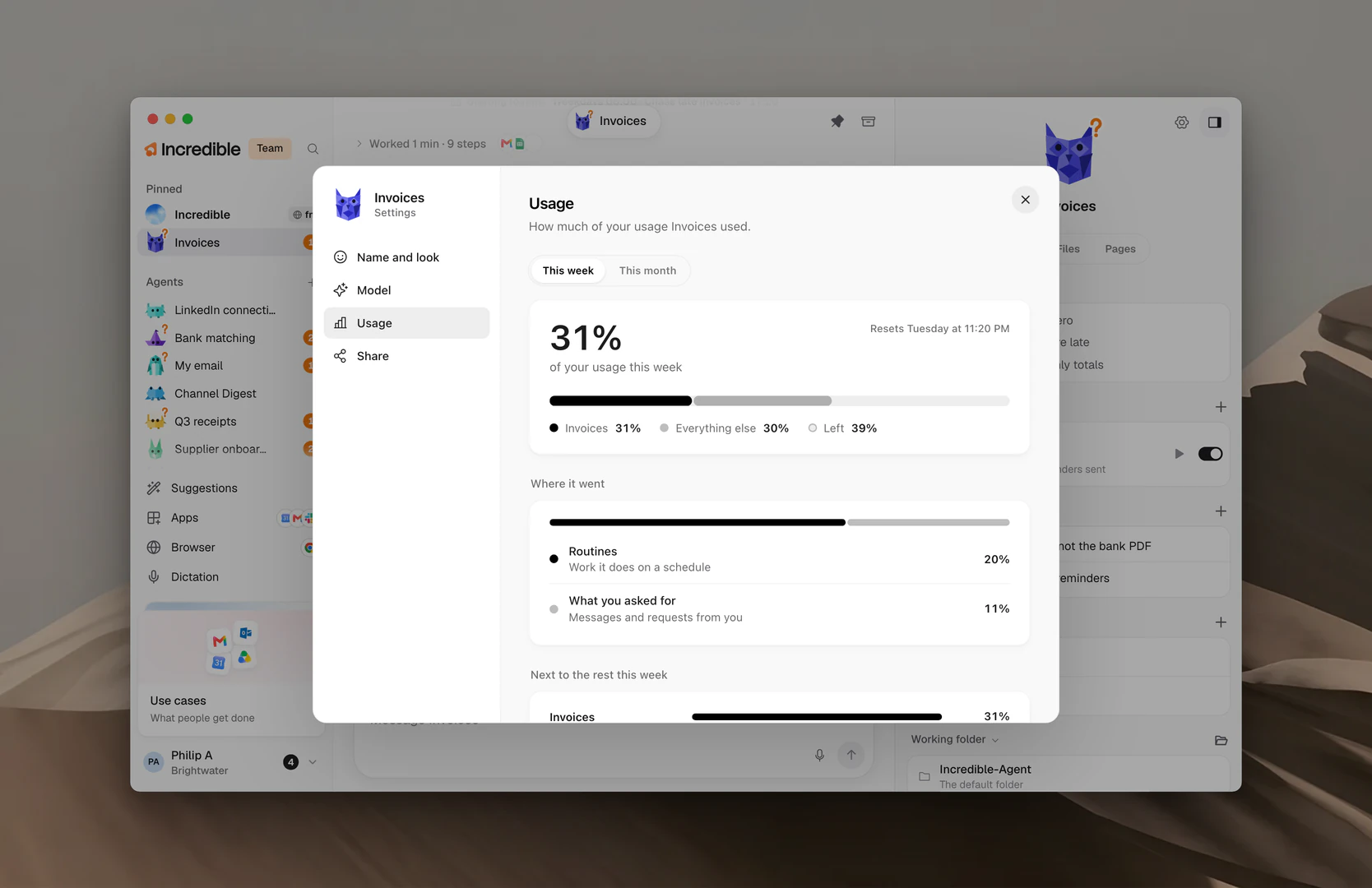
This page shows how much of your usage the agent used. Switch between This week and This month at the top.
- The big number is the agent's share of your usage. The bar under it shows the agent, Everything else and what is Left.
- Where it went splits that share between Routines ("Work it does on a schedule") and What you asked for ("Messages and requests from you").
- Next to the rest this week (or this month) compares the agent with your other agents.
Usage is shown as shares, never as amounts. Each agent's share is counted on this computer.
Billing and usage explains your plan's usage as a whole.
Share
Share makes a link that lets other people add a copy of this agent. Share an agent explains what goes with it and what never does.
Working folder
An agent's working folder lives in its panel, under Working folder, outside Settings. Files and working folders explains it.
Related guides
- Agents: make agents and find them in the sidebar
- Share an agent: give someone a copy with a link
- Files and working folders: where an agent keeps what it makes
- Billing and usage: your plan and how usage works