 Download for Mac
 Download for Windows
A page is a web page an agent makes from its work: a report, a dashboard, a brief, a comparison, a tracker or a form. The agent puts it online with its own link on incredible.one, and can keep it up to date from its chat or from a routine.
Unless you say otherwise, only you can see a page. You choose if anyone else can.
Ask for a page
Ask an agent, or Incredible, to put something on a page.
"Make a page that compares the three best-selling electric cars this year, with prices, range and links."
 Try in Incredible
"Make a sign-up page for our team lunch on Friday, with a form for name and food choice."
A page can have a form. When someone fills it in, the answers go to the agent that made the page, as a message in its chat.
To keep a page current, ask the agent to update it on a schedule. See Routines.
Where pages show
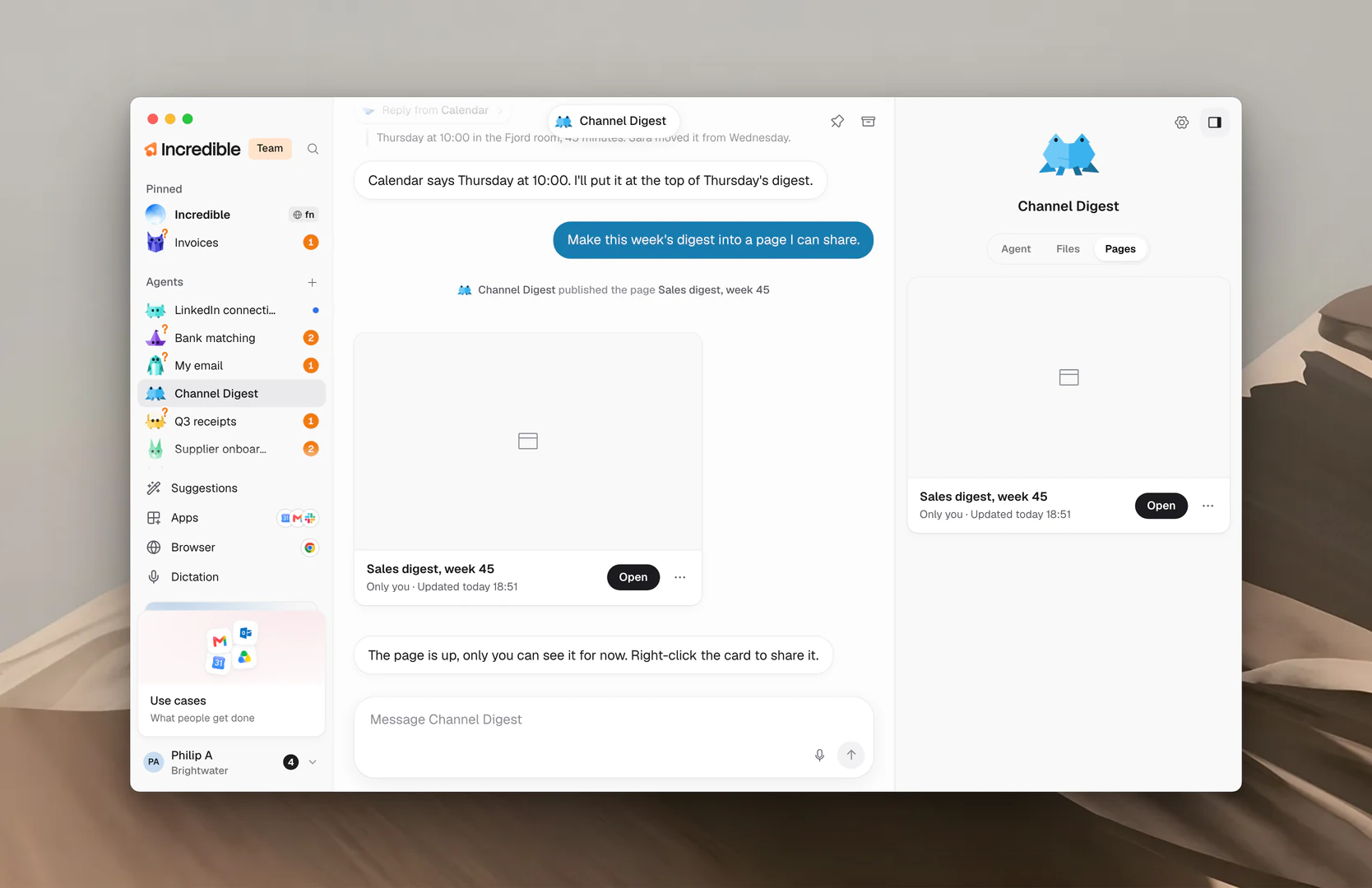
In the chat. When an agent publishes a page, a card for it shows in the chat: a picture of the page, its title, who can see it and when it last changed. Click Open to open it in your browser.
In the Pages tab. Open the agent and click Pages at the top of its panel. It lists every page that agent put online, newest first.
An agent with no pages says "Pages this agent puts online show up here."
The page menu
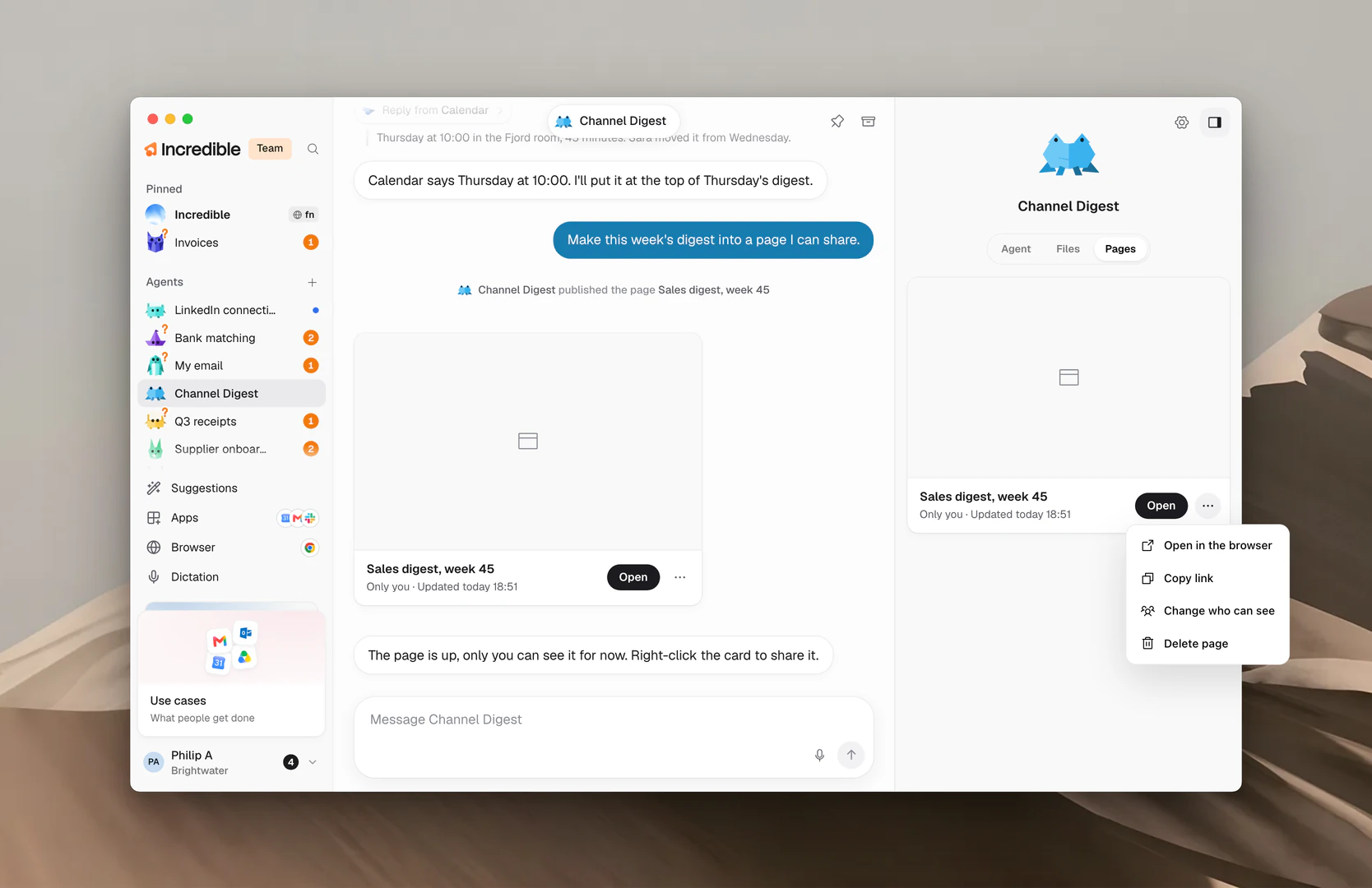
Click ⋯ on a page card, or right-click it, for its menu:
- Open in the browser
- Copy link
- Change who can see
- Delete page
Change who can see a page
Click Change who can see in the page's menu, pick one, and click Save.
- Only you: you open it signed in to Incredible. This is the default.
- People you choose: type their email addresses. They sign in with their email to open it.
- Anyone with the password: type a password of at least 6 characters. Opening the page asks for it.
- Anyone with the link: no sign-in. The page is not listed anywhere.
The first time you share a page with other people, Incredible asks you to accept its sharing terms. Click Read the terms to read them, then Accept and share.
If an agent wants to show a page to more people, it asks you first, the same way it asks before it sends a message. See Needs you and approvals.
Delete a page
Click Delete page in the page's menu, then Delete page again to confirm.
The link stops working for everyone, and the page goes with its form answers. You cannot undo this.
A deleted page leaves the Pages tab. Its card stays in the chat, marked No longer published.
Related guides
- Files and working folders: the files an agent makes on your computer
- Routines: keep a page up to date on a schedule
- Needs you and approvals: what an agent asks before it acts
- Share an agent: share an agent's setup instead of its work