The short answer
A macro recorder saves your mouse clicks and keystrokes and plays them back in the same order, often at the same screen positions. It breaks when a window moves, a field changes or the data is different next time. Power Automate for desktop, Keyboard Maestro, Jitbit Macro Recorder, TinyTask and Pulover's Macro Creator are the common recorders. Incredible works differently: you do the task once while you say what you are doing, and it saves the steps as a task it can run again on new data, in your own apps and browser, on Mac and Windows.
Free for 7 days. Mac and Windows.
A macro recorder replays your exact clicks and keys. Where it breaks, the recorders worth knowing on Mac and Windows, and a way to teach a task instead.
You do the same forty clicks every Friday, so you look for a mouse and keyboard recorder: press record, do the job once, press play forever. It works until the first week the window opens in a different spot.
Here is the short answer. A macro recorder saves your clicks and keystrokes and replays them exactly, often at the same screen positions. That is fast and predictable, and it breaks when a window moves, a field changes or the data is different. Incredible takes another route: you show it the task once while you talk it through, and it saves the steps as a task it can run again on new data, in your real apps and your own browser.
Everything below about Microsoft, Apple, Keyboard Maestro, Jitbit, TinyTask and Pulover's Macro Creator comes from their own pages, read on 28 October 2026.
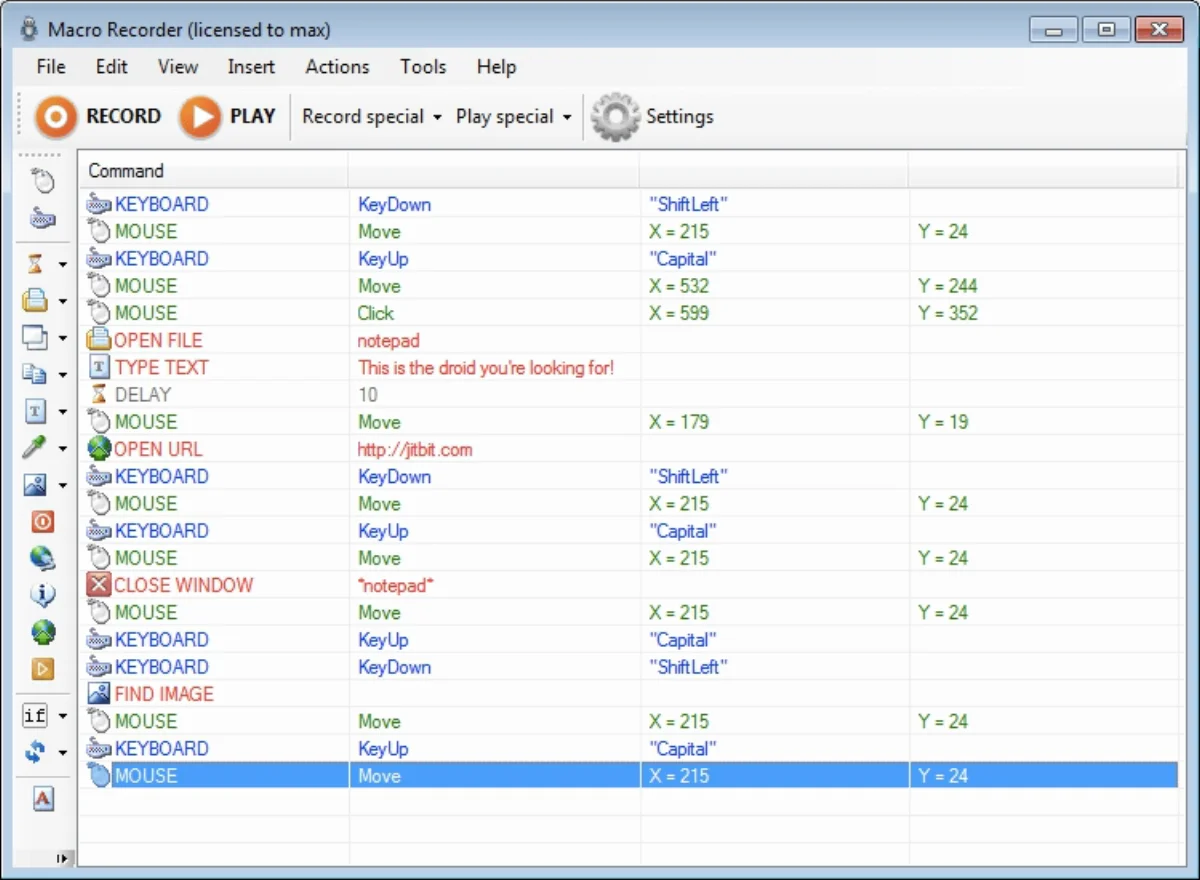
It writes down what your hands do and plays it back. Each key press, each mouse move and each click goes into a list, usually with the screen position of the pointer. When you run the macro, the recorder presses the same keys and clicks the same places, in the same order.
Jitbit's Macro Recorder shows the idea plainly in its own screenshot: rows of keyboard and mouse events, each mouse row with an X and a Y. You can edit the list, assign the macro to a hot key and run it from any application.
This is the right tool for a fixed job on a fixed screen: the same app, the same window size, the same steps, every time.
A recording keeps what you did, not why you did it. Three ordinary things break it:
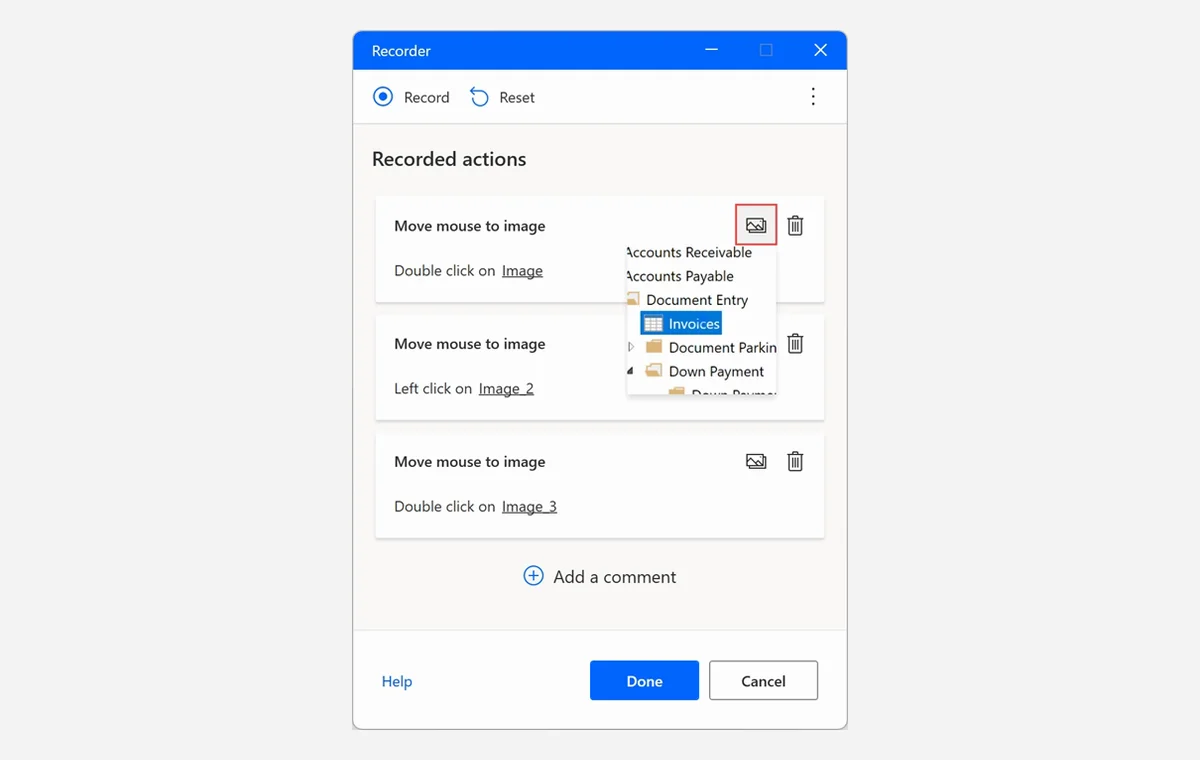
The vendors say as much. Microsoft's recorder documentation lists a known issue for image-based recording: "the click might be sent to the wrong place." It also says "most recorded tasks should be modified to achieve optimal results", and that conditionals and loops can't be recorded. Keyboard Maestro's recording page says "typically you will need to make a few adjustments to the Macro Actions to ensure the macro will operate robustly when used."
So a recording is a start. To make it last, you edit it into a small program.
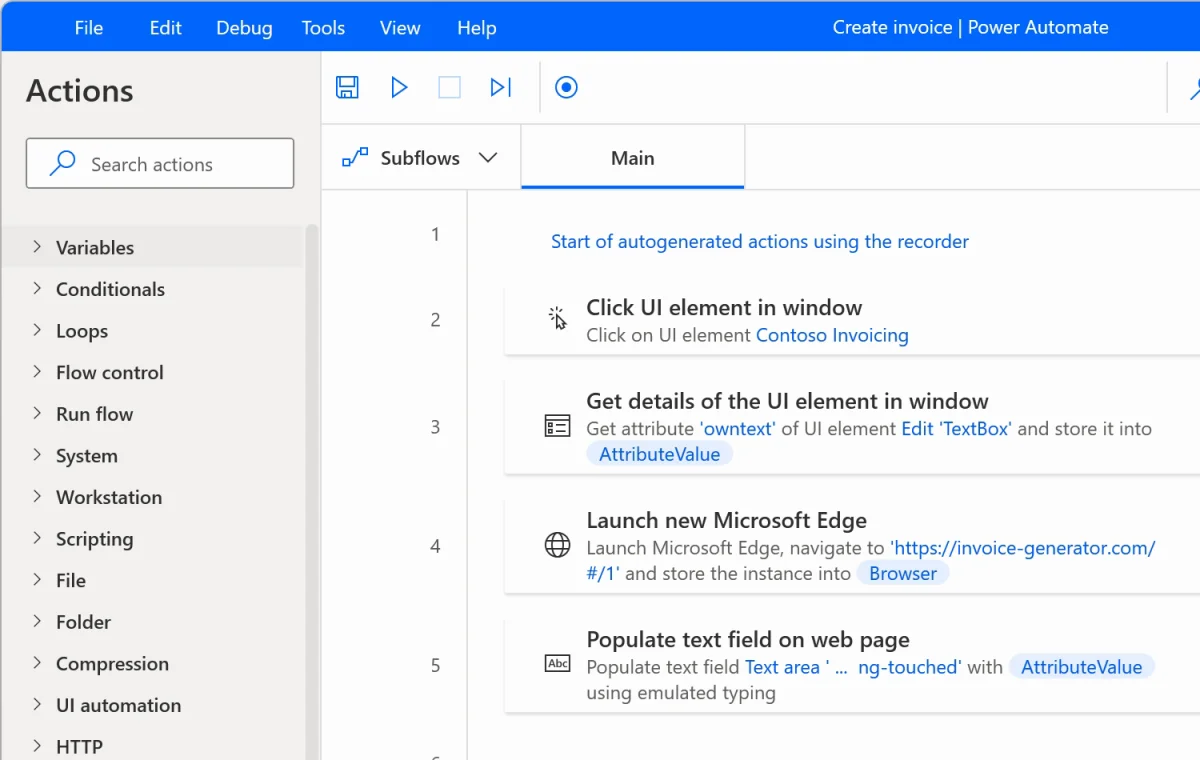
Power Automate for desktop has the most careful recorder of the group. Microsoft says it "keeps track of mouse and keyboard activity in relation to UI elements", so it aims at the button itself. For apps that don't expose their buttons that way, it offers image-based recording, which finds elements with image recognition and OCR.
When you press Done, the steps become actions in a desktop flow. From there you add the parts a recording can't capture, such as conditions and loops, and remove the extra steps the recording picked up.
It is a Windows application. Microsoft's requirements page lists Windows 10, Windows 11 and Windows Server 2016 to 2025, and says devices with ARM processors aren't supported. If you are on a Mac, see Power Automate on a Mac: what works and what does not.
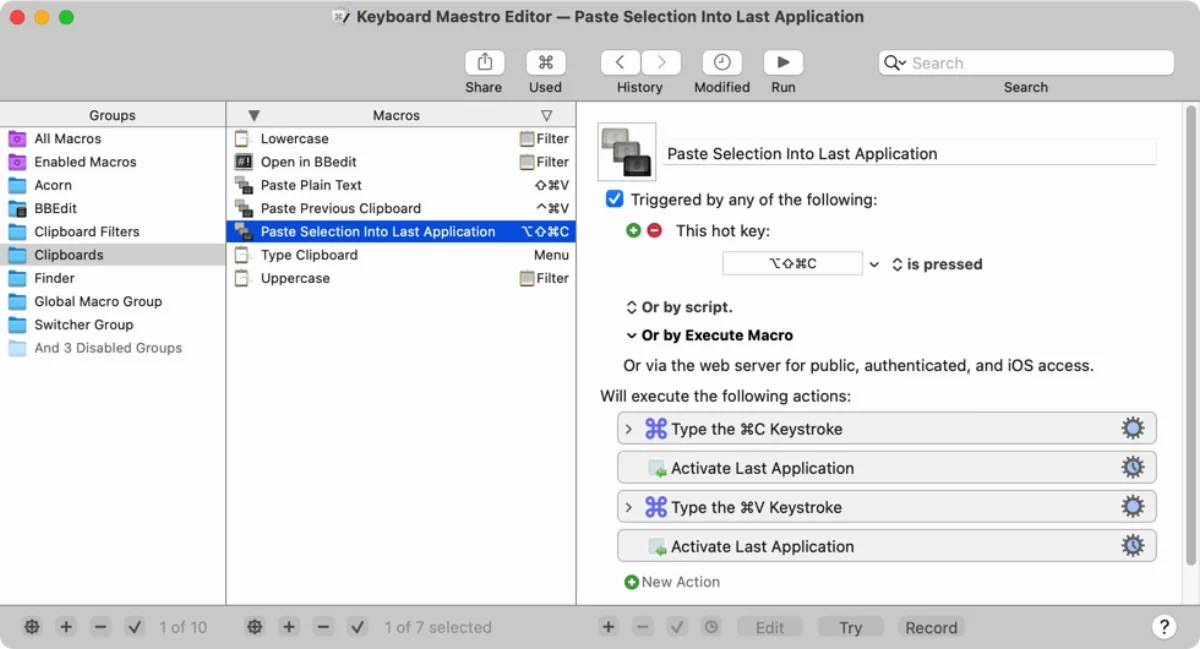
On a Mac, the usual answer is Keyboard Maestro. Its recorder captures moving and resizing windows, mouse clicks, keystrokes, scrolling, menu choices and opening or quitting apps. It leaves out the pauses between actions, so the macro plays back at full speed unless you ask for real time. Its own advice: "use recording to create a base sequence of actions and then adjust as necessary."
Keyboard Maestro 11 is a one-time purchase of US$36 with a free trial, and needs macOS 10.13 High Sierra or later.
Apple's Automator has a recorder too. Its guide says to "click the Record button and complete the task you want to automate", then click Stop, and the recorded action appears in your workflow. Apple's Automator welcome page also says Automator workflows can be imported into Shortcuts.
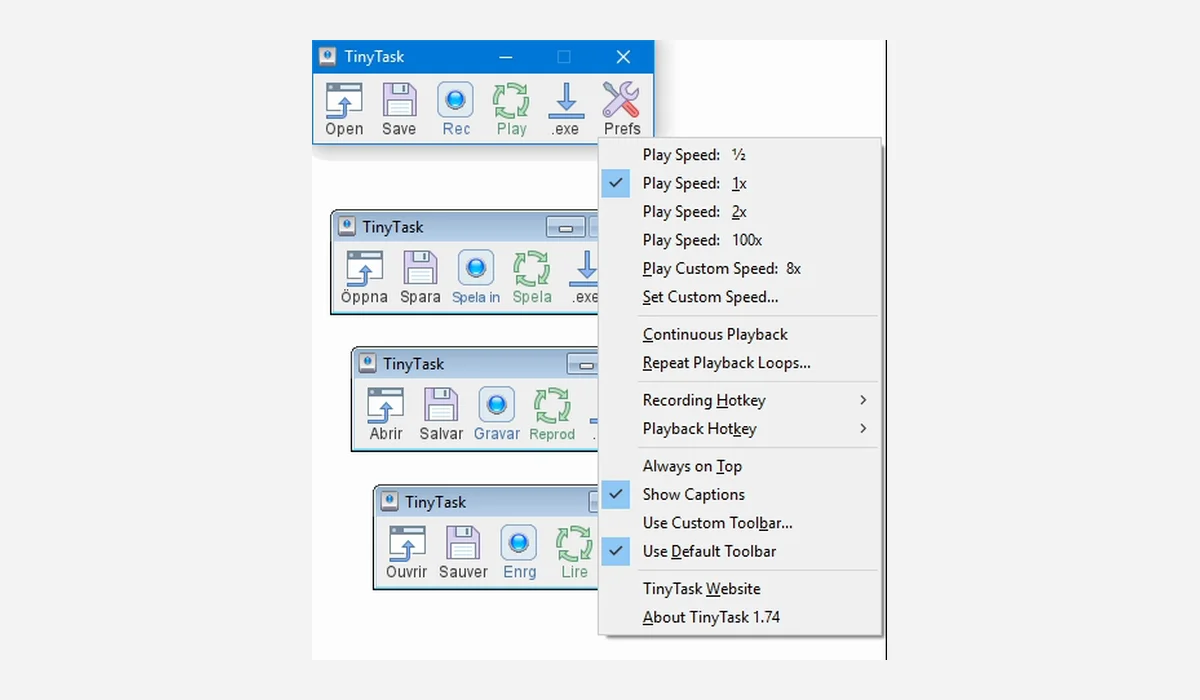
If you are on Windows and want a recorder without a whole automation platform, three come up most:
All three share the strength and the weakness of the idea. They replay what you did, fast and exactly, and they need you to fix the macro when the screen or the data changes.
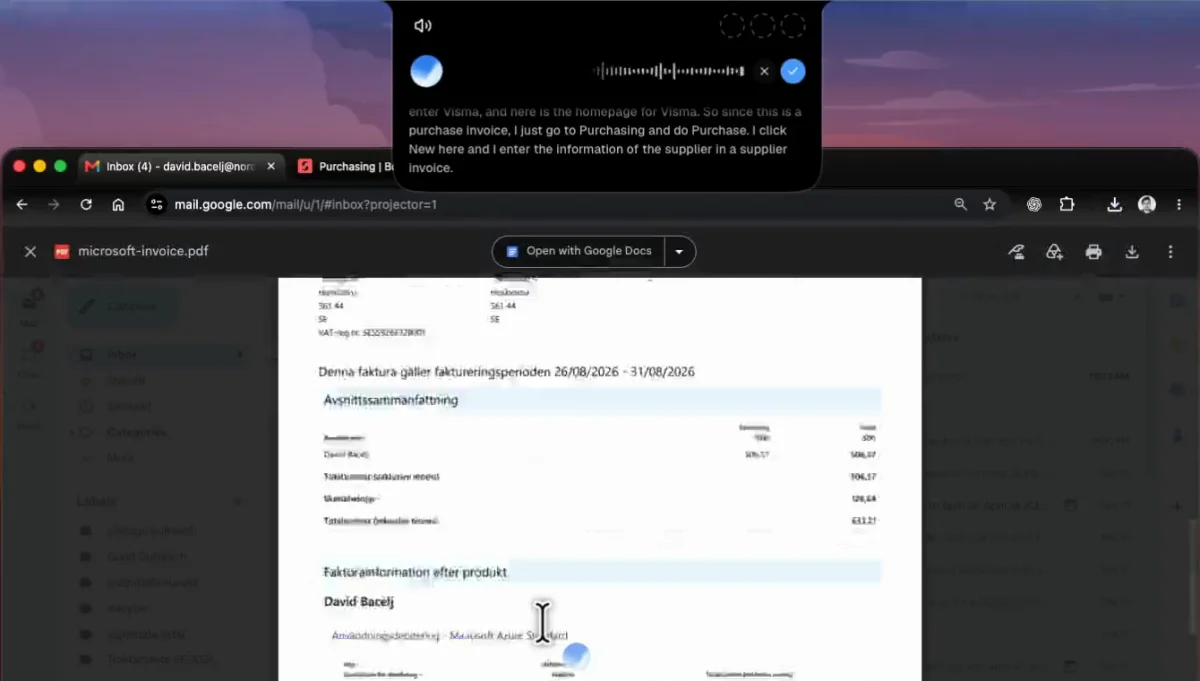
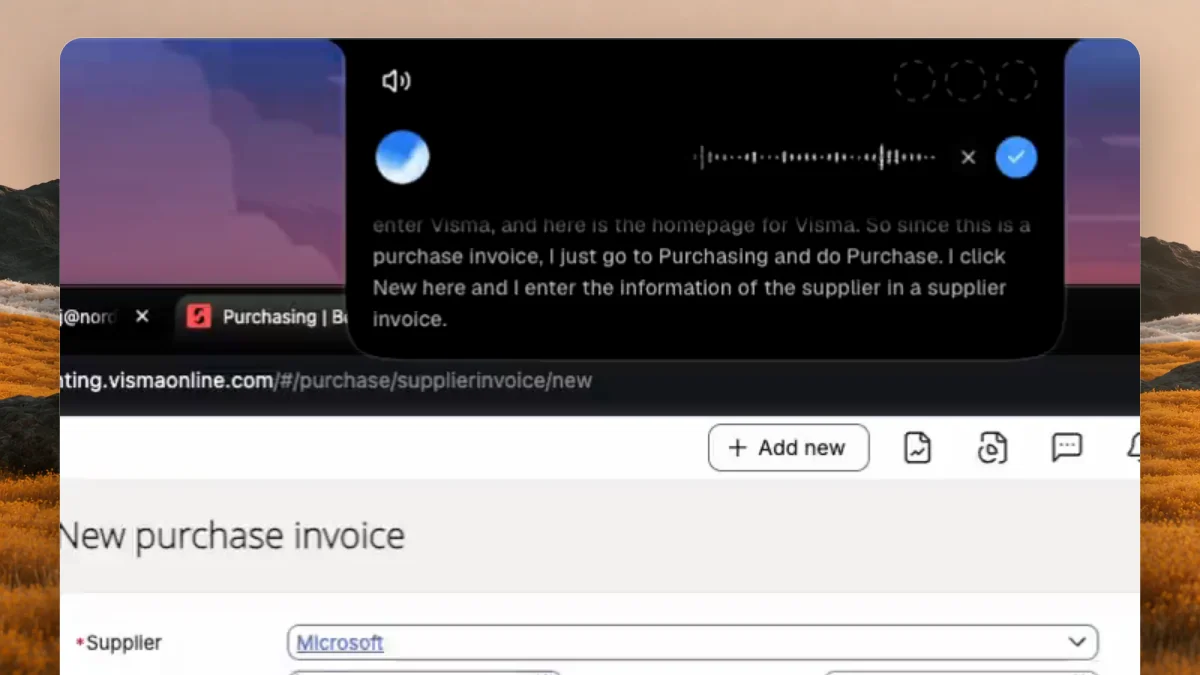
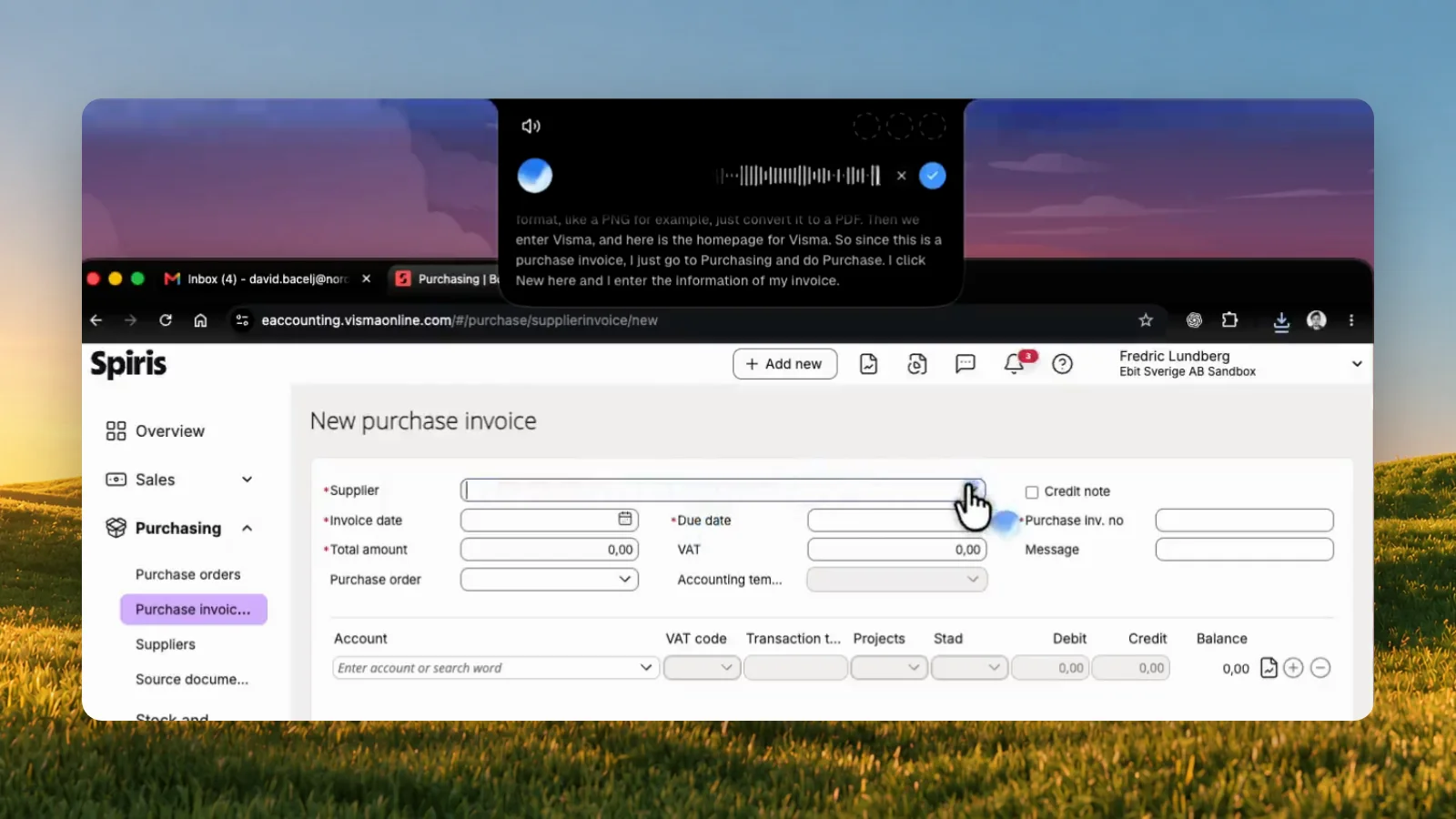
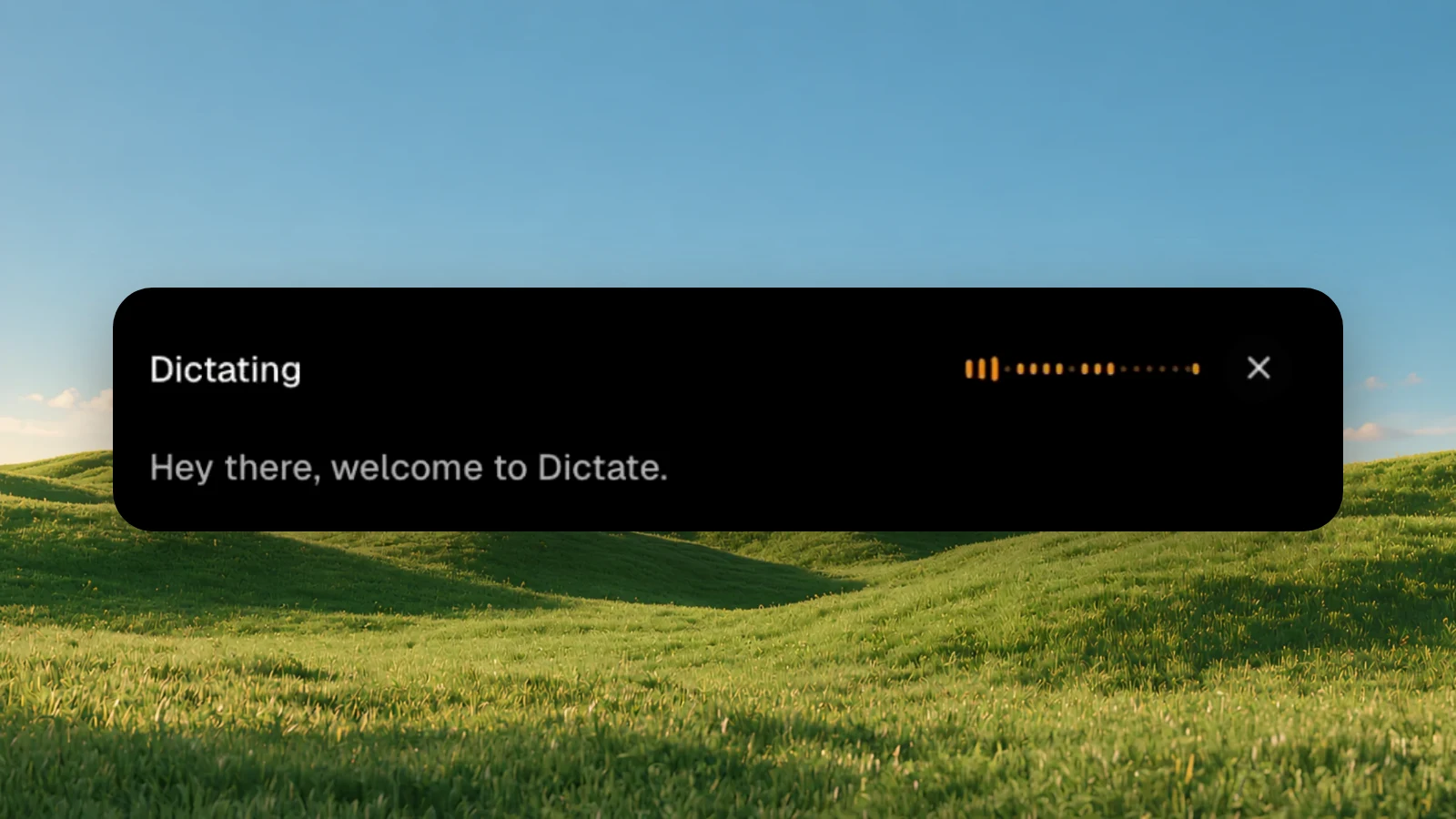
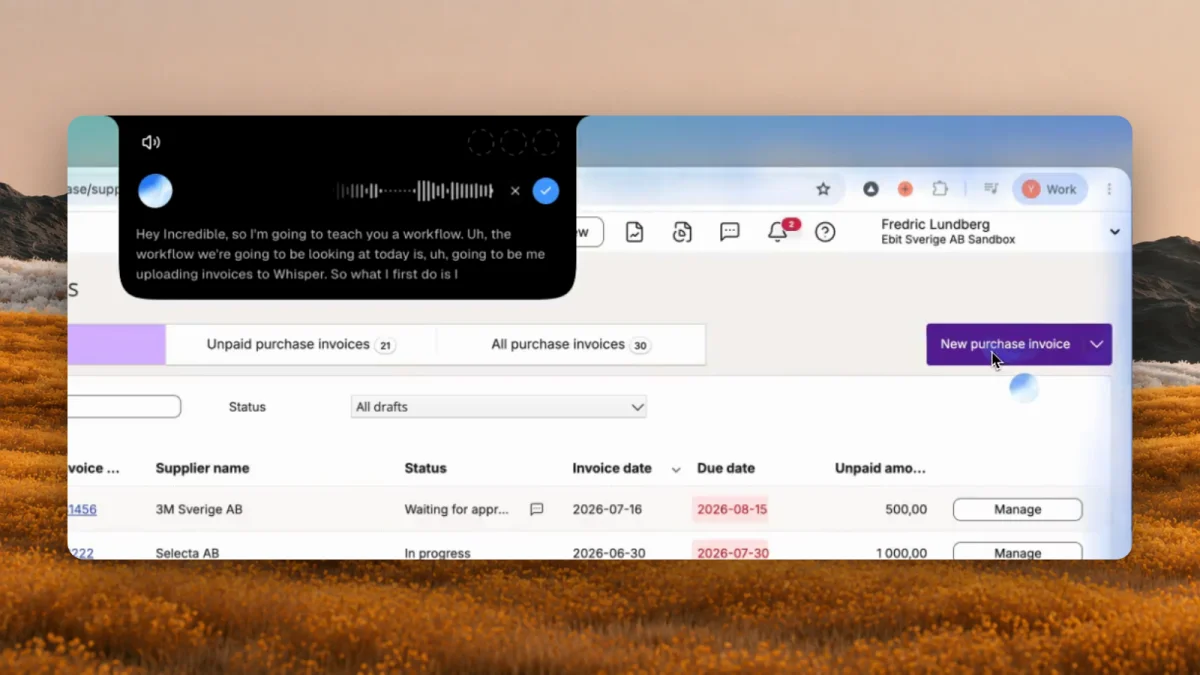
Incredible learns a task the way a new colleague would. Turn on hands-free (fn and Space on a Mac, Ctrl, Alt and Space on Windows), say what you are about to show, then do the job the way you always do and talk while you do it:
"Let me teach you how I upload my invoices to our ERP."
Incredible notes each click, everything you type or copy, and each app or tab you switch to, and matches them to what you said. When you finish, it saves the job as a task under Saved tasks, where you can rename it and change its steps.
It works in your real apps and in your own browser, signed in as you, so the system needs no integration or API. It runs on macOS 13 or later and on Windows 10 or later. The full walk-through is in how to automate repetitive tasks by showing them once.
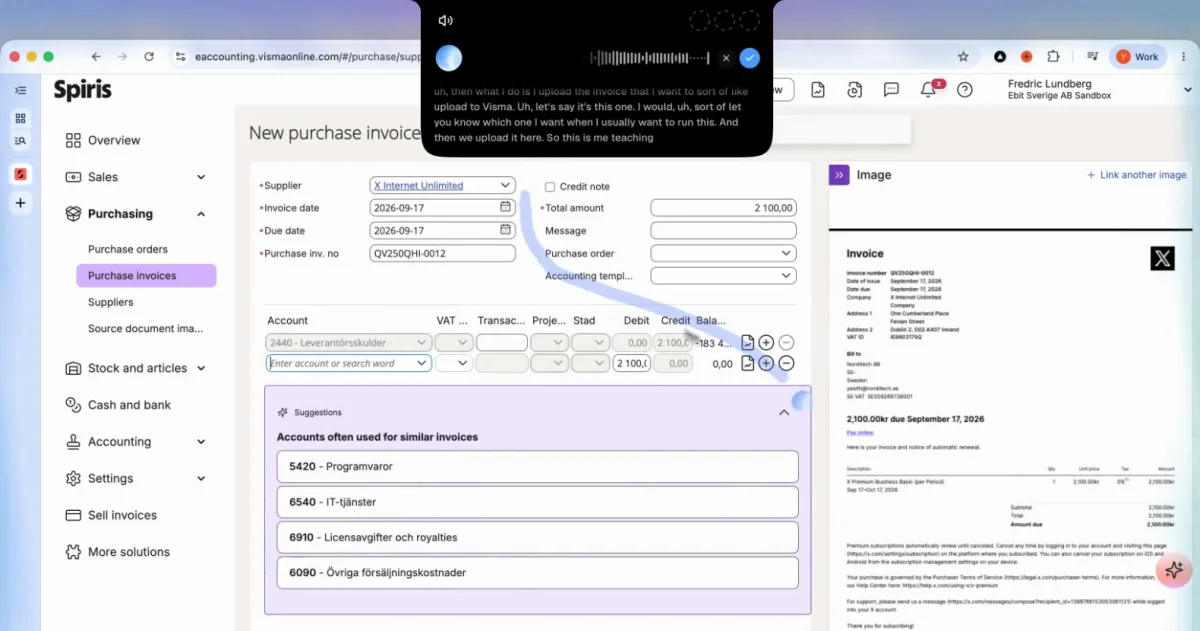
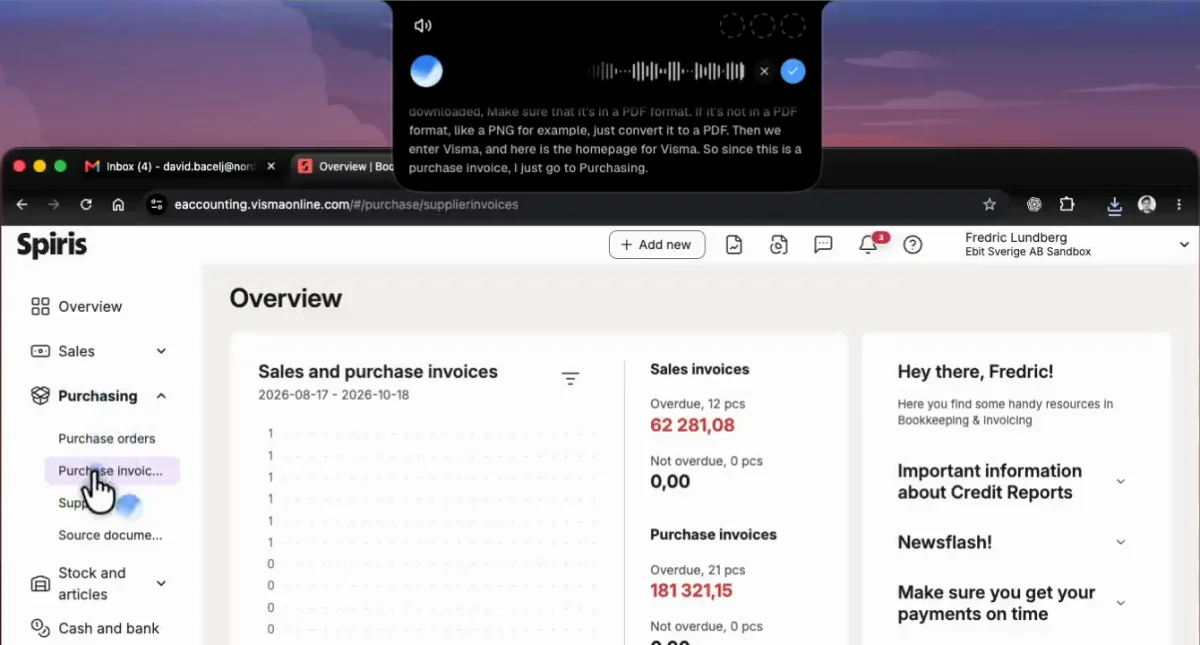
This is the part a recorder can't hear. In the recording above, the person uploads one invoice and says that next time they will say which invoice to use. A macro would replay this invoice forever. Incredible keeps the steps and knows the invoice is the part that changes.
Your words also carry the reasons. "The invoice number is usually at the top right" still helps when next week's invoice looks different. Incredible treats your steps as instructions: if a button has moved or a column has a new name, it still does what each step was for.
A few habits make the task better:
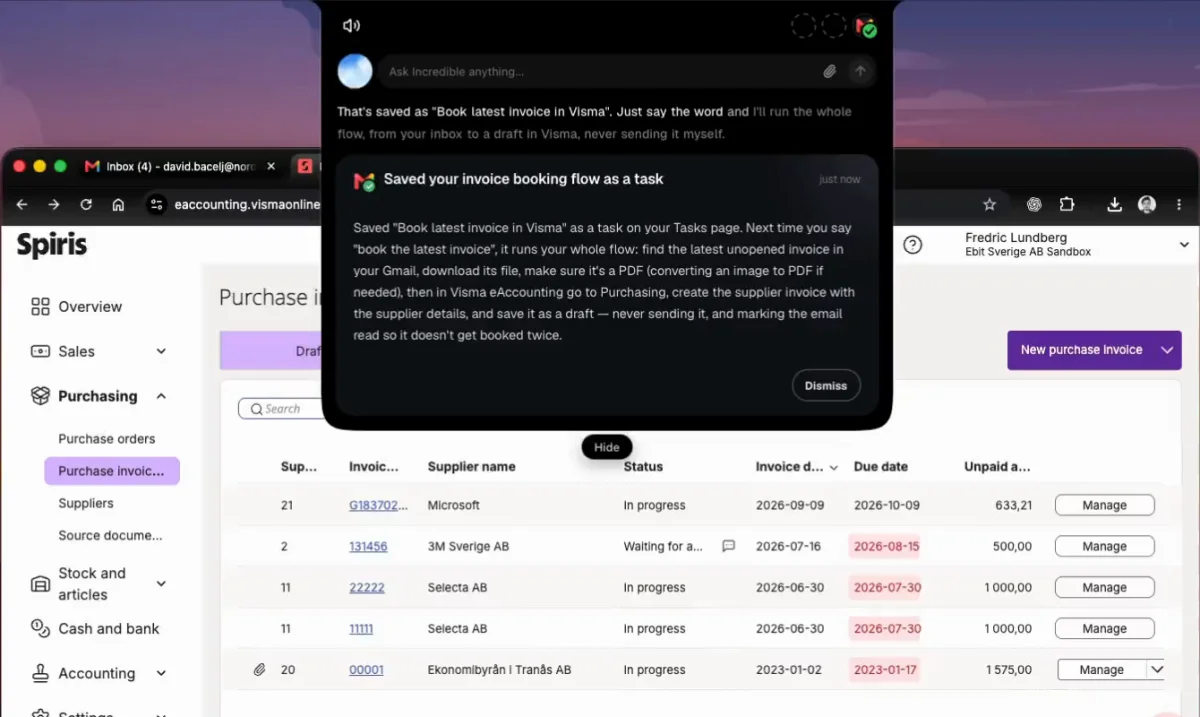
A saved task runs when you ask for it by name, on whatever the data is that day. In this recording, Incredible saves the job as "Book latest invoice in Visma". Next time the person says "book the latest invoice", it finds the newest unopened invoice in Gmail, downloads it and creates the supplier invoice in Visma as a draft.
It stops before anything it can't undo. Anything that sends, pays or deletes waits for your go first.
A saved task can also run without you asking. Put it on a schedule, such as every Monday at 9, or on Autopilot, so it runs each time something happens in an app you have connected, such as an invoice email arriving. To change what it learned, say so: "Next time, CC Fredric when the amount is over 10,000."
| Incredible | Power Automate for desktop | Keyboard Maestro | TinyTask, Jitbit, Pulover's | |
|---|---|---|---|---|
| Runs on | macOS 13+, Windows 10+ | Windows | macOS 10.13+ | Windows |
| How you set it up | Do the job once and talk | Record, then edit the flow | Record or build, then adjust | Record, then edit or replay |
| When the screen changes | Does what each step was for | Edit the flow | Adjust the macro | Edit or record again |
| New data each run | Say what changes; it uses that day's data | Edit the flow in the designer | Edit the macro | Replays what was recorded |
If your job is copying rows from a sheet into a website, see how to get spreadsheet rows into a website with no API.
Try this now. Turn on hands-free and say: "Let me teach you how I do my Monday report." Then do it once, talking as you go, and say what will be different next week. Incredible is free for 7 days. Download it, or read the Quickstart first.
Coming from Zapier instead of a recorder? See Zapier vs an AI agent that uses your computer.
A program that records your mouse clicks, mouse moves and keystrokes while you work, and plays them back later in the same order. Most let you edit the recorded steps, assign the macro to a hot key and change the playback speed.
Because it replays what you did, not why. If a window opens somewhere else, a button moves or the data is different, the recorded click lands in the wrong place. Microsoft notes that a click from an image-based recording in Power Automate might be sent to the wrong place, and Keyboard Maestro says recorded macros typically need a few adjustments to run robustly.
Yes. Keyboard Maestro records window moves, mouse clicks, keystrokes, scrolling, menu choices and app switches, and costs US$36 as a one-time purchase. Apple's Automator also has a Record button. Power Automate for desktop, Jitbit Macro Recorder, TinyTask and Pulover's Macro Creator are for Windows. Incredible runs on macOS 13 or later and Windows 10 or later.
A macro recorder stores the clicks and keystrokes and replays them. Incredible also hears your explanation of each step, so the saved task holds what you were looking for and why. It follows the steps as instructions, so if a button has moved or a column has a new name, it still does what each step was for.
Yes. A saved task can run when you ask for it by name, on a schedule such as every Monday at 9, or on Autopilot, where it runs each time something happens in an app you have connected.
It clicks and types in your browser, files and apps, exactly like you do.
Requires macOS 13 or Windows 10, or later.
 Download for Mac
 Download for Windows