Four ways to get rows from Excel or Google Sheets into a web form when the website has no API or import, and how to pick between them.
You have forty rows in a spreadsheet and a website with one form. The site has no import button and no API, so the rows go in one at a time: copy, switch tabs, paste, next field. It is the kind of job that is too small to hand to a developer and too long to enjoy.
There are four ways to stop doing it by hand. Which one fits depends on the website, on your computer and on how often the job comes back.
Before automating anything, look for a way to upload the file. Many systems that seem to offer only a form have a CSV or Excel import somewhere under Settings, Bulk actions or an Import menu, and some suppliers will take the file by email if you ask.
When an import exists it is the best answer. It is faster than any automation, and nothing can click the wrong field.
Microsoft's Power Automate for desktop can read an Excel file and type each row into a web page. You build a flow: open the workbook, loop over the rows, and for each one fill in the fields and press the button. Its recorder, in Microsoft's words, "keeps track of mouse and keyboard activity in relation to UI elements", so you can capture the form once and then put the loop around it.
It works well for a form that never changes. It has two limits. Desktop flows run on Windows 10, Windows 11 and Windows Server only, so it is not an option on a Mac. And the flow is something you build and then own: when the website moves a field, you open the designer and repair it.
Browser extensions can replay keystrokes or fill a form from a file. They are quick to try and fine for a simple form with the same fields every time. They tend to struggle when the page has dropdowns that load as you type, a file to attach, or a second page that depends on the first.
Incredible is an AI that does tasks on your computer. It clicks and types in your browser, files and apps, exactly like you do, on Mac and Windows. For this job there is nothing to build:
Because it uses the page the way a person does, the website does not need an API or an integration. That covers the CRMs, ERPs, supplier portals and admin panels that have neither. The Browser guide shows how to connect it.
It is not instant. It goes through the form one field at a time, and on a long list you should check the first few rows before letting it continue.
A one-off list is done once you have asked. A job that returns is worth teaching.
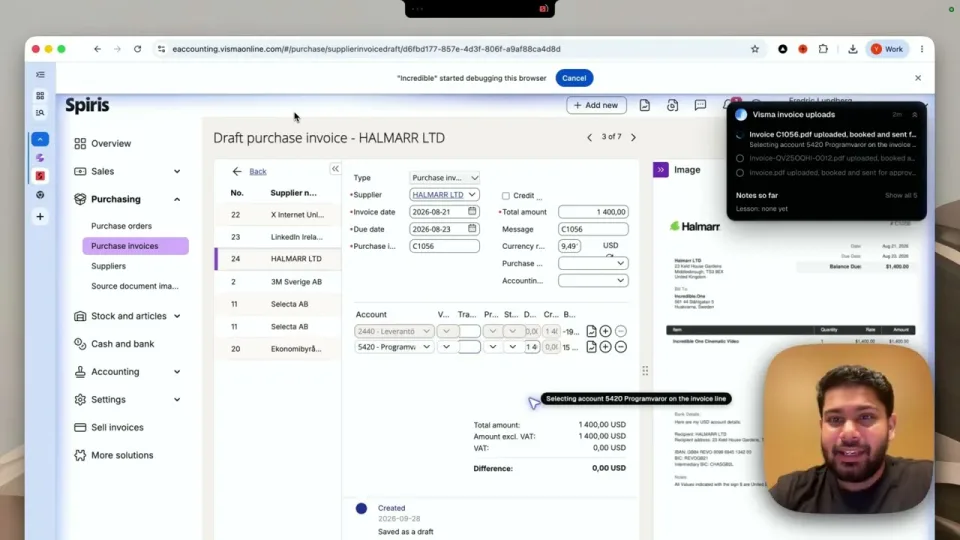
You do it once while Incredible watches, and say out loud what you are doing and why, as you would for a new colleague: which column goes where, what to do when a value is missing. It saves the job as a task and does it the same way from then on. The Teach a task guide walks through it, with a recording of a supplier invoice being entered into an accounting system. There is more on how teaching works in how to automate a repetitive task by showing it once.
A saved task can also run without you asking. Put it on a schedule, such as every Friday at 9, or on Autopilot, where it runs each time something happens in an app you have connected.
If you are weighing this against an automation tool you already pay for, see Zapier vs an AI agent that uses your computer.
Incredible is free to try for 7 days, and no card is needed. Download it and try it on the list you have open now.
Yes. If a person can type it into the page, it can be automated through the page itself. The options are the website’s own file import, a recorded desktop flow, a browser macro, or an AI that clicks and types in your browser the way you do.
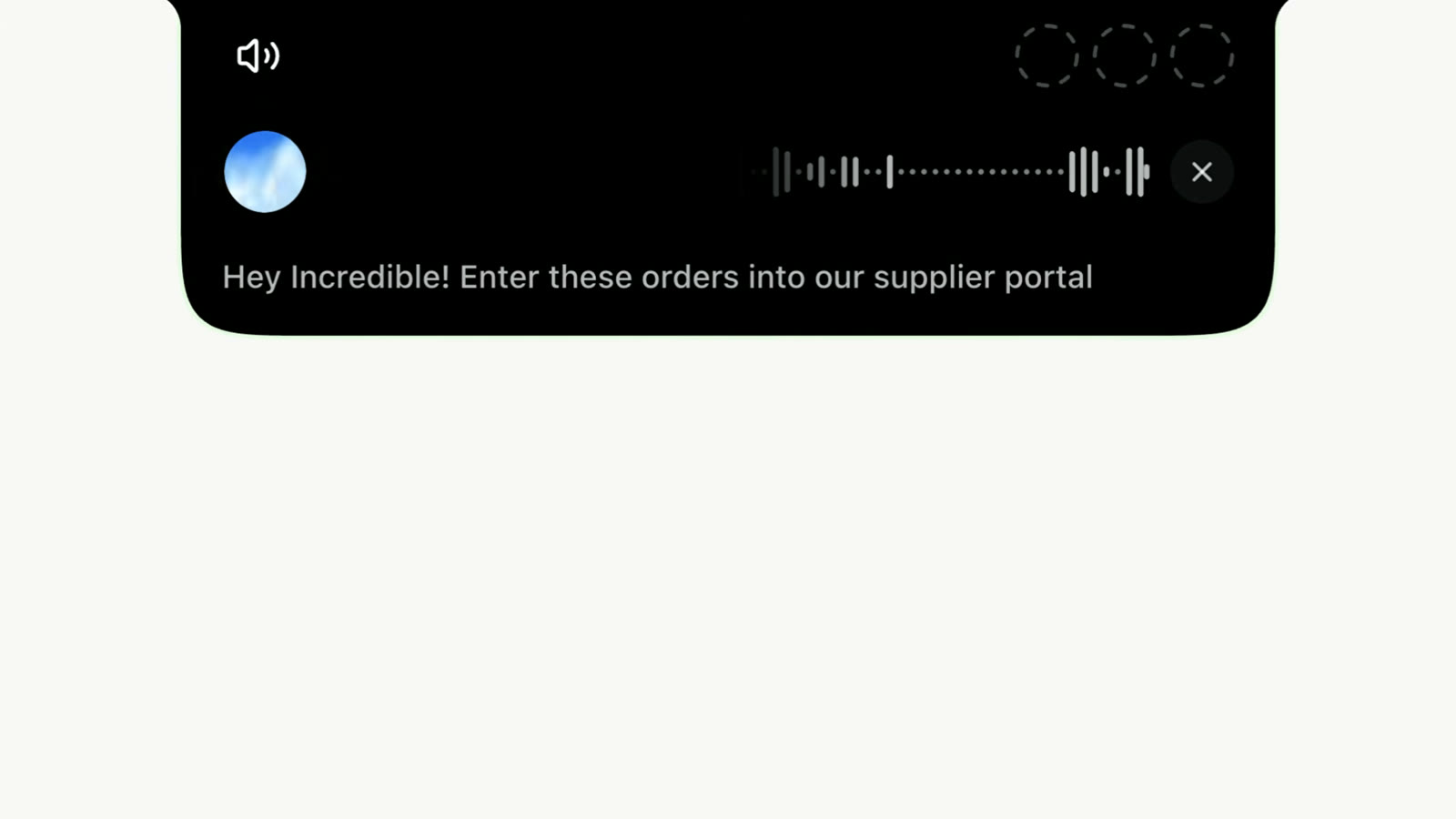
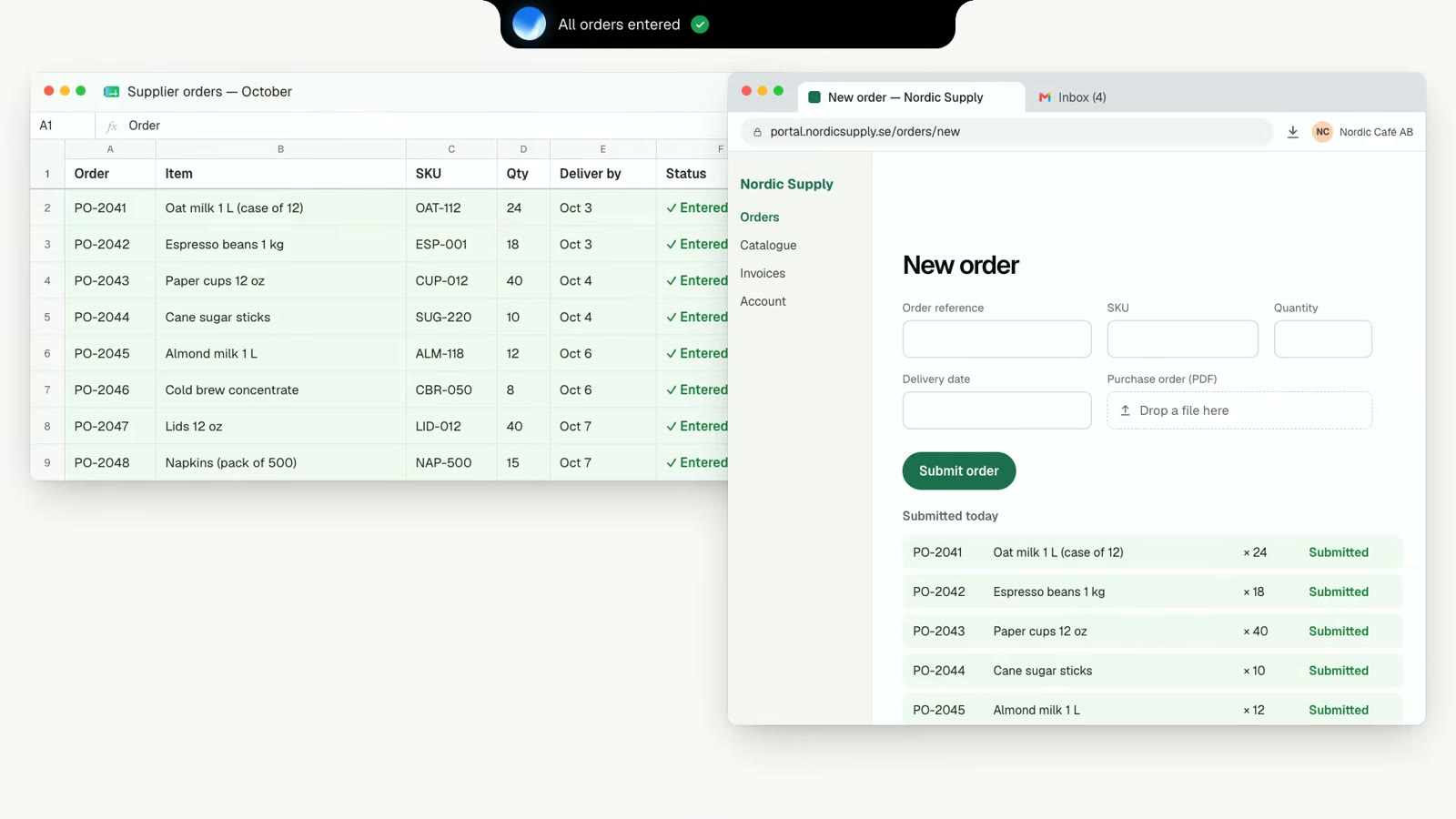
With Incredible you open the spreadsheet and the web form, hold the talk key and say what you want, for example "Enter these orders into our supplier portal". It reads the rows and fills in the form in your own browser, signed in as you.
No. Microsoft lists Windows 10, Windows 11 and Windows Server as the supported systems for Power Automate for desktop. Incredible runs on macOS 13 or later and Windows 10 or later.
Check how the tool handles approval. Incredible asks before anything is sent, and you can approve the step, change it first, or stop.
It clicks and types in your browser, files and apps, exactly like you do.
Requires macOS 13 or Windows 10, or later.
 Download for Mac
 Download for Windows