Voice Control for every click, Siri for quick requests, or an AI that does the whole task from one sentence. How to set up each on a Mac.
To control your Mac with your voice, turn on Voice Control in System Settings, under Accessibility, and say commands such as "Open Mail" or "Click Done". To hand over a whole task in one sentence instead of saying each click, use Siri in Apple's own apps or an AI app such as Incredible, which works in any app.
Which one suits you depends on whether you want to steer every step yourself or describe the result and let the computer do the steps. The Apple details below are from Apple's own support pages, read on 4 October 2026.
Voice Control is built into macOS and free. Turn it on under Apple menu, System Settings, Accessibility, Voice Control. From then on, Apple says, you can "navigate the desktop and apps, interact with what's on the screen, dictate and edit text, and more" by speaking.
Commands are short and literal: "Open Mail", "Scroll down", "Click Done". When an item has no name you can say, two overlays help. "Show numbers" puts a number on everything clickable, and you say the number. "Show grid" lays a numbered grid over the screen, and you can say a number to zoom into that square and click inside it. Say "Stop listening" to pause and "Start listening" to carry on. Apple's Voice Control guide lists every command, and you can add your own.
Voice Control gives you complete control of the Mac without touching it, which is what it was made for. The cost is that you say every step. A job that takes forty clicks takes forty commands.
With macOS 27, Apple rebuilt Siri as Siri AI, which according to Apple's page can "get things done across your apps to send messages, create events, and more", and can answer questions about what is on your screen. It needs a MacBook Neo or a Mac with M1 or later, is a beta in English to start, and Apple says daily usage limits may apply.
Siri is free and already there. It is at its best in Mail, Messages, Calendar and the other Apple apps. It does not work your company's CRM in Chrome or fill in a supplier portal.
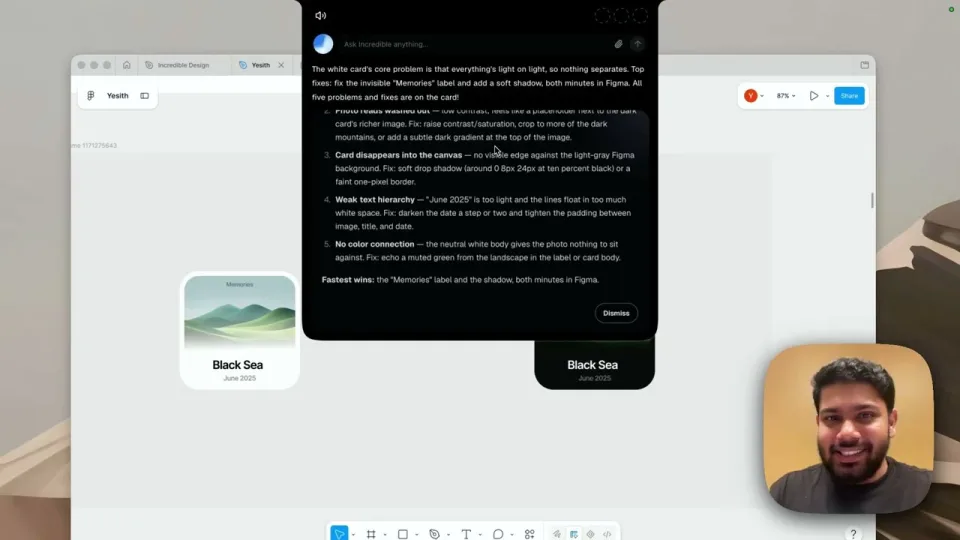
The third way is to describe what you want done and let an AI do the clicking and typing. Incredible works like this on a Mac. Hold the fn key, say the task in your own words, and let go:
"Set up a 30 minute meeting with Anna next Tuesday at 10 and add a Google Meet link."
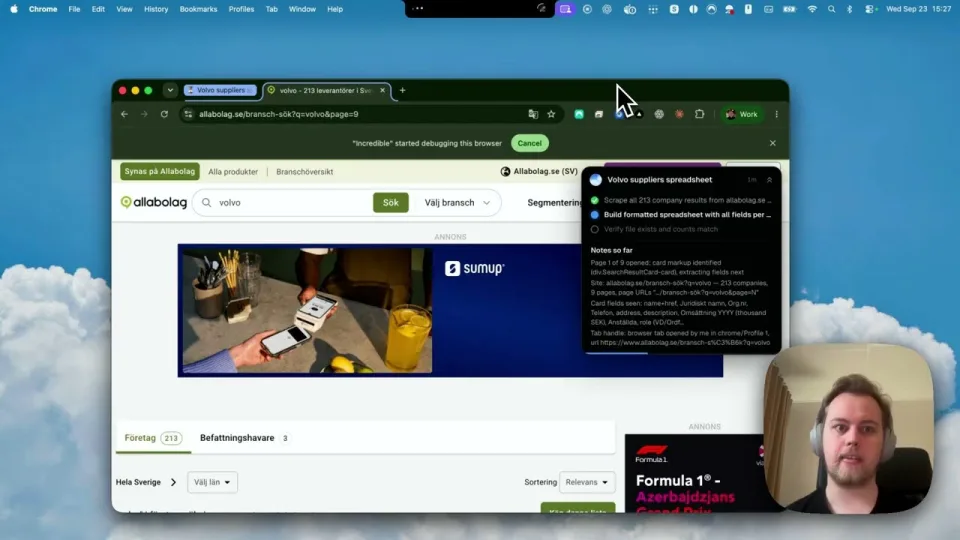
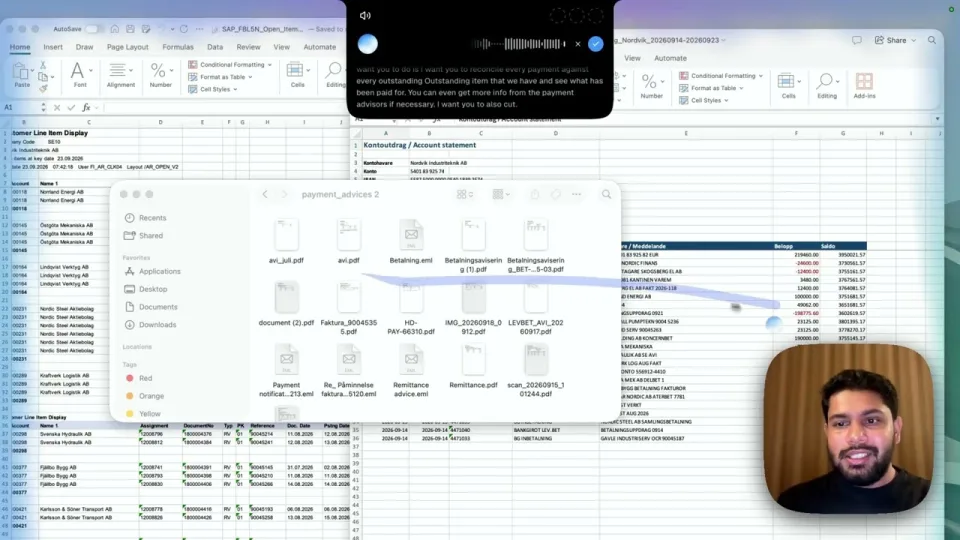
Incredible shows the event it is about to create, with Confirm and Dismiss buttons, and nothing is sent until you confirm. The recording of voice tasks in Gmail, Outlook, Slack and Calendar shows that card. It works the same way in websites, signed in as you in your own browser, and in the files on your Mac, such as an Excel sheet or a PowerPoint deck.
For longer stretches, press fn and Space to talk hands-free without holding a key. To put words into a text field rather than give a task, hold Ctrl and Shift and talk: the words land where your cursor is, with filler words removed (see Dictation). Every key can be changed, and the Shortcuts guide lists them on Mac and Windows.
Incredible runs on macOS 13 or later and on Windows 10 or later.
If you need to run the whole Mac by voice, for example because using a mouse or keyboard is hard, start with Voice Control. It was made for that, and its numbers and grid reach every part of the screen. A task app can sit beside it for the longer jobs.
If you want quick requests in Apple's apps and have a recent Mac, use Siri. If you want to say a task once, such as "file these invoices in our accounting system" or "reply to this and copy in Anna", and have it done in the apps and websites you work in, try Incredible. It is free for 7 days with no card. Download it.
For more ways to use voice beyond your own computer, from dictation apps to phone agents, see the best voice AI tools in 2026. For AI that works in your Mac apps without voice too, see AI that can control your Mac.
Choose Apple menu, System Settings, then Accessibility in the sidebar, then Voice Control, and turn it on. Then say commands such as "Open Mail", "Scroll down" or "Click Done". Say "Stop listening" to pause it and "Start listening" to resume.
Yes, with Voice Control. Say "Show numbers" to put a number on every item you can click, then say the number. "Show grid" puts a numbered grid over the screen for places that have no button.
Yes. Siri AI in macOS 27 handles requests in Apple apps, such as sending a message or creating an event. Incredible takes a whole task in one sentence, in any app, website or file, and does the clicking and typing itself.
Yes. macOS has built-in dictation, and Voice Control has a dictation mode. In Incredible you hold Ctrl and Shift and talk, and the words land wherever your cursor is, with filler words removed.
It clicks and types in your browser, files and apps, exactly like you do.
Requires macOS 13 or Windows 10, or later.
 Download for Mac
 Download for Windows