The short answer
Hold a key and say the whole task, for example "take the leads in this spreadsheet and enter each one in my CRM." Incredible sees your screen, then clicks and types in your apps and your own browser until it is done, on Mac and Windows. The free built-in tools, Voice Control on a Mac and Voice Access on Windows, work the other way: you say each click yourself.
Free for 7 days. Mac and Windows.
Say the task out loud and an AI clicks and types in your apps until it is done, on Mac and Windows. Compared with Voice Control, Voice Access and Copilot.
You have a spreadsheet of leads from last week's event, and each one needs to go into the CRM. That is an hour of copying and pasting, or one sentence to an AI that can use your computer.
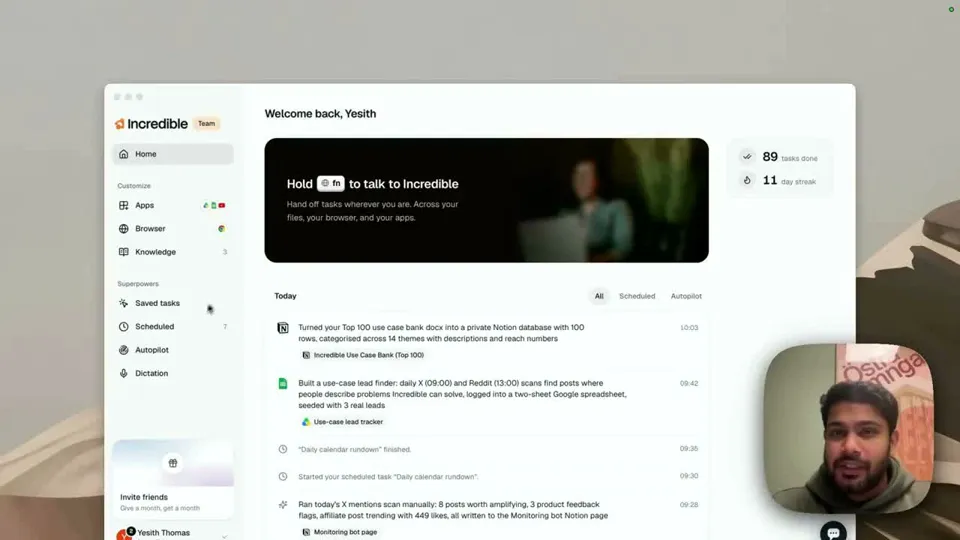
With Incredible, you hold a key, say what needs doing, and it does the clicking and typing. The recording above shows it taking a spreadsheet of event leads and entering every one into a CRM in the browser, clicking Create lead for each, after a single spoken request.
Hold the fn key on a Mac, or Ctrl and Space on Windows, and say the whole task:
"Could you take this spreadsheet and go through all the leads and update them in my CRM? Fill in all the details and click create lead."
Let go and Incredible gets to work. In the recording it answers out loud with what it is about to do, works through the list in the CRM tab, and finishes with "All 18 leads are in your CRM, verified one by one, and the pipeline value matches the spreadsheet exactly."
For longer back-and-forth, switch on hands-free: fn and Space on a Mac, Ctrl, Alt and Space on Windows. Then you can keep talking without holding a key.
It sees what you see. When you start talking, Incredible looks at the screen in front of you, so "this spreadsheet" and "reply to this" mean what you are looking at. Nothing has to be uploaded or explained.
It works in your own apps. It clicks and types in your browser, signed in as you, and in your files and desktop apps. That covers the CRMs, portals and admin panels that have no integration. With apps like Gmail, Slack and Google Calendar connected, it can also work in them directly (how to connect an app).
It talks back. Incredible replies in a voice you choose, female or male, in the language you set, and shows the same reply on screen. You can mute it and read instead.
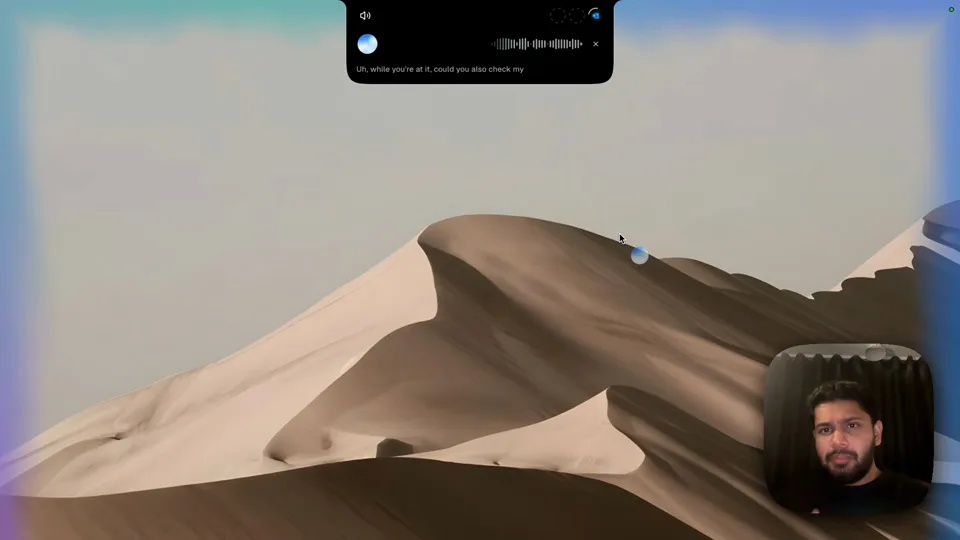
You can keep adding to it. In another recording, the person asks for their unread emails, then says "while you're at it" and adds a calendar check, a meeting and a Slack message. Incredible takes on each one as it comes.
It asks before anything goes out. An email, a message or a booking shows up as a card for your go. Say "looks good, send it" or press Confirm.
“It’s Copilot on steroids.”
Kyle Rademacher, Office Manager, ProGuard Security Services
Every Mac and Windows PC already has a voice control tool. They are built for a different job: you say each step, and the computer does that one step.
Voice Control on a Mac. Turn it on in System Settings, under Accessibility. Apple's guide gives commands such as “Open Mail,” “Scroll Down,” or “Click Done.” With Apple Intelligence, Apple's accessibility page says Voice Control can use your natural language descriptions to take action on the screen, so you don't need to memorize exact labels. While it is on, standard macOS Dictation isn't available.
Voice Access on Windows. Microsoft's guide says it lets you control your PC and write text using only your voice, without an internet connection, in Windows 11 version 22H2 and later. You open apps, browse and read mail by saying commands from its command list.
 Copilot on Windows. You can start it by saying "Hey, Copilot" and talk to it. Copilot Vision can look at your screen during a voice conversation, but Microsoft's Vision page says it "won't click, type, or scroll." The agent that does work in your apps, Copilot Actions, is still rolling out to Windows Insiders, and only an administrative user can turn it on.
 ChatGPT Voice in the desktop app. OpenAI's voice page says it lets you talk through ideas and coordinate tasks in Chat, Work and Codex, on Plus, Pro, Business, Edu and Enterprise. Those tasks can use Computer Use, which is limited to specific regions, and on Windows it runs on the active desktop, so ChatGPT moves the pointer while you wait. How Incredible compares with ChatGPT.
| Incredible | Voice Control (Mac) | Voice Access (Windows) | Copilot on Windows | |
|---|---|---|---|---|
| What you say | The whole task | Each step | Each step | A question |
| Clicks and types for you | Yes, the whole task | One command at a time | One command at a time | Vision won’t click or type |
| Talks back | Yes, in the voice you pick | No | No | Yes |
| Works in your signed-in browser | Yes | By command | By command | Actions is an Insider preview |
| Mac and Windows | Both | Mac | Windows 11 | Windows |
Everything above about Voice Control, Voice Access, Copilot and ChatGPT is from Apple's, Microsoft's and OpenAI's own pages, read on 21 October 2026.
If you need to run your whole computer hands-free, every click and scroll, use the built-in tool: Voice Control on a Mac or Voice Access on Windows. They are free, made for exactly that, and work alongside Incredible.
If you want to say what needs doing and have it done, the leads entered, the meeting booked, the file found, use an assistant that does the task. More on Mac specifically in how to control your Mac with your voice.
Try this now. Open a spreadsheet and the web app it belongs in, hold the key and say: "Enter the rows in this sheet into the form on the other tab." Incredible is free for 7 days. Download it, or read the Quickstart first.
For a voice assistant that talks back and handles several things at once, see a real-life Jarvis for your computer.
Yes. With Incredible you hold the fn key on a Mac, or Ctrl and Space on Windows, and say the task the way you would to a colleague. It sees what is on your screen, then clicks and types in your apps, files and browser until the task is done, and asks before anything is sent.
Two ways. Voice Access is built into Windows 11 (version 22H2 and later) and lets you open apps, click and dictate by saying each command, even without an internet connection. To say a whole task instead of each step, use an AI assistant such as Incredible, which runs on Windows 10 or later: hold Ctrl and Space and say what you want done.
Voice Control, in System Settings under Accessibility, lets you say commands such as "Open Mail" or "Click Done". With Incredible you hold the fn key and say the whole task, and it does every click for you. Siri AI on macOS 27 can also take actions in apps like Messages, Music and Reminders.
You can talk to Copilot on Windows and say "Hey, Copilot" to start. Microsoft says Copilot Vision can look at your screen but won’t click, type or scroll. Copilot Actions, the agent that works in your apps, is a preview for Windows Insiders that only an administrator can turn on.
It clicks and types in your browser, files and apps, exactly like you do.
Requires macOS 13 or Windows 10, or later.
 Download for Mac
 Download for Windows