The short answer
Incredible. Like Siri, you talk to it and it answers out loud. The difference is what happens next: Incredible clicks and types in any app on your Mac and in your own signed-in browser until the task is done, asking before anything is sent. Siri AI, in beta on macOS 27, takes actions in apps like Messages, Music and Reminders.
Free for 7 days. Mac and Windows.
Siri AI acts in Apple’s own apps. Incredible is a voice assistant for Mac that does the task in any app and your browser, and also runs on Windows.
"Hey Siri, remind me tomorrow at nine to go through the financials with Freddy." Siri is good at that. Then you ask it to put last week's leads into the CRM, or to find the brand deck and attach it to an email, and you are back to doing it yourself.
Incredible is a voice assistant for the Mac built for the second kind of request. You talk to it like Siri and it answers out loud. Then it does the task in your apps and your own browser, the way you would.
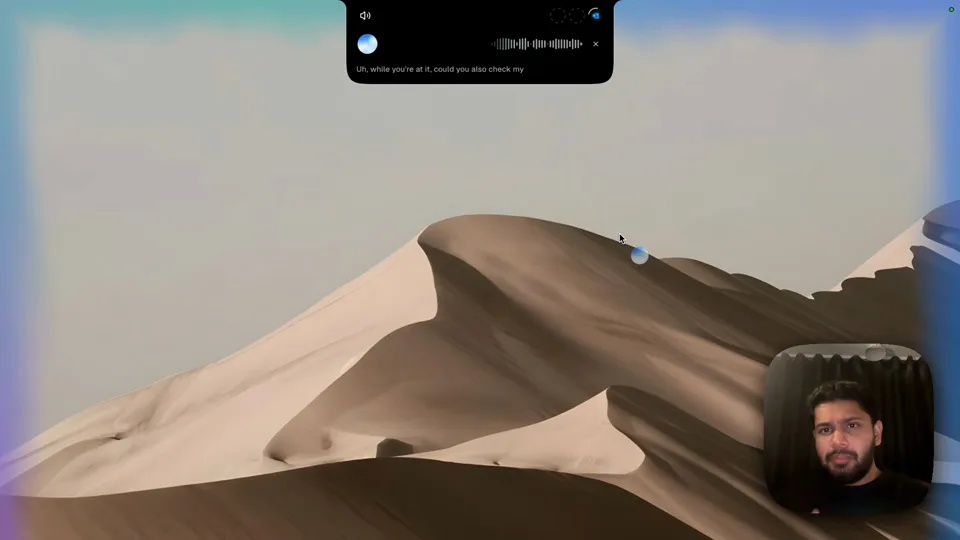
The recording above starts with the classic assistant request, by voice:
"Could you set up a reminder for me for tomorrow at 9:00 a.m. to go through our financials with Freddy?"
"I'll set that up," Incredible answers. A second reminder for 1 p.m. today goes in the same way, and both appear under Schedule in the app, in a calendar you can browse. So far, Siri could do the same.
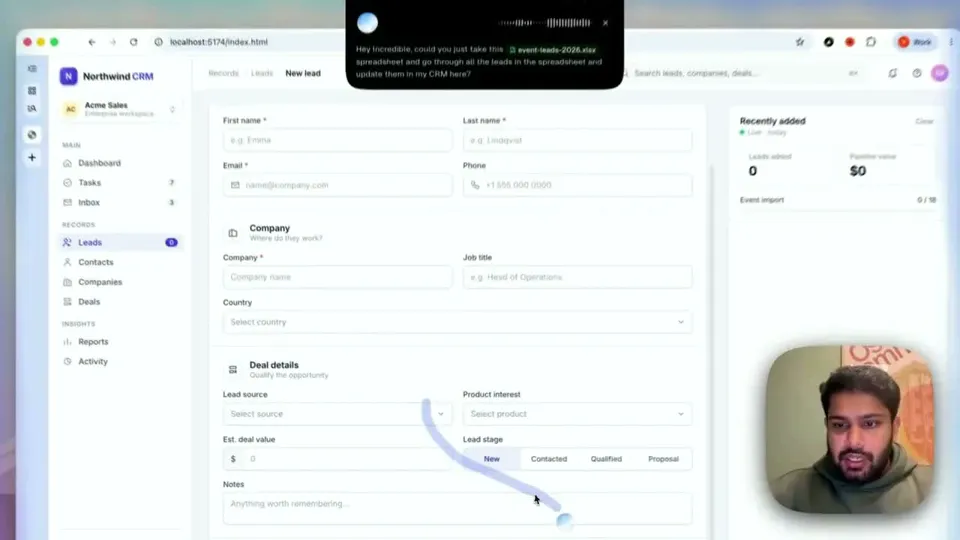
Because Incredible clicks and types, the next request can be any job on your Mac:
You hold the fn key, say it, and let go. It sees the screen in front of you, so "this spreadsheet" and "reply to this" need no explaining. It works in your signed-in browser, which covers the portals and admin panels that no assistant has an integration for, and it asks before anything is sent.
“It’s Copilot on steroids.”
Kyle Rademacher, Office Manager, ProGuard Security Services
Apple rebuilt Siri for this year's software. From Apple's own pages, read on 21 October 2026:
If your day is mostly Apple's own apps and you have a recent Mac, Siri AI is worth turning on. It is free and built in.
| Incredible | Siri AI | |
|---|---|---|
| How you start it | Hold fn, or hands-free | “Siri” or the Siri app |
| Talks back | Yes, voice and language you choose | Yes |
| Takes actions in | Any app and website you can use | Apps like Messages, Music and Reminders |
| Your signed-in browser | Clicks and types in it | Not described by Apple |
| Which Macs | macOS 13 or later | macOS 27, M1 or later |
| Windows | Yes, Windows 10 or later | No |
The two get along. Keep Siri for a timer or a song, and hold fn for the work.
 ChatGPT Voice in the desktop app lets you talk through ideas and coordinate tasks in Chat, Work and Codex, on paid plans, and can use screen context on macOS. How Incredible compares with ChatGPT.
 Gemini in Google's Mac app has Speak to Window: press and hold the fn key and Gemini shapes, edits and creates content in the app you are in, still rolling out. Its Task mode runs multi-step chores in the background with your approval.
For the whole field on a Mac, see the best AI for Mac in 2026.
Try this now. Hold the fn key and say: "Remind me at 4 to send the weekly report, and draft it from the numbers in this spreadsheet." Incredible is free for 7 days. Download it, or read the Quickstart first.
For getting work done, Incredible. Hold the fn key, say the task, and it does it in your apps, files and browser, including web apps with no integration. It talks back in the voice you choose and runs on macOS 13 or later, so it also works on Macs that can’t run Siri AI.
Apple says Siri AI is in beta on macOS 27 and needs a MacBook Neo or a Mac with M1 or later, with Siri and the device language set to a supported language. It is available in English to start, and usage limits may apply.
Apple says Siri AI can take actions in apps like Messages, Music, Reminders and more, and answer questions about a screenshot of what is on your screen. Incredible works in any app and website you can use yourself, because it clicks and types the way you do.
Siri is only on Apple devices. Incredible runs on Windows 10 or later as well as on Mac: hold Ctrl and Space and say what you need, and it does it on your PC and talks back.
It clicks and types in your browser, files and apps, exactly like you do.
Requires macOS 13 or Windows 10, or later.
 Download for Mac
 Download for Windows