The short answer
Open the folder, hold Incredible’s key and say how you want it sorted, for example "organize my Downloads folder, and put all the images in a folder called Images." It moves every loose file into its folder and leaves your existing folders alone. Claude can do the same in a folder you connect to its desktop app, and Sparkle sorts on a schedule.
Free for 7 days, no card needed. Mac and Windows.
Ask an AI to sort your Downloads folder and it moves every file into the right folder. How Incredible, Claude, Sparkle and Hazel each organize files on a Mac.
Your Downloads folder has 112 loose files in it: screenshots, invoices, a video from last month, three versions of the same logo. You know you should sort it, and it never makes it to the top of the list.
You can hand that job to an AI now. With Incredible on your Mac, you open the folder, hold the fn key and say how you want it organized. It moves every file into the right folder while you watch. The recording above shows it on a real Downloads folder.
Say it the way you would to a colleague:
"Organize my Downloads folder. Put everything into its own folders so I can browse through it, and if there are a lot of images, make a folder called Images."
In the recording, Incredible answers "Done. 112 loose files sorted into folders": 66 images into Images, 23 videos, plus documents, spreadsheets, apps and archives, with the folders that were already there left untouched.
The same works for the Desktop, a project folder or a shared drive folder you have open. To rename as you sort:
"Find every loose file on my Desktop from this month, rename them by date and subject, and sort them into the right project folders."
While the folder is open, the next request can be about one file:
"Convert this JPG into a PNG and keep it in the same folder."
Incredible makes the PNG next to the original and leaves the JPG as it was. Nothing is uploaded or attached anywhere. A whole folder works too: "Convert every PNG in this folder to WEBP and keep the originals." The Files guide lists every format it works with, from PDF and Word to Excel, PowerPoint and CSV.
“It’s Copilot on steroids.”
Kyle Rademacher, Office Manager, ProGuard Security Services
 Claude can read and write files in a folder you connect to its desktop app, on Mac and Windows, on the paid plans. Anthropic's support page says it asks for your permission before it permanently deletes any file. You choose the folder first, then ask in the chat. How Incredible compares with Claude.
Gemini, Google's Mac app, lists organizing local files among the multi-step tasks it can run in the background, approving each action with one tap. It needs Apple Silicon and macOS Sequoia, and Google says those task features are on macOS today and coming to Windows.
Sparkle is a Mac app built for this one job. Its website says it "builds folders from the hidden patterns in your work", cleans out junk and duplicates, and sends deleted items to the Trash first. It is paid, with a 15-day free trial, and Mac only.
Hazel is the long-standing rules tool for the Mac. You write the rules yourself, by name, date, file type or the site a file came from, and Hazel applies them to the folders it watches. There is no AI in it, so it does exactly what each rule says, every time.
| Incredible | Claude | Sparkle | Hazel | |
|---|---|---|---|---|
| How you tell it | Say it, in your own words | Type it in the chat | It picks folders; you can add rules | Rules you write |
| When it runs | When you ask | When you ask | On its own, as files arrive | On its own, as files arrive |
| Also does | Renames, converts, and works in your apps and browser | Writing, analysis, code | Cleans junk and duplicates | Renames, tags, archives |
| Mac and Windows | Both | Both, paid plans | Mac | Mac |
Everything above about Claude, Gemini, Sparkle and Hazel is from their own pages, read on 21 October 2026.
If the mess is a one-off, or you want to say how it should be sorted this time, ask Incredible. If you want a folder that stays tidy without you thinking about it, Sparkle or Hazel watch it for you, and the two work fine next to Incredible.
Whichever you pick, look over the result the first time. Moving and renaming files changes things you may rely on, such as a file a shortcut or another app points to.
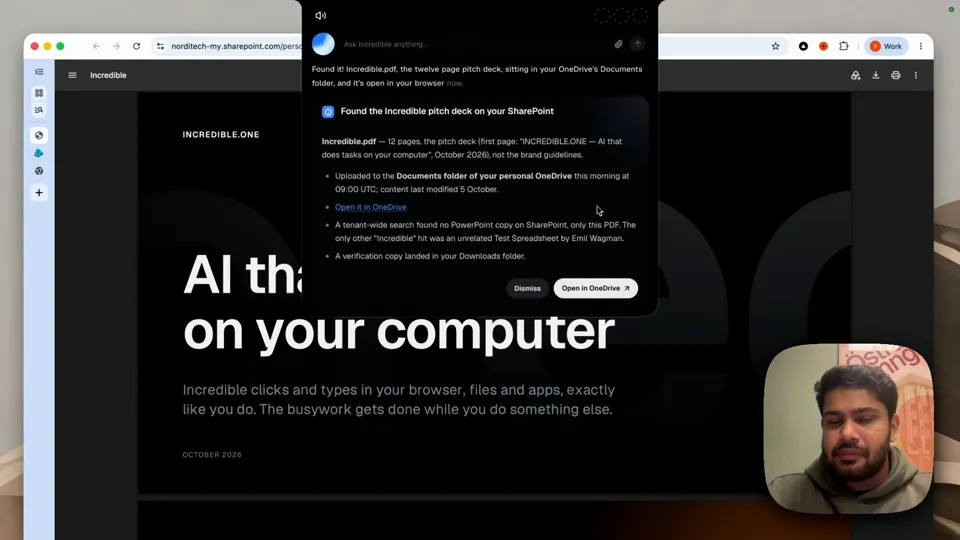
A tidy folder still has to be searched. You can ask Incredible for a file you only half remember, "the brand guidelines deck from last week, a PDF or a PowerPoint", and it finds it on your Mac or in a connected SharePoint or OneDrive and opens it. The use cases page shows it.
Try this now. Open your Downloads folder, hold the key and say: "Organize this folder into folders by type, and put the images in a folder called Images." Incredible is free for 7 days with no card. Download it, or read the Files guide first.
For more of what Incredible does on a Mac, see the best AI for Mac in 2026.
Yes. Incredible sorts a folder on your Mac when you ask it to, for example "organize my Downloads folder into folders, with the images in their own folder." Claude can sort files in a folder you connect to its desktop app on a paid plan, and Sparkle is a Mac app that builds folders for you from patterns in your files.
For sorting a folder when you ask, in your own words, Incredible: hold a key, say how you want it organized, and it moves the files. For a folder kept tidy on its own, Sparkle. For exact rules you write yourself, with no AI, Hazel.
Yes. Incredible works with the files on a Windows PC the same way, in folders like Desktop, Documents and Downloads. Claude’s desktop app for Windows can work in a folder you connect on paid plans. Sparkle and Hazel are Mac only.
Yes. Ask Incredible to rename files by date and subject, or to convert them, such as "convert this JPG to a PNG in the same folder" or "convert every PNG in this folder to WEBP and keep the originals." It works on the files where they are, with nothing to upload.
Check how each one handles it. In our recording, Incredible moved 112 loose files into folders and left the existing folders untouched. Claude asks for your permission before it permanently deletes anything, and Sparkle sends deleted items to the Trash first. Look over the result the first time you use any of them.
It clicks and types in your browser, files and apps, exactly like you do.
Requires macOS 13 or Windows 10, or later.
 Download for Mac
 Download for Windows