Download for Mac
 Download for Windows
AI Email Assistant: Let AI Reply to Your Emails in Gmail and Outlook (2026)
Let AI draft email replies in your voice, then approve before sending. See a real Gmail reply, plus Gemini, Outlook Copilot and a dedicated email assistant.
 Emil WagmanCTO
The short answer
Yes, AI can draft replies to your emails for you to review and send. In Gmail, try Gemini's Help me write or Suggested Replies. In Outlook, use Draft with Copilot if your account has access. Incredible takes a spoken request and works in your own Gmail or Outlook in the browser. Our recording shows it replying to Anna in Swedish, using imported writing preferences and signing /Sara, then waiting for the user to click Send. Incredible is free for 7 days on Mac and Windows.
Free for 7 days. Mac and Windows.
Yes, AI can answer emails for you. Start by having it draft a reply that you read and send. Gmail has Gemini for this, and Outlook has Copilot. If you want to say the answer out loud and have it written in the email you are looking at, you can ask Incredible, our product, to do that.
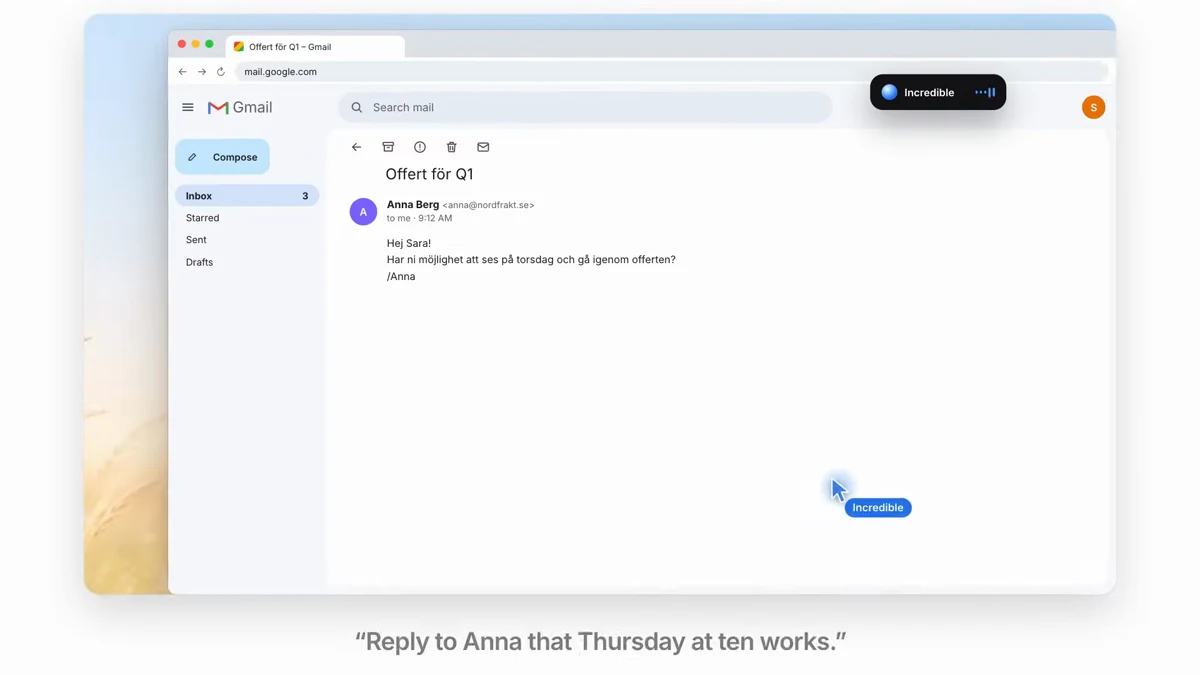
The recording above shows the whole reply. After importing writing preferences, Incredible drafts an answer to Anna in Gmail. It is short, in Swedish and signed /Sara. The user clicks Send at the end.
Below are the steps, what the recordings actually show, and the alternatives built into your inbox. Google, Microsoft and Superhuman facts come from their own pages, read on 21 November 2026.
How do I get AI to reply to an email?
Open the email you want answered and tell the assistant what the answer should say. You can leave the greeting and wording to it while supplying the decision yourself.
With Incredible:
- Set up your browser through the Browser guide, then open Gmail or Outlook in that browser, signed in to your own account.
- Open the thread you want to answer.
- Hold
fnon a Mac, orCtrlandSpaceon Windows, and say what to write. Let go when you finish speaking. - Read the draft and change anything that needs changing before you press Send.
In the Gmail recording, Anna asks whether Thursday works for going through an offer. The request supplies the missing detail, Thursday at ten. Incredible puts that answer in the reply field.
The browser route works in your own Chrome or another supported Chromium browser, such as Edge or Brave. The recording here shows Gmail; it is not an Outlook reply demonstration.
Make the reply sound like you
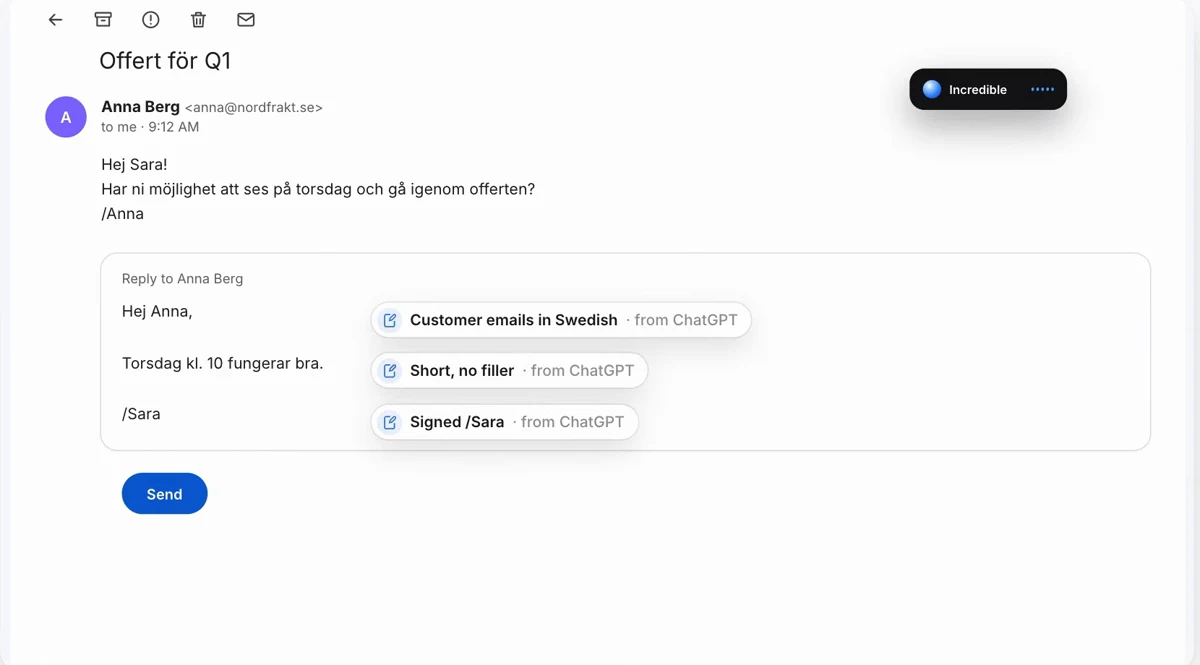
An answer can be correct and still sound unlike you. For email, useful preferences are concrete: which language you use with customers, how formal you are, and how you sign off.
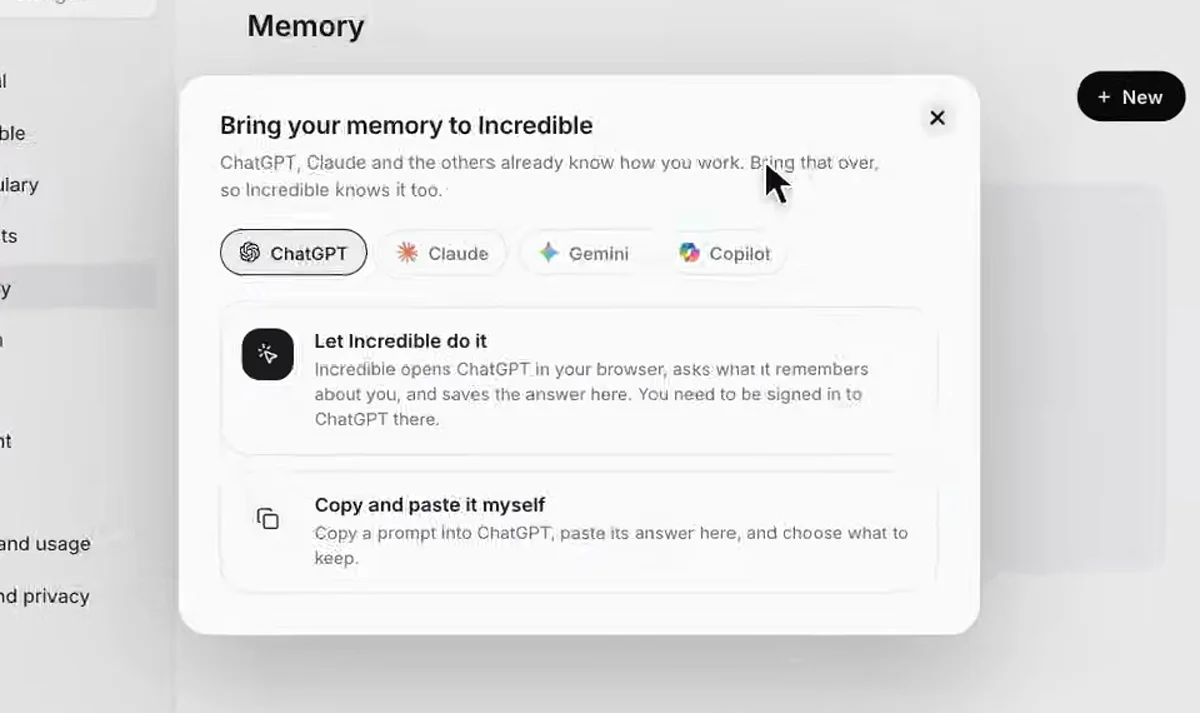
Earlier in this recording, the user opens Memory > Import from your AI, selects ChatGPT and lets Incredible ask it for remembered context. The answer becomes notes in Incredible. The memory import walkthrough explains how to change or delete those notes; the transfer guide covers the import steps in more detail.
The next task uses those notes. Although the request is in English, the draft reads:
Hej Anna,
Torsdag kl. 10 fungerar bra.
/Sara
That says Thursday at ten works. The labels in the recording identify which preferences came from ChatGPT. It is a visible example of remembered writing choices, not a reason to skip reading the next draft.
Read the draft, then press Send
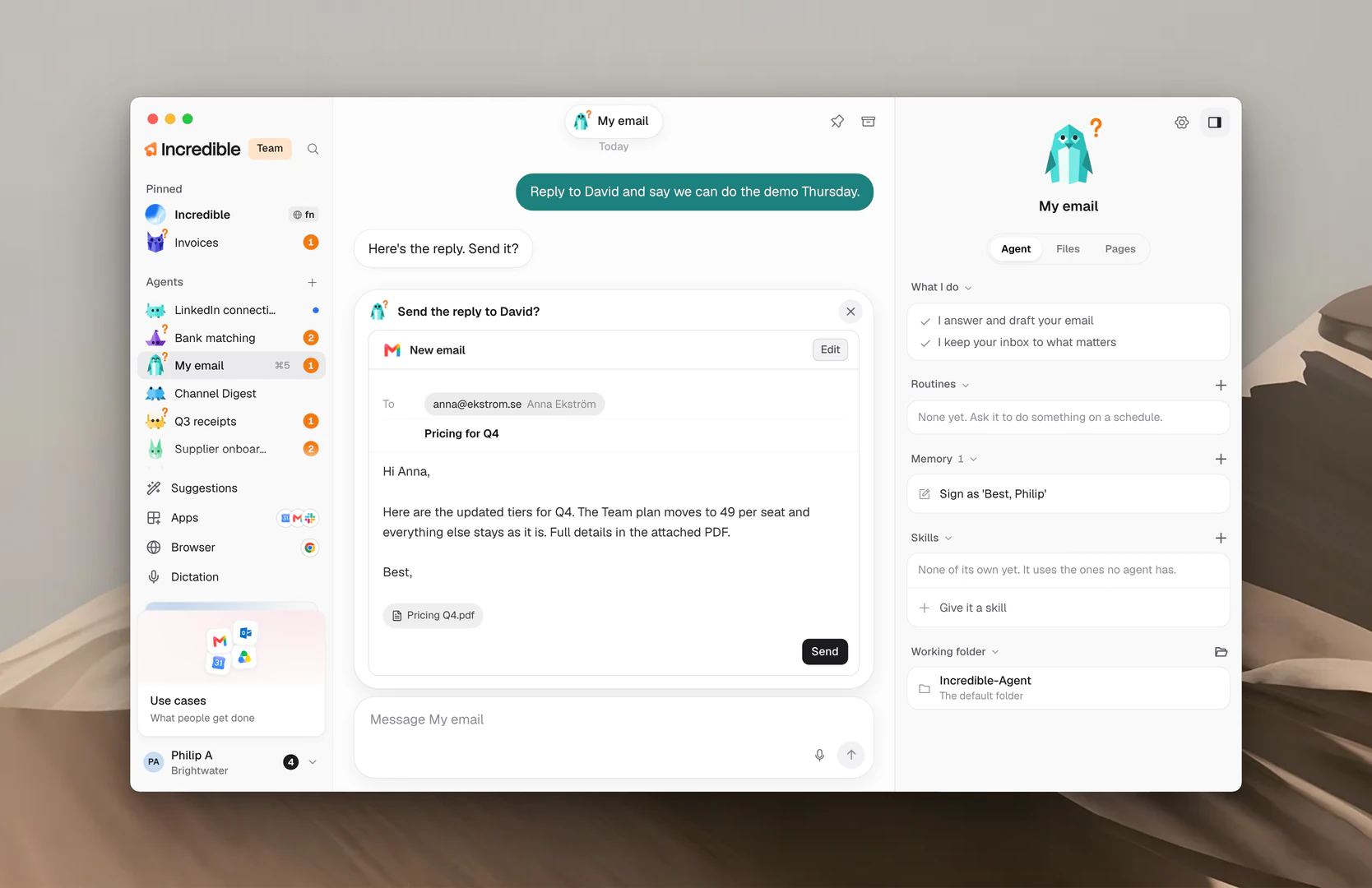
Drafting and sending are separate steps. In the Gmail recording, the text is already in the reply field, but the Send button is still waiting. At the end, the cursor labeled "You" clicks it and Gmail confirms the message was sent.
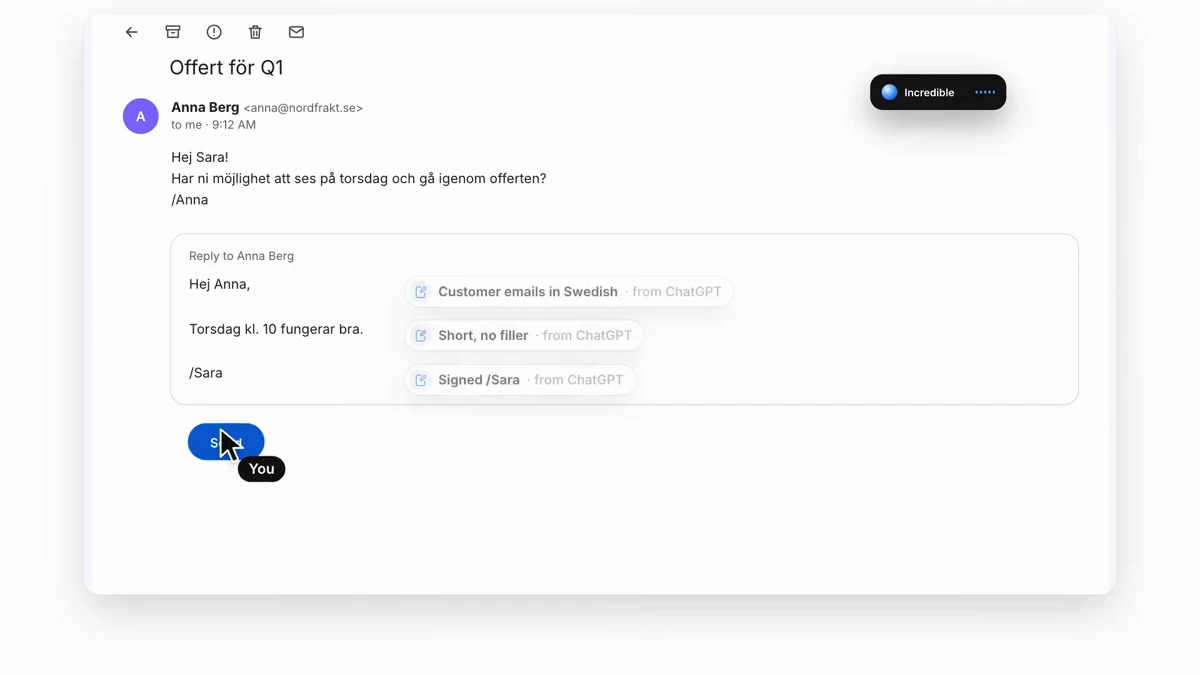
The current Needs you guide shows the other presentation, a draft card with its own Edit and Send buttons. Check the recipient as well as the body. A useful draft says what you intended without adding a promise, deadline or detail you did not approve.
Check unread email by voice
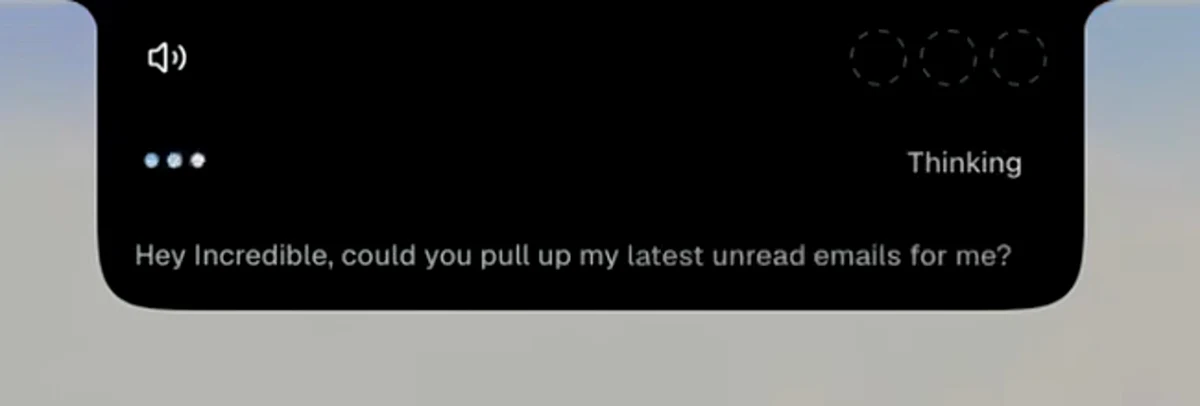
You can also start before choosing a thread. In the voice recording, the user asks: "Hey Incredible, could you pull up my latest unread emails for me?" The panel then says it will check the inbox for anything new.
The conversation continues into calendar and Slack requests. This part shows the unread-mail request and the assistant taking it up. It does not show an email reply being drafted or sent. For that, use the Gmail recording above.
Use Gemini in Gmail
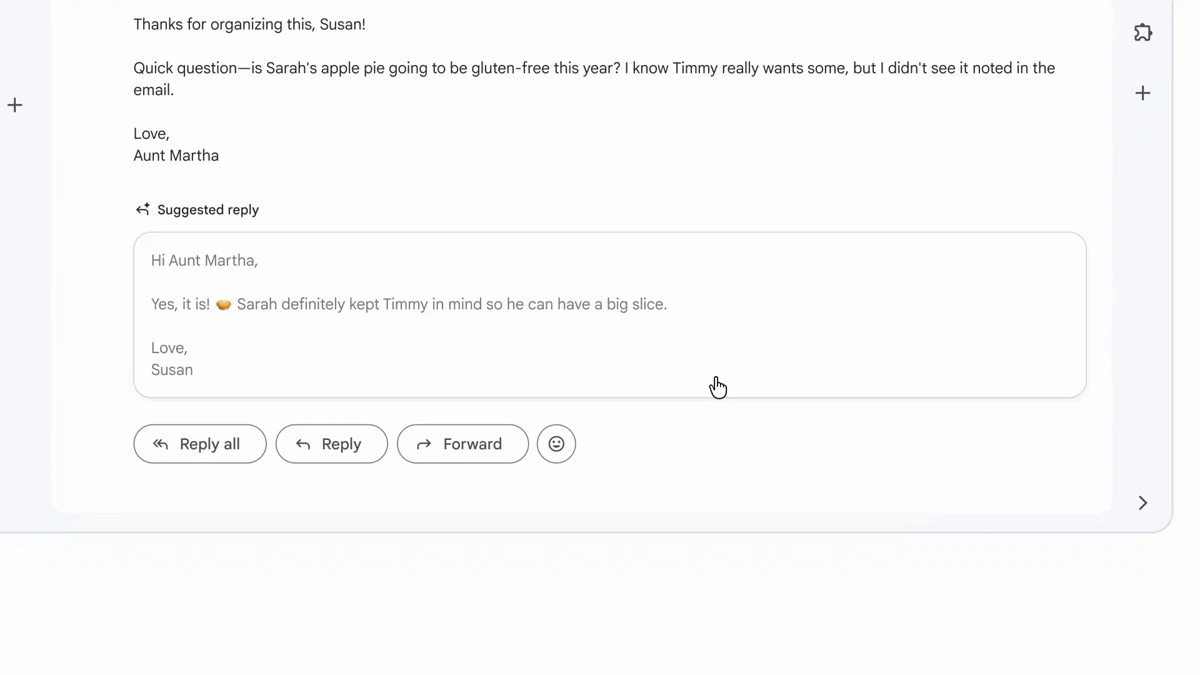
If you only need help with the wording in Gmail, try the tools already there. Google's Help me write instructions cover new emails, replies and existing drafts. Open the reply, enter your request in the prompt bar and click Create. You can ask for changes or choose options such as Formalize, Friendly and Shorten.
Suggested Replies offer a response beneath an incoming email. Click the suggestion, edit it if needed, then click Send. Suggestions are not available for every email.
For access, Google's current help pages list personal Google Accounts in the US and eligible Google Workspace or Google AI plans. Supported-language restrictions apply, and Suggested Replies require Workspace smart features to be on. Personalized Suggested Replies require an eligible Workspace or Google AI plan, or Workspace Experiments. Google explicitly excludes personal accounts without a Google AI plan from that personalization.
Google's launch announcement describes Help me write and Suggested Replies rolling out at no cost. Use the current help pages above to check your account's eligibility.
Use Copilot in Outlook
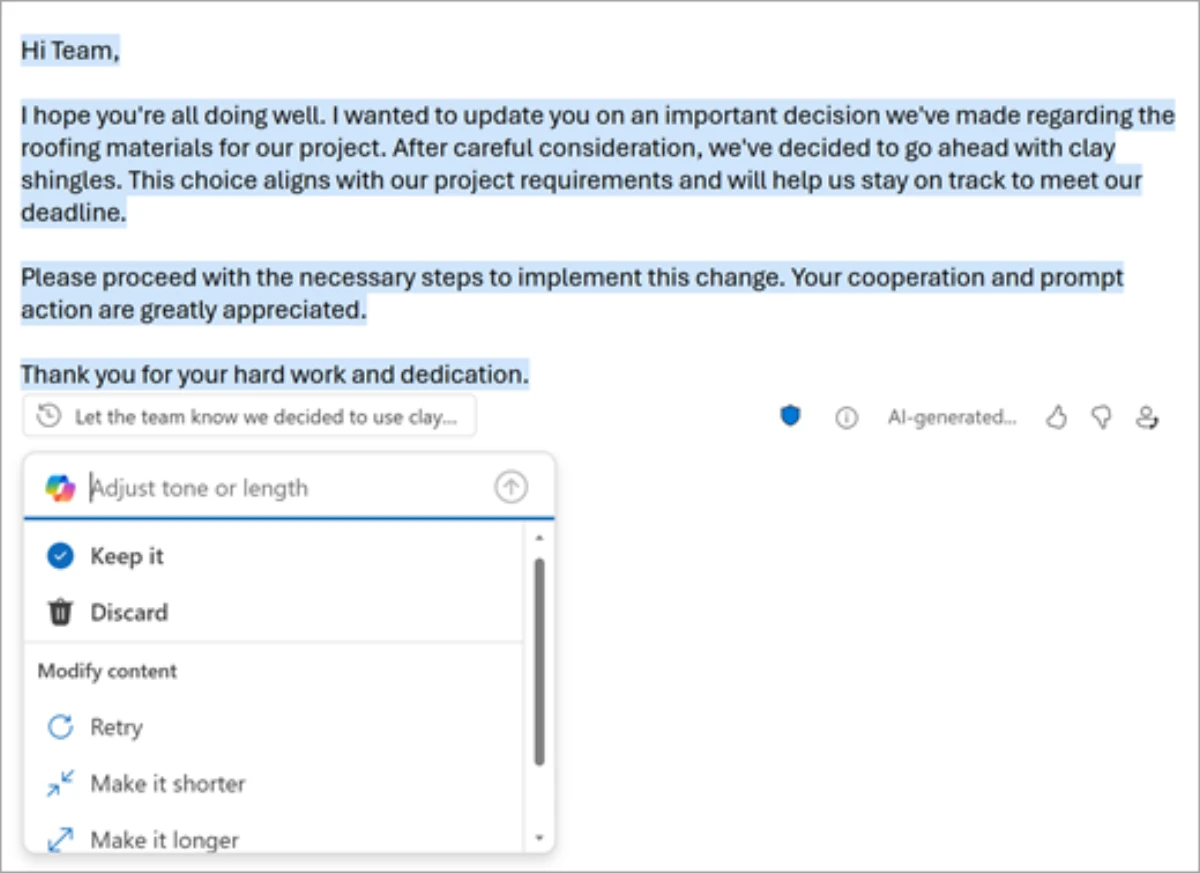
Microsoft's drafting guide describes Draft with Copilot. Enter what the email should say, generate the draft and select Keep it when you are satisfied. You can edit the text further before sending. The guide also documents Help me reply in Copilot chat on mobile.
If you have written the reply yourself, Coaching by Copilot reviews its tone, clarity and how it may come across to the reader. Microsoft's Windows instructions let you apply all suggestions or make individual edits yourself.
Check your license before paying for another email tool. Microsoft's Outlook access page lists Microsoft 365 Personal, Family, Premium and Pro subscriptions with AI credits, and work or school accounts with a Copilot license. For Family, Copilot is available to the subscription owner. The page also says Connected Experiences must be enabled. Access sharing across accounts is not available in classic Outlook for Windows.
A dedicated email assistant for background drafts
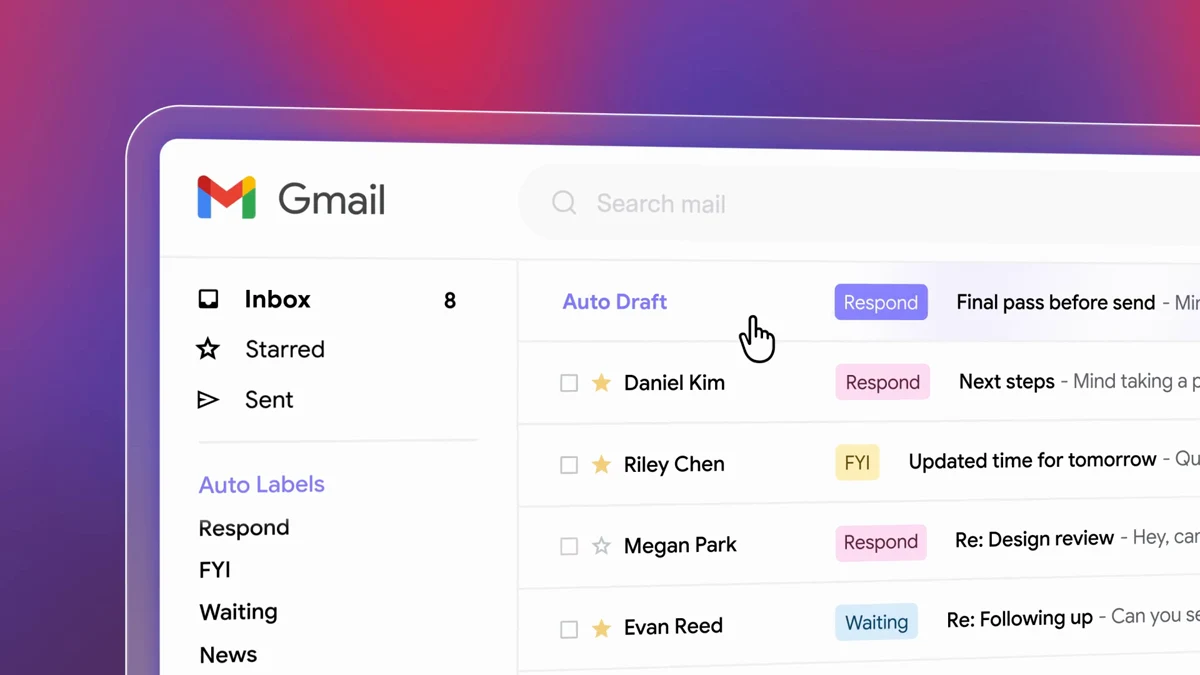
If you want drafts prepared before you ask, Email Assistant by Superhuman Mail is another option. Its page says it works inside Gmail and Outlook, labels incoming messages, drafts replies in your voice and brings back threads that need a follow-up. It says drafts use your inbox, calendar and the web.
Its FAQ is explicit about sending: it leaves drafts in the thread for you to review, edit and send. The page offers a 30-day trial and does not list a paid price. This is the Email Assistant product; the separate Superhuman Mail plans list Starter and Business subscriptions, with Auto Drafts named under Business.
The best AI to answer emails depends on the help you need. For an occasional draft, start with the built-in Gmail or Outlook option your account already includes. For drafts prepared in the background, look at a dedicated email assistant. To give a spoken instruction about an email in your own browser and use remembered writing preferences, the Incredible recording shows that job through to your Send click.
Try this now. Open an email you need to answer, hold Incredible's talk key and say what the reply should say. Read the draft before pressing Send. Incredible is free for 7 days on macOS 13 or later and Windows 10 or later. Download it.
For how an assistant understands the window you are looking at, read AI that can see your screen. For the longer spoken conversation, see a real-life Jarvis AI assistant. For email alongside CRM work, see the best AI assistant for sales teams.
Frequently asked questions
Can AI reply to my emails for me?
Yes. An AI email assistant can draft an answer from the email and your instructions. Incredible's recording shows a request to tell Anna that Thursday at ten works, a Gmail draft in Swedish signed /Sara, and the user clicking Send. Give the assistant the answer you want to convey and check its wording before sending.
What AI email assistant can I use in Gmail?
Gmail has Gemini's Help me write for drafts and Suggested Replies for responses to incoming mail. Google lists US personal accounts and eligible Google Workspace or Google AI plans, with additional requirements for personalized Suggested Replies. Incredible also works in your own Gmail in the browser, as shown in our recording.
What AI email assistant can I use in Outlook?
Outlook has Draft with Copilot and Coaching by Copilot. Microsoft documents access through qualifying Microsoft 365 subscriptions or work and school accounts with a Copilot license. You can also ask Incredible to draft in Outlook in your own browser. The reply recording on this page shows Gmail.
Is there a free AI email assistant?
Google's current help pages list Help me write and Suggested Replies for personal Google Accounts in the US without requiring a paid Google AI plan. Supported languages and feature restrictions apply, and personalized Suggested Replies need an eligible plan or Workspace Experiments. Incredible is free for 7 days. Superhuman's Email Assistant page offers a 30-day trial.
Does an AI email assistant send without asking?
Check the tool and the workflow. In the Incredible recording, the reply stays in Gmail until the user clicks Send. Its Needs you draft card also has Edit and Send controls. Google's Suggested Replies instructions and Microsoft's Copilot drafting instructions leave sending to you. Superhuman's Email Assistant FAQ says it prepares drafts for you to review, edit and send.