Download for Mac
 Download for Windows
How to transfer ChatGPT memory to Claude, Gemini or Copilot (2026)
Transfer ChatGPT memory to Claude or Gemini with their import tools, or bring a profile to Copilot. Exact steps, an export prompt and what stays behind.
 Emil WagmanCTO
The short answer
To transfer ChatGPT memory to Claude, open Settings > Your Claude > Start import, copy its prompt into ChatGPT, then paste the reviewed answer back and select Add to memory. Gemini has its own Import memory to Gemini option in Settings, with account and region restrictions. Microsoft recommends bringing a context document to Copilot because saved memories and settings do not transfer automatically. A memory summary does not copy your conversations; Gemini offers a separate chat history ZIP import.
Free for 7 days. Mac and Windows.
You can bring what ChatGPT remembers about you to another assistant. Claude and Gemini have dedicated import tools. Copilot's transfer guidance recommends a document containing your important context, because another AI's saved memories and settings do not transfer automatically.
Start with the steps for your destination below. The vendor instructions were checked against their own pages on 21 November 2026. If you would rather not copy and paste, Incredible can do it for you: it opens ChatGPT, asks what it remembers and saves the answer as notes. It is shown in the last section, from our published recording.
How to see and export ChatGPT memory
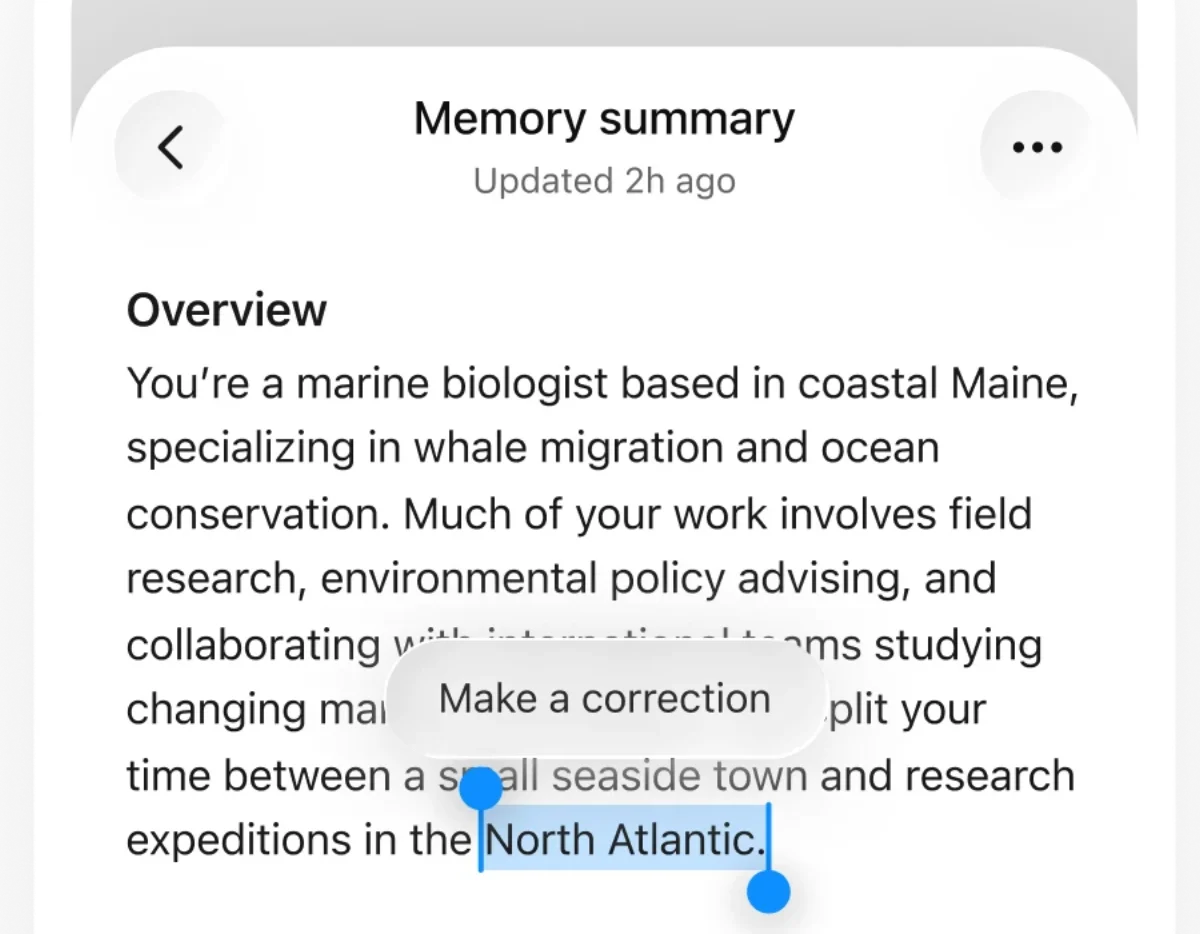
OpenAI's memory help page distinguishes saved memories from context drawn from chat history. Saved memories are separate notes. Reference chat history uses relevant details from previous conversations and can change over time.
- Open Settings > Personalization > Memory.
- Review the memory summary or saved-memory controls your account shows. OpenAI says the names and availability vary.
- Ask ChatGPT what it remembers about you. Use your destination's import prompt, or the export prompt below, and review the answer against those settings.
A summary does not necessarily include everything Memory can reference. Keep your own copy of the details you want to take.
Export your chat history as a separate backup
For the account archive, follow OpenAI's data export instructions:
- On the web, open your profile menu, then Settings > Data controls.
- Under Export data, select Export, then Confirm export.
- Download the ZIP when the email or SMS arrives. Settings exports can take up to 7 days, and their download link expires after 24 hours.
The ZIP contains chat history and other account data. Self-service export is unavailable for Business, Enterprise and Healthcare workspaces. If your account has no export option, check the page's eligibility guidance or use its Privacy Portal route.
This archive and a memory summary serve different purposes. For Claude's memory import, use the text response requested by its import tool.
How to transfer ChatGPT memory to Claude
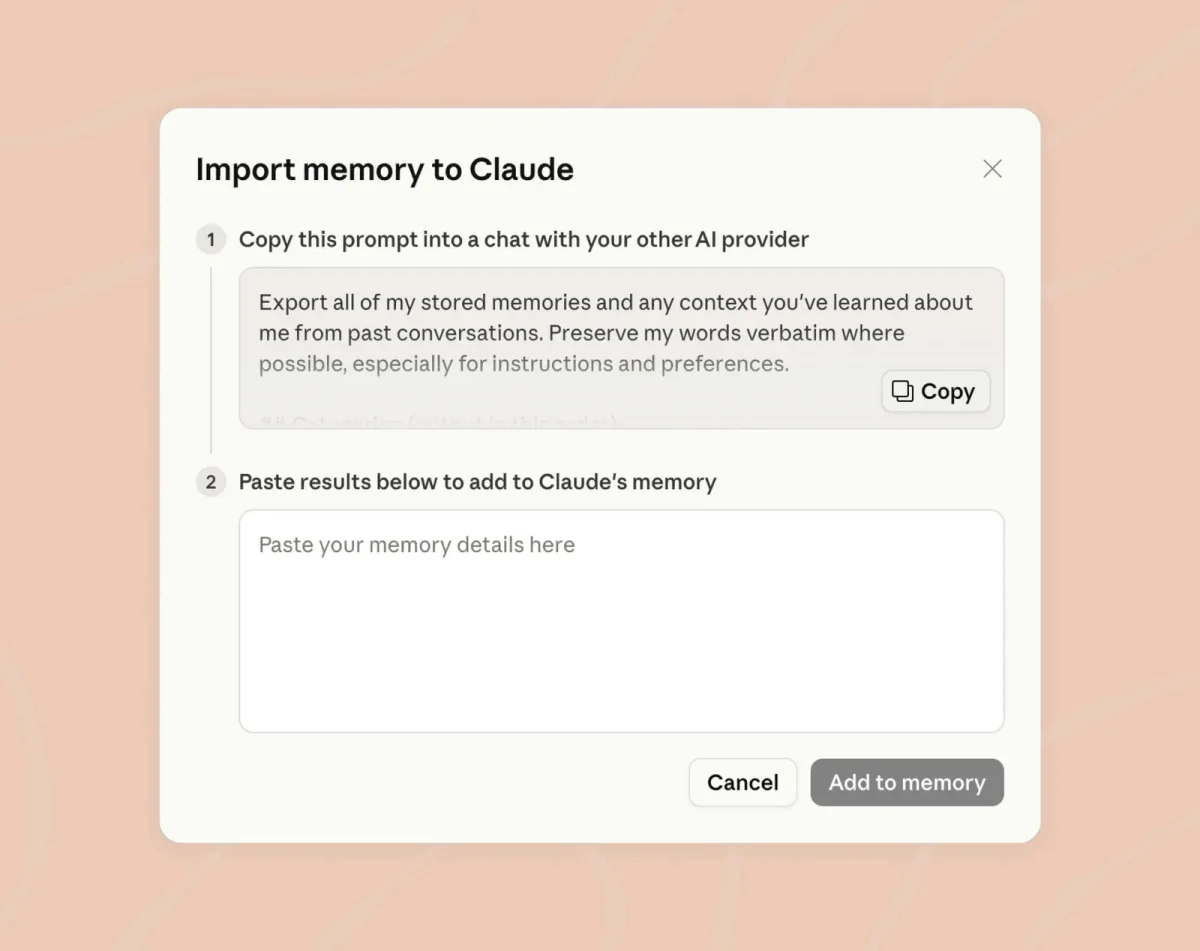
Yes, you can import ChatGPT memory to Claude through its built-in flow. Anthropic's current instructions give these steps:
- In Claude, open Settings > Your Claude and select Start import. In the older Settings layout, look under Memory. Legacy memory users may find it under Capabilities.
- Copy the prompt Claude displays and paste it into ChatGPT.
- Read ChatGPT's answer. Remove information you do not want to share, then copy the remaining text.
- Paste it into Claude's import box and select Add to memory.
- Review the resulting entries in the memory panel. Select See what Claude learned about you to check the result in a new conversation.
Anthropic says imports are experimental and may not incorporate everything. Claude focuses its memory on work and may leave out personal details unrelated to it.
If you are switching from ChatGPT to Claude, keep conversation backups separately. Anthropic's getting-started page explicitly says Claude cannot import another provider's conversation history. Memory import brings selected context over without recreating those chats.
How to transfer ChatGPT memory to Gemini
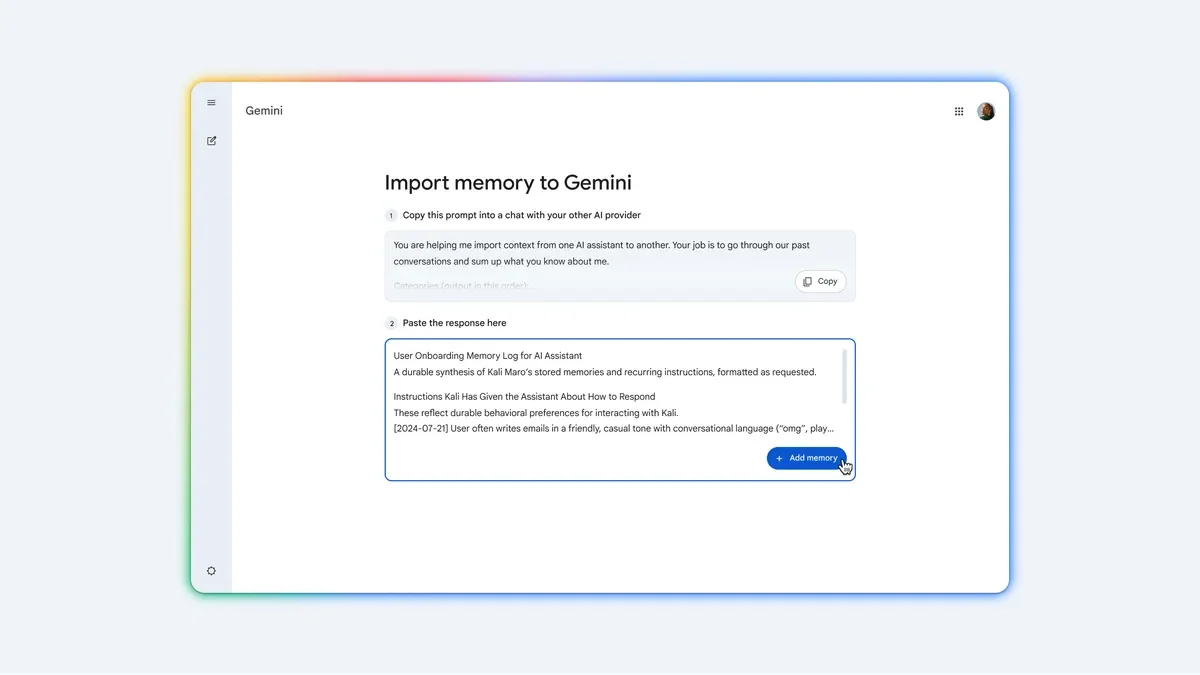
Google's import help page documents both memory and chat history imports.
- Open gemini.google.com.
- At the bottom, select Settings > Import memory to Gemini.
- Copy Gemini's prompt into ChatGPT.
- Review and copy ChatGPT's response.
- Paste it back into Gemini's designated field and select Add memory.
Google requires a personal Google Account and age 18 or older. Its help page currently excludes work, school and supervised accounts, the EEA, Switzerland and the UK. It also excludes Gemini in Google Messages, Chrome and Android XR.
If you also want your conversations
Download your ChatGPT data ZIP using the export steps above. In Gemini's same import settings, choose Add under Import chats, then select the ZIP. Google's limit is 5 GB per file and up to five ZIP uploads per day. Processing may take up to a day.
The Google launch post explains the distinction: memory import brings preferences and context over; a chat history upload lets you find and continue the imported conversations.
How to bring ChatGPT context to Copilot
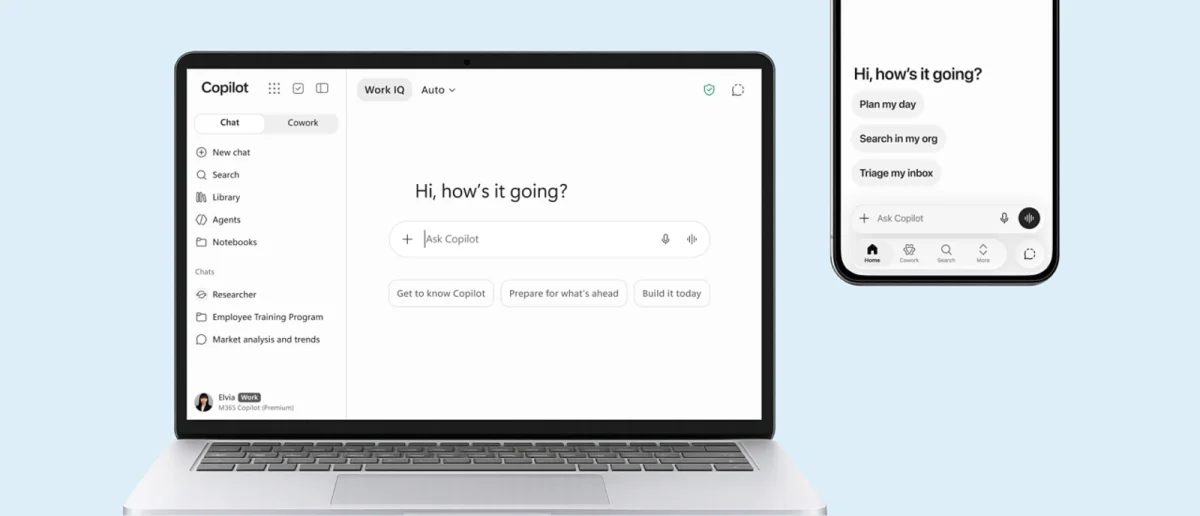
Microsoft's Copilot FAQ says it cannot automatically import chat history, memory or saved preferences from other AI tools. It recommends this approach:
- Export the important conversations, notes or documents from your previous assistant.
- Put the context you want to keep in a document, including your role, ongoing projects and writing preferences.
- Upload it to Copilot, or save it in OneDrive, Word or OneNote.
- Ask Copilot to summarize it, identify the key preferences and create a personal profile or project overview.
Treat the document as context you supply. Microsoft's instructions say saved memory, custom instructions and account settings need to be recreated in Copilot.
For response preferences, Microsoft's custom instructions guide gives a separate route for Microsoft 365 accounts: open Settings and more > Chat settings > Personalization > Custom instructions > Edit instructions, enter your preferences, then select Save instructions. The page notes that the new Home experience is still rolling out, so your layout may differ.
A ChatGPT memory export prompt you can copy
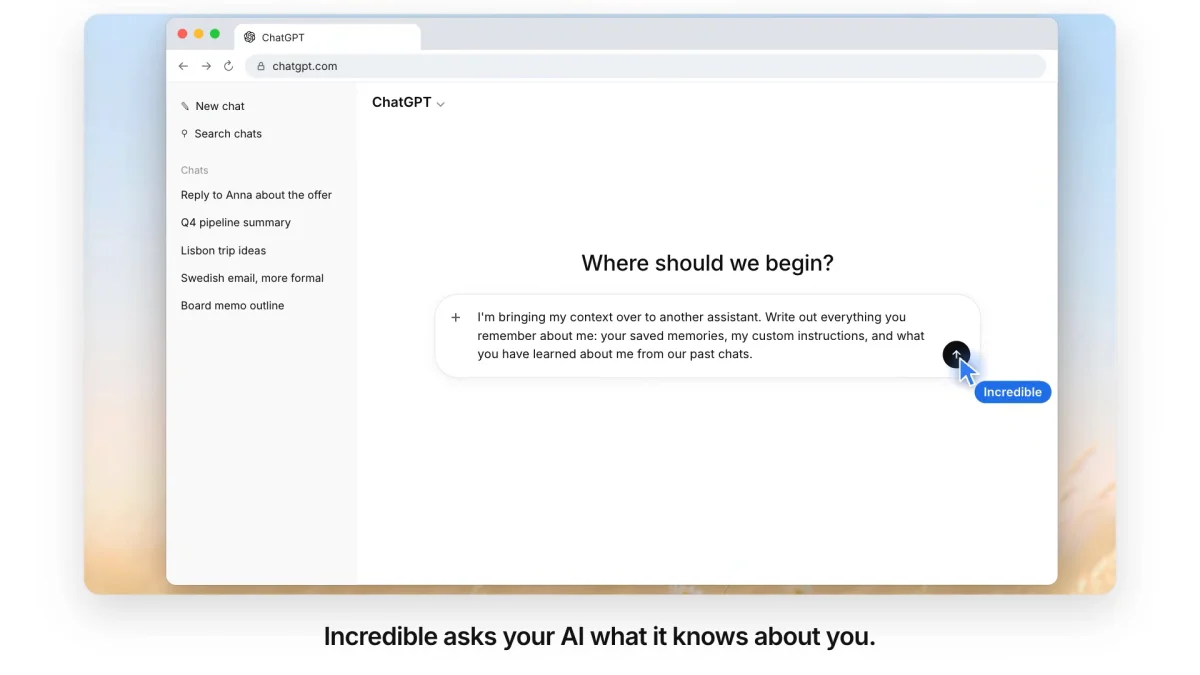
Claude and Gemini supply their own prompts inside their import tools. Use those when following their flows. If you want a copy to review yourself, here is an alternative prompt we wrote for that purpose:
I'm moving my context to another assistant. List the saved memories and
other context about me that you can currently access. Include my response
preferences and instructions, my work, ongoing projects, and recurring
preferences. Keep my original wording where available.

Separate saved memories from context inferred from past chats. Mark
anything uncertain or possibly outdated. Do not invent missing details
or claim to have checked conversations you cannot access. Leave out
passwords, account numbers, health details and private information about
other people.

Put the result in one code block, with one item per line. Then explain
what you could not access and whether this may be incomplete.
Read every line before you paste it elsewhere. Correct an old job title, remove a finished project and add any preference you know is missing. Keep only what you want the new assistant to use.
The limit is the source assistant's available context. OpenAI says Memory does not retain every detail, and its summary can omit information it can reference. Asking for "everything you know about me" does not make the answer a verified complete export. Check important instructions yourself. Pasting a summary into a chat also does not establish that the destination saved each item to memory. Use its import controls and review the result.
Is transferring memory private?
You are giving another service a copy of the text or files you select. Remove anything you do not want it to receive, especially someone else's information.
Google's Privacy Hub says imported memory and chats are saved in History and used to improve services, including training generative AI models. Microsoft's current privacy controls let personal-account users manage saved memories under Settings > Personalization > Manage, next to Saved memories. Turning that toggle off does not delete existing memories. Review the destination's controls before importing confidential material.
How Incredible brings memory over
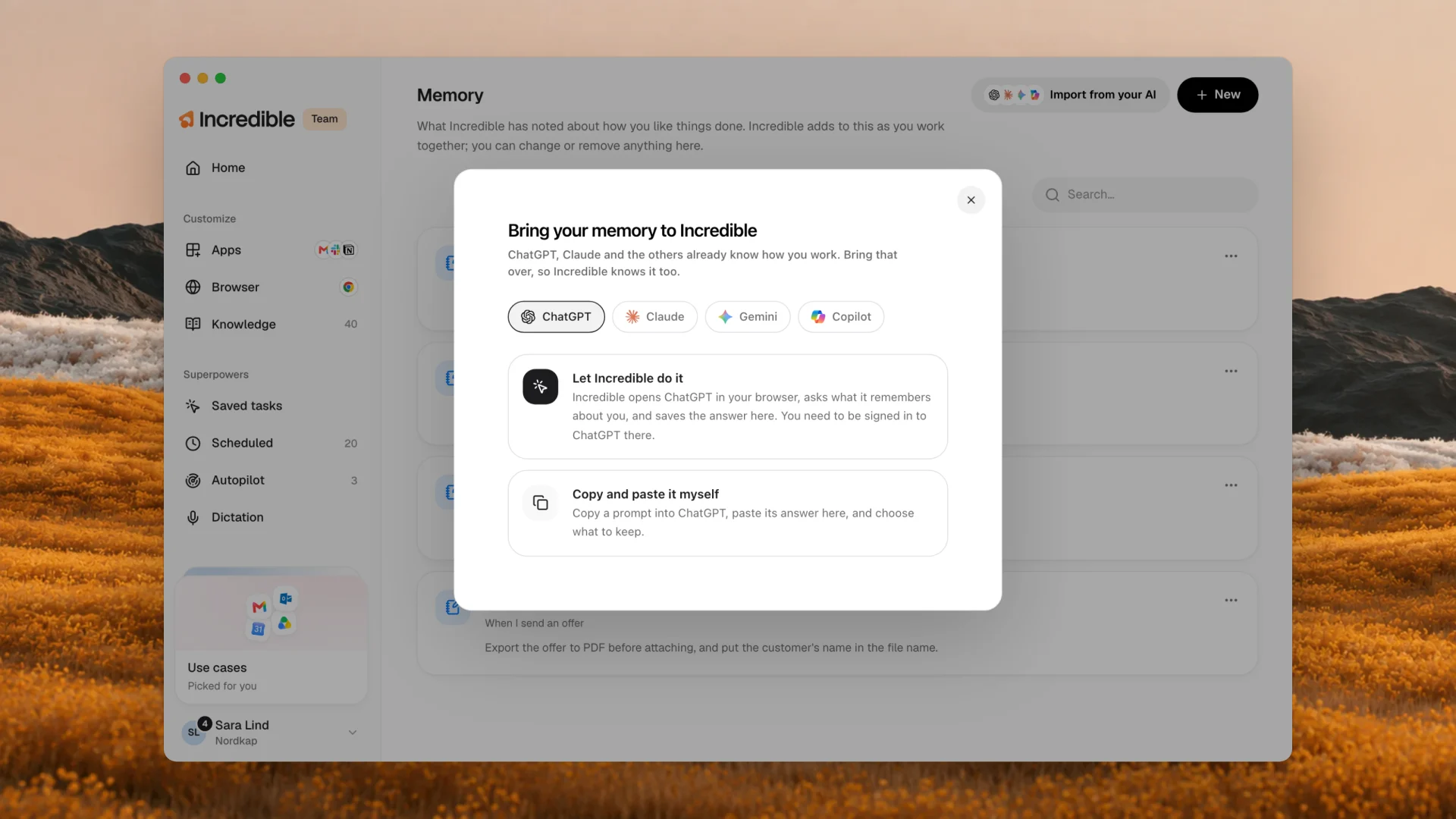
Incredible's recording shows another destination for your remembered preferences. It imports them into Incredible itself.
- Open Memory in Incredible and choose Import from your AI.
- Choose your assistant. The dialog shows ChatGPT, Claude, Gemini and Copilot. The recorded run selects ChatGPT.
- Choose Let Incredible do it. The dialog says you need to be signed in to ChatGPT in your browser. Incredible opens it and asks for saved memories, custom instructions and context from past chats.
- The answer becomes notes on Incredible's Memory page. In the recording, these include how the user wants answers, personal context and work details.
The other option shown is Copy and paste it myself. Its instructions say to copy a prompt into ChatGPT, paste the answer back and choose what to keep. Our launch post also explains how to change or delete the imported notes.
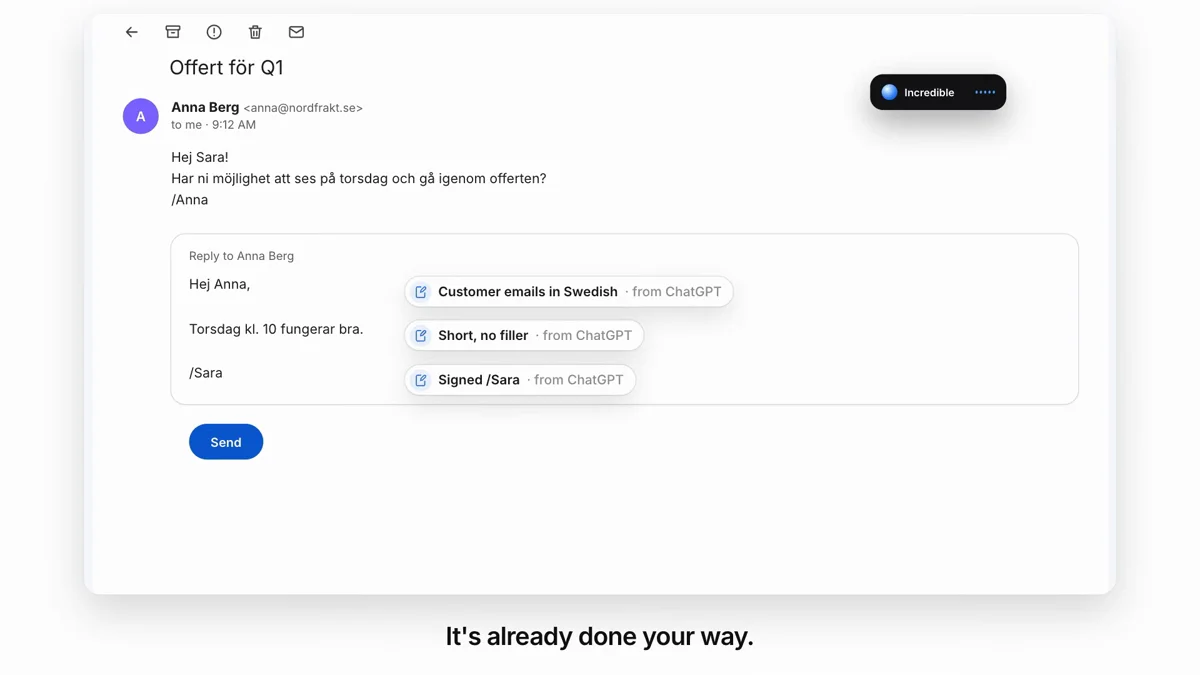
The recording then moves to Gmail. The request is to reply to Anna that Thursday at ten works. The draft says that in Swedish and signs off /Sara. Labels beside it identify the preferences brought from ChatGPT, including Swedish customer emails and short replies. The recording ends with the user clicking Send and Gmail showing a Message sent confirmation.
Try this now. Open Memory in Incredible, choose Import from your AI and review the context you want to bring over. Incredible is free for 7 days on macOS 13 or later and Windows 10 or later. Download it.
For the feature walkthrough, read Import your memories from other AIs. To see what an assistant can do with the window you have open, read AI that can see your screen, or compare the best AI assistants for Mac.
Frequently asked questions
Can I transfer ChatGPT memory to Claude?
Yes. Claude has a built-in memory import flow. Copy its prompt into ChatGPT, review the answer, then paste it into Claude and select Add to memory. Anthropic says imports are experimental and may miss details.
Can I transfer ChatGPT memory to Gemini?
Yes, through Settings > Import memory to Gemini. Google requires a personal account and age 18 or older. Its help page currently excludes the EEA, Switzerland and the UK, plus work, school and supervised accounts.
What prompt can I use to export ChatGPT memory?
Ask ChatGPT to list its saved memories and available context about you, including response preferences, work and ongoing projects, in a single code block. Ask it to flag uncertainty and omit sensitive information. Review the result against your Memory settings. This is a generated account of what it remembers, not a guaranteed complete export.
Does transferring memory copy my ChatGPT chat history?
The prompt method copies the answer you select, not the conversation archive. Anthropic says Claude cannot import another provider’s conversation history. Gemini separately supports uploading an exported chat history ZIP. Microsoft says Copilot cannot automatically import another AI’s chat history.
Is transferring ChatGPT memory private?
You are sharing the selected information with the destination service. Remove anything you do not want it to receive. Google says imported chats are saved in History and used to improve services, including model training. Read the destination’s data controls before importing confidential details.