Siri AI, ChatGPT, Copilot Vision and Incredible can all look at your screen. When each one looks, what it sees, and which can act on it.
Yes, several AI assistants can now see your screen: Siri AI on the Mac, the ChatGPT desktop app, Microsoft Copilot Vision on Windows, and Incredible on Mac and Windows. They differ in when they look and in what they can do afterwards. Copilot Vision, for one, only explains, while Incredible can do the task in the app it is looking at.
The details for Apple, OpenAI and Microsoft are from their own support pages, read on 4 October 2026.
Siri AI came with macOS 27. Apple's guide says it can "tap into Visual Intelligence to ask questions, take action, and search based on what's on your Mac screen". You ask Siri about what is in front of you, or press Command, Shift and Space to pick a window, or Command, Shift and 6 to drag over part of the screen.
The actions Apple shows are small and practical, such as picking a picture of a recipe and choosing "Look up nutrition". Siri AI needs a MacBook Neo or a Mac with M1 or later. It is a beta, in English to start, and Apple says daily usage limits may apply.
OpenAI calls its version Appshots. In the ChatGPT desktop app on Mac or Windows, you press both Command keys (both Alt keys on Windows), and ChatGPT gets the frontmost window: an image of it, and the text the app makes available, including text scrolled out of view. For Google Docs, Gmail, Sheets and Slides it may get only the screenshot.
An appshot gives ChatGPT something to talk about. Having ChatGPT then click and type in that app is a separate feature, Computer Use, covered in AI that can control your Mac.
Microsoft's Copilot Vision lets you share a browser window or app with Copilot during a session, ask about it and get step-by-step guidance. Microsoft is clear about the limit: Vision "doesn't click, enter text, or scroll on your behalf". It can highlight the part of the screen to look at, and you do the clicking. Microsoft lists it for Windows, Edge and the Copilot mobile apps, with a Microsoft 365 Personal, Family or Premium subscription.
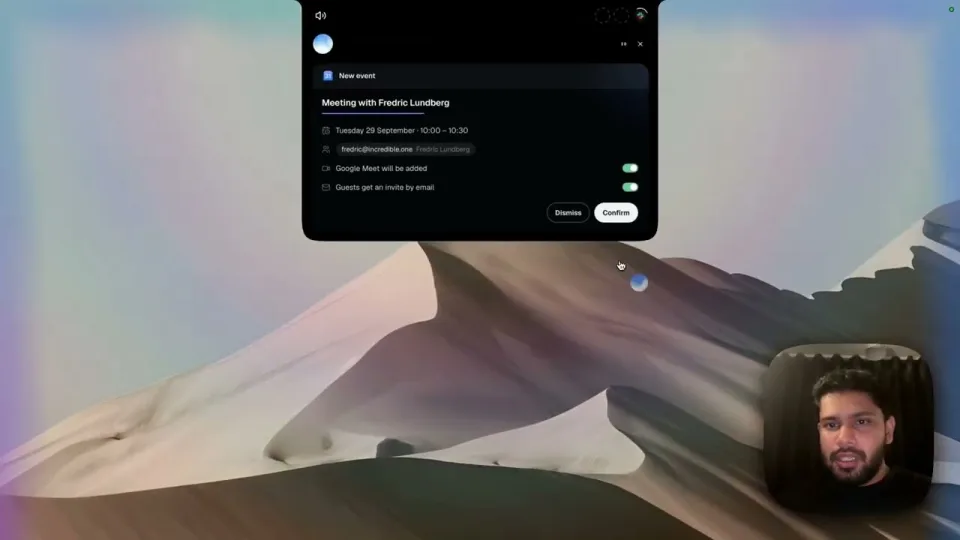
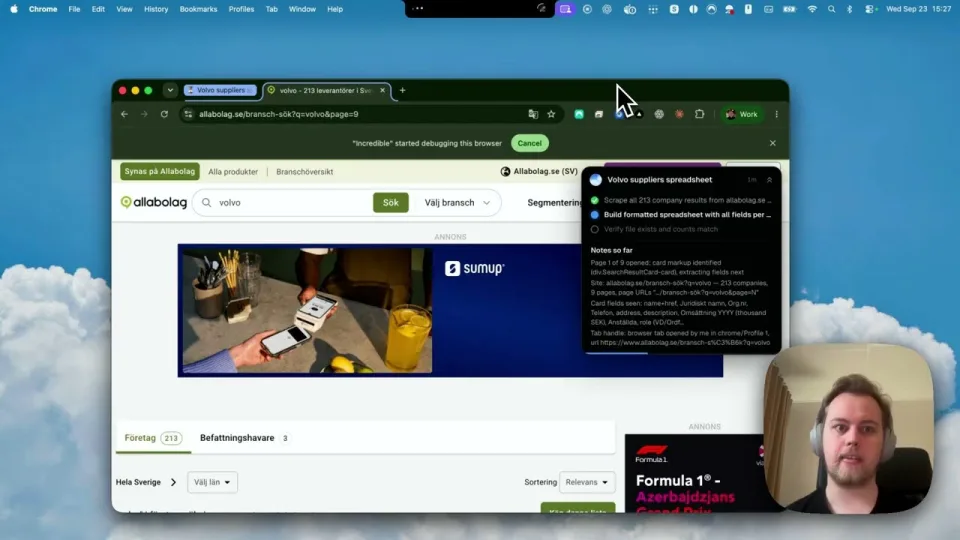
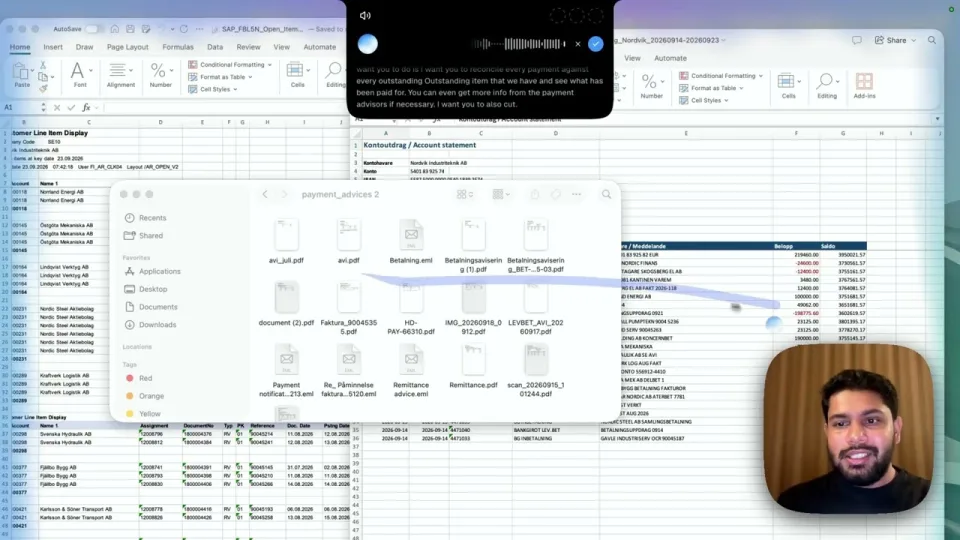
When you activate Incredible, it sees the page or document in front of you. You hold the talk key (fn on a Mac, Ctrl and Space on Windows) and talk about what is there without describing it first:
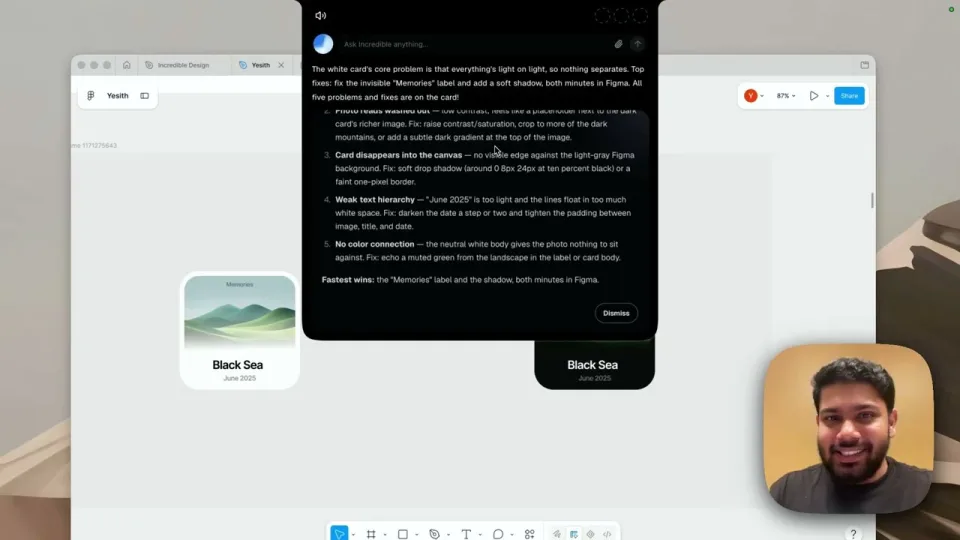
"What's on my screen right now?"
"Reply to this and say Thursday works."
The first is an answer. The second is a task, and Incredible writes the reply in your email and asks you before it is sent. The screen recording on the use cases page shows it reading a card design open in Figma and listing what to fix.
Two shortcuts help when you want to choose what it sees. ⌥ X snaps your screen and ⌥ C grabs selected text or a file, so they are attached to your next request (Alt instead of ⌥ on Windows). The Shortcuts guide lists them all.
Incredible runs on macOS 13 or later and Windows 10 or later. It is free for 7 days with no card. Download it, and try the three first requests in the Quickstart.
For a quick question about a picture or a page on a recent Mac, Siri AI is free and already there. If you live in ChatGPT, appshots are the fastest way to give it the window you are in. On Windows with a Microsoft 365 subscription, Copilot Vision talks you through an app you are learning.
If you want the AI to look at the screen and then do the work in it, such as replying to the email in front of you, Incredible is built for that. For more on voice assistants that act on what you say, see the best voice AI tools in 2026, and for the Mac in particular, the best AI for Mac.
Yes. Siri AI on the Mac, the ChatGPT desktop app on Mac and Windows, Microsoft Copilot Vision on Windows, and Incredible on Mac and Windows can all look at what is on your screen and answer questions about it.
Some can. Microsoft says Copilot Vision answers and guides but does not click or type for you. Incredible sees the page or document in front of you when you activate it, and can then do the task in that app, for example "reply to this".
Check when each one looks. Siri AI looks when you ask it about your screen, ChatGPT when you take an appshot, Copilot Vision while you share a window, and Incredible when you activate it.
In the ChatGPT desktop app, press both Command keys to take an appshot. It sends the frontmost window to the chat, as an image and with the text the app makes available.
It clicks and types in your browser, files and apps, exactly like you do.
Requires macOS 13 or Windows 10, or later.
 Download for Mac
 Download for Windows