Download for Mac
 Download for Windows
AI to schedule meetings: a calendar assistant you talk to (2026)
Say who and when, review the event, then confirm the invite. A real recording, plus Google Calendar, Outlook Copilot and a free scheduling option.
 Emil WagmanCTO
The short answer
Yes, AI can schedule meetings for you. With Incredible, connect your calendar and say who you want to meet and when. It prepares the event in your own calendar and shows a card for review. Confirm it before the invitation goes out. Our recording shows a meeting with Fredric Lundberg at 10:00, followed by confirmation that the invite was sent with a Meet link. Google Calendar has Gemini time suggestions, Outlook has Copilot scheduling, and Reclaim offers automatic scheduling for recurring meetings.
Free for 7 days. Mac and Windows.
Yes, you can use AI to schedule meetings. Tell an assistant who you want to meet and when, check the event it prepares, and approve the invitation. If you need help finding a time everyone can attend, look for calendar availability suggestions or a tool that schedules around conflicts.
The recording above shows the first job. Someone asks Incredible to book a meeting while it is already checking email and the day's calendar. It prepares the event in the user's own calendar, waits for approval, then reports that the invite has gone out. Here is the sequence, followed by the options inside Google Calendar and Outlook and a dedicated scheduling tool.
The vendor details below come from official pages fetched and read on 21 November 2026.
Can an AI agent schedule a meeting from a spoken request?
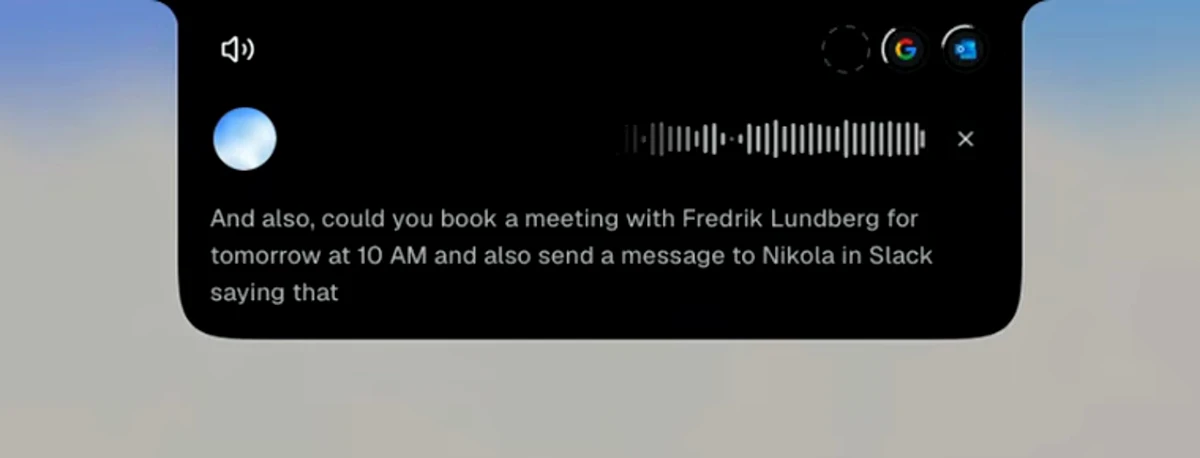
Yes. With your calendar connected to Incredible, say the person and the time you want. In the recording, the request comes in the middle of a conversation:
"And also, could you book a meeting with Fredrik Lundberg for tomorrow at 10:00 a.m."
The same turn also asks for a Slack message. Incredible replies that it will get both drafted for approval. You do not have to open a new-event form or type the guest's address into it yourself.
To try a spoken request, hold fn on a Mac or Ctrl and Space on Windows and say who you want to meet and when. Give a date, time and duration when you already know them. The recording uses "tomorrow at 10" and the resulting card shows a half-hour meeting. Check the duration rather than assuming it is the one you wanted.
This example starts with a chosen time. It does not show Incredible negotiating with the guest, checking the guest's availability or moving other meetings to make room.
Check the event before anyone gets an invite
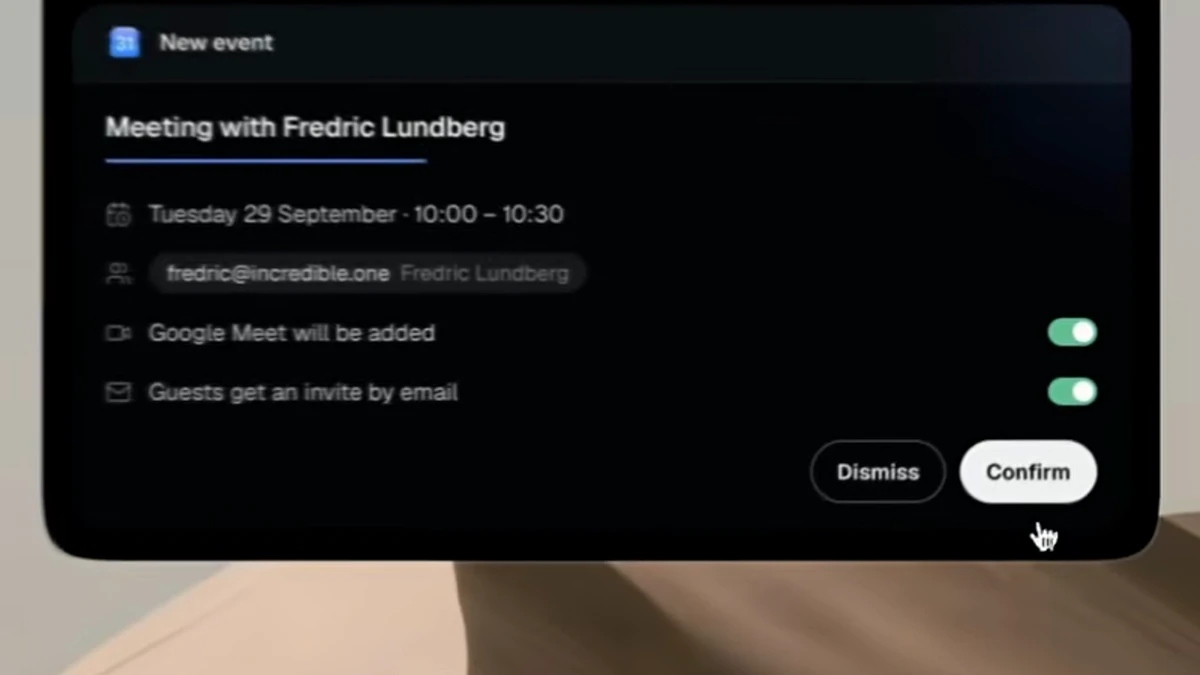
Incredible says the meeting is drafted and the details are on the card for approval. The card reads:
- "Meeting with Fredric Lundberg"
- Tuesday 29 September, 10:00 to 10:30
fredric@incredible.one- "Google Meet will be added"
- "Guests get an invite by email"
The Meet and email-invite switches are on. At the bottom are Dismiss and Confirm.
Read the guest's address as well as the name. The live speech transcript spells the name "Fredrik"; the event card shows the calendar guest as "Fredric Lundberg". The card lets you check who will actually receive the invitation. Check the full date too, especially if you asked for "tomorrow" or "next Tuesday".
The date here belongs to the recording. It is not a meeting being booked on the publication date of this guide.
Confirm it, then check the booking result
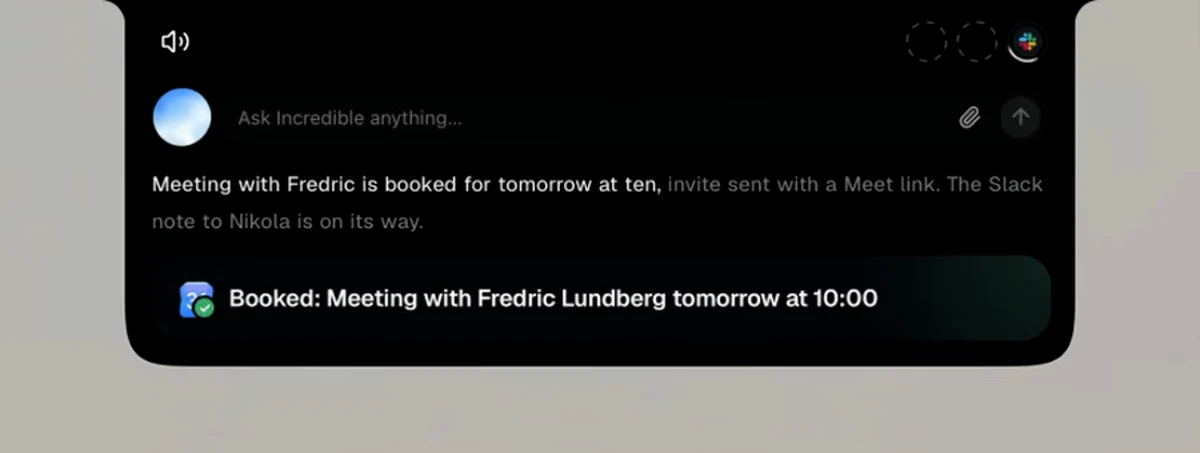
After reviewing the settings, the user says, "You can confirm it, actually." Incredible replies that it is booking the meeting for tomorrow at 10.
Later it reports that the meeting is booked and the invite sent with a Meet link. The on-screen result also says "Booked: Meeting with Fredric Lundberg tomorrow at 10:00".
That is the useful distinction when you want an AI assistant to schedule meetings for you. It prepares the event in your own calendar, but the invitation waits for confirmation. In this recording, the confirmation is given by voice. You can see what is about to go out before it does.
Google Calendar, Outlook and dedicated scheduling tools
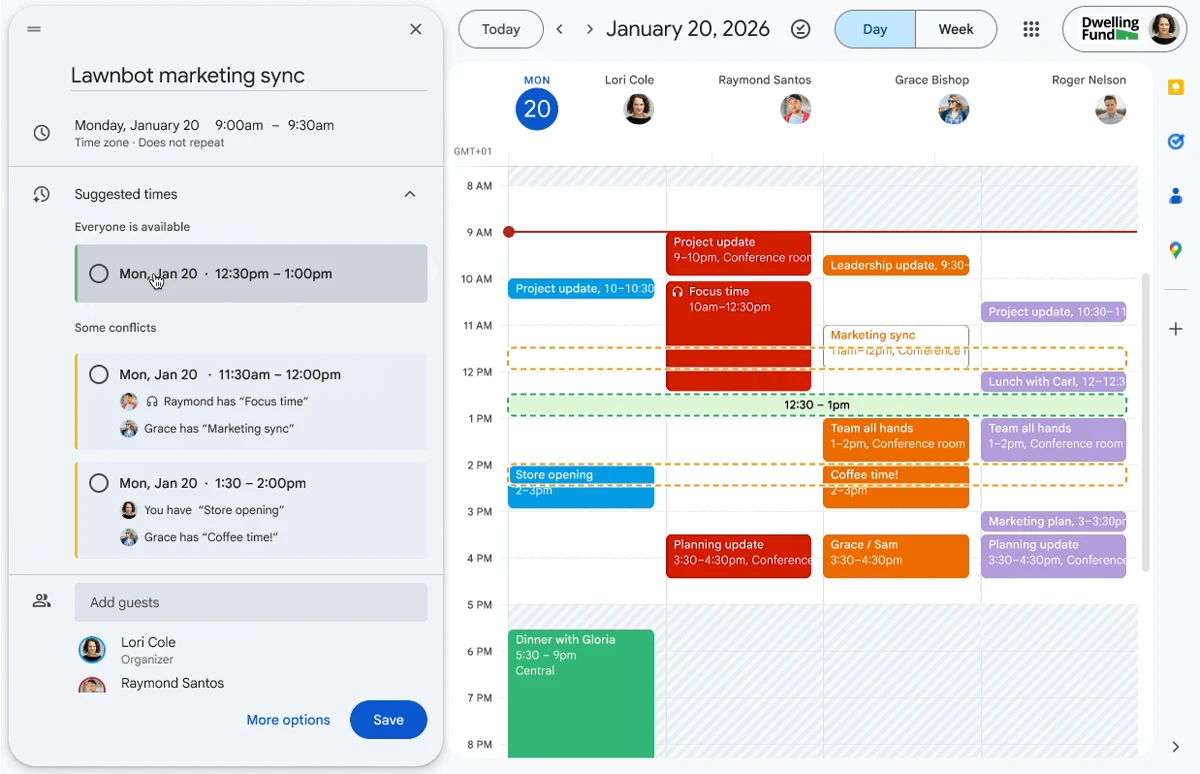
Google Calendar and Gemini
If you already work in Google Calendar and need a time that fits your colleagues, Google's Suggested times guide gives the steps. On a computer, create an event, add guests, click Suggested times and select a slot.
Google's announcement says Gemini considers time zones, working hours and conflicts when you have access to the guests' calendars. It lists Business Standard and Plus, Enterprise Standard and Plus, and the Google AI Pro for Education add-on. The current help page still requires an eligible Workspace plan and says the feature is unavailable in the mobile Calendar apps.
If you are arranging the meeting by email, Help me schedule in Gmail suggests times you can review and send in your message. It requires an eligible Workspace or Google AI plan. Google's current feature and plan guide is the place to check your account's access.
Outlook and Microsoft 365 Copilot
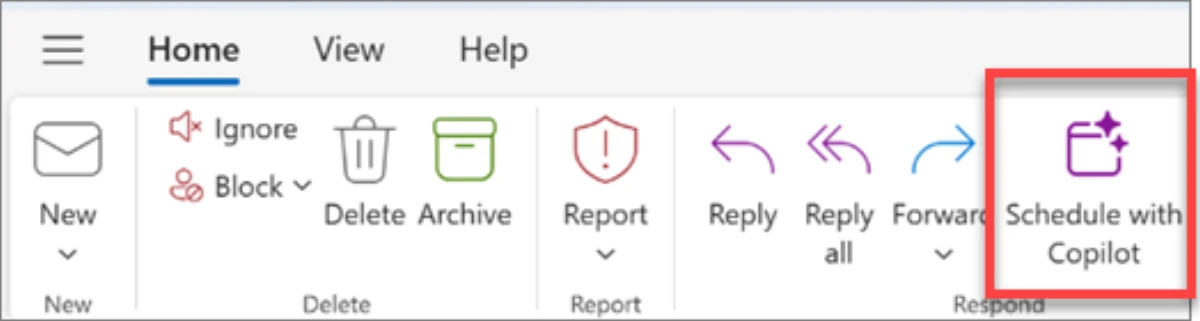
Microsoft documents two routes. Copilot Chat in Outlook works with a work or school account. Its examples without a Copilot add-on license include "Schedule a meeting with my manager". An add-on license gives it access to more organizational context. Microsoft's Outlook FAQ says chat can schedule a meeting with up to two other people.
For an email conversation that should become a meeting, use Schedule with Copilot. It fills in the title and agenda and includes people from the thread. You review the invitation, make changes and select Send. Microsoft lists a Copilot Work license requirement for this email-to-invitation feature. Do not assume that every Outlook scheduling feature needs the same license.
Reclaim for recurring meetings
If the job is keeping recurring meetings scheduled as calendars change, Reclaim's Smart Meetings page says you set the frequency, duration and attendees, and its agents find a time and reschedule around conflicts.
Its pricing page lists Smart Meetings in the free Lite plan for one user, with a one-week scheduling range excluding Scheduling Links, one Calendar Sync and one Scheduling Link. Check those limits against the meetings you need to arrange. This is automatic calendar scheduling rather than the spoken request and confirmation shown in our recording.
For a meeting whose time you already know, the recording shows how to say it and approve the event. For finding a shared opening, Google's availability suggestions or Reclaim's recurring-meeting scheduling address that job directly. If the discussion is already in Outlook, start with its chat or email-to-invitation option.
Try this now. Connect your calendar, hold the talk key and ask for the meeting you need. Check the guest, date, time and invite settings on the card before you confirm. Incredible is free for 7 days on macOS 13 or later and Windows 10 or later. Download it, or read the Quickstart first.
For the voice controls, see how to control your Mac with your voice. The whole conversation, including email and Slack, is in our real-life Jarvis guide. To ask about the app or document in front of you, see AI that can see your screen.
Frequently asked questions
Can AI schedule meetings for me?
Yes. An AI assistant can turn a request into a calendar event. In our recording, Incredible takes a spoken request to book a meeting tomorrow at 10, prepares the event with the guest and a Google Meet link, and waits for confirmation before sending the invite. The recording shows booking a specified time, not finding a free slot across several calendars.
Is there an AI calendar assistant for Outlook?
Yes. Microsoft documents meeting scheduling through Copilot Chat in Outlook with a work or school account, including a basic scheduling prompt without a Copilot add-on license. The separate Schedule with Copilot option turns an email thread into an invitation and requires a Microsoft Copilot Work license. You review that invitation and select Send.
Does Google Calendar have an AI assistant?
Google Calendar has Gemini Suggested times on a computer for eligible Google Workspace plans. Add guests to an event, click Suggested times and choose a slot. Gemini also offers Help me schedule in Gmail on eligible Workspace or Google AI plans, so you can send suggested times in an email.
Is there a free AI calendar assistant?
Reclaim lists a free Lite plan for one user with Smart Meetings, one Scheduling Link and a one-week scheduling range, excluding Scheduling Links. Incredible is free for 7 days on macOS 13 or later and Windows 10 or later. The Google and Microsoft features in this guide have account and plan requirements, so check which feature your account includes.
Does an AI scheduling assistant send invites without asking?
It depends on the tool and workflow. In this Incredible recording, the event stays on a card with Dismiss and Confirm until the user approves it. Only then does Incredible report that the meeting is booked and the invite sent. Microsoft also documents a review and Send step for invitations made from email. Reclaim describes Smart Meetings that automatically schedule and reschedule recurring meetings.