 Download for Mac
 Download for Windows
Using Incredible
Tasks
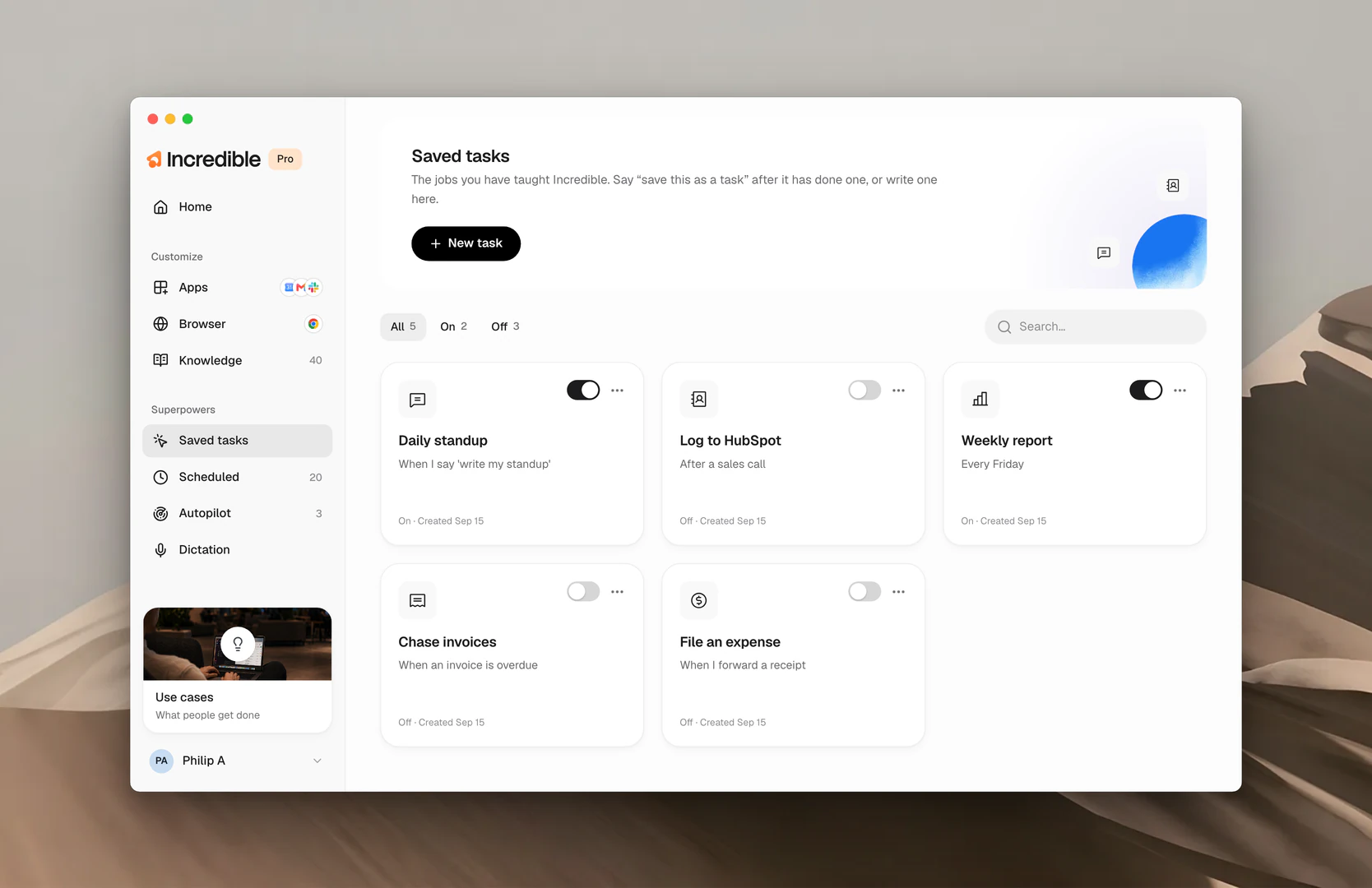
A task is anything you ask Incredible to do. Answer a question, write an email, tidy a folder, fill in a form. You describe the outcome, Incredible does the work, and you check the result. When a task comes out right and you'll want it again, save it, and it lives under Saved tasks in the sidebar, ready to run the same way every time.
How a task runs
You say the outcome, not the steps, the way you'd brief a colleague. Incredible already knows what's on your screen, so "reply to this" works without saying which email.
"Summarize the most recent emails from the last 24 hours."
 Try in Incredible
"Rename the photos on my desktop by the date they were taken."
The work happens wherever the work is: in your apps, in your browser, or in your files. One task can cross all three.
Reading, searching and drafting happen on their own. Anything that reaches other people or can't be undone, like sending an email or deleting a lot of files, stops for your approval first.
A card shows exactly what's about to happen, and nothing moves until you say so.
Find a task and follow up
Every task you run lands on Home, grouped by day, with its status beside it: Working, Needs you, Upcoming or Done. Open one and you see the whole conversation, what Incredible said, what it did, and what it delivered, with an activity log down the side.
Your next message continues that task. Click Follow up, then say or type what you want next, like a change, a question about the result, or the next step. Incredible picks up where it left off, with everything it already knows about the job.
"Send that summary to X as well."
"Can you give me an update on what files were changed?"
Save a task
When a task comes out the way you want, say "save this as a task", or click New task and write one. A saved task is the instructions for one job, kept so it runs the same way every time. Each sits on its own card under Saved tasks with an on and off switch. Its Activates when line tells Incredible when to use it.
Put a task on a schedule or on Autopilot
A saved task can also run without you asking. Scheduled runs it at a time you pick, once or on repeat. Autopilot runs it the moment something happens in your apps, like an invoice arriving.
Related guides
- Teach a task: show Incredible a job once by doing it yourself
- Scheduled: tasks that run at a time you pick
- Autopilot: tasks that run when something happens
- Knowledge: what Incredible remembers and uses while a task runs