 Download for Mac
 Download for Windows
Customize Incredible
Knowledge
What Incredible should know about you and your work, written down once and carried into every task, so you never explain the same thing twice.
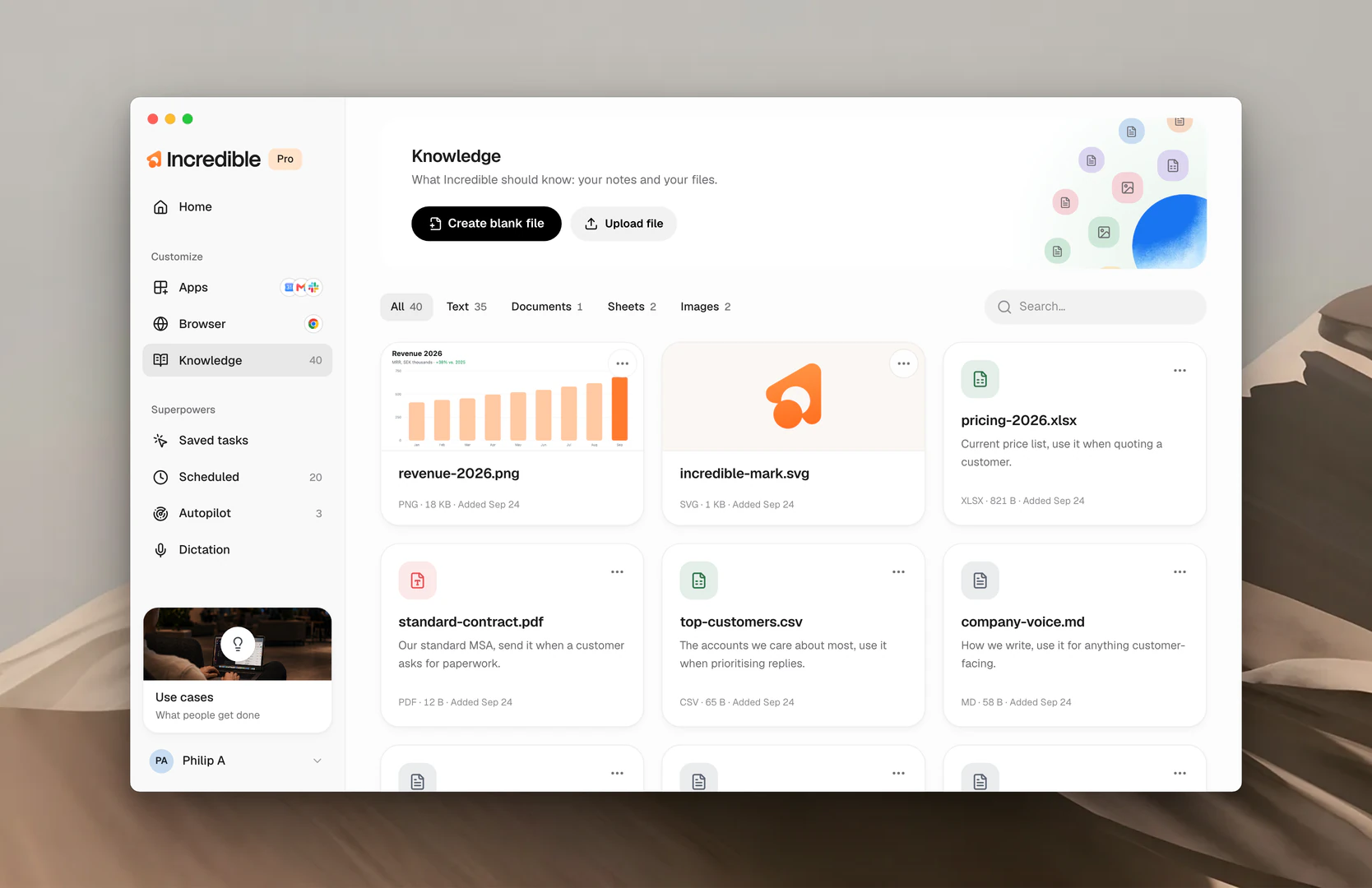
What you can put in Knowledge
- The people you work with. Who Nikola is, what you're working on together, how he likes to be briefed. His address and how his name is spelled live in Settings → Contacts.
- Organisations and customers. The companies in your world and how they relate to each other.
- How you like things done. Your email tone for customers, the format your reports use, a spelling you always want respected.
- Notes and files. Anything you'd hand a colleague as background: a pricing sheet, the house style, the notes from a kickoff.
Add a knowledge entry
There are two ways to add a knowledge entry: say it to Incredible, or add it in the app.
Say it. Hold the talk key and tell Incredible to add it to your knowledge. It writes the entry for you.
"Add to my knowledge that Nikola is our contact at Northwind and prefers short emails."
"Add to my knowledge that every report I send goes out as a PDF with the summary on page one."
In the app. On the Knowledge page, Create blank file starts an empty entry you write into, and Upload file adds a document you already have; write a line saying what it is and when to use it, then Save.
Edit a knowledge entry
Editing works the same two ways. Nothing here expires, so keep entries current rather than making new ones.
Say it. Tell Incredible what changed and it makes the edit.
"Update Nikola's entry, his new email is nikola@northwind.se."
In the app. Open the entry on the Knowledge page and change its Description or, for a text file, what's inside, then click Save. To find one, filter with All, Text, Documents, Sheets or Images at the top, or search.
Delete a knowledge entry
And the same two ways to remove one.
Say it. Ask Incredible to forget it.
"Remove Northwind from my knowledge."
In the app. Open the menu on the entry's card and choose Delete.
From the next request on, Incredible no longer knows what the entry said.
How a knowledge entry works
Whether you say it or type it, every entry ends up with the same three fields. This is what you see when you create one in the app.
Name. A short label for what the entry is, like "Customer email rules" or "Standard invoice template".
Description. What this is, and when Incredible should use it. One sentence, written like a note to a colleague: "Our standard invoice template, use it whenever a customer asks to be billed."
Content. What Incredible should know. This is the entry itself: the template, the rules, the facts. For the invoice template, that's the layout, the payment terms, the wording you always include. For customer email rules, the tone, the sign-off, and anything you never say.
The name and description are how Incredible finds the right entry. When a request matches them, it opens the entry and follows the content. Entries that don't match stay closed. Say "send Northwind an invoice for August" and the invoice template opens. Say "reply to this customer" and the email rules open instead, and the invoice template stays out of the way.
Related guides
- Contacts: the people Incredible learns from your apps, and how it uses them
- Tasks: the jobs Knowledge shapes while they run
- Vocabulary: names and words spelled the way you spell them