 Download for Mac
 Download for Windows
Using Incredible
Autopilot
Autopilot lets you set up a task that runs when something specific happens, rather than at a set time. When an email with an invoice arrives, or when a certain person replies, Incredible does the work the moment it's needed, without you having to notice or check. Every task you put on autopilot lives under Autopilot in the sidebar, each on its own row with an on and off switch.
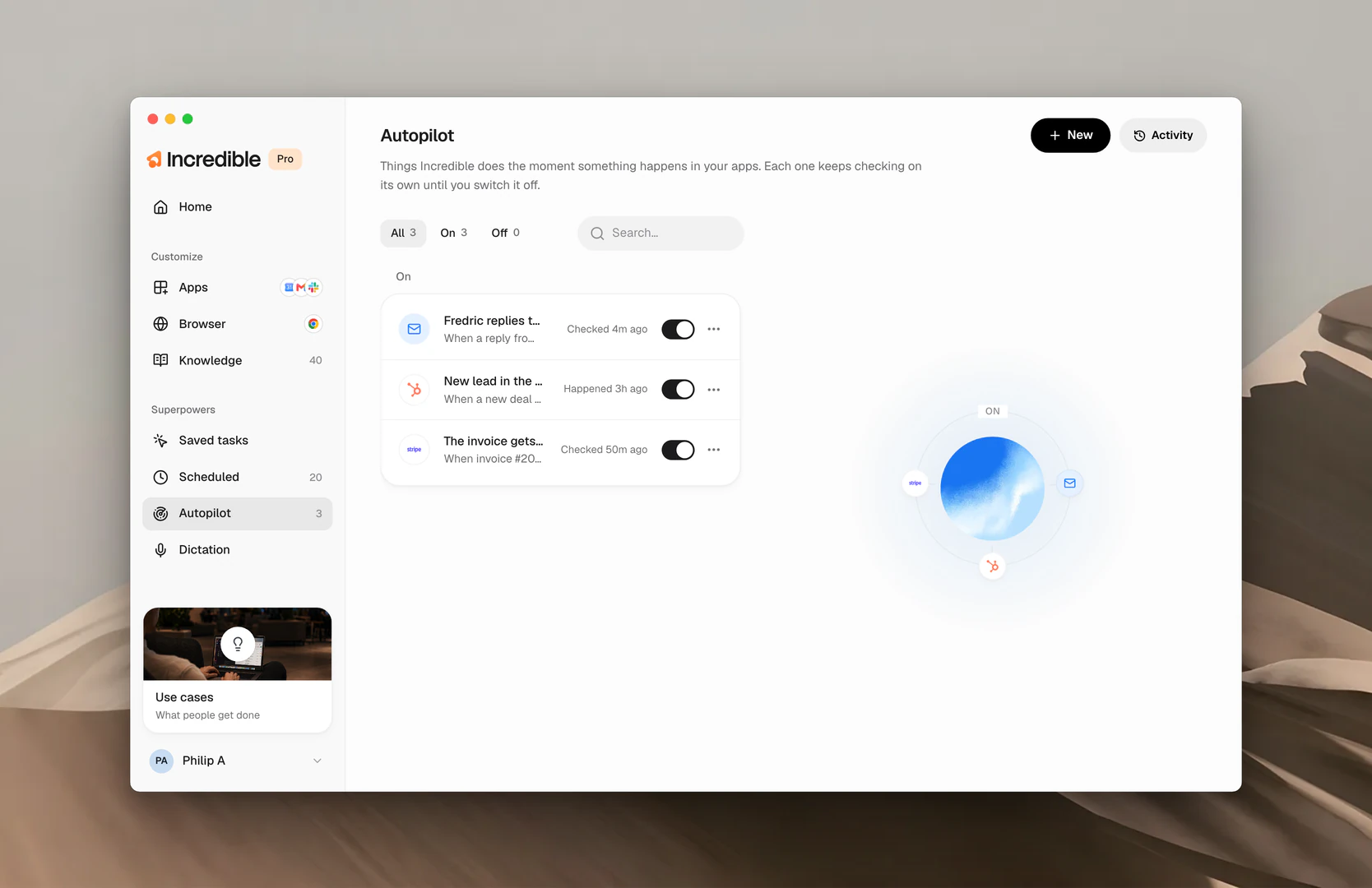
How an autopilot works
Every autopilot has two halves, and the app asks for both.
- Whenever. The condition Incredible waits for. "A new lead lands in the CRM." "Sarah replies."
- Then. What Incredible does when it happens. "Add them to the outreach sheet." "Tell me."
Incredible checks the relevant app on its own, every 30 minutes unless you pick another rhythm, and does the task as soon as the condition is true. It lets you know each time the autopilot has done something. Incredible needs to be able to see the condition, so the app it happens in has to be connected. You can read more about connecting apps here.
Set one up
There are two ways to put a task on Autopilot: say it to Incredible, or add it in the app.
Say it. One sentence, in two halves: the condition, then the task.
"When an invoice email arrives, save the PDF to the Finance folder."
 Try in Incredible
"Whenever a customer replies on the proposal thread, draft my answer."
In the app. Click New. Give it a name, write what should happen under Whenever and what Incredible should do under Then, choose Once, then done or Every time it happens, pick how often to check, and click Set it up.
An autopilot asks first or goes ahead, depending on what you tell it. If you say you want to approve things first, it stops and asks you each time. If you say clearly that it should just do the work, it does the task by itself every time the condition is true, including sending things to other people. Be specific about what it should do and whether you want to be asked, and switch it off whenever you want it to stop.
Switch it off, run it, or remove it
Each row has a switch. Turn it off and the autopilot stops checking but keeps its setup, ready to turn on again. Open a row, or its ... menu, to change it, Run now, or Remove it.
See what happened
Click Activity to see every check it made and every time it acted, grouped by day. Filter to Completed for the runs that went through, or Issues for anything that needs a look.
Related guides
- Scheduled: the same idea, fired by a time instead of an event
- Saved tasks: the saved jobs Autopilot can run