 Download for Mac
 Download for Windows
Customize Incredible
MCP servers
MCP is a standard way for tools to connect to AI assistants. If a tool you use has an MCP server, like Lovable, or your company runs one for an internal system, you can add it to Incredible with its web address. Once it's added, Incredible can use that tool in any task, the same way it uses the apps you connect on the Apps page.
Add an MCP server
Here's a step-by-step guide to adding an MCP server in Incredible.
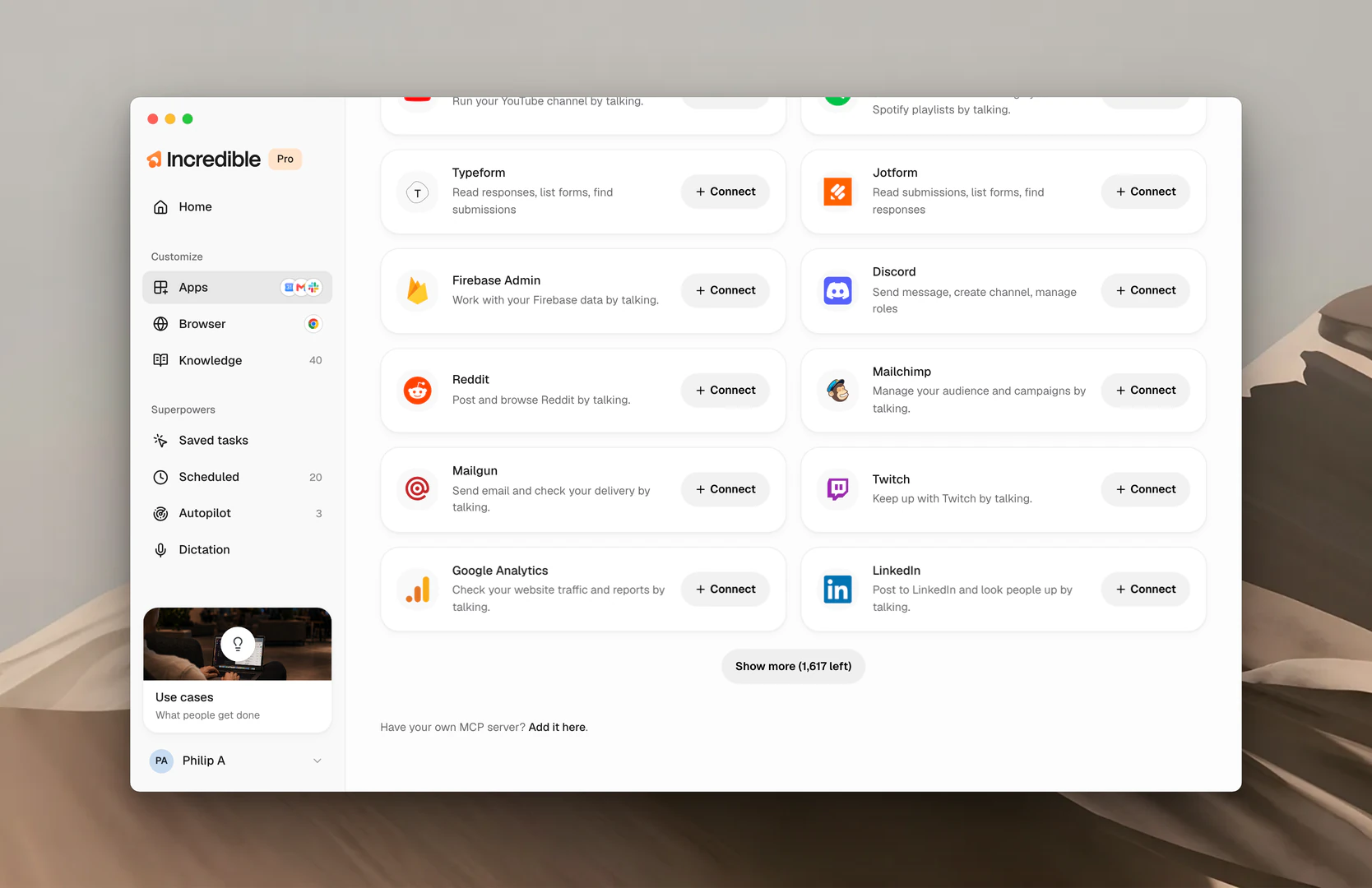
Open Apps
Click Apps in the sidebar, under Customize. At the bottom of the page, next to "Have your own MCP server?", click Add it here.
If you've already added one, click Add another MCP server in the Your MCP servers section instead.
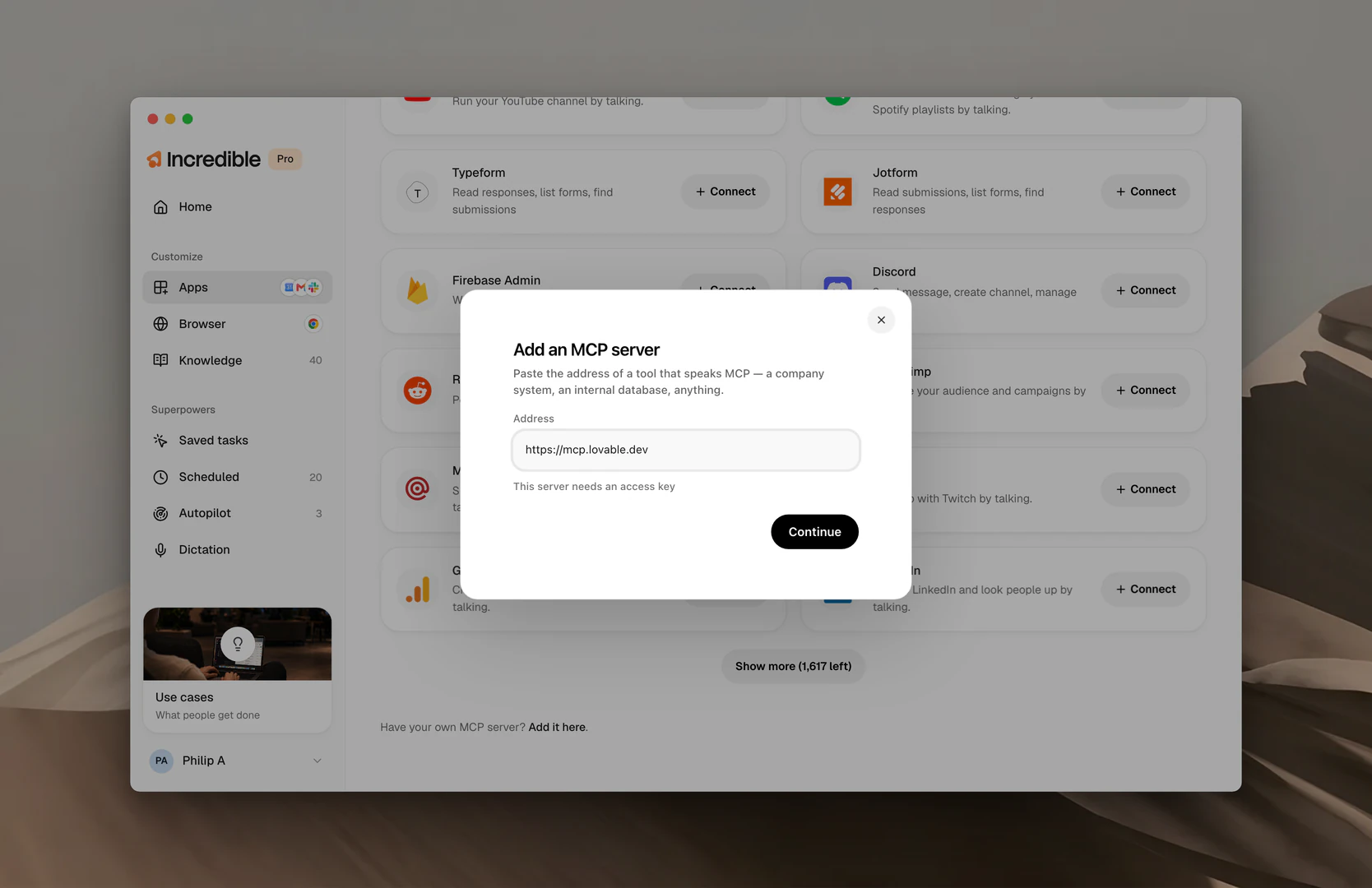
Paste the server's address
A dialog opens. Paste the server's web address into Address and click Continue. For example, for Lovable the address is:
https://mcp.lovable.dev
If your server needs an access key, click This server needs an access key under the address, and paste the key in.
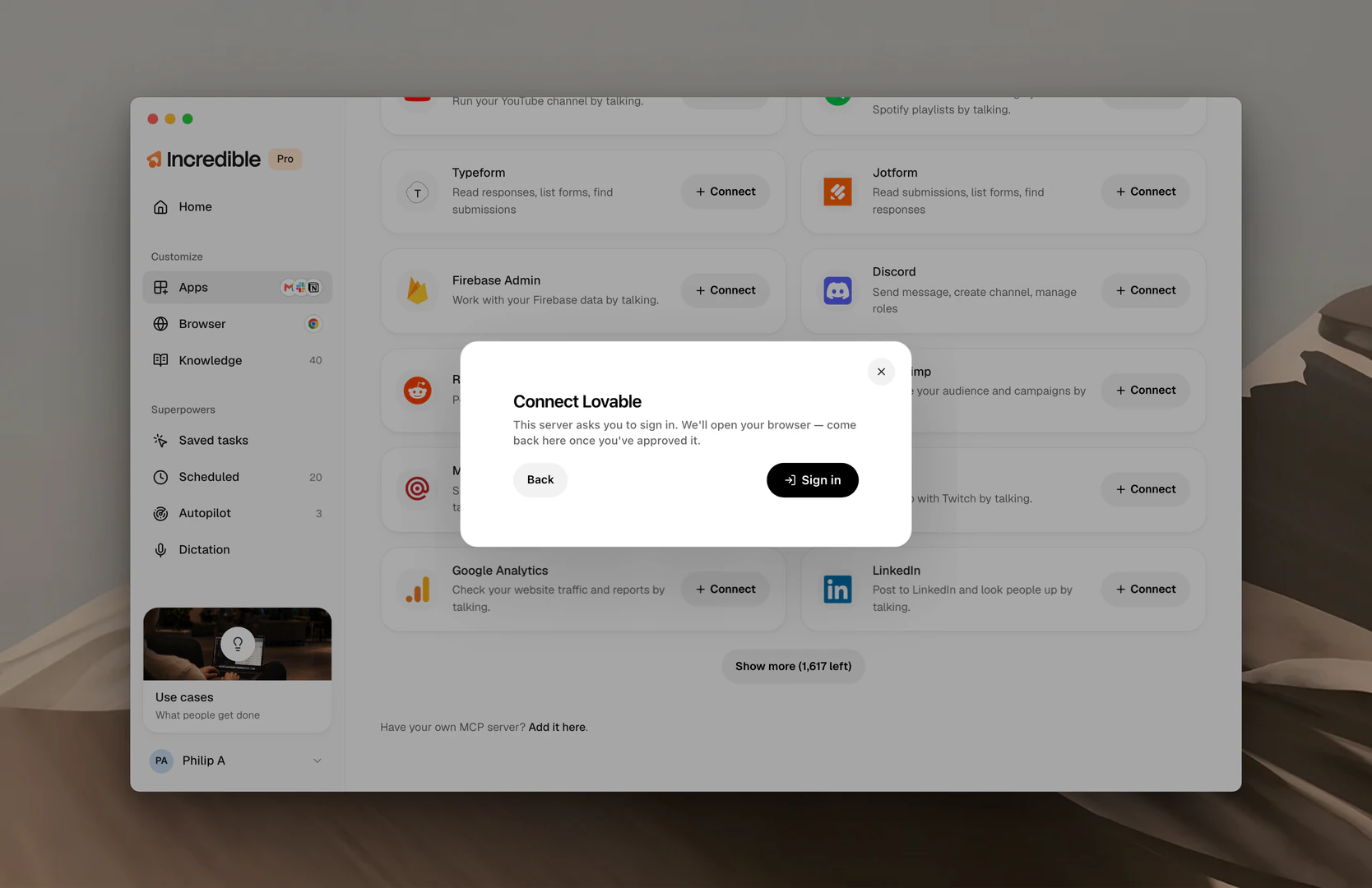
Sign in
If the server uses a login, click Sign in. Incredible opens the sign-in page in your browser. Sign in with your account there, approve the connection, and come back to Incredible.
Check what it can do and add it
Incredible lists everything the server says it can do, grouped into Things it can look up, Sending or changing and Deleting. Change the name if you want to, then click Add server.
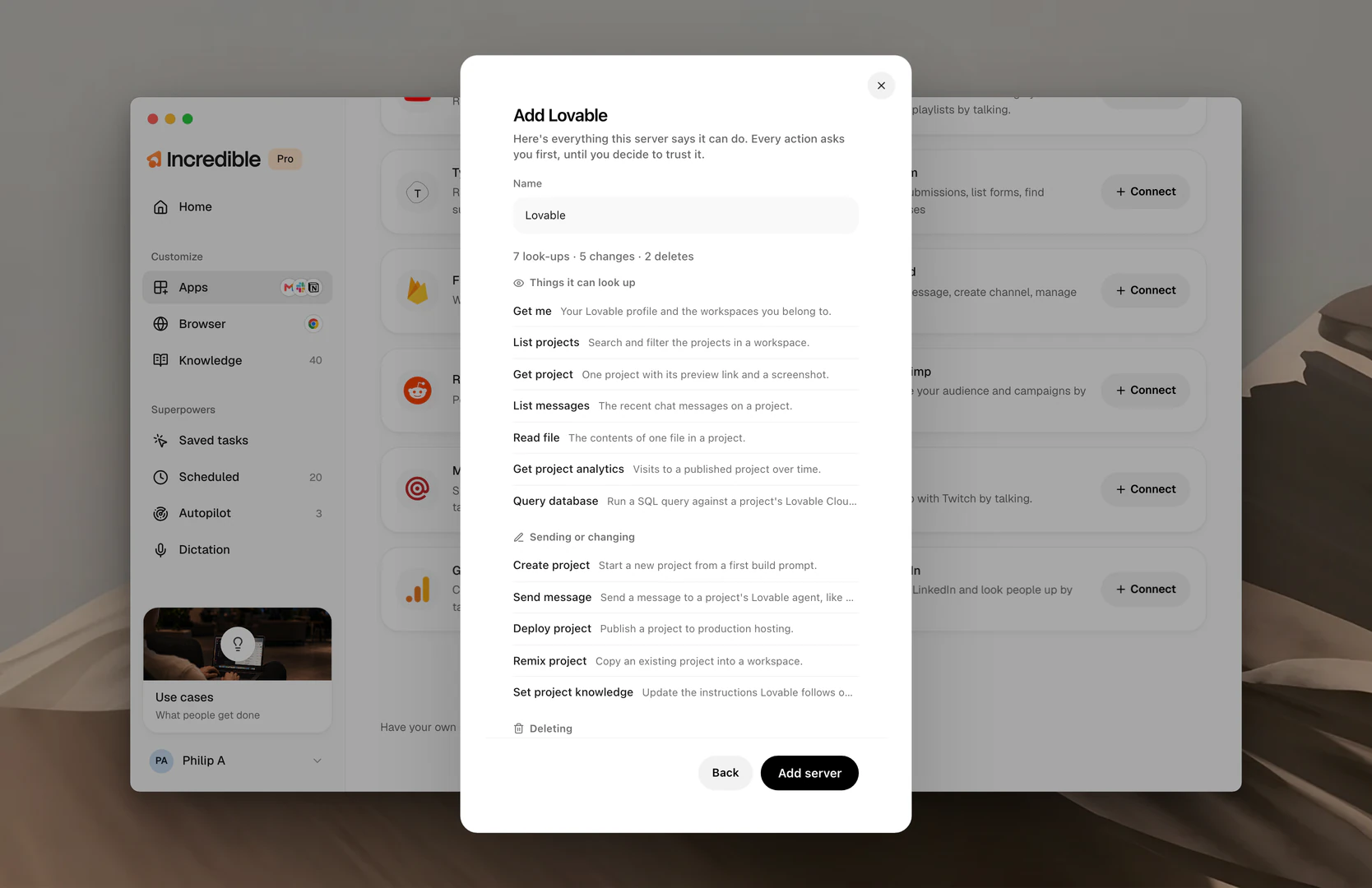
Every action asks you first. You can let look-ups run on their own later, in the server's panel.
Try it out
Ask for the work the way you would with any other app, and Incredible uses the server's tools to do it. With Lovable added, you can ask for a new project in one sentence.
"Create a new Lovable project for a landing page for my bakery."
Manage a server
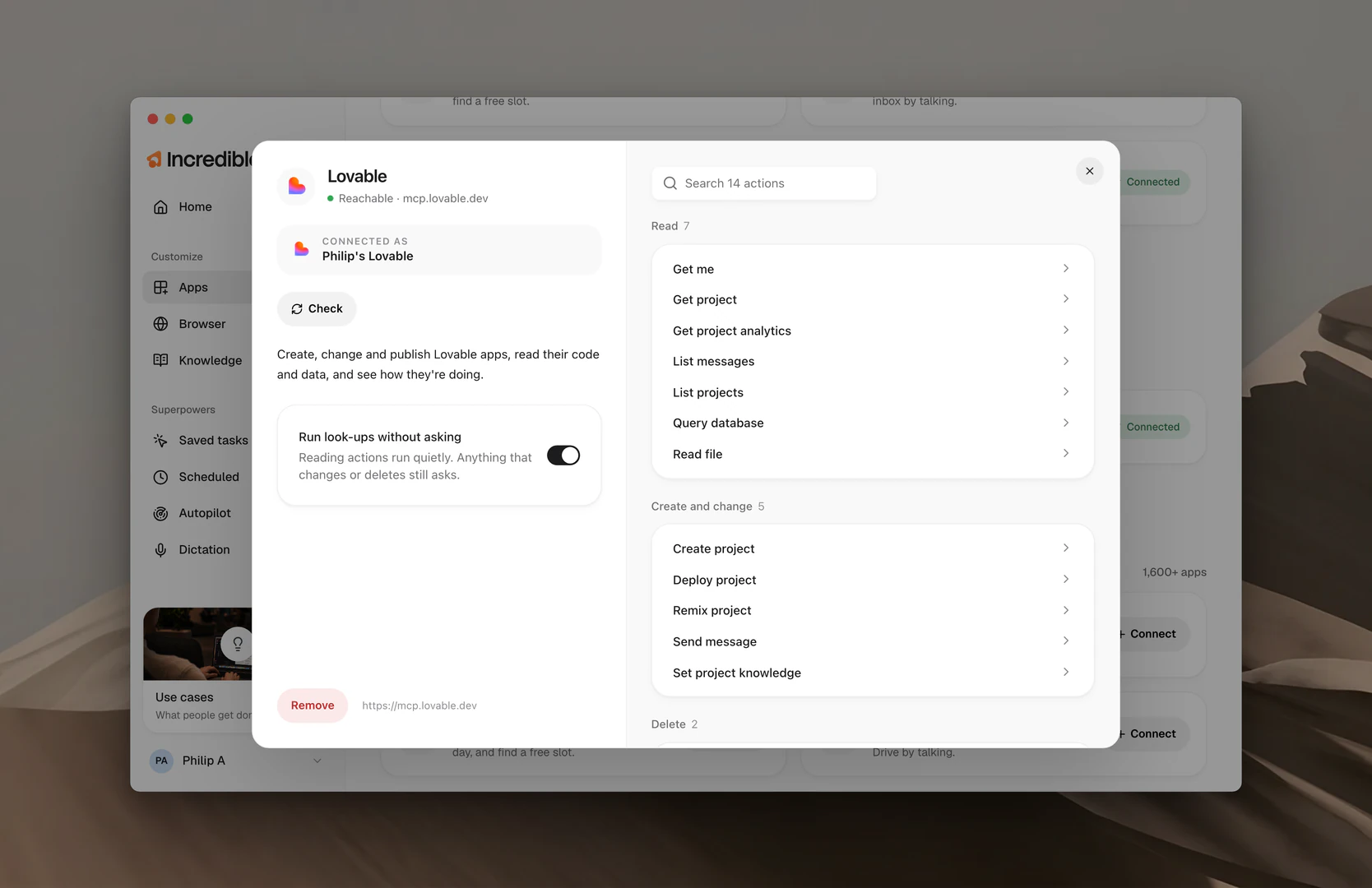
Your servers are listed under Your MCP servers on the Apps page. Click one to open its panel, where you see the account it's connected as and every action it can take.
Turn on Run look-ups without asking to let Incredible read from the server without checking with you each time. Anything that changes or deletes still asks. Click Remove to take the server off Incredible.
When a server needs a look
A server's card on Apps tells you when something needs you.
- Review changes. The server can now do different things than when you added it. Open it, look the list over, and click Approve.
- Not signed in. Open it and sign in again.
- We couldn't reach this server. The server isn't answering. Incredible shows the tools from the last time it could reach it.