Revealing our $2.7M pre-seed — read the announcementRevealing our $2.7M pre-seed

Get started

Quickstart

Go from download to your first finished task.

Install Incredible

Incredible is in early access. Get started below to create your account, then download the app.

Get started

macOS
  • macOS 14 (Sonoma) and later
  • Apple Silicon and Intel
  • Mac installer (.dmg)
Windows
  • Windows 10 and later
  • Windows installer (.exe)

On first launch, Incredible asks for three permissions: the microphone to hear you, screen recording to see what you're looking at, and accessibility to click and type for you. It only reads your screen while you're holding the talk key.

Press, speak, release

Hold the talk key, say what you want, and let go. On Mac the key is fn; on Windows it's Ctrl + Space. That's the whole interface. No commands to learn, no chat tab to open first.

Start with a question that only looks at things, so you can watch how it answers:

"Hey Incredible, what's on my screen right now?"

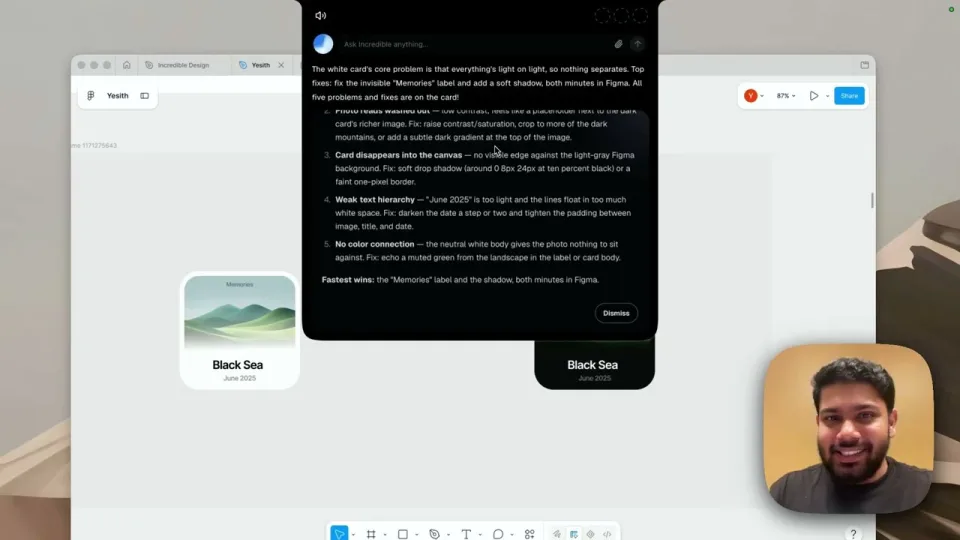
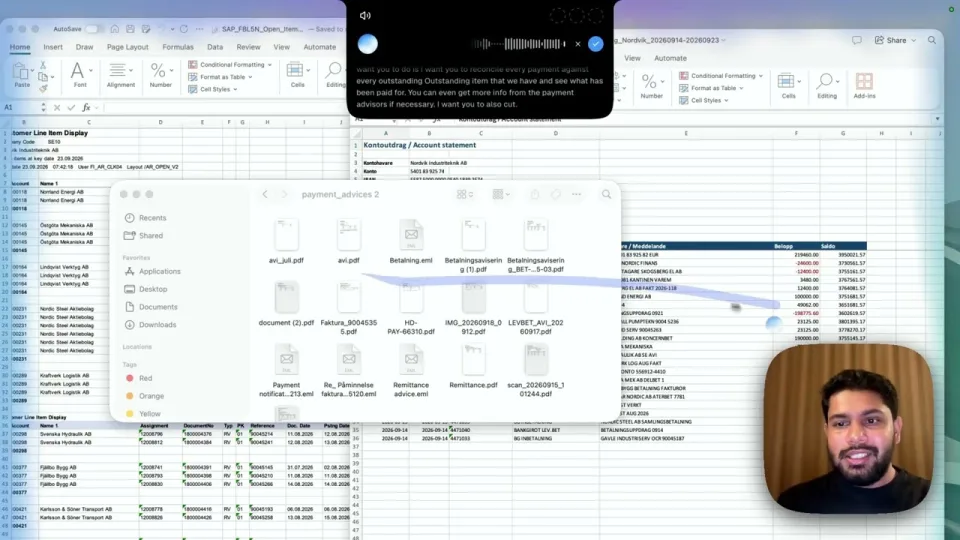
Try it with an email thread or a spreadsheet open. Incredible reads the screen and tells you what it sees.

It also works in over 100 languages, so try whichever one you think in.

Hand it one small task

Now give Incredible a task that ends in a finished result. Pick something easy to check, like researching a question, summarizing what you find, or pulling details out of a page you have open.

"Search the web for the latest news about AI and give me a short summary of the three most important stories, with links to the sources."

Connect your first app

So far Incredible has worked with what's on your screen. Connecting an app lets it work inside your tools, whether or not they're open, and you only do it once per app. Gmail is a good first one, since almost everyone has an inbox.

  1. Open Incredible.
  2. Go to Apps.
  3. Find Gmail.
  4. Select Connect.
  5. Follow the instructions on screen.

Note: Incredible works with a partner service called Pipedream to power its app connections. That's why the Google sign-in screen asks you to trust Pipedream rather than Incredible.

Once Gmail is connected, ask:

"Get my latest unread emails and summarize what each one is about."

If the answer comes back with your real emails, the connection works. Nothing is changed or sent along the way.

Run a real task and approve what goes out

The steps so far each did one thing. Real work chains them: find the right thing, work out what's needed, do the work, and send the result. Incredible runs the whole chain and checks with you before anything goes out. Ask for the whole job in one sentence:

"Fetch my latest unread email and draft a quick reply that I can review and send."

Incredible finds the email, reads it, and writes the reply. Check that the draft answers what was asked and sounds like you; change the wording, ask for a different tone, or stop the task at any point.

The approval card for an email reply, showing the recipient, the draft message, and buttons to make changes or send

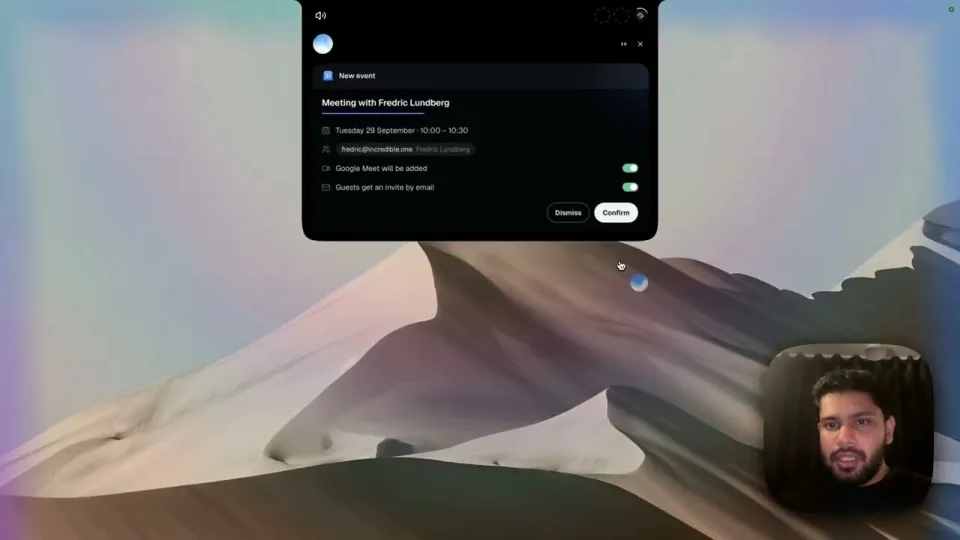
Sending waits for your go-ahead. You see the recipient and the message exactly as they will go out, and nothing is sent until you approve it.

That's the pattern worth learning: say the outcome you want, read what Incredible prepared, then approve the send.

Next steps

The rest of the series picks up where the quickstart stops:

  • Apps: connect the rest of your tools and let Incredible act across them
  • Browser Use: research, fill in forms, and pull information out of any web page
  • Local Files: read, organize, and create documents on your own machine

Ready to try it yourself?

Set Incredible up on your own computer, then hand it the first thing on your list.