 Get started on macOS
 Get started on Windows
Using Incredible
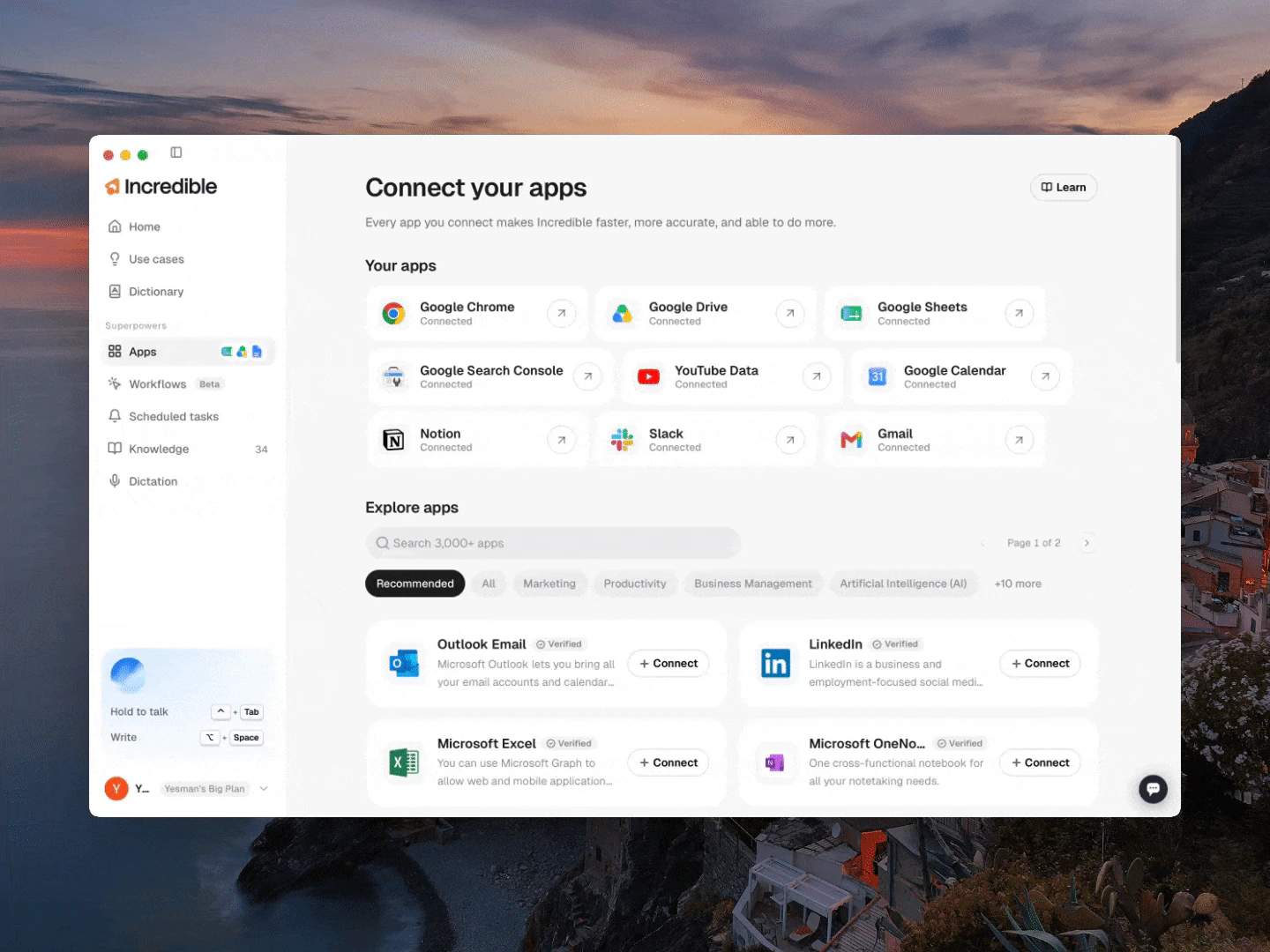
Apps
An app connector is a one-time link between Incredible and an app you already use.
You approve the link through the app's own sign-in screen, and from then on Incredible can read from that app and act in it for you, whether or not the app is open in front of you. The quickstart set one up with Gmail; this guide covers the rest of the catalog.
Find the app you need
- Open Incredible.
- Go to Apps.
- Search if you know the name, or browse by category if you don't. The categories group apps by the kind of work they do, so you can start from the job rather than the brand name.
See what an app can do
Open any app, connected or not, and the panel spells out what that connector actually covers. Check it before you connect: whether the app can do the specific job you have in mind.
The panel gives you two levels of detail. What Incredible can do sums the app up in a few words, and Try saying gives you example sentences you can use exactly as they are. Everything it can do is the full list: every action the connector supports, each with a line describing it, and a search box for the apps that have a long list.
The actions are grouped by the kind of thing they do rather than listed alphabetically:
- Things it can look up. Searching, listing, reading. This group starts closed, showing just a count.
- Sending or changing. Drafting a reply, posting, adding a label, moving a message, creating a contact.
- Deleting. Kept in its own group.
Search or scroll through the list to check whether the action you want is there.
Connect it
Once an app covers what you need, connecting is two steps from where you're standing.
- Select Connect on the app card.
- Follow the instructions on screen.
You only connect each app once, and you can do it whenever you first need the app rather than setting everything up in advance. The quickstart walks through it end to end with Gmail, including what the sign-in screen looks like.
Ask Incredible instead of reading the list
You rarely need the full catalog. The faster route is to ask.
"Hey Incredible, what can I do with Gmail now that it's connected?"
App guides
Related guides
- Browser Use: for pages and tools with no connector
- Local Files: for the documents on your own machine