 Download for Mac
 Download for Windows
Using Incredible
Overview
Incredible is an AI assistant that does tasks on your computer. It works with your files, in your browser, and inside the apps you connect.
Where Incredible lives
Incredible sits at the top of your screen as a small bar. Move your mouse to the top edge and it opens. The bar shows what Incredible heard while you talk, shows when it's working, and is where it shows you anything it needs you to see.
When Incredible has something for you, it appears in the bar as a card. A card can be a question it needs answered, a plan for you to approve, a draft of an email or message exactly as it will be sent, or a finished result. You act on the card right there: approve it, change it, answer it, or dismiss it.
A small light on the bar tells you what's waiting. Amber means something needs your input. Green means finished results are waiting.
Two ways to talk to Incredible
Type it. Move your mouse to the top of the screen, and the bar opens with a text field. Or press Option + Space (Ctrl + Shift + Space on Windows). Write what you want and press Enter.
Say it. Hold the talk key, speak, and let go. On a Mac the key is fn. On Windows it's Ctrl + Space. The microphone opens while you hold the key and closes the moment you release it.
"Hey Incredible, what's on my screen right now?"
 Try in Incredible
Note: Starting with "Hey Incredible" is optional, and off until you turn it on in Settings → Incredible → Experimental.
Hands-free. For longer requests, use hands-free: on a Mac tap fn + Space, on Windows Ctrl + Alt + Space. Incredible keeps listening without you holding anything down. Talk, then tap the talk key again to finish.
Your screen
When you hold the talk key, Incredible sees what's on your screen and uses it in the task. You don't have to describe where you are or send anything over.
- Have what you want to work with open: a PDF, a form, a Slack message, a web page.
- Hold the talk key and refer to it as "this".
- Incredible reads what's on your screen and does the work.
"Take the data on this page and turn it into a chart."
"Answer this Slack message, say it's approved and I'll look properly on Monday."
"What is this person actually asking me?"
Incredible can also arrange your windows.
"Put the browser on the left and Slack on the right."
Speaking out loud, and going quiet
While you're working with it, Incredible speaks its replies and results out loud. After ten minutes without you talking to it or acting on a card, it switches to passive mode: replies arrive as silent notifications under the bar instead. As soon as you talk to Incredible again, it speaks again.
That lets a task finish in the background, during a meeting for example, without Incredible talking over you. To have it always speak, turn off Automatic passive mode in Settings → Incredible.
Memory
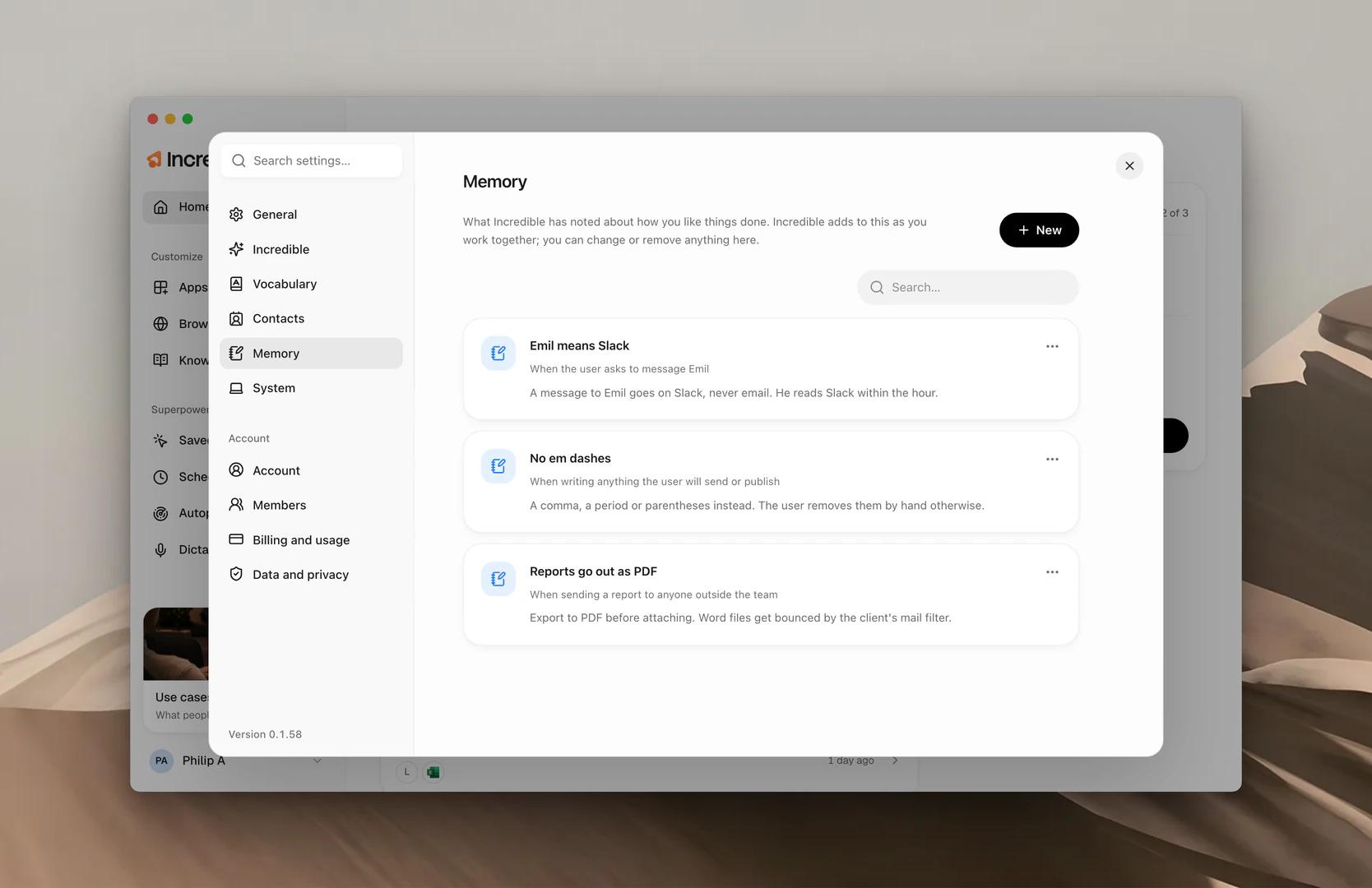
Memory is Incredible's own notes on how you like things done: what your words mean, the preferences you've stated, and what to stop doing. "Emil means Slack." "Sign emails with just my first name."
When you state a preference or correct Incredible during a task, it writes a memory and applies it in every task after that. Open Memory in Settings to read, add, change or remove any of them.
Everything you ask is a task
Whatever you say to Incredible is a task: find the answer, write the email, tidy the folder, fill in the form. Incredible works through it in your apps, your browser or your files, shows you the result, and waits for your okay before anything goes out to other people.
"Read the latest email from Anna and draft a reply I can check before it goes."