Download for Mac
 Download for Windows
AI Bank Reconciliation in Excel: Match Payments to Open Items (2026)
Hand an AI the bank statement, the open items export and the payment advices, and get every payment matched and colored in Excel. Plus Xero and QuickBooks.
 Emil WagmanCTO
The short answer
Open the bank statement and the open items export in Excel, hold Incredible’s key and say "reconcile every payment against the outstanding items, use the payment advices in the folder if you need more detail, and color each payment and the items it paid the same." It matches them in your own workbooks and lists every pair for you to check. If your books are in Xero or QuickBooks, their own reconciliation does the matching inside the accounting system.
Free for 7 days. Mac and Windows.
Month end. The bank statement says 15 payments came in. The open items export from the ERP lists 47 items still open. Somewhere in a folder are the payment advices that say which payment paid which invoices. Matching them by hand is an afternoon of searching for amounts.
You can hand that to an AI now. With Incredible, you open the bank statement and the open items in Excel, hold one key and say how to reconcile them. The recording above shows a real one: a bank statement with a krona and a euro account against an SAP export of open items.
Everything below about Xero and QuickBooks comes from their own pages, read on 21 November 2026.
What you say to Incredible
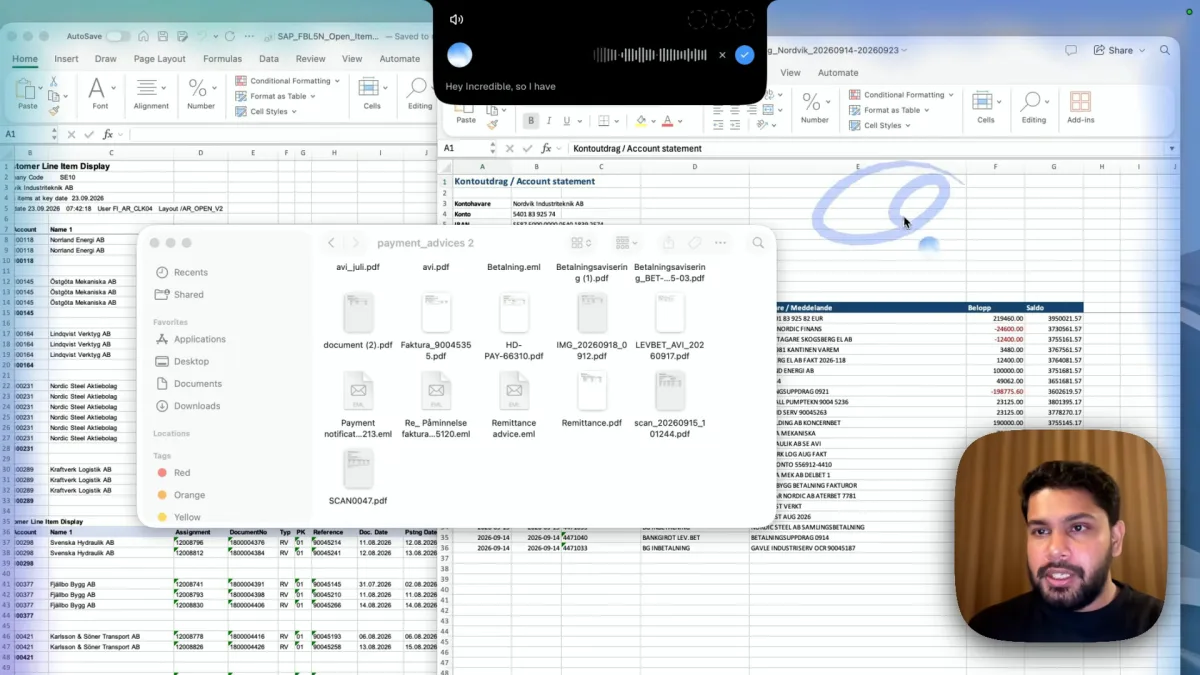
Open both workbooks, hold the talk key (fn on a Mac, Ctrl and Space on Windows) and say what a match is and how you want to see it:
"This bank statement has a krona account and a euro account, and this is an export of our SAP open items. Reconcile every payment against the outstanding items and see what has been paid. Use the payment advices in the folder if you need more detail. Color-code each payment and the items it paid in the same color."
There is no template to fill in and no formula to write. The folder in the recording holds what a real one does: PDFs, a scanned remittance, saved emails with names like "Payment notification" and "Remittance advice". Incredible reads them when the bank line alone does not say which invoices a payment covers.
What you get back
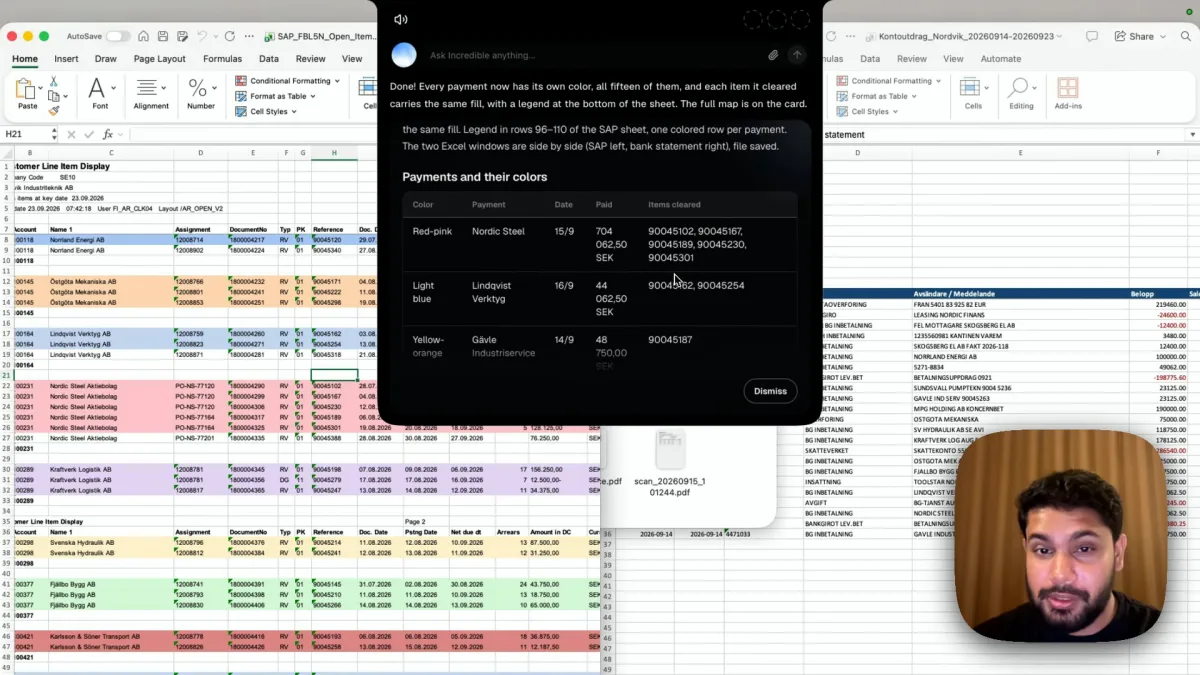
In the recording the answer is "Done. Every payment now has its own color, all fifteen of them." Each open item a payment cleared carries the same fill, with a legend at the bottom of the SAP sheet, and the summary reads: 15 payments color-coded, 34 of 47 items fully cleared. The two workbooks are left side by side and saved.
The 13 items that are not fully cleared are the point of the exercise: they are what to chase or look into. The card lists every payment with its color, payer, date, amount and the invoice numbers it cleared, so you can check any pair or ask about one: "why is the Nordic Steel payment matched to five invoices?"
It runs in the background, so you can open another workbook while it works. Once you trust it, teach it the job and run it every month end.
Reconciliation inside Xero and QuickBooks
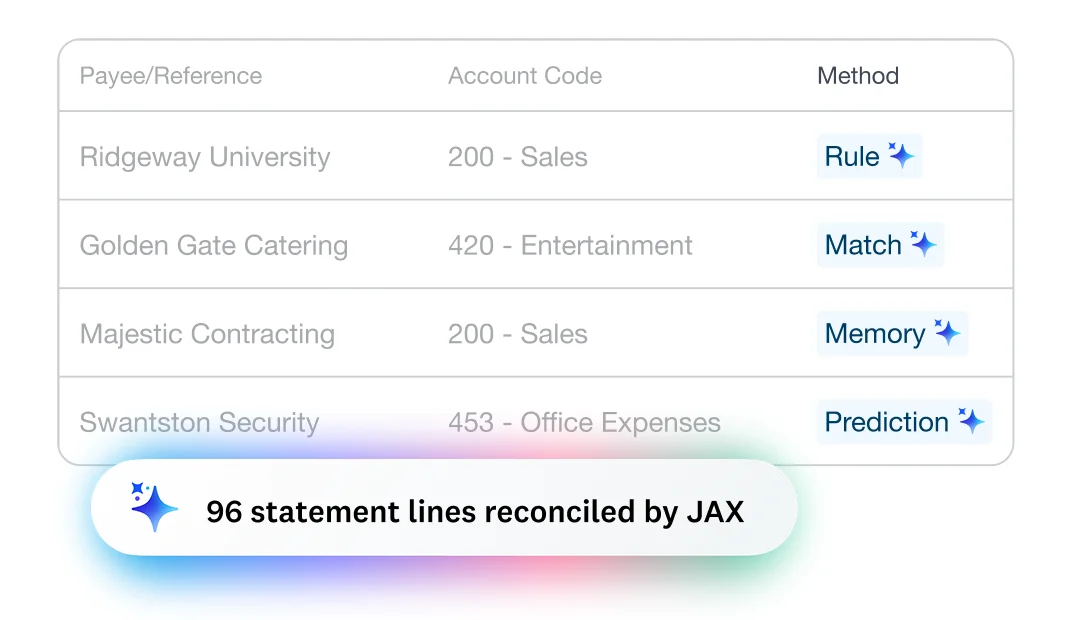
If your books live in an accounting system, its own reconciliation is the first place to look.
Xero. Xero's bank reconciliation page says its AI, JAX, "reconciles them for you when it's highly confident", and otherwise suggests a match and learns from your corrections. It matches four ways: bank rules, matching to existing Xero records, memory of past choices, and prediction. Automatic reconciliation is listed on the Growing plan and above, and you can import transactions by hand if you have no bank feed.
QuickBooks Online. Intuit's help article describes the classic way: go to All apps, Accounting, Reconcile, enter the ending balance and date from your statement, and tick each transaction that matches until the difference is $0.00. It also offers an AI-powered reconciliation where you upload the statement; the article does not say which plans include it.
Which to use. When the bank and the invoices are both in Xero or QuickBooks, reconcile there. When the open items come out of SAP or another ERP as an Excel file, the payment details are in PDFs and emails, or the bank has two currencies, the work happens in Excel and the folder, which is where Incredible does it.
Try this now. Open a bank statement and a list of open invoices, hold the key and say: "Match every payment to the invoices it paid and color each pair the same." Incredible is free for 7 days on Mac and Windows. Download it, or read the Quickstart first.
For other matching jobs, see how to compare two Excel files with AI. For entering supplier invoices into the accounting system, see AI invoice data entry, and for the wider field, the best AI for Excel.
For more Excel jobs done the same way, see how to automate Excel tasks with AI.
Frequently asked questions
Can AI do a bank reconciliation?
Yes. In our recording, Incredible reconciled a bank statement with a krona and a euro account against an SAP export of open items, read payment advice PDFs and emails in a folder for detail, and color-coded 15 payments and the items they cleared, with 34 of 47 items fully cleared. Xero’s JAX and QuickBooks’ AI-powered reconciliation do the matching inside those accounting systems.
How do I reconcile a bank statement in Excel?
Put the bank statement and the list of open items side by side and match each payment to the invoices it paid, by amount, reference and payer. To hand that to AI, open both files, hold Incredible’s key and say what a match is. It colors each payment and the items it cleared the same, and adds a legend.
Can AI read payment advices and remittance emails?
Yes. When one payment covers several invoices, the remittance advice says which. In the recording, the folder held PDFs, scanned documents and saved emails, and Incredible was told to use them when it needed more detail than the bank statement gave.
Does it work with SAP, Fortnox or Visma exports?
It works on the exported file in Excel, whatever system it came from. The recording uses an SAP open items export. Incredible runs on Mac and Windows, and the files stay on your computer.
Is the AI reconciliation always right?
Check it the first time. Incredible lists each payment with its color, payer, date, amount and the items it cleared, so you can look over every pair and ask about any you are unsure of.