Download for Mac
 Download for Windows
How to Automate Excel Tasks with AI, No VBA or Formulas (2026)
Automate Excel tasks with AI in your own workbook. See real website imports, file comparisons and payment matching, plus Copilot and built-in tools.
 Emil WagmanCTO
The short answer
Open the workbook and the files or website the task needs, hold the talk key in Incredible and say what you want done. It works in your own Excel on Mac and Windows. Our recordings show website results turned into a spreadsheet and two workbooks compared and reconciled, without writing VBA or formulas. Copilot can also edit a workbook from a request. For steps you want to record and repeat, Excel has Office Scripts and macros; Power Query saves repeatable data imports and transformations.
Free for 7 days. Mac and Windows.
You have an Excel job you can explain in a sentence, but doing it means opening another file, finding the right rows and checking them one at a time. You can give that sentence to AI and have it do the work in your own workbook.
With Incredible, you open the files, hold one key and say the task. The recording above shows two Excel workbooks reconciled against each other, with payment advice files available in a folder. You don't write VBA or formulas.
This guide covers collecting website data, comparing workbooks and reconciling payments. The examples come from three published guides and two recordings. The comparison and reconciliation guides show different parts of the same job, so the payment figures below describe one run.
How do you automate Excel tasks with AI?
Open the workbook and anything the task needs, then hold the talk key and describe the result. Use fn on a Mac, or Ctrl and Space on Windows.
For a comparison, say what should match and how you want the matches marked. For a website import, open the results page and say what should go into the spreadsheet. The requests below are the exact words quoted in the source guides.
Incredible shows its plan and reports what it did. Read that report and check the result before you use it. It runs on macOS 13 or later and Windows 10 or later.
1. Turn website results into an Excel file
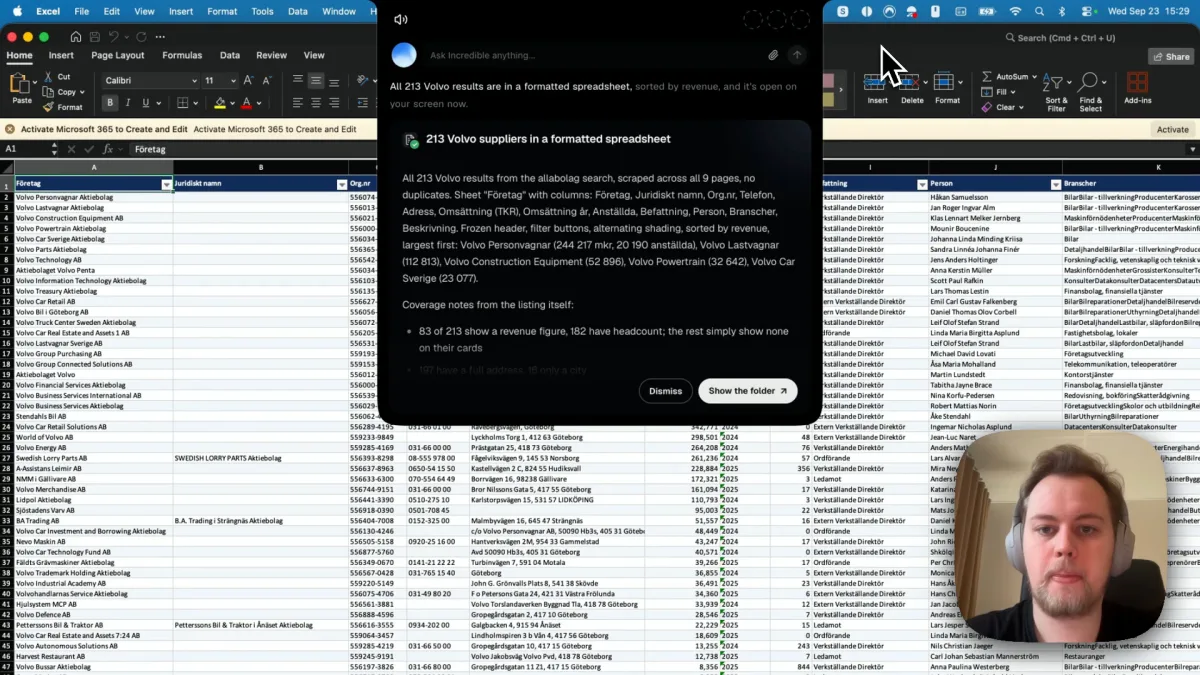
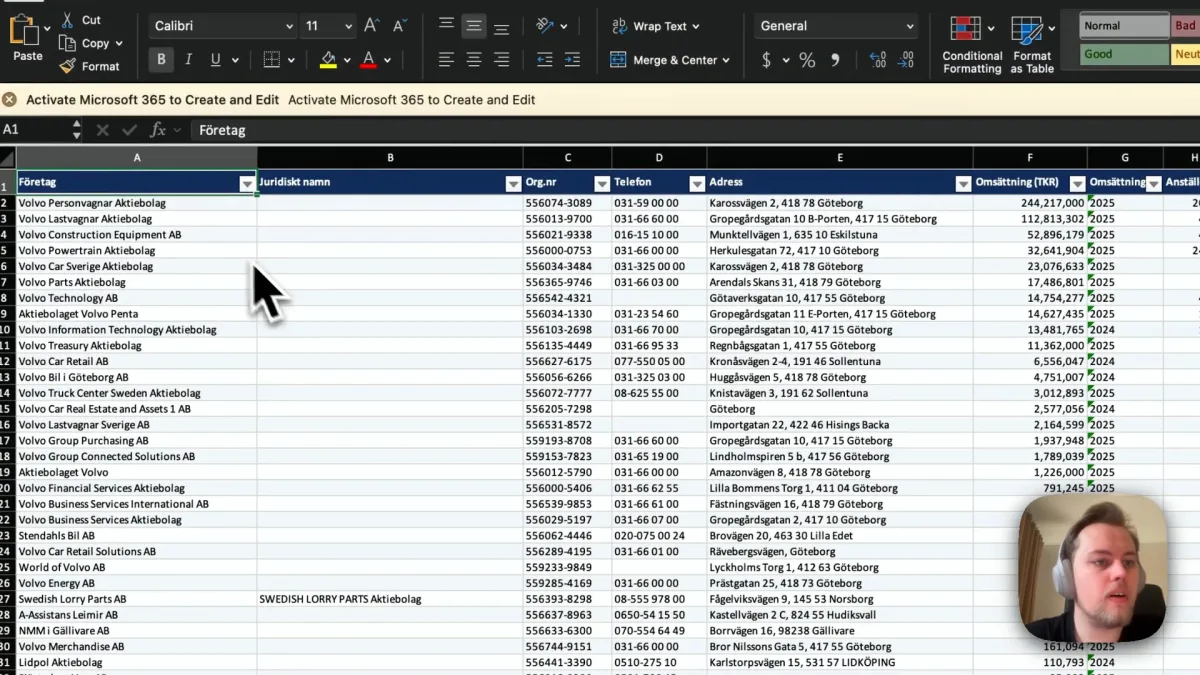
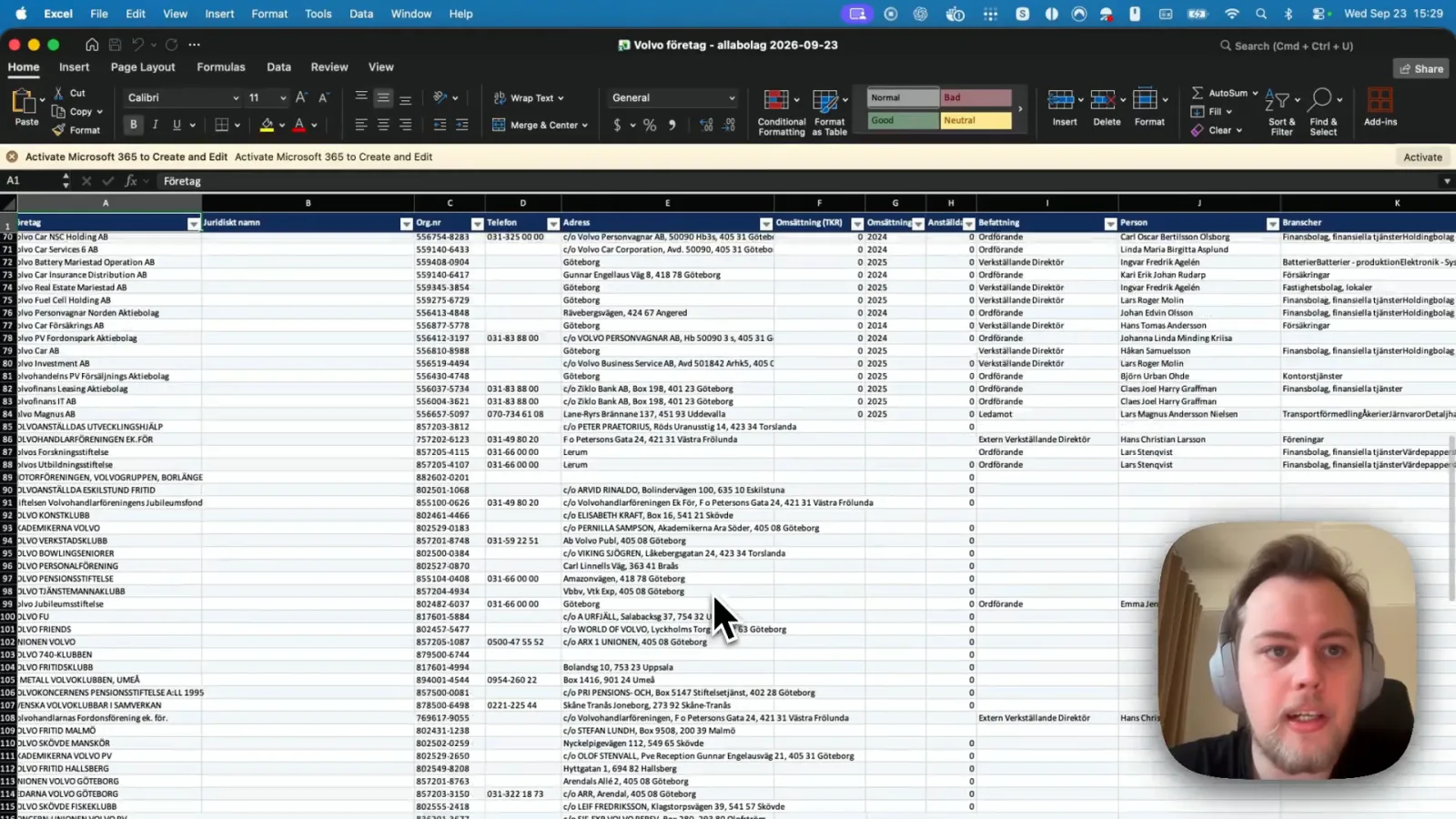
The first job starts in a browser. A search for Volvo on allabolag.se, a Swedish company register, returns 213 companies across nine pages. The spoken request is:
"Can you take all of these 213 results for Volvo and make them into a nicely formatted spreadsheet?"
Incredible goes through the pages in the user's own browser and saves an Excel file. The finished sheet has no duplicate rows and includes the company name, organization number, phone, address, revenue, employees and other fields, 12 columns in all. It sorts by revenue, largest first, freezes the header row and adds filters and alternating shading.
There is a useful limit in the result. Only 83 companies have a revenue figure on the site. Incredible leaves the other revenue cells empty and says so in its report.
You can watch the website-to-Excel recording or read the full website data extraction guide. This is the collection part of an Excel task, before there is a workbook to work on.
2. Compare two workbooks and mark the matches
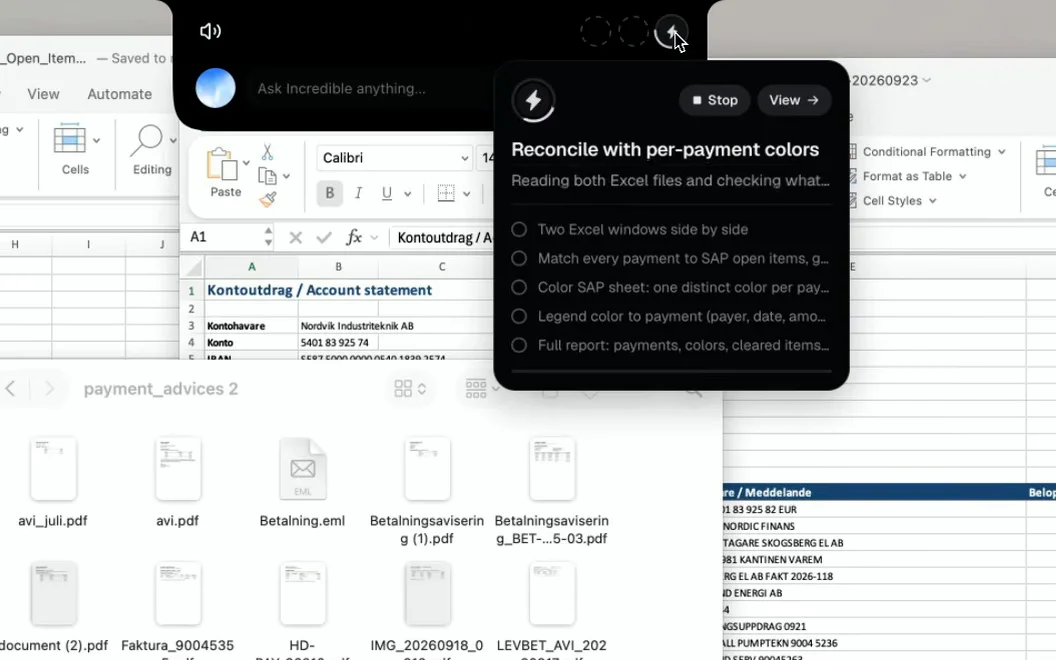
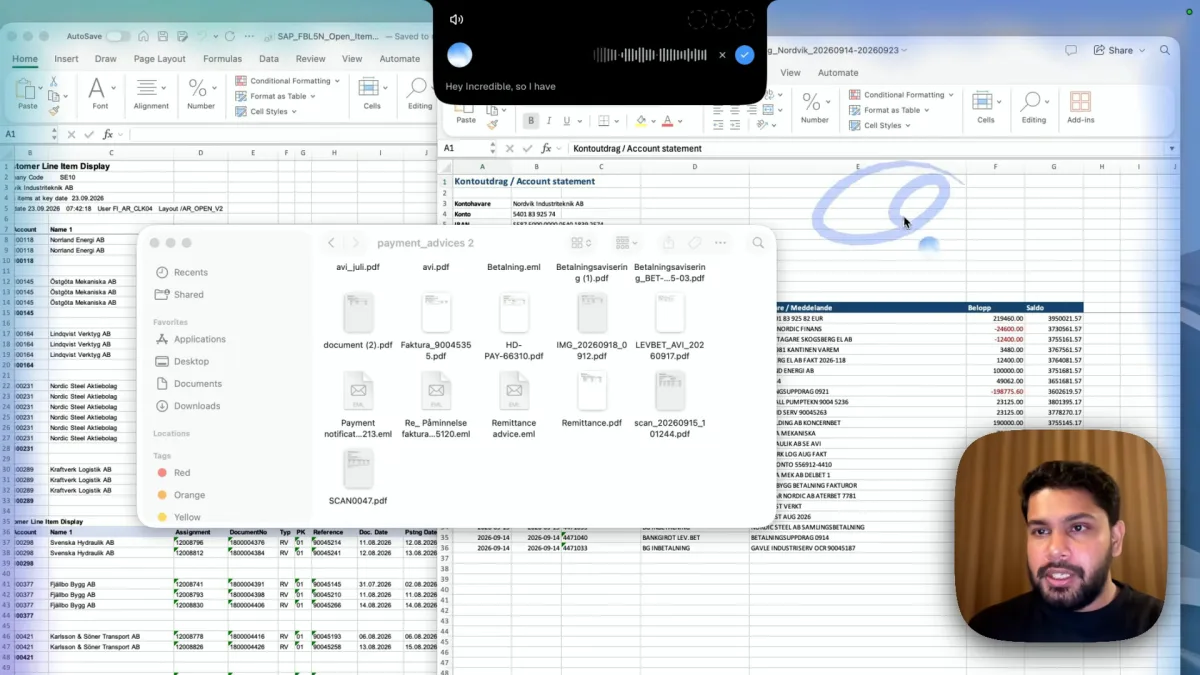
In the second recording, the files are a bank statement and an SAP open items export. The statement has a krona account and a euro account. The request explains both the match and how to display it:
"This bank statement has a krona account and a euro account, and this is an export of our SAP open items. Reconcile every payment against the outstanding items and see what has been paid. Use the payment advices in the folder if you need more detail. Color-code each payment and the items it paid in the same color."
Incredible shows its plan before it starts. It works in the open workbooks and uses a shared color for each payment and the items it cleared. A report lists the matches so the user can check them.
That request matters because "compare these files" alone leaves the meaning of a match open. Here, the user wants to know which outstanding items a payment paid, with supporting files available when the statement needs more detail. The guide to comparing two Excel files explains this part of the recording.
3. Reconcile payments with PDFs and emails beside Excel
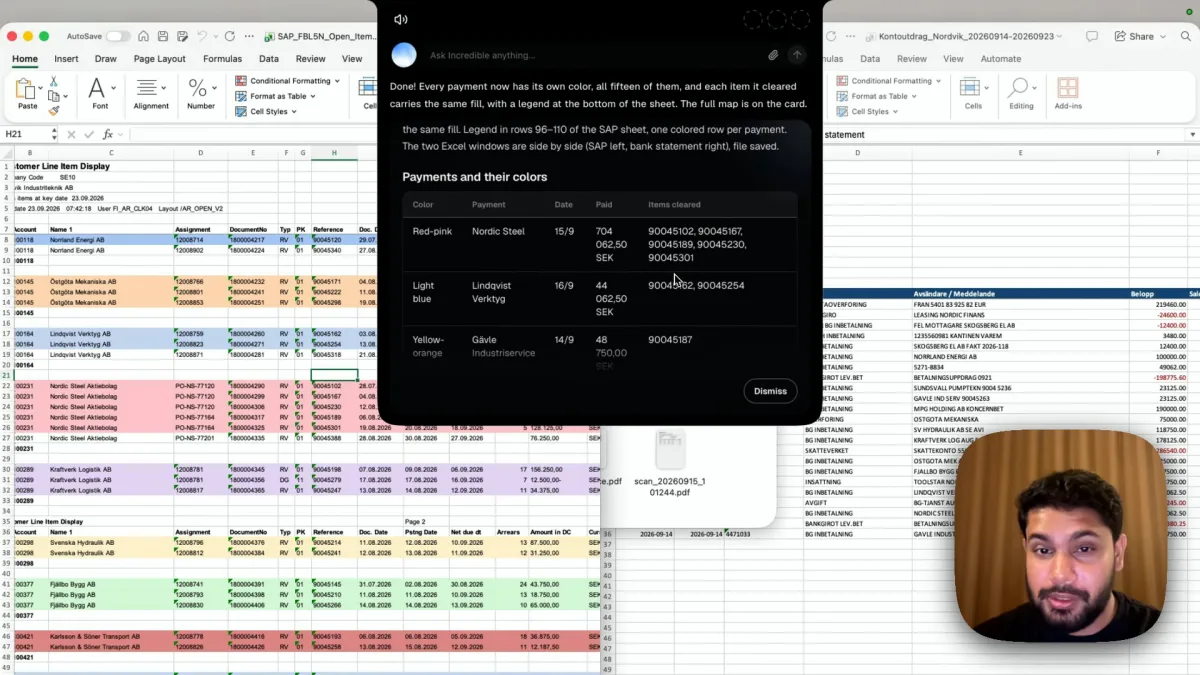
The reconciliation adds a step to the comparison. A bank line may not say which invoices a payment covers. The folder in this recording holds PDFs, a scanned remittance and saved emails, including payment notifications and remittance advices. The request above tells Incredible to use them when it needs more detail.
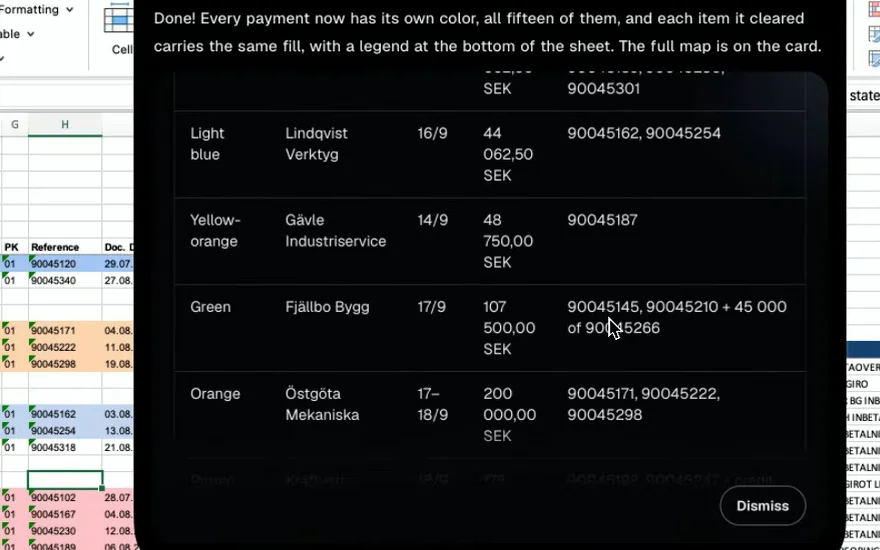
The final report says 15 payments are color-coded and 34 of 47 items are fully cleared. Each payment has its own color. The items it cleared have the same fill, and the SAP sheet has a legend. Both workbooks are saved and left side by side.
The 13 items that are not fully cleared still need attention. The report gives the payer, date, amount and cleared invoice numbers for each payment, so the result can be checked. See the full AI bank reconciliation guide, or watch the reconciliation recording.
Automate Excel tasks with Copilot
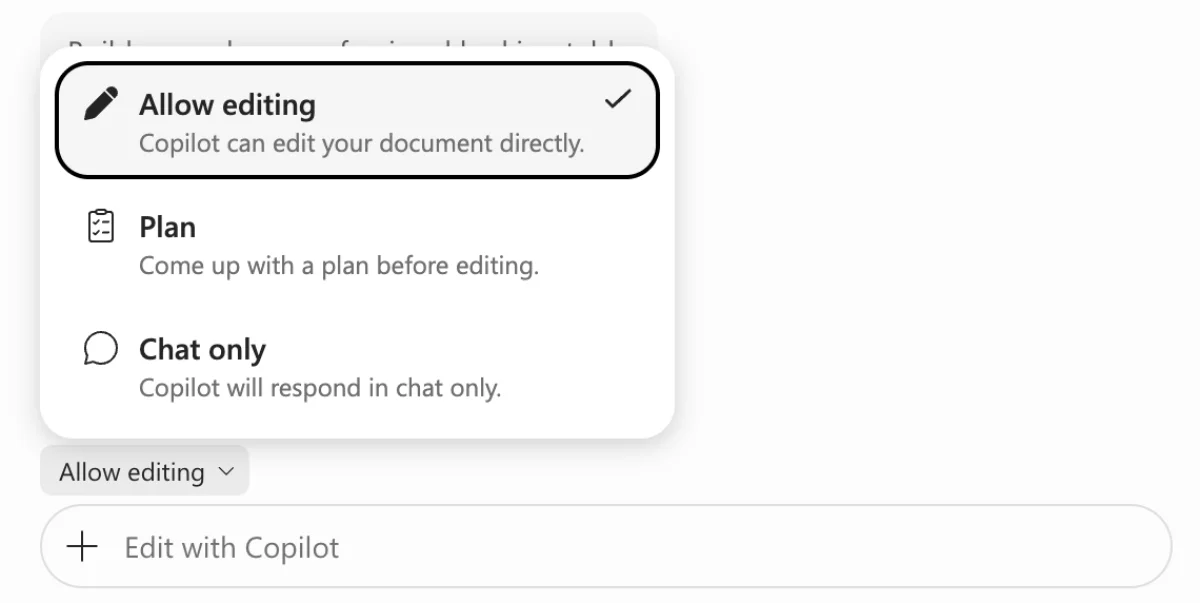
Microsoft's Copilot in Excel guide, read on 21 November 2026, says it edits worksheets, applies formulas and formatting, sorts and filters data, and creates charts and PivotTables. It can also retrieve data from other workbooks on OneDrive, SharePoint or your computer.
Open Copilot using its icon in the lower-right corner of Excel. Choose Allow editing to let it change the workbook, Plan to review an approach first, or Chat only for answers without workbook changes. Then describe the task.
Microsoft lists all three modes on Windows, Mac and the web. Access depends on your Microsoft 365 subscription and your organization's settings. If you already have access, it is an option for asking AI to work directly in Excel.
Excel's built-in automation without AI
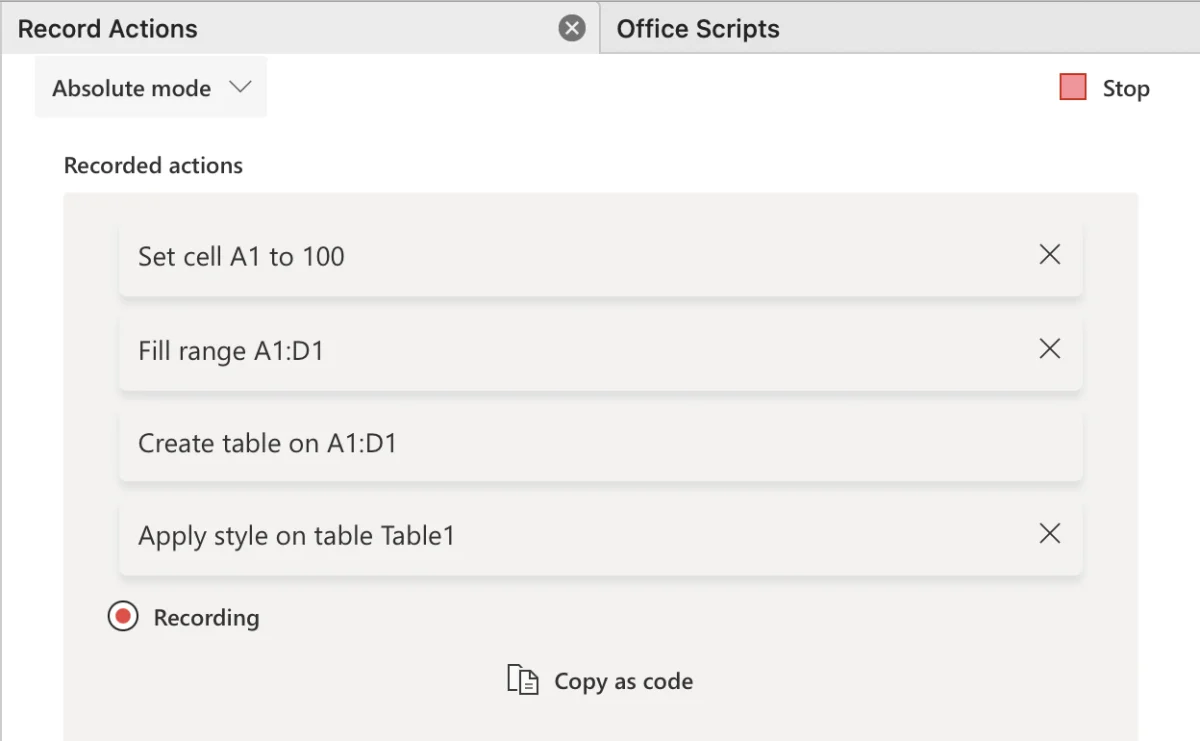
You may already know the exact steps you want to repeat. Excel has tools for that, too. These descriptions come from Microsoft's pages, read on 21 November 2026.
Office Scripts. The action recorder records steps such as editing cells, formatting and creating tables. You can replay the script on other worksheets and workbooks, edit it in the code editor, or let colleagues run it with a button. Microsoft's overview currently says scheduling inside Office Scripts is temporarily disabled and directs users to Power Automate for scheduled runs.
VBA macros. Microsoft's comparison of VBA and Office Scripts says both have an action recorder. VBA is built into desktop Excel and runs on Windows and Mac; Office Scripts also works on the web. You can record a macro rather than write its VBA yourself.
Power Query. Microsoft's overview describes connecting to data, reshaping it and saving the steps as a query you can refresh. Its editor lets you choose transformations through menus and buttons without writing code. For an import you need to clean the same way each time, it is worth checking before setting up another tool.
Check the result before you use it
Keep a copy of the workbook before your first run. After an import, check the row count and read any notes about missing data. After a comparison, inspect the matches and the items left open.
The recordings give you specific things to look for: 213 company rows with gaps where the source had no revenue, and a reconciliation report that lists every payment and the invoices it cleared. Ask about any pair you are unsure of before treating it as settled.
Try this now. Open two spreadsheets that should agree, hold the key and say: "Compare these two files and color every row that appears in both." Incredible works in your own Excel and is free for 7 days on Mac and Windows. Download it, or read the Quickstart first.
For the full walkthroughs, read how to extract website data into Excel, how to compare two Excel files with AI and AI bank reconciliation in Excel. To compare AI tools for other spreadsheet work, see the best AI for Excel.
Frequently asked questions
Can I automate Excel tasks without VBA?
Yes. With Incredible, you open the files and say the task, without writing VBA or formulas. The recordings here show a website list turned into an Excel file and payments matched across two workbooks. Excel also has Office Scripts to record actions and Power Query to save repeatable data preparation steps without writing code.
Can I automate Excel tasks with Copilot?
Yes. Microsoft says Copilot in Excel can edit worksheets, apply formulas and formatting, sort and filter data, and create charts and PivotTables. Select Allow editing to let it change the workbook, or Plan to review an approach first. Availability depends on your Microsoft 365 subscription and organization settings.
Can I use AI to automate Excel tasks on a Mac?
Yes. Incredible runs on macOS 13 or later and Windows 10 or later, and works in your own Excel. The recordings here show it working on a Mac. Microsoft also lists edit, chat and plan modes for Copilot in Excel on Mac, Windows and the web.
Is there a free AI tool to automate Excel tasks?
Incredible is free for 7 days. That is a trial, rather than an ongoing free plan. Microsoft says Copilot availability depends on your Microsoft 365 subscription and organization settings. VBA macros are built into desktop Excel without special licensing, but you still need Excel.
Is it safe to let AI work on my Excel files?
It changes real workbooks, so keep a copy before your first run and check the result. In the reconciliation recording, Incredible lists each payment and the items it cleared so you can inspect the matches. In the website import, it reports missing revenue figures and leaves those cells empty. Check those notes before using or sharing the file.