Download for Mac
 Download for Windows
5 Best AI Assistants and Agents for Windows in 2026
 Emil WagmanCTO
The short answer
Incredible, though we make it, so we are not a neutral source. You hold Ctrl and Space, say the task, and it clicks and types in your own browser, files and apps on Windows 10 or later, signed in as you, and asks before anything is sent. ChatGPT is the broadest single app, and its desktop app can operate Windows apps with Computer Use. Claude is strongest for long writing and coding work. Microsoft Copilot is free and already on the PC, and its Cowork feature does tasks in Microsoft 365 and on websites.
Free for 7 days. Mac and Windows.

The best AI for Windows in 2026: Incredible, ChatGPT, Claude, Copilot and Gemini, compared on what each can do on your PC and what it costs.
You asked the AI on your PC to enter the invoice, and it told you which fields to fill in. Then you filled them in yourself.
The best AI for Windows in 2026 is the one that finishes the task, and on that measure we put Incredible first. Hold Ctrl + Space, say what you need, and it clicks and types in your own browser, files and apps. ChatGPT is the broadest single app and can now operate Windows apps too. Claude is the pick for long writing and code. Microsoft Copilot is free and already on your PC, and Gemini suits people whose work lives in Google's apps.
We make Incredible, so this list is written by one of the five products on it. Every claim about the others links to the vendor's own page, read on November 7, 2026, so you can check them.
Incredible is free for 7 days, then from $25 a month. Try it on your PC.
| # | Assistant | Best for | Acts on your PC | Free tier |
|---|---|---|---|---|
| 1 |  Incredible |
Getting tasks done in your own apps and files | Yes, in your browser, files and apps | 7-day trial |
| 2 |  ChatGPT |
The broadest single app | Yes, with Computer Use | Yes |
| 3 |  Claude |
Long writing and coding work | In beta on Pro, Max and Ultra | Yes |
| 4 |  Microsoft Copilot |
Free help that is already on the PC | Cowork, in Microsoft 365 and the browser | Yes |
| 5 |  Google Gemini |
People who live in Gmail and Drive | Not your apps | Yes |
What makes an AI assistant good on Windows
A chatbot in a browser tab is not a Windows assistant. What separates the ones on this list is how far they reach into the PC: whether they open from anywhere, whether they can see what you are working on, and whether they can act on it.
Action is the big divider in 2026. An assistant that only produces text still leaves you to do the clicking, pasting and sending. One that finishes the task in your real apps removes the part that eats the day. That is how this list is ordered.
1. Incredible: best for getting tasks done in your own apps and files
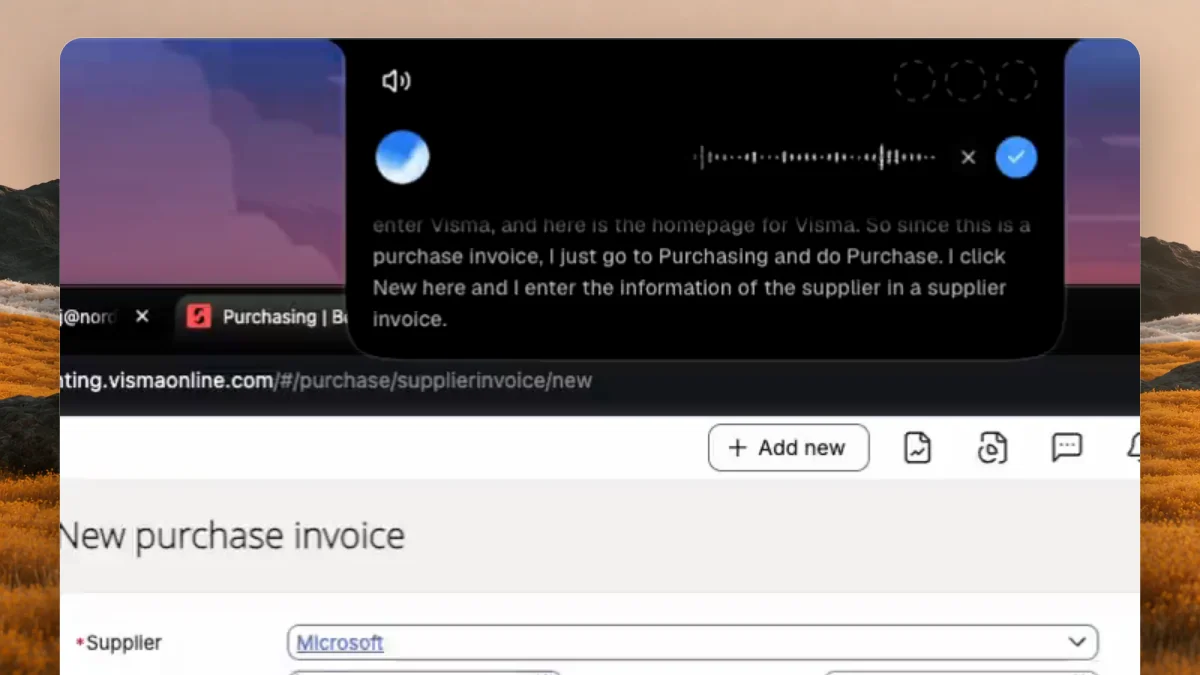
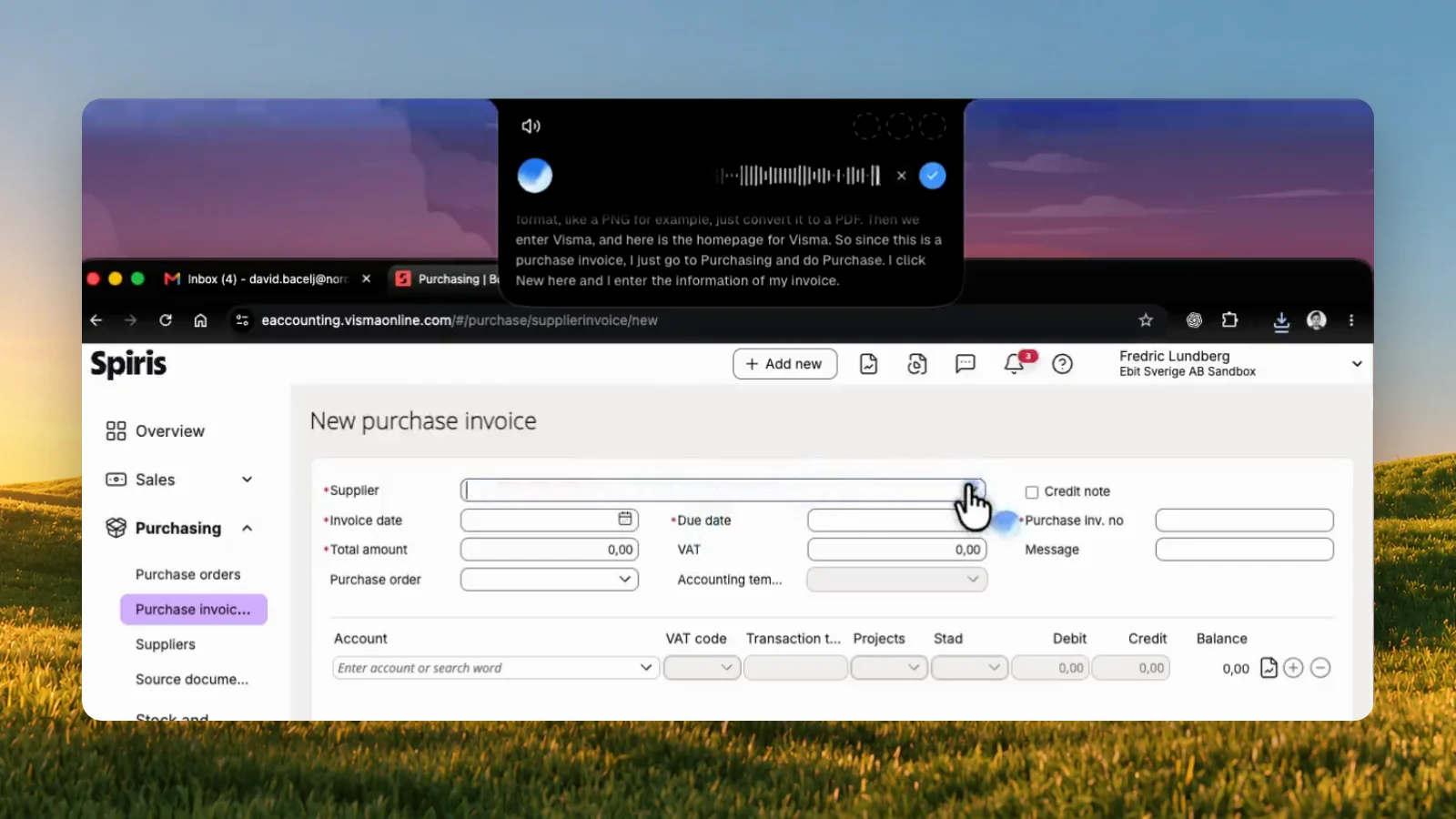
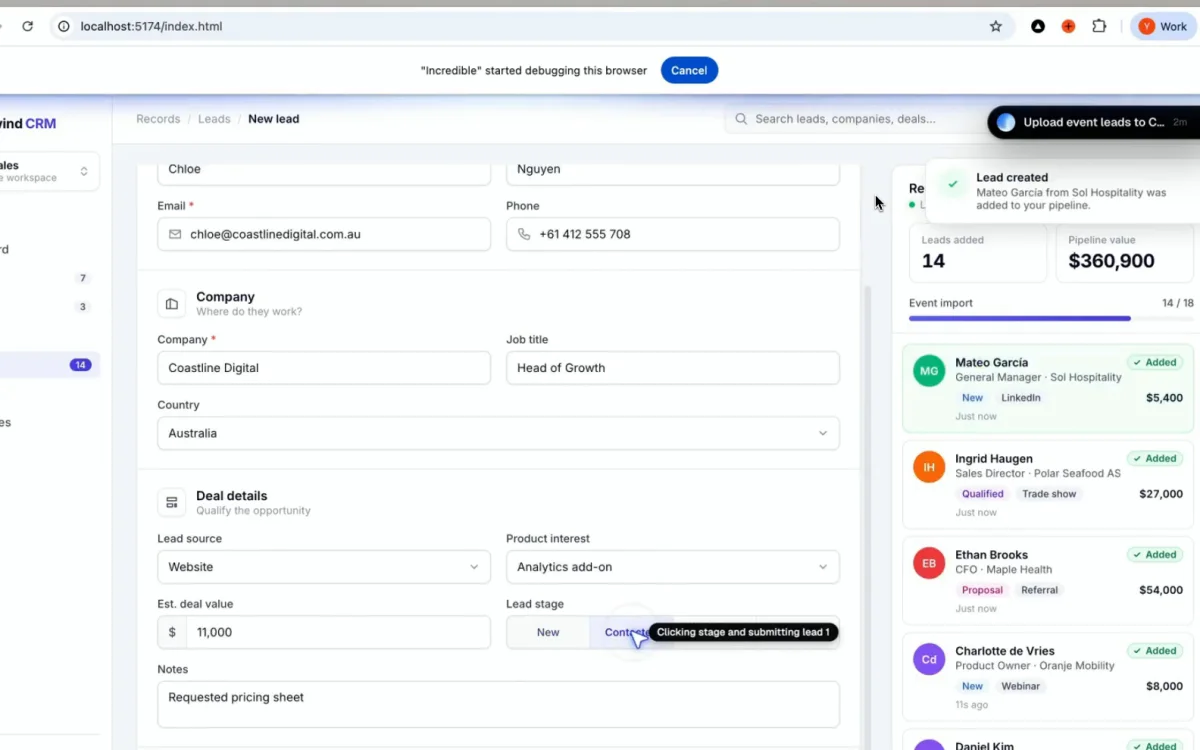
Most assistants give you an answer. Incredible does the task. You hold Ctrl + Space and say what you want, or type it, and it clicks and types in your browser, your files and your apps.
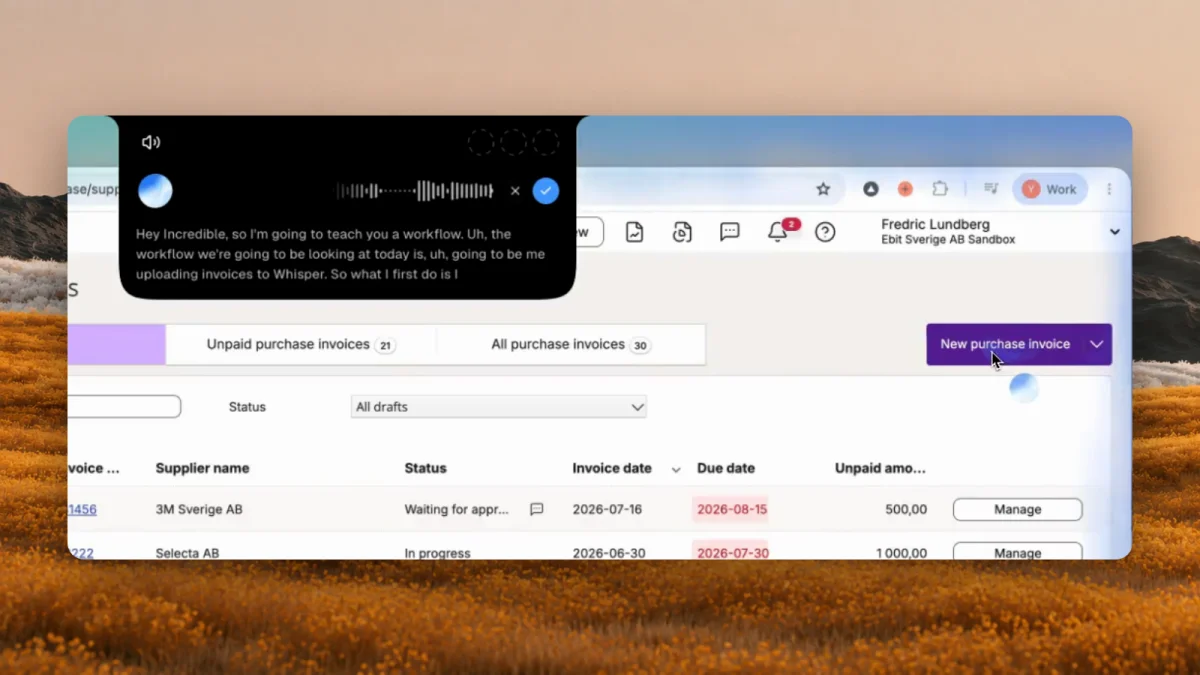
Three things set it apart. It works in your own browser, signed in as you, so it can use the supplier portal or the admin page that nothing else connects to. With a PowerPoint, an Excel file or a PDF open, you point at what you want changed and say it. And you can teach it a longer task by doing it once while you talk it through. It shows you what it is about to send and waits for you.
It is newer than everything else here. It runs on Windows 10 or later and on macOS 13 Ventura or later.
Best for: people whose day is full of small jobs in files and systems that still need doing by hand after an AI has answered. Incredible is free for 7 days: download it for your PC.
2. ChatGPT: the broadest single app
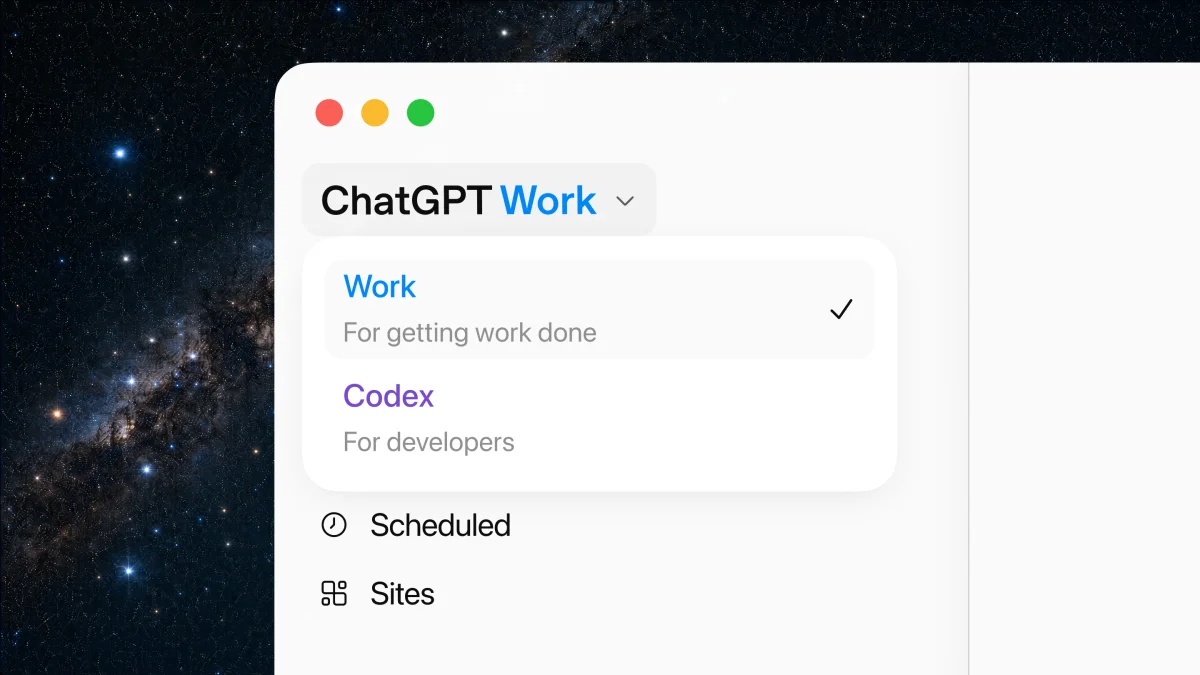
ChatGPT is the one to get if you want a single app that does a bit of everything. Its desktop app brings chat, its Work agent and Codex into one place, and OpenAI ships it for Windows as x64 and Arm64 packages.
It can also operate your PC. Computer Use works with ChatGPT Work and Codex on Windows and controls the mouse and keyboard in Windows apps, asking for permission before it uses an app. OpenAI's own page states the catch for Windows: it cannot work in the background while you keep using the same Windows session.
There is a free tier. Go is $8 per month and Plus is $20.
Best for: one app for answers, writing, research, images and code, with the ability to act when you hand it the screen.
3. Claude: best for long writing and coding work
Claude is the strongest choice when the work is thinking: long documents, careful analysis, code. Its desktop app runs on Windows 10 or higher.
It can use your computer too. Anthropic's computer use clicks, types and opens apps on your own machine, asking for permission before it uses each app. Anthropic describes it as a beta for the Pro, Max and Ultra plans, not yet available on Team and Enterprise, and notes that there is no sandbox between Claude and the apps it controls.
There is a free tier for chat. Pro is $20 per month, or $17 billed annually.
Best for: writing, coding and long multi-step knowledge work, with computer control as one tool inside it.
4. Microsoft Copilot: free, and already on your PC

Copilot comes installed on new Windows 11 PCs, opens with its own key, and is free with a Microsoft account. You can talk to it, and there is a "Hey Copilot" wake word you can turn on.
Doing things is where it has moved most. Copilot Cowork, in the Copilot desktop app and the browser, creates and edits Word, Excel and PowerPoint files and PDFs, drafts and sends email, manages your calendar and your OneDrive files, and clicks, scrolls and types on websites. For personal accounts it is a preview that needs an eligible Microsoft 365 subscription. Copilot Actions, the part that works on your local files and apps, is still described as an experimental preview for Windows Insiders that is off by default. Copilot Vision can see an app you share and guide you through it, but it does not click or type for you.
Paid plans: Microsoft 365 Personal is $9.99 per month and Premium is $19.99.
Best for: quick answers and voice help at no cost, and tasks inside Microsoft 365 if you already pay for it.
5. Google Gemini: best if you live in Gmail and Drive
Gemini's Windows app is new. Google released it on September 10, 2026 for Windows 10 and 11, and it opens with Alt + Space. Its strength is context from your Google account: Gmail, Drive, Docs and Calendar.
It does not operate the apps on your PC. Google's desktop page lists screen sharing, dictation across apps and local folders under the Mac app, and says more will come to Windows. Google also describes Gemini Spark, an agent you hand multi-step tasks to, and a Task mode that runs chores in the background.
Best for: answers grounded in your Google account, from a quick window on the desktop.
What didn't make the list
- Raycast. It left beta on Windows on August 25, 2026 and is an excellent keyboard launcher. It does not click or type in other apps, and its AI needs the paid plan.
- Manus. A strong agent for long jobs that mostly works in its own cloud. Since Manus 2.0 on September 28, it can also work on your computer in its own visible workspace, with the files, browser and apps you approve.
- Perplexity. Best known for cited research. Its Comet browser runs on Windows and its assistant acts on websites inside that browser. Its Personal Computer app works with local files on Windows 10 and 11, but Perplexity says installed-app control is not yet available on Windows.
Do you need Windows 11 or a Copilot+ PC?
For most of this list, no. Incredible, Claude and Gemini run on Windows 10 or later with no special hardware, and ChatGPT's desktop app comes for x64 and Arm64 PCs. The Copilot Actions preview needs Windows 11. Click to Do, the feature that offers actions on text and images on your screen, needs a Copilot+ PC.
Which one should you pick?
Most people end up with two: one that does the task, and a generalist for thinking and drafting.
Start with what still takes your time after the AI has answered. If it is the clicking: the slide that needs fixing, the invoice that needs entering, the form in a portal nothing connects to, that is the job Incredible is built for. Create an account and download it to try it on your own work.
Then pick the generalist. ChatGPT for the broadest all-rounder, Claude if you care most about writing and code, Copilot if free is the requirement or your work is in Microsoft 365, Gemini if it is in Google's apps.
Frequently asked questions
What is the best AI agent for Windows?
Incredible, though we make it, so we are not a neutral source. You hold Ctrl and Space, say the task, and it clicks and types in your own browser, files and apps on Windows 10 or later, signed in as you, and asks before anything is sent. ChatGPT is the broadest single app, and its desktop app can operate Windows apps with Computer Use. Claude is strongest for long writing and coding work. Microsoft Copilot is free and already on the PC, and its Cowork feature does tasks in Microsoft 365 and on websites.
Is there an AI that can control my Windows PC?
Yes, several. Incredible clicks and types in your browser, files and apps. The ChatGPT desktop app has Computer Use on Windows, and Claude has computer use in beta on its Pro, Max and Ultra plans. Each asks for permission before it acts.
How much does Incredible cost?
Incredible is free for 7 days, then from $25 a month. The plans are Starter at $25, Pro at $50, Max at $179 and Ultra at $500, per seat, billed monthly. You add a card when you sign in to the app, and nothing is charged until the trial ends. Every plan is the full assistant, with no features locked behind a higher tier.
Do I need Windows 11 or a Copilot+ PC?
Not for most of them. Incredible, Claude and Gemini run on Windows 10 or later with no special hardware, and ChatGPT has a desktop app for x64 and Arm64 PCs. Windows 11 is needed for the Copilot Actions preview, and a Copilot+ PC is needed for Click to Do.
Can Microsoft Copilot do tasks for me on Windows?
Partly. Copilot Cowork, in the Copilot desktop app and the browser, creates and edits Office documents, drafts and sends email, manages your calendar and OneDrive files, and clicks and types on websites. For personal accounts it is a preview that needs an eligible Microsoft 365 subscription. Copilot Actions, which works on local files and apps, is an experimental preview for Windows Insiders, and Copilot Vision guides you but does not click or type for you.
Does Incredible work on Windows 10?
Yes. Incredible runs on Windows 10 or later and on macOS 13 Ventura or later.