 Get started on Windows


Turn an email thread into a calendar event
Create a Google Calendar event from Gmail or Outlook with the agreed time and attendees
 Get started with MacWorks on Mac and Windows
Still copying email details into your calendar?
What this workflow does
This workflow creates a Google Calendar event from a Gmail or Outlook thread using the agreed time and attendees. A finished run gives you a calendar event with invitations sent to everyone included.
The problem
Operations managers, sales teams, and recruiters often copy meeting details from email into Google Calendar by hand. They must find the final agreed time, add each attendee, and send the invitations.
The solution
The workflow reads the scheduling thread, identifies the agreed time and attendees, and prepares the Google Calendar event. After you approve it, the event is created and the invitations are sent.
This is what you give
This is what you get
How it works, step by step
- 1
Open the email thread. Incredible opens the scheduling thread in Gmail or Outlook.
- 2
Read the agreement. It reads the messages to identify the agreed time and everyone included on the thread.
- 3
Prepare the calendar event. It fills a new Google Calendar event with the agreed time and attendees.
- 4
Confirm and create the event. After asking for your approval, it creates the event and sends the invitations.
Trusted by teams at


















More workflows like this
Other ready-made workflows that work in the same apps.

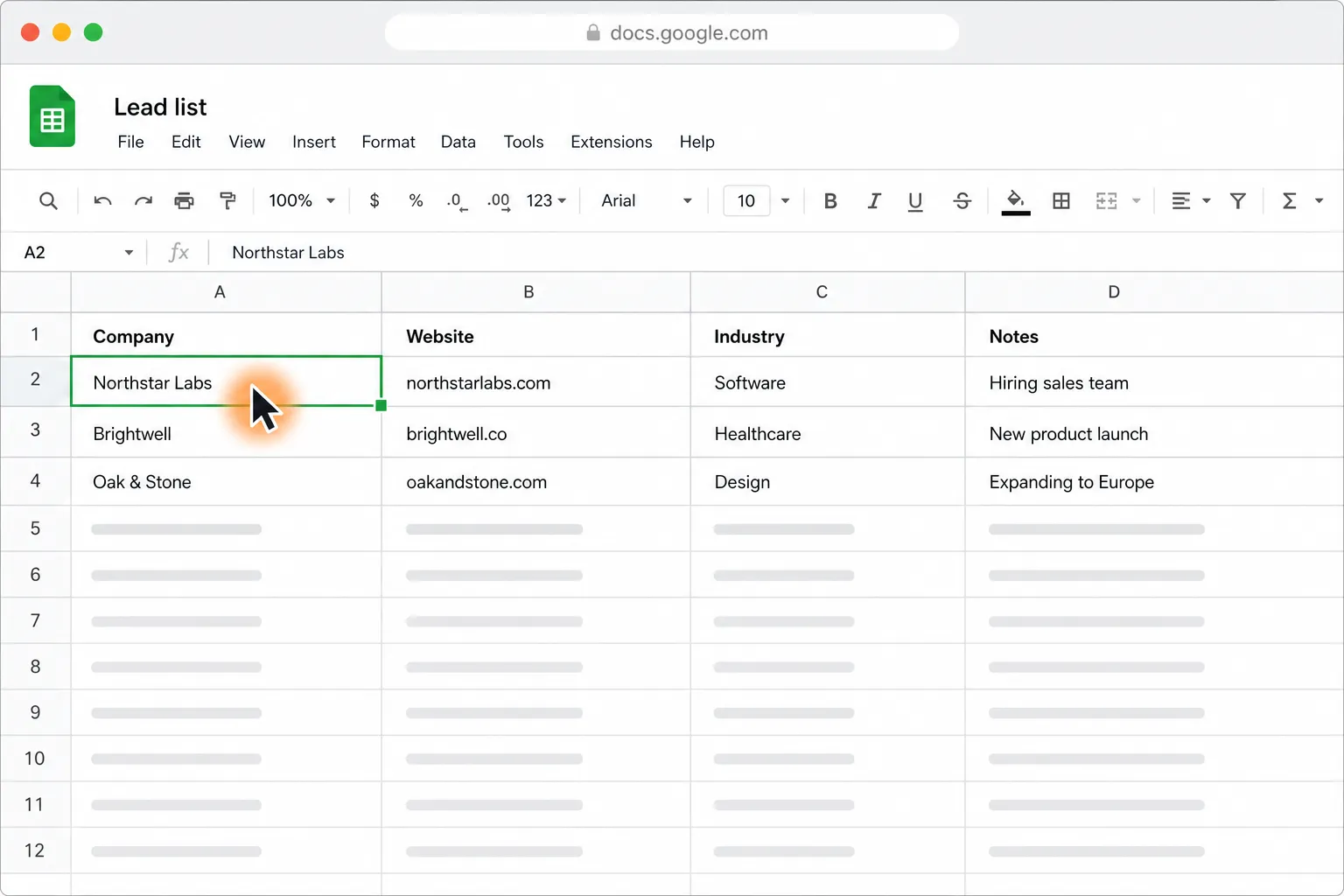
Personalize cold emails from Google Sheets and send them with your approval
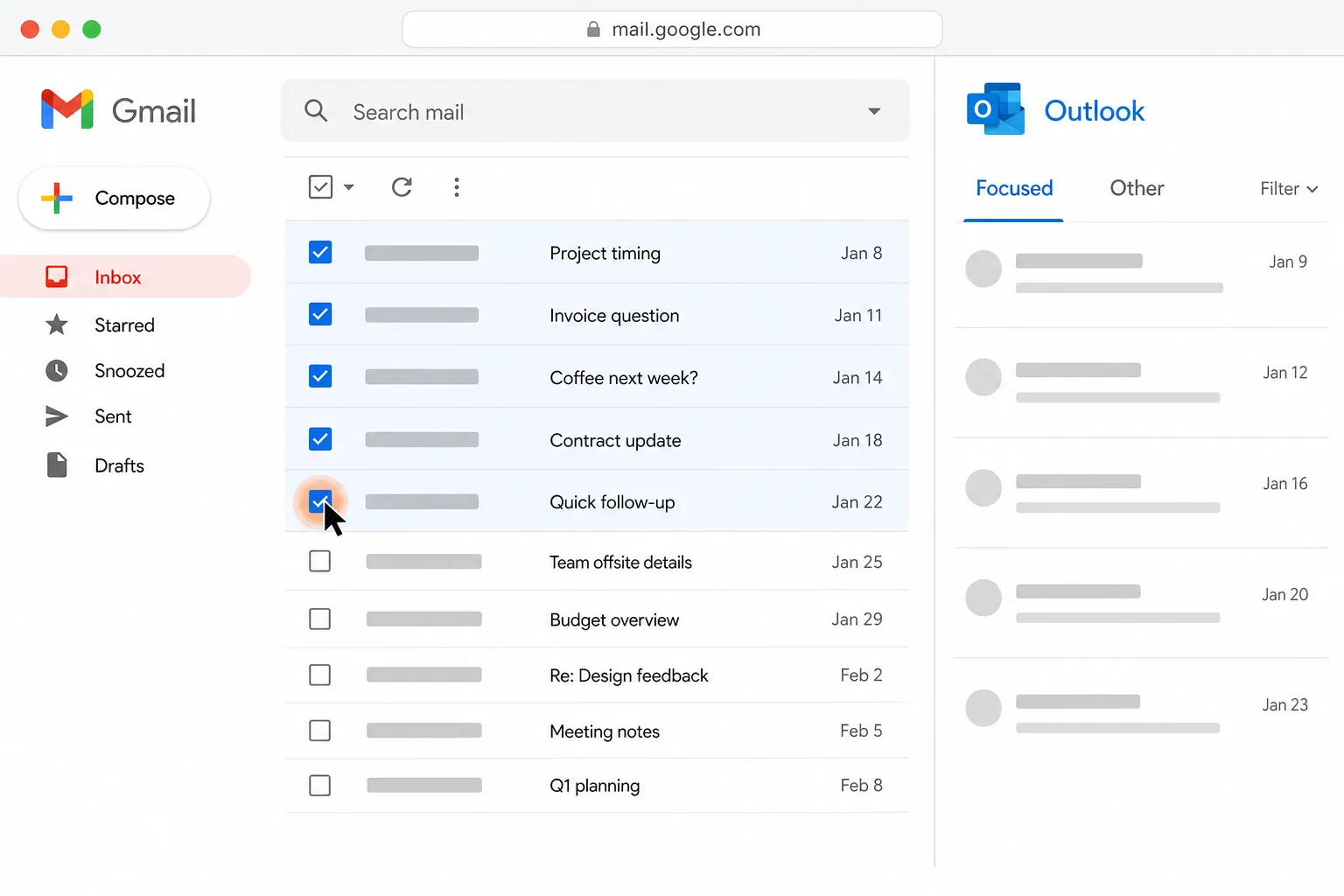
Get drafts for your five oldest unanswered Gmail and Outlook emails

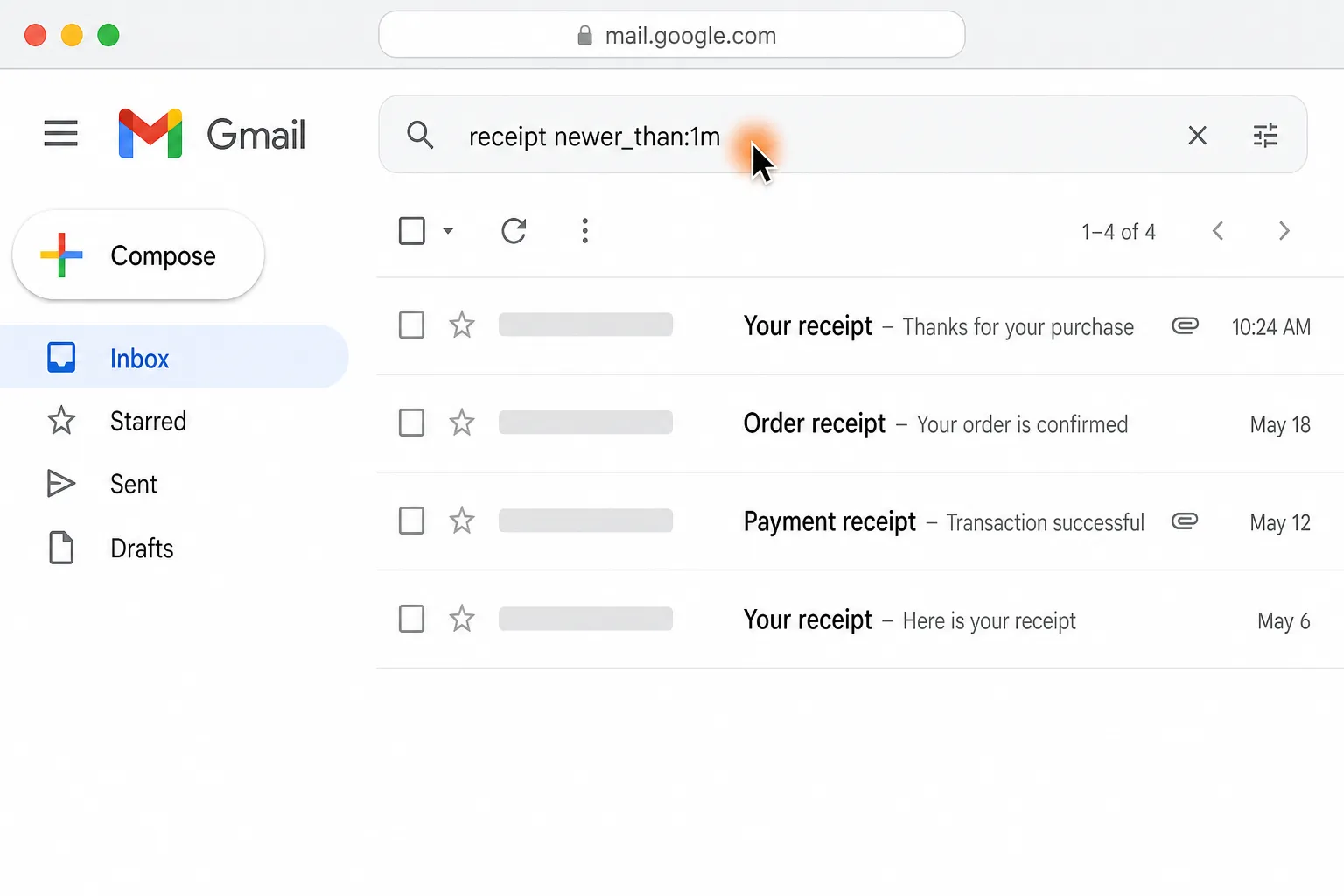
Find last month’s receipts in Gmail and Outlook and file them in Google Drive

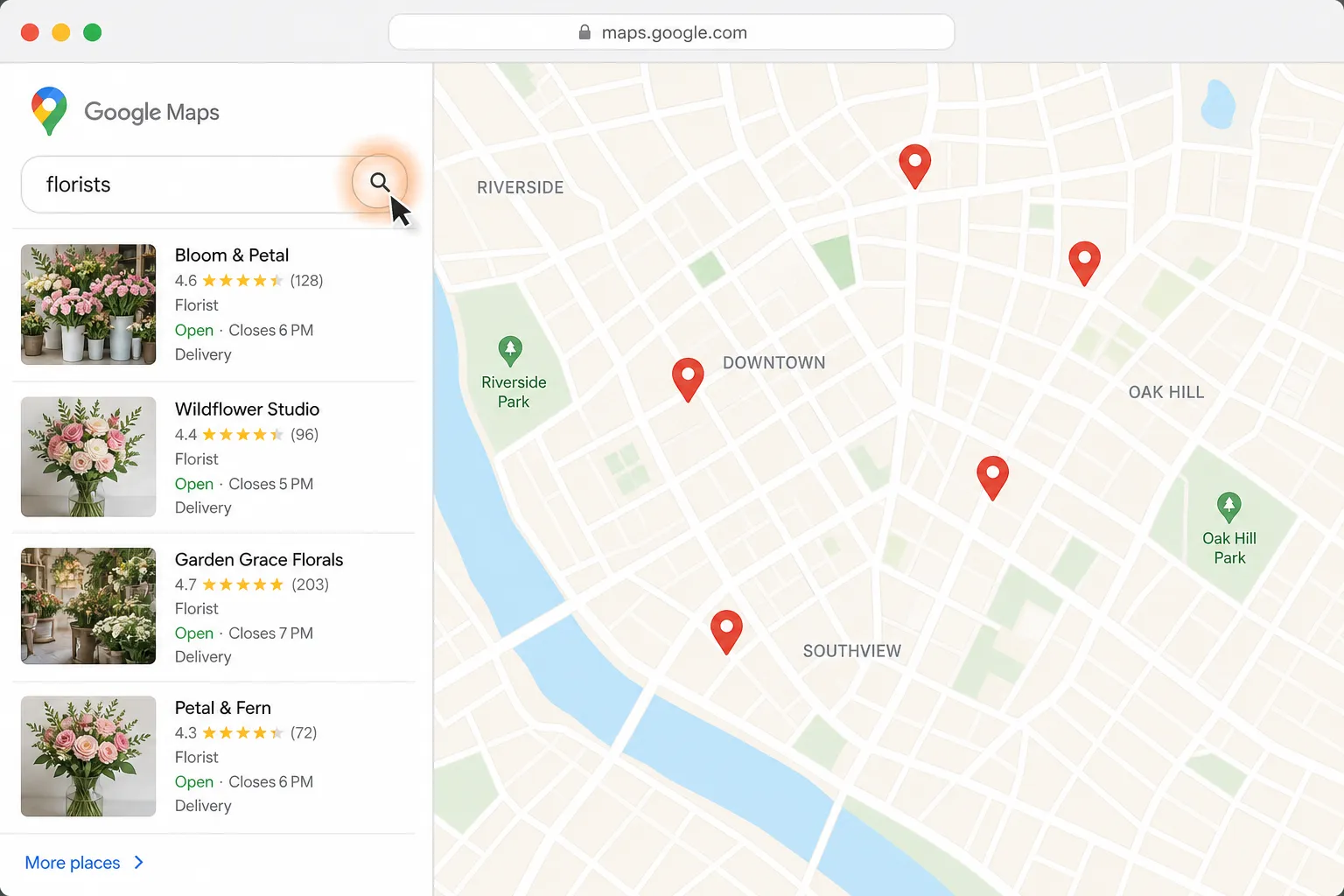
Find a florist for Thursday delivery and prepare the flower order in Gmail

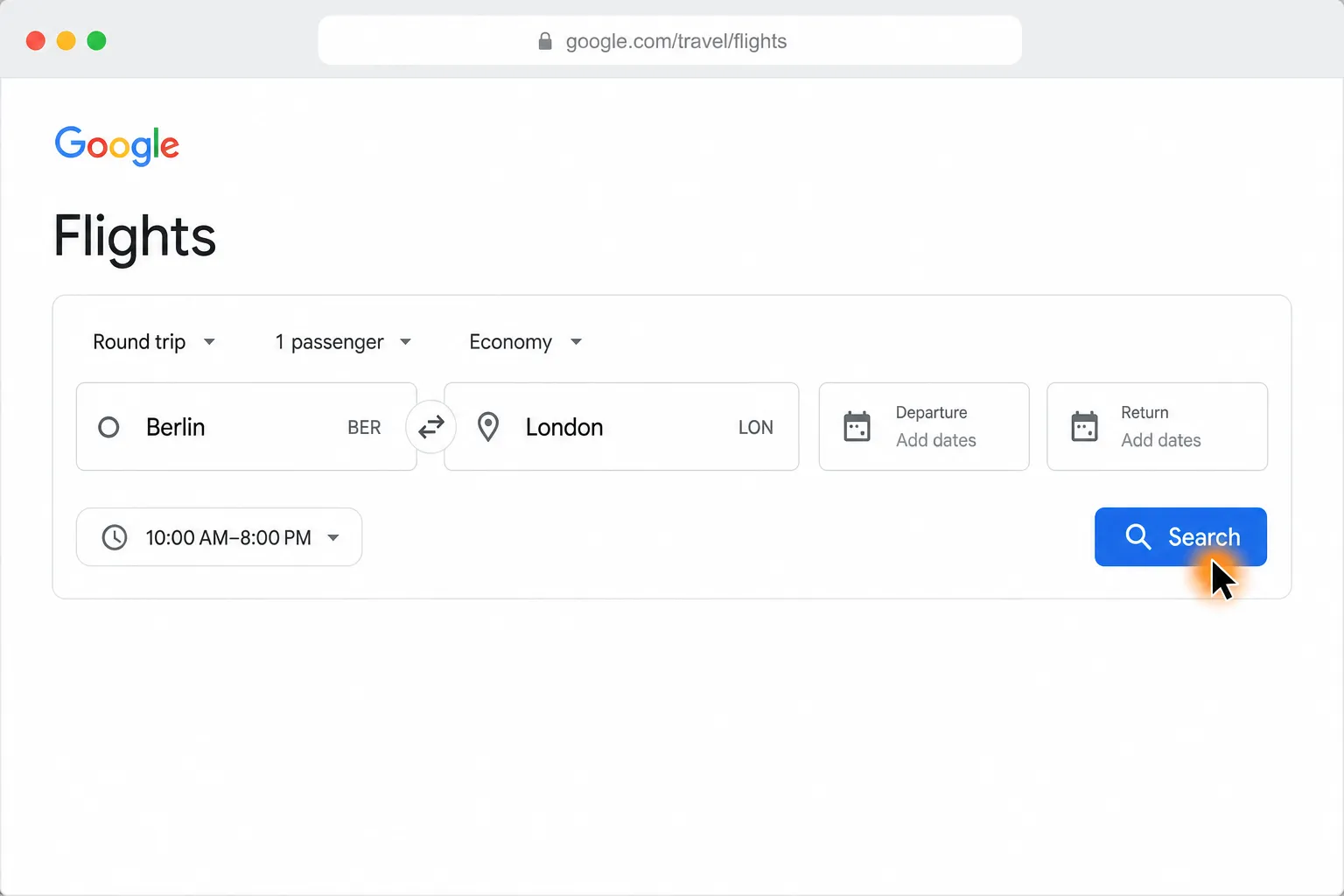
Compare Berlin to London round-trip flights and find the cheapest in your time window
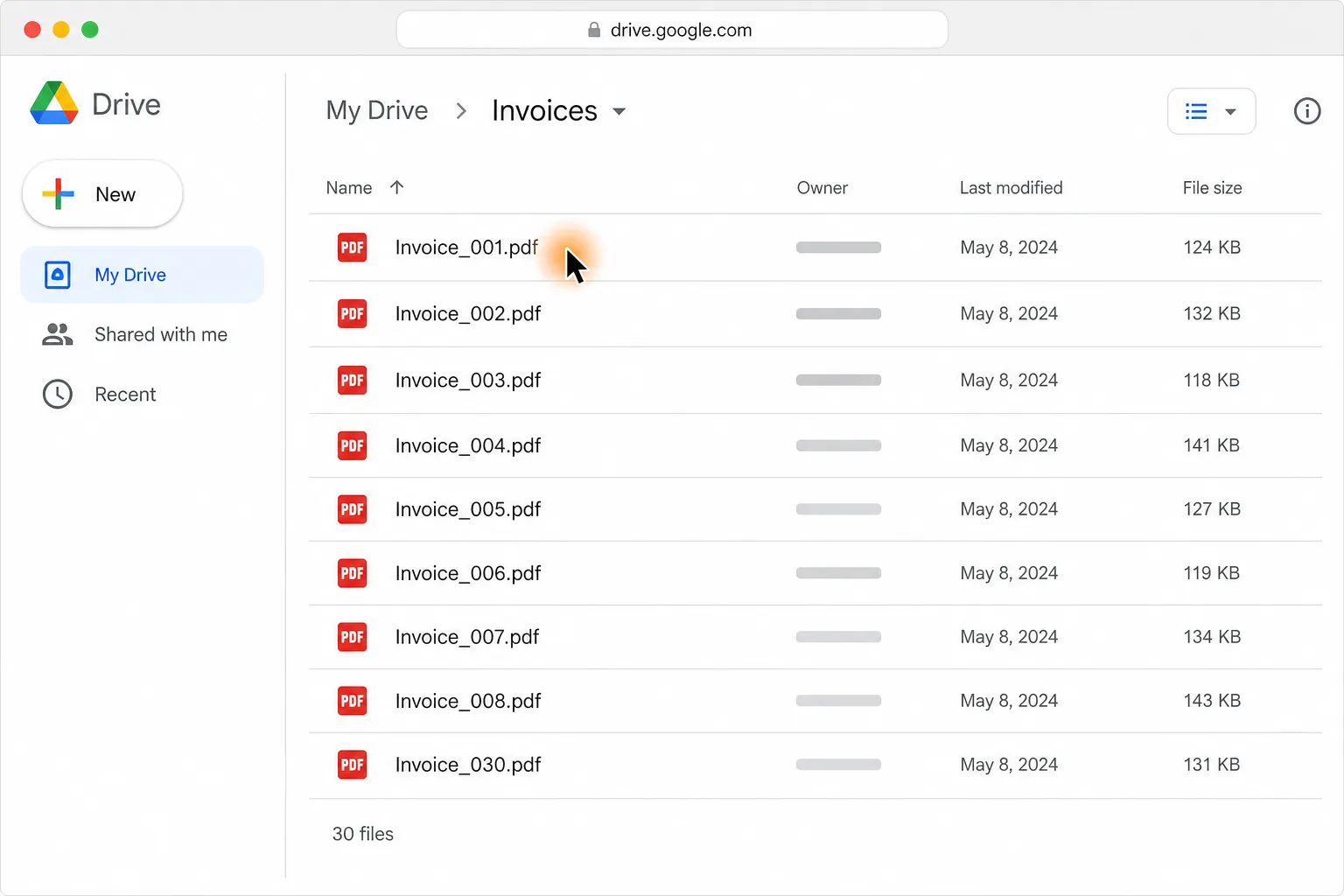
Turn 30 PDF invoices into one clean table in Google Sheets or Excel
Loved by the very best
“It’s not about taking the work away from me—it’s about boosting me. We are seeing higher accuracy and better results across the board”
 Håkan EnhagerVP Global IT and Digital, CellMark
“Using Incredible is a real game-changer”
 Alexander AronssonCEO, Vätternkök
“It has been really great to see how both the team and the company have developed. David and Philip have had a clear goal for the company all along.”
 Peter SchönHead of Business Development
Frequently asked questions
How do I turn an email thread into a Google Calendar event?
Run this workflow on the relevant Gmail or Outlook thread. It reads the conversation, identifies the agreed time and attendees, and prepares the event in Google Calendar. Incredible asks before it creates the event and sends invitations.
Does the workflow invite everyone on the email thread?
Yes. The workflow adds everyone on the thread as an attendee and uses the time agreed to in the conversation. It asks for your approval before creating the event and sending the invitations.
Can this workflow read both Gmail and Outlook email threads?
The workflow can read the scheduling thread in Gmail or Outlook. It creates the resulting event in Google Calendar.
Do I need code or APIs to create calendar events from email threads?
No. Incredible is taught by recording a person doing the task, so there is nothing to code and no APIs to connect. It then repeats the recorded steps on demand.
What do I need to run this email-to-calendar workflow?
You need the Incredible desktop app for Mac or Windows and your own access to Gmail, Outlook, and Google Calendar. Incredible works through the browser you already use while you are signed in.
Is my Gmail, Outlook, or Google Calendar data used for training?
No. Customer data is not used to train Incredible.
Can the email-to-calendar steps be adjusted?
Incredible follows the process it was taught, using the same steps in the same order. To use a different process, teach the workflow the sequence you want it to follow.
Published Aug 21, 2026 · Updated Aug 24, 2026