 Get started on Windows


Fetch supplier receipts for Pleo
Find receipt PDFs in Gmail and attach them to the right Pleo expenses
 Get started with MacWorks on Mac and Windows
Still matching supplier receipts by hand?
What this workflow does
This workflow finds missing receipts for one supplier in Gmail, matches them to Pleo expenses, and downloads the correct PDFs. A finished run attaches each exact match to the right transaction and reports anything it could not match or upload.
The problem
Operations managers and finance analysts often search email, compare amounts and dates, download PDFs, and upload each receipt by hand. Repeating those checks across Pleo and Gmail takes time and makes duplicate amounts harder to distinguish.
The solution
The workflow handles inbox and email work by searching Gmail and matching each receipt by supplier, exact amount, currency, and date. It completes the admin follow-up in Pleo by attaching confirmed PDFs, checking that each warning clears, and reporting skipped or unsuccessful transactions.
This is what you give
This is what you get
How it works, step by step
- 1
Collect the supplier’s Pleo errands. Opens Pleo’s errands list and collects every missing-receipt transaction for the requested supplier, including each amount, currency, and date needed for safe matching.
- 2
Find the matching receipt emails. Searches the two Gmail accounts in the agreed order for receipt emails from the supplier, using the Pleo amounts and dates to locate the right messages.
- 3
Download each receipt PDF. Downloads the matched receipt PDF from its email, following the supplier’s receipt link and signing in when necessary.
- 4
Attach receipts to Pleo. Opens the exact Pleo transaction and uploads its matching PDF through the required receipt area without changing any other expense details.
- 5
Confirm the errands disappeared. Checks Pleo after every upload to ensure the completed transaction leaves the errands list, then reports any receipts that could not be matched.
Trusted by teams at


















More workflows like this
Other ready-made workflows that work in the same apps.

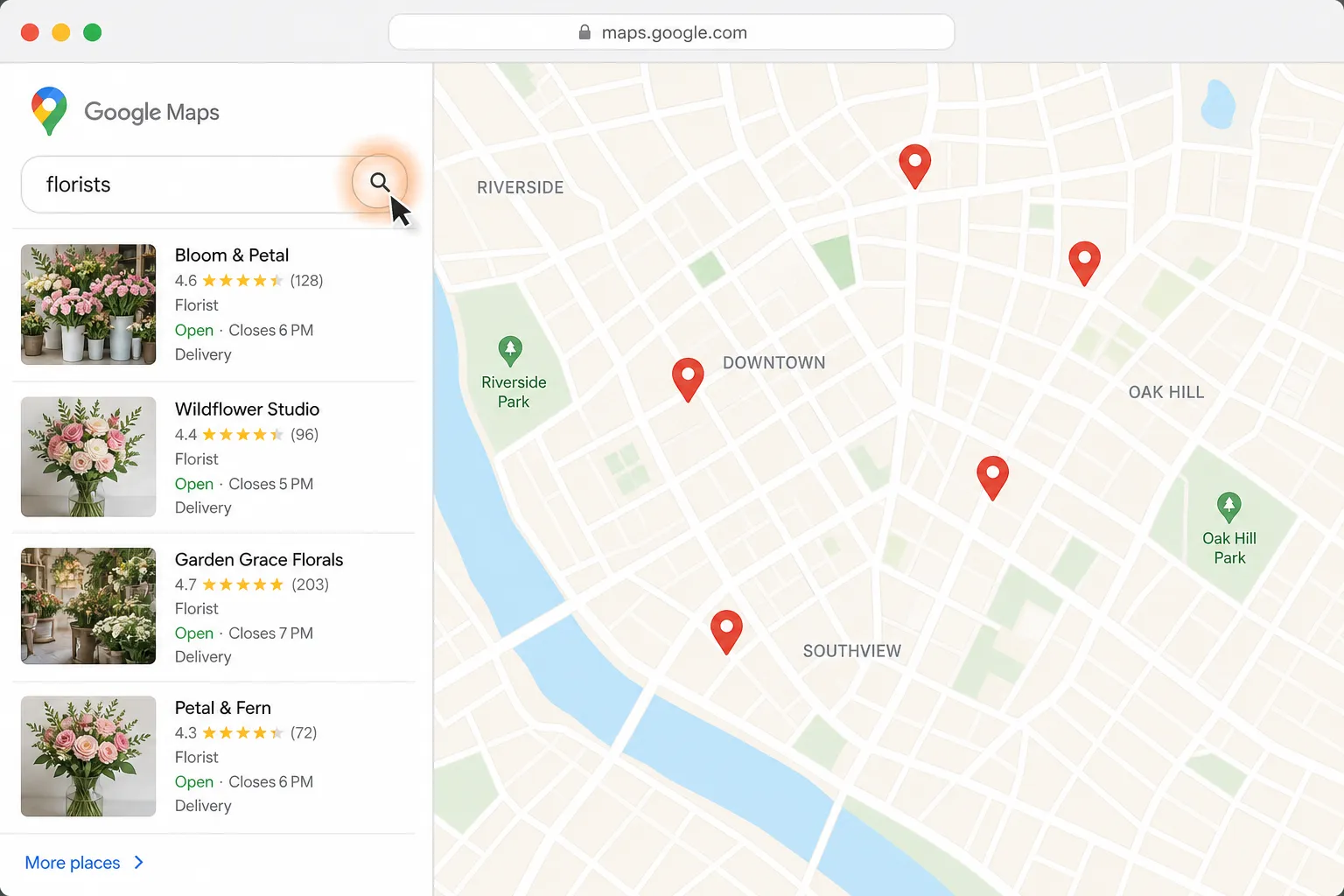
Find a florist for Thursday delivery and prepare the flower order in Gmail


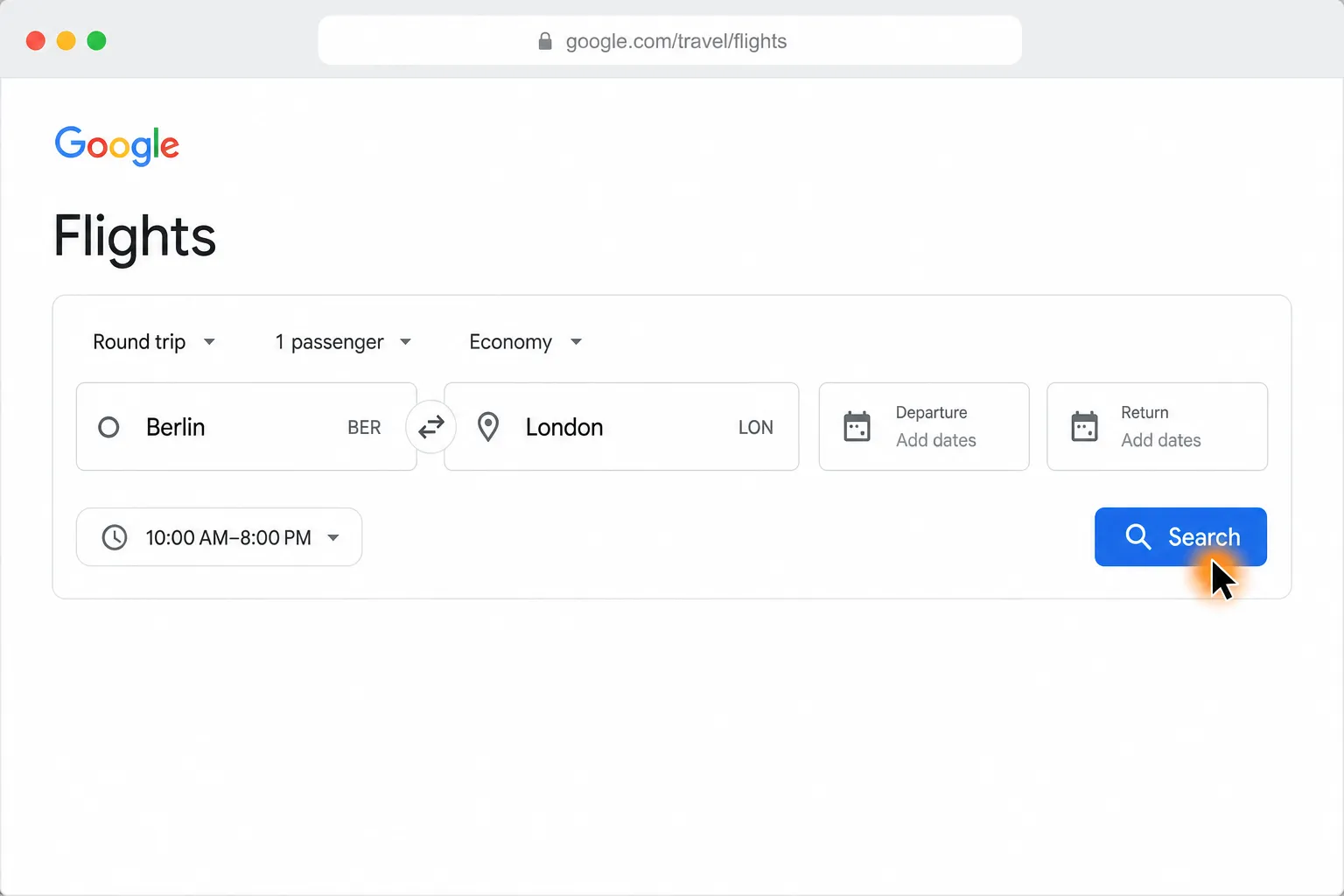
Compare Berlin to London round-trip flights and find the cheapest in your time window

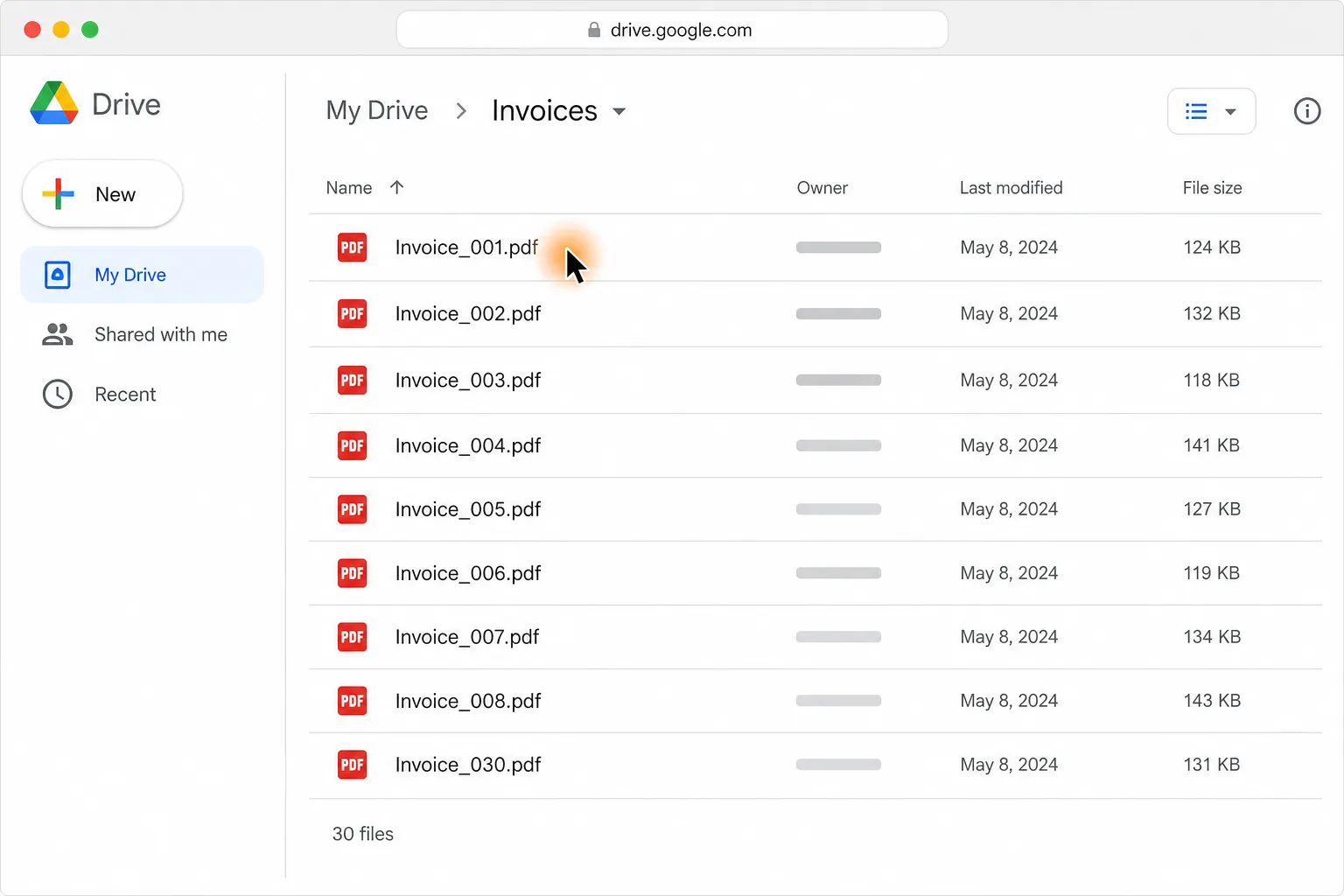
Turn 30 PDF invoices into one clean table in Google Sheets or Excel

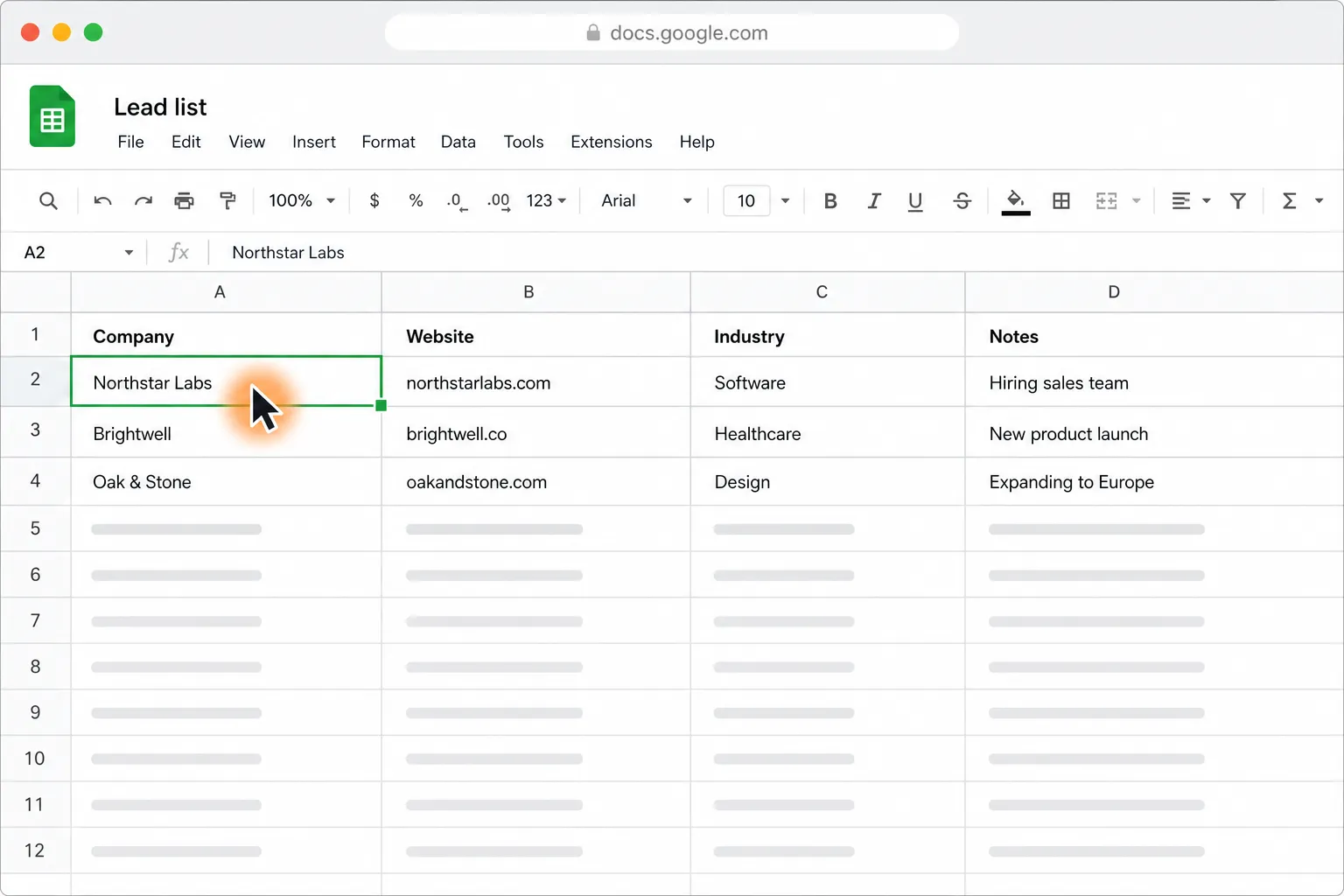
Personalize cold emails from Google Sheets and send them with your approval

Create a Google Calendar event from Gmail or Outlook with the agreed time and attendees
Get drafts for your five oldest unanswered Gmail and Outlook emails
Loved by the very best
“It’s not about taking the work away from me—it’s about boosting me. We are seeing higher accuracy and better results across the board”
 Håkan EnhagerVP Global IT and Digital, CellMark
“Using Incredible is a real game-changer”
 Alexander AronssonCEO, Vätternkök
“It has been really great to see how both the team and the company have developed. David and Philip have had a clear goal for the company all along.”
 Peter SchönHead of Business Development
Frequently asked questions
How can I automatically find missing supplier receipts and attach them in Pleo?
Incredible can search Gmail for one supplier’s receipts, download the matching PDFs, and attach them to the correct Pleo expenses on demand. It works through the browser and apps you already use, without code or API connections.
How does the workflow match a Gmail receipt to the right Pleo expense?
The workflow compares the supplier, exact amount, currency, and transaction date in Gmail and Pleo. If the same amount appears more than once, it uses the date to identify the correct receipt.
What happens if a supplier receipt cannot be found or matched exactly?
The Pleo transaction is left unchanged when no exact receipt match can be established. The workflow reports the skipped item with its date, amount, currency, and reason instead of guessing.
Can it download receipt PDFs from supplier links in Gmail?
Yes, when a matching receipt email contains a download link, the workflow can open the supplier site and download the PDF. It pauses if credentials, two-factor authentication, biometrics, a passkey, or another human-only login step is required.
Does it change other fields on the Pleo expense?
No. The workflow only attaches the matched receipt PDF and does not change the category, purpose, comment, approval, attestation, or other expense details.
What do I need to fetch supplier receipts for Pleo?
You need the Incredible desktop app for Mac or Windows, access to Pleo, and access to the Gmail accounts that receive the supplier’s receipts. You may also need access to the supplier site, such as Uber, and its Google sign-in method when a receipt link requires authentication.
Can the receipt matching steps be adjusted?
Incredible repeats the steps it was taught in the same order each run. If your receipt process needs different steps or matching rules, teach the workflow for that process before running it.
Is customer data used to train Incredible?
No. Customer data is not used to train Incredible.
Published Aug 19, 2026 · Updated Aug 24, 2026