 Get started on Windows

Send LinkedIn connection requests to everyone in a spreadsheet
Invite every person in a Google Sheet to connect on LinkedIn
 Get started with MacWorks on Mac and Windows
About this workflow
Updated Aug 21, 2026
What this workflow does
This workflow sends LinkedIn connection requests to every person in a Google Sheets spreadsheet. Sales teams, recruiters, and founders often do this by hand, moving between spreadsheet rows and LinkedIn profiles. Incredible works through the existing list for you in the browser you already use.
Each run sends one real LinkedIn connection request at a time until the list is complete. The result is that every person in the spreadsheet has been invited. If a step cannot be completed, Incredible stops and reports what happened instead of guessing.
How it works, step by step
The workflow follows the same sequence in Google Sheets and LinkedIn every time you run it. The steps below show what you will see happen on screen.
- 1Read the spreadsheet list. Incredible opens Google Sheets and reads the people included in the list.
- 2Find the next person on LinkedIn. Incredible uses the current spreadsheet entry to open the corresponding LinkedIn profile.
- 3Send the connection request. Incredible sends a real LinkedIn connection request to the person.
- 4Continue through the list. Incredible advances to the next person and repeats the process until the list is complete.
Every run follows these steps in order. If a step cannot be completed, the run stops and tells you what happened instead of guessing.
What you need to run it
You need the Incredible desktop app on a Mac or Windows computer, access to the Google Sheets spreadsheet, and your own LinkedIn account. You should be signed in to Google Sheets and LinkedIn in the browser you already use. No code or API connection is required.
Why teams run this with Incredible
Incredible repeats the same Google Sheets and LinkedIn steps in the same order on every run. It asks before sending or changing anything important, and it stops rather than guessing when it cannot complete a step. Customer data is not used to train Incredible.
Trusted by teams at


















Run it on your own computer
Incredible works in your own browser, doing the steps the way a person would. Getting there takes three steps.
Featured in



Frequently asked questions
How can I send LinkedIn connection requests from a Google Sheet?
Run this workflow with access to the Google Sheets spreadsheet and your LinkedIn account. Incredible reads the people in the sheet and sends each person a real LinkedIn connection request through your browser.
Does this send LinkedIn connection requests all at once?
No. The workflow works through the spreadsheet one person at a time and sends one real LinkedIn connection request at a time. It follows the same steps for each person on the list.
What do I need in order to run this LinkedIn workflow?
You need the Incredible desktop app on a Mac or Windows computer, a Google Sheets spreadsheet containing the people to invite, and access to LinkedIn. You should be signed in to both apps in your usual browser.
Do I need code or the LinkedIn API?
No. Incredible uses the browser you already use and works through the task as a person would. There is no code to write and no API to connect.
Can I change the steps used to send the connection requests?
Yes. An Incredible workflow is taught by doing the real task once while Incredible records it. It then repeats the taught steps in the same order whenever you run it.
Is my spreadsheet data used to train Incredible?
No. Customer data is not used to train Incredible.
More workflows like this
Other ready-made workflows that work in the same apps.
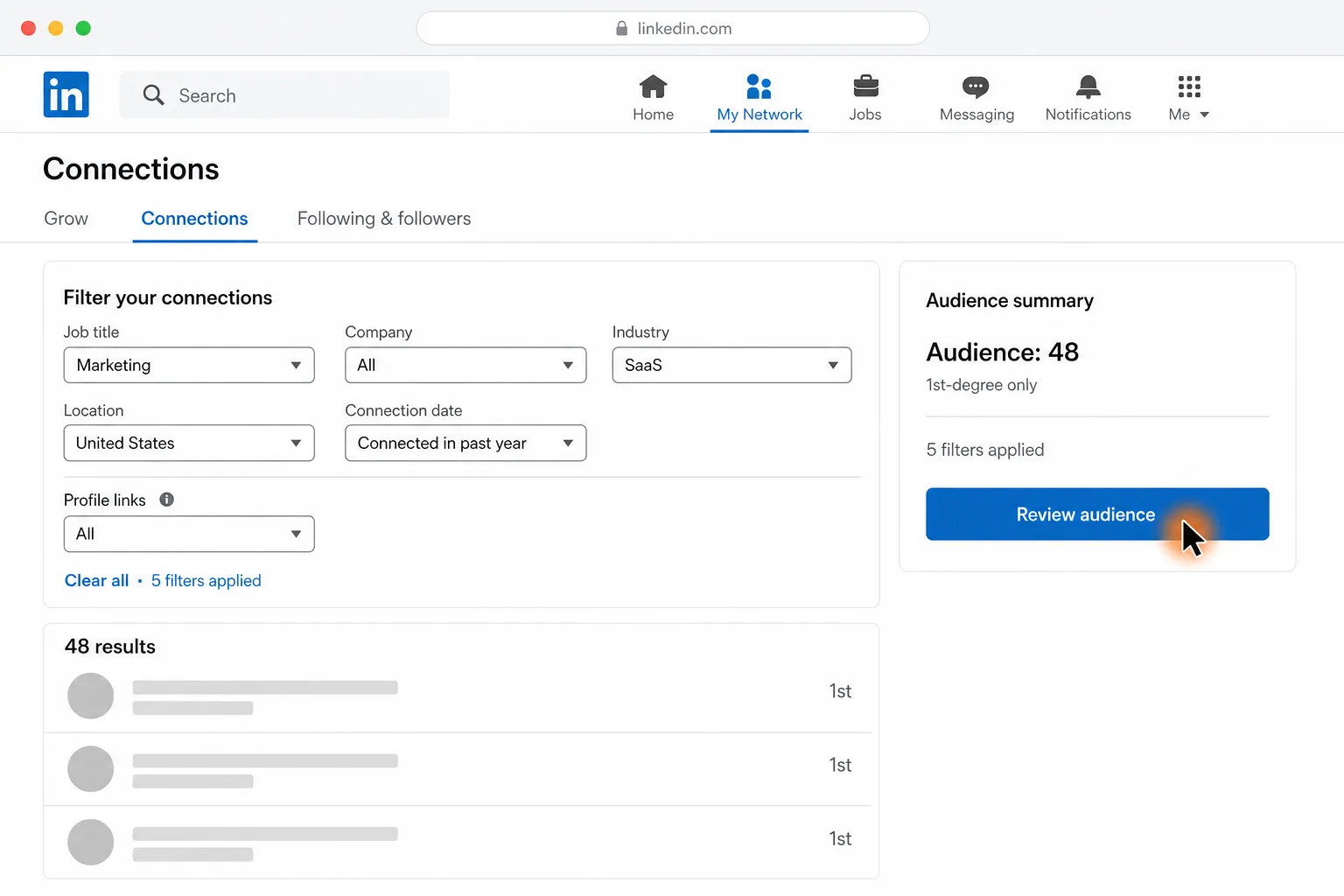
Send personalized LinkedIn messages to the 1st-degree connections you choose

Export LinkedIn post commenters and profile links to Google Sheets


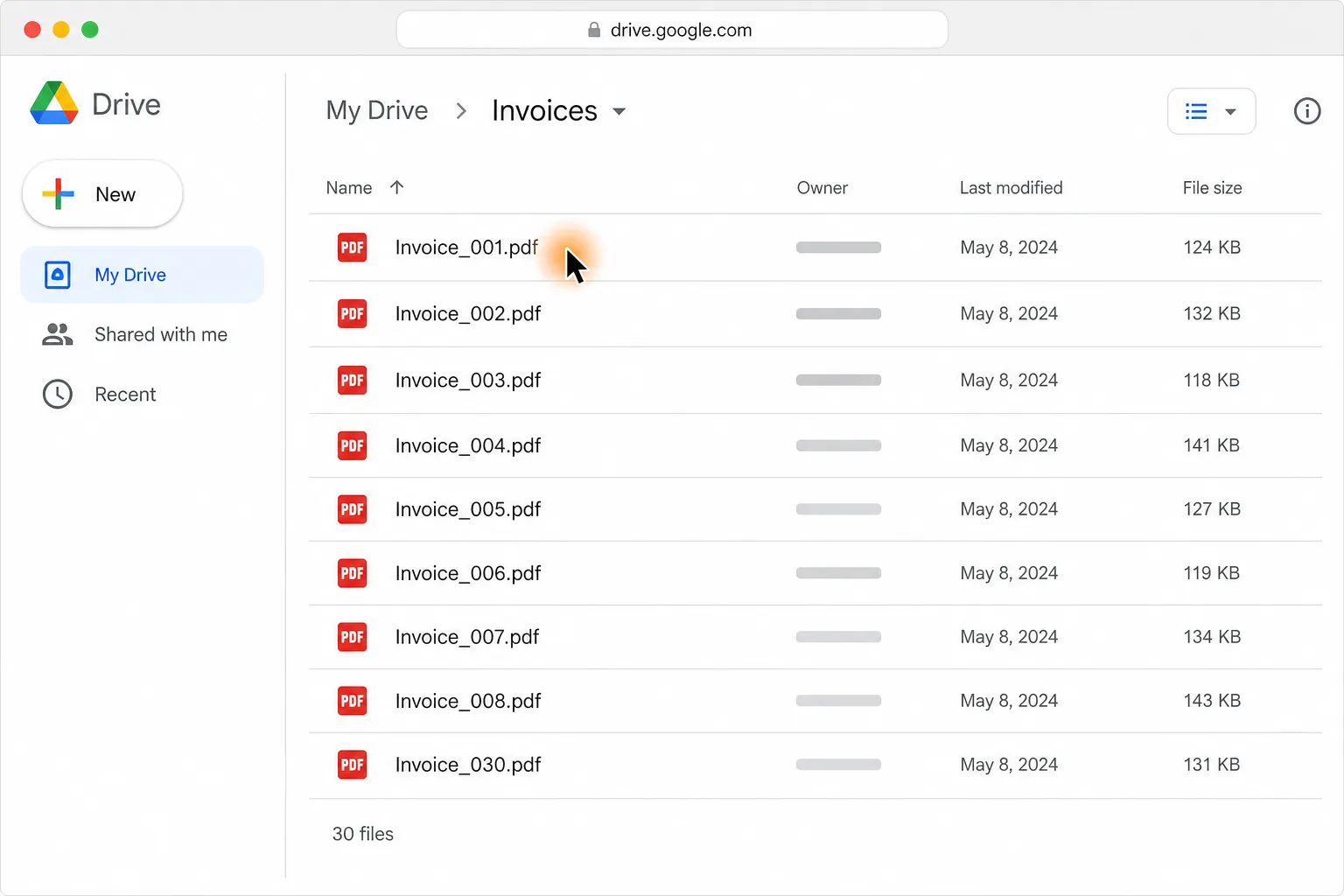
Turn 30 PDF invoices into one clean table in Google Sheets or Excel

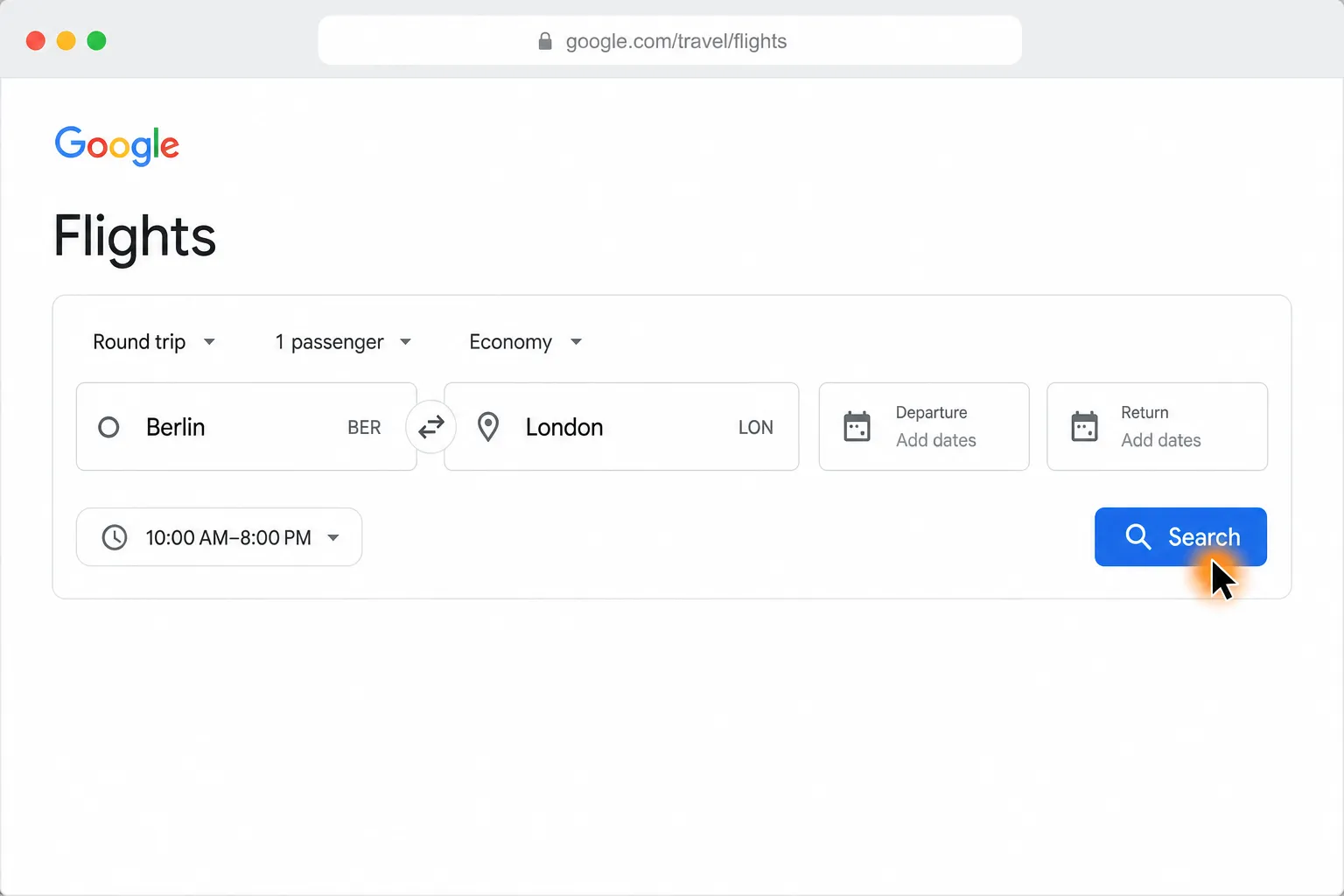
Compare Berlin to London round-trip flights and find the cheapest in your time window

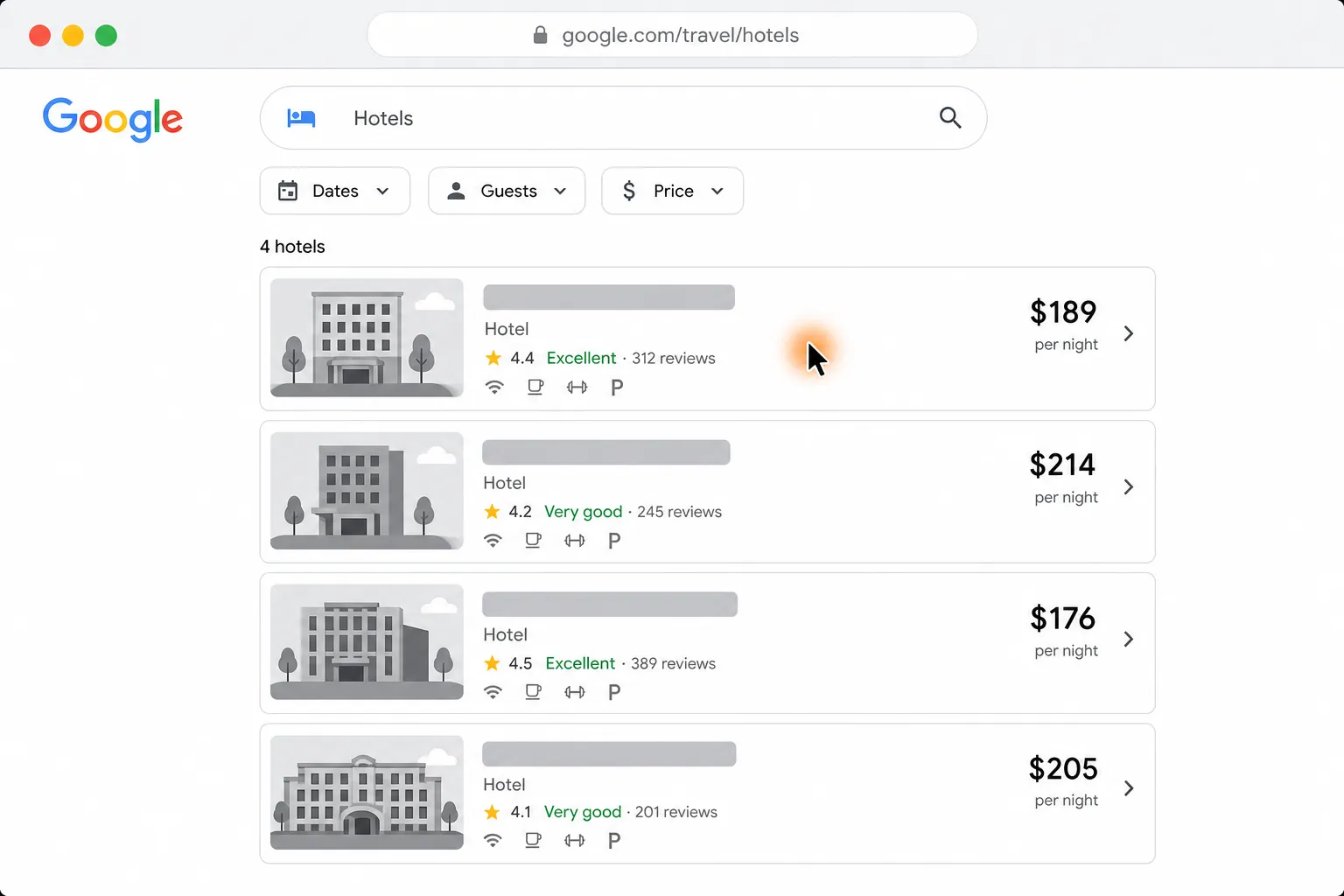
See four hotels side by side by price, location, and reviews


Shortlist five pet-friendly Paris Airbnbs under $120 a night, with links