 Get started on Windows


Pitch your startup to 10 podcast hosts
Find 10 relevant shows and draft a startup pitch for each podcast host
 Get started with MacWorks on Mac and Windows
About this workflow
Updated Aug 21, 2026
What this workflow does
This workflow finds 10 shows your buyers listen to and drafts a startup pitch for each podcast host. It uses Chrome to find relevant podcasts, then LinkedIn and X to review information about the hosts before writing drafts in Gmail.
Founders and marketing teams often do this research and outreach by hand. At the end of each run, you have 10 relevant shows and 10 separate Gmail pitch drafts, ready to review and send.
How it works, step by step
On each run, the startup podcast pitching workflow follows the same research and drafting sequence in Chrome, LinkedIn, X, and Gmail. The numbered steps below show what you will see on screen. If a step cannot be completed, the run stops and reports what happened instead of guessing.
- 1Search for relevant podcasts. Chrome searches for podcasts that match your startup's buyer audience.
- 2Review hosts on LinkedIn. The workflow reviews available LinkedIn information about the podcast hosts.
- 3Check hosts on X. The workflow reviews available information about the podcast hosts on X.
- 4Select 10 relevant shows. The workflow narrows the results to 10 shows that fit the buyer audience.
- 5Draft pitches in Gmail. Gmail gets a separate pitch draft for each host, ready for your review.
Every run follows these steps in order. If a step cannot be completed, the run stops and tells you what happened instead of guessing.
What you need to run it
You need the Incredible desktop app on a Mac or Windows computer, plus your own access to Chrome, LinkedIn, X, and Gmail. Sign in to those apps as yourself, and have a description of your startup and its buyer audience ready for the podcast search and pitch drafts.
Why teams run this with Incredible
Teams use Incredible for startup podcast outreach because it repeats the taught steps in the same order on every run, without code or APIs. This workflow leaves the Gmail drafts ready for your review rather than sending them. Incredible asks before it sends or changes anything important. Customer data is not used to train Incredible.
Trusted by teams at


















Run it on your own computer
Incredible works in your own browser, doing the steps the way a person would. Getting there takes three steps.
Featured in



Frequently asked questions
How can I find podcast hosts to pitch my startup to?
Use this workflow to search for shows your buyers listen to, review their hosts on LinkedIn and X, and draft outreach in Gmail. Each run produces 10 relevant shows and 10 pitch drafts ready for your review.
Does this workflow automatically send the podcast pitches?
No. It drafts one pitch per host in Gmail and leaves the 10 drafts ready for you to review and send. Nothing is sent as part of the described workflow.
What do I need to pitch my startup to podcast hosts?
You need the Incredible desktop app on a Mac or Windows computer and your own access to Chrome, LinkedIn, X, and Gmail. You also need information about your startup and the buyers you want to reach.
How does the workflow use LinkedIn and X to research podcast hosts?
The workflow reviews available information about podcast hosts on LinkedIn and X. It uses that research while preparing a separate Gmail pitch draft for each host.
Can I change how the startup podcast pitches are drafted?
Workflows are taught by a person doing the real task while Incredible records it. To use different steps, teach the revised process, and Incredible will repeat those steps in the same order.
Is my data used to train Incredible?
No. Customer data is not used to train Incredible.
More workflows like this
Other ready-made workflows that work in the same apps.


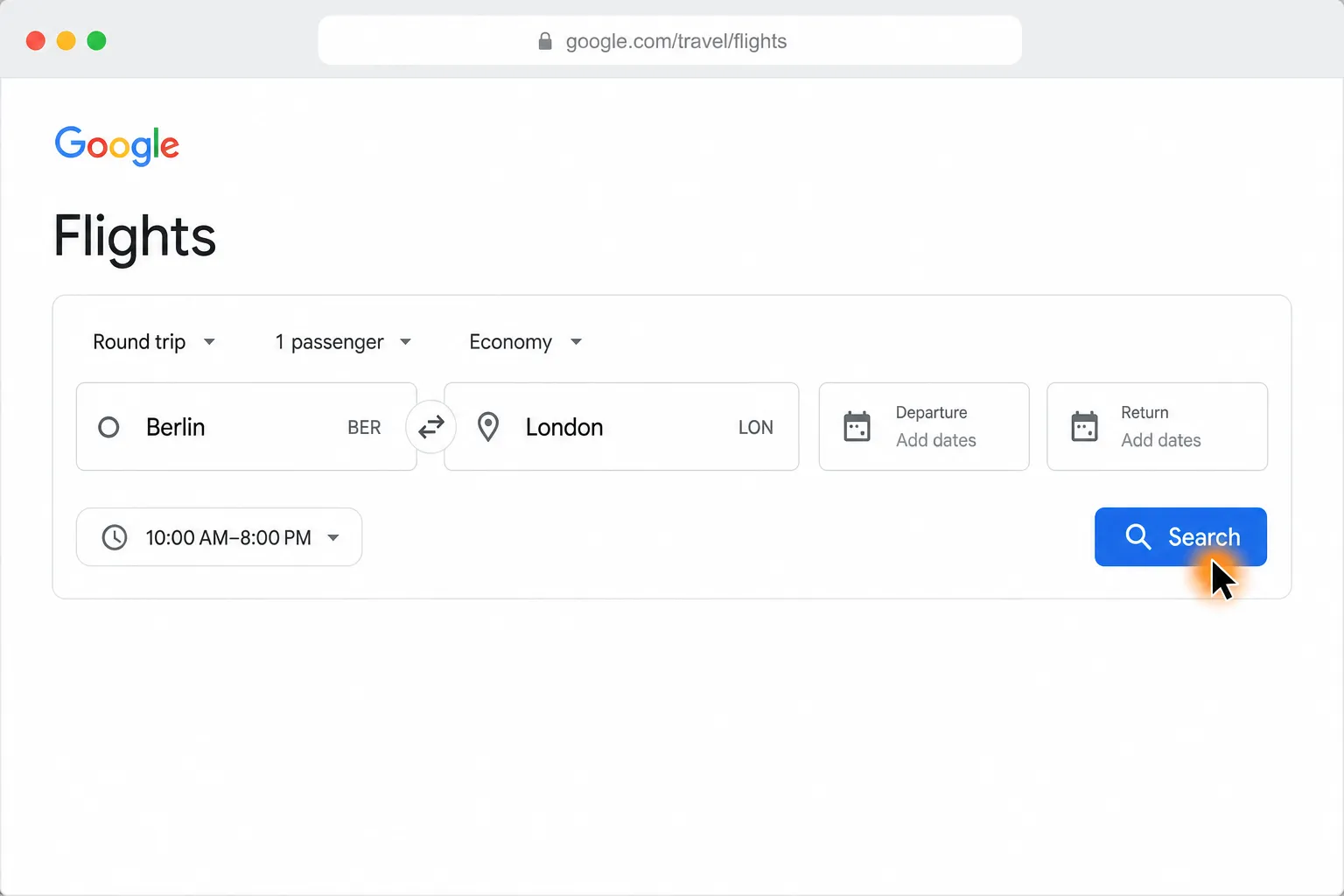
Compare Berlin to London round-trip flights and find the cheapest in your time window

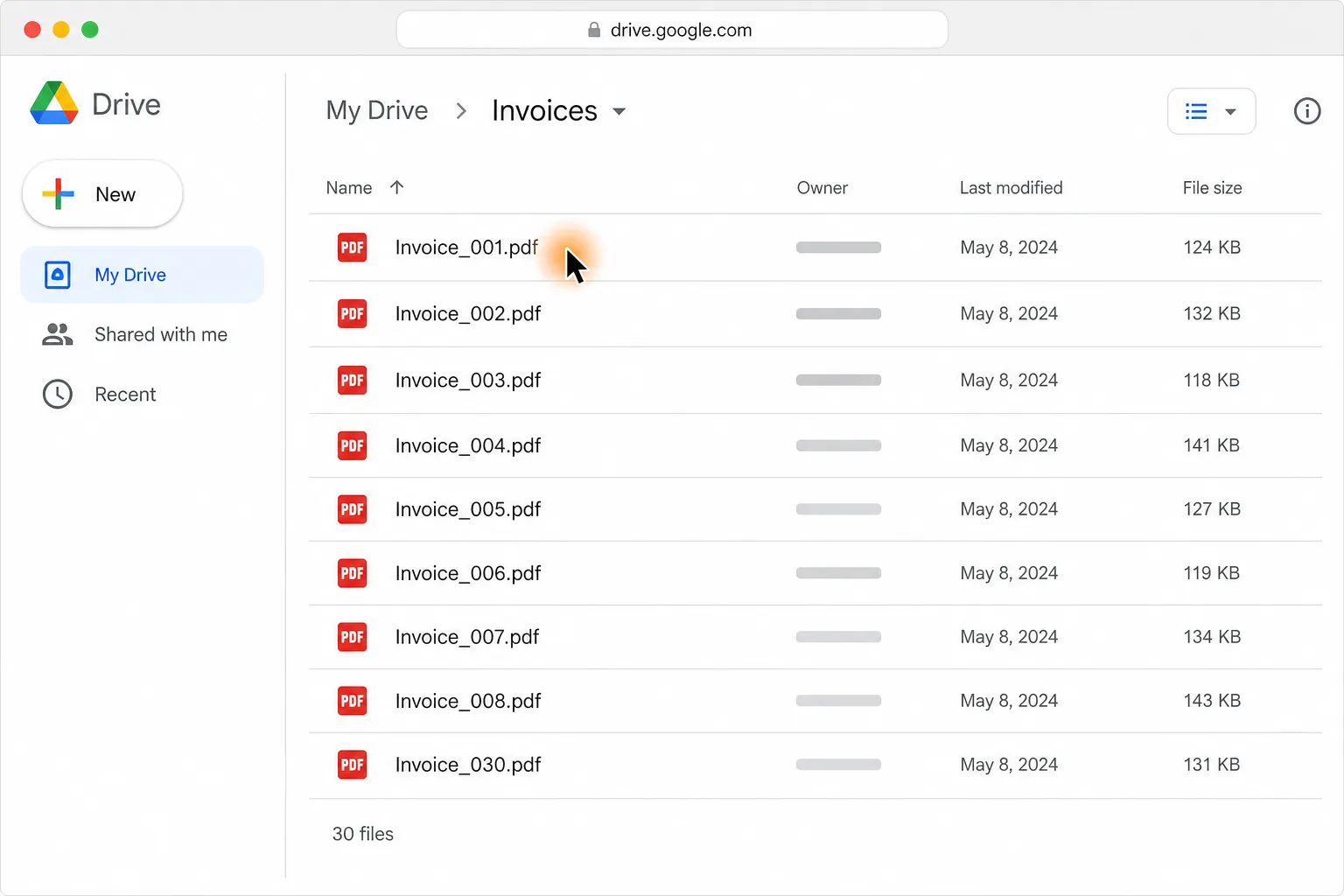
Turn 30 PDF invoices into one clean table in Google Sheets or Excel

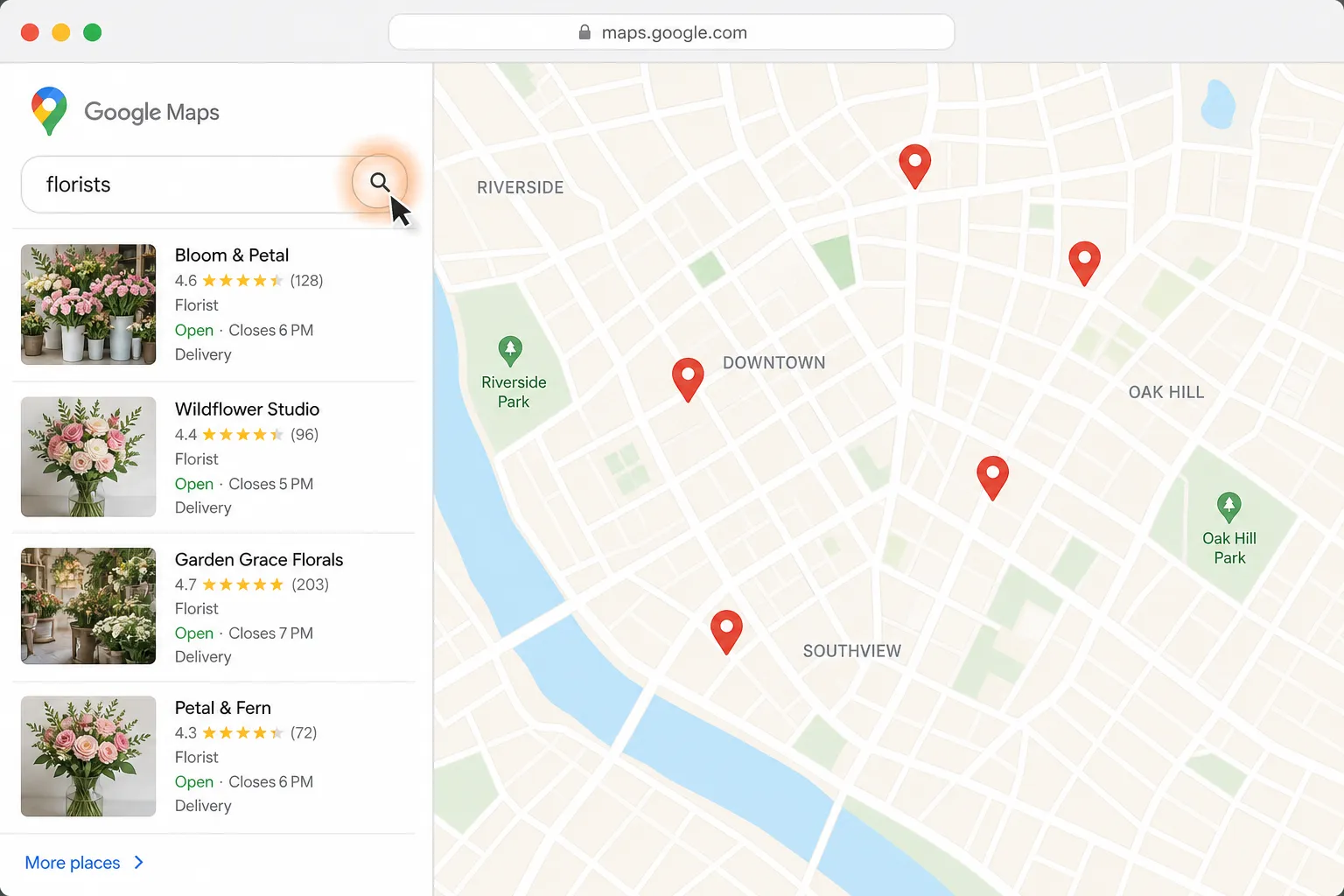
Find a florist for Thursday delivery and prepare the flower order in Gmail
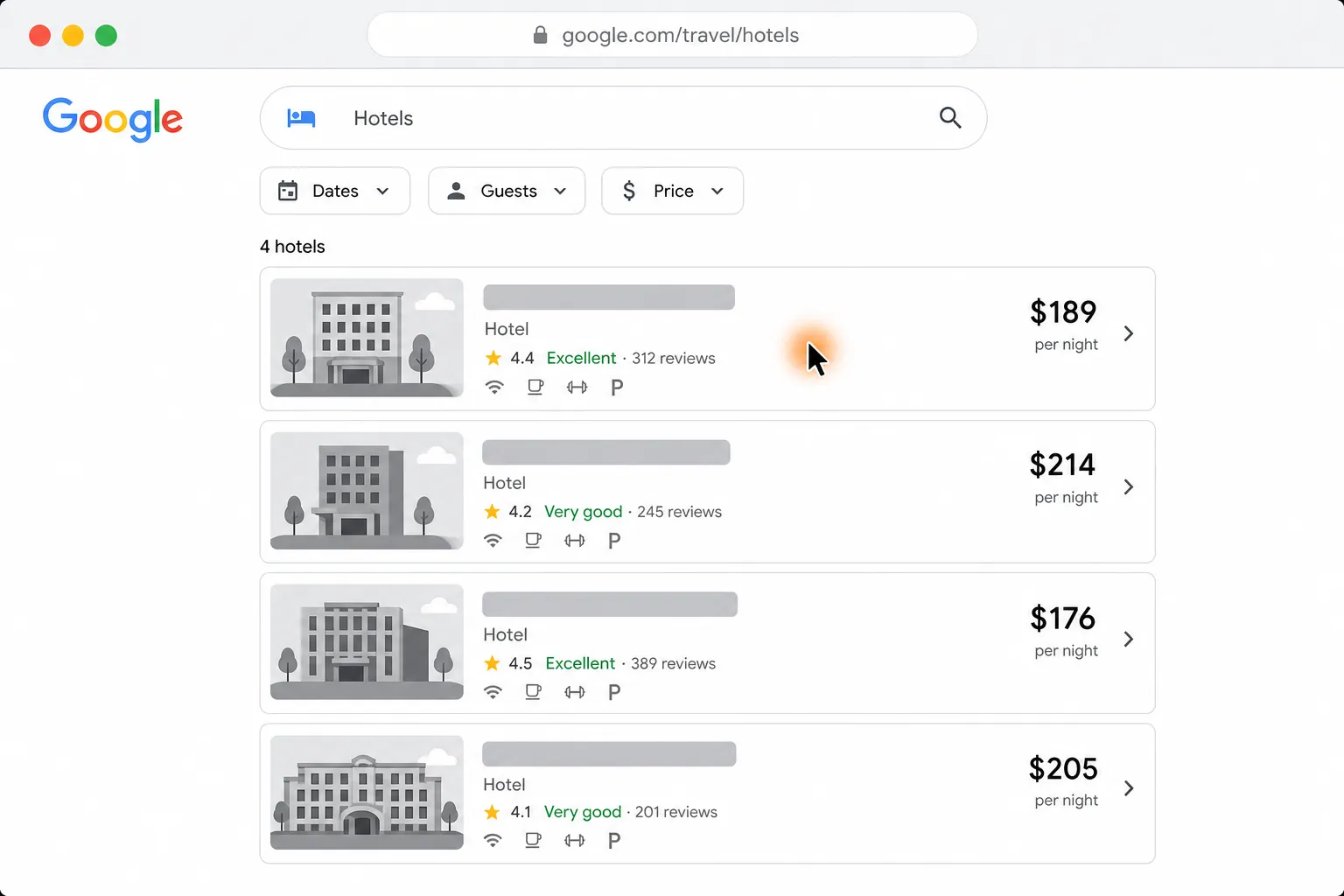
See four hotels side by side by price, location, and reviews
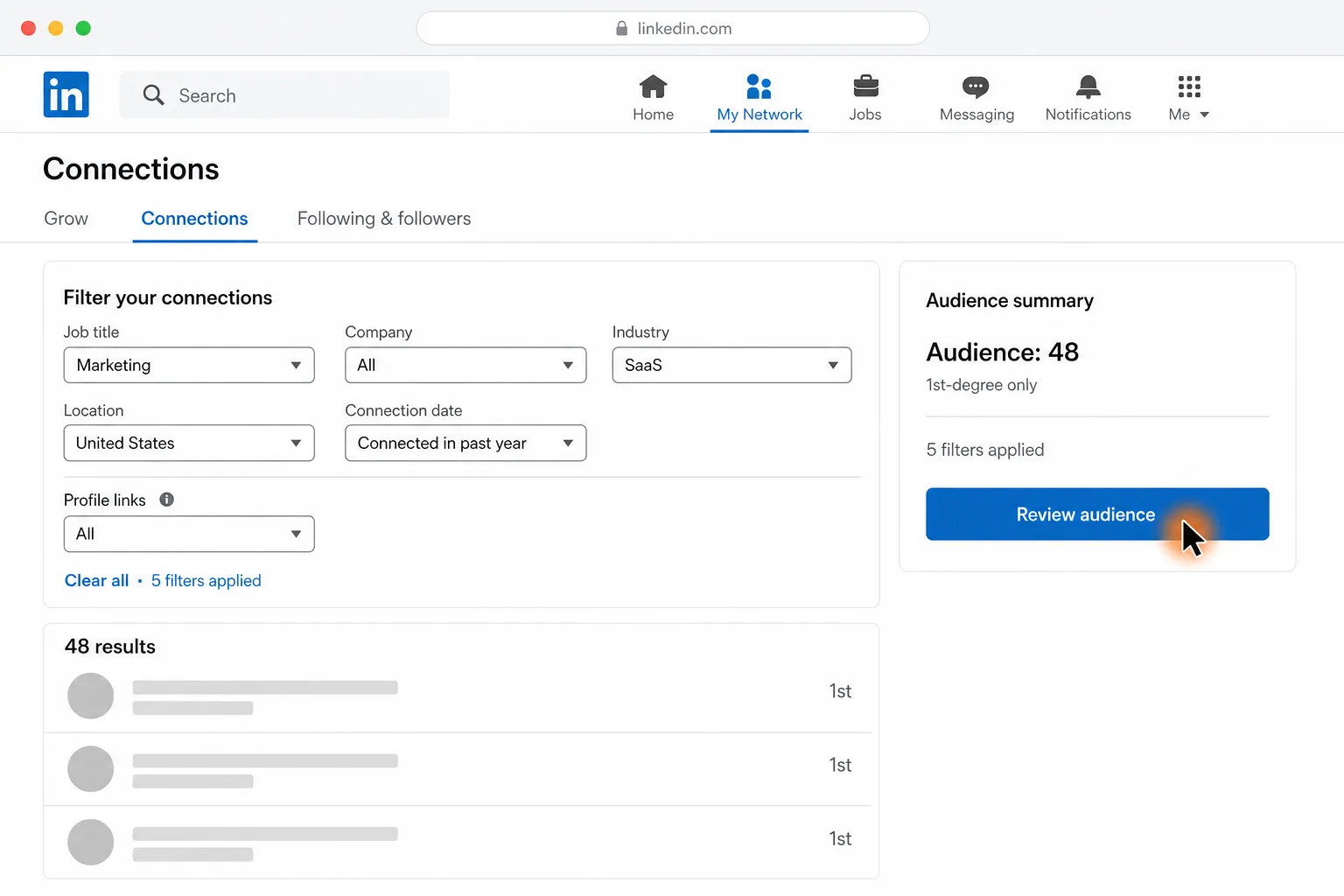
Send personalized LinkedIn messages to the 1st-degree connections you choose
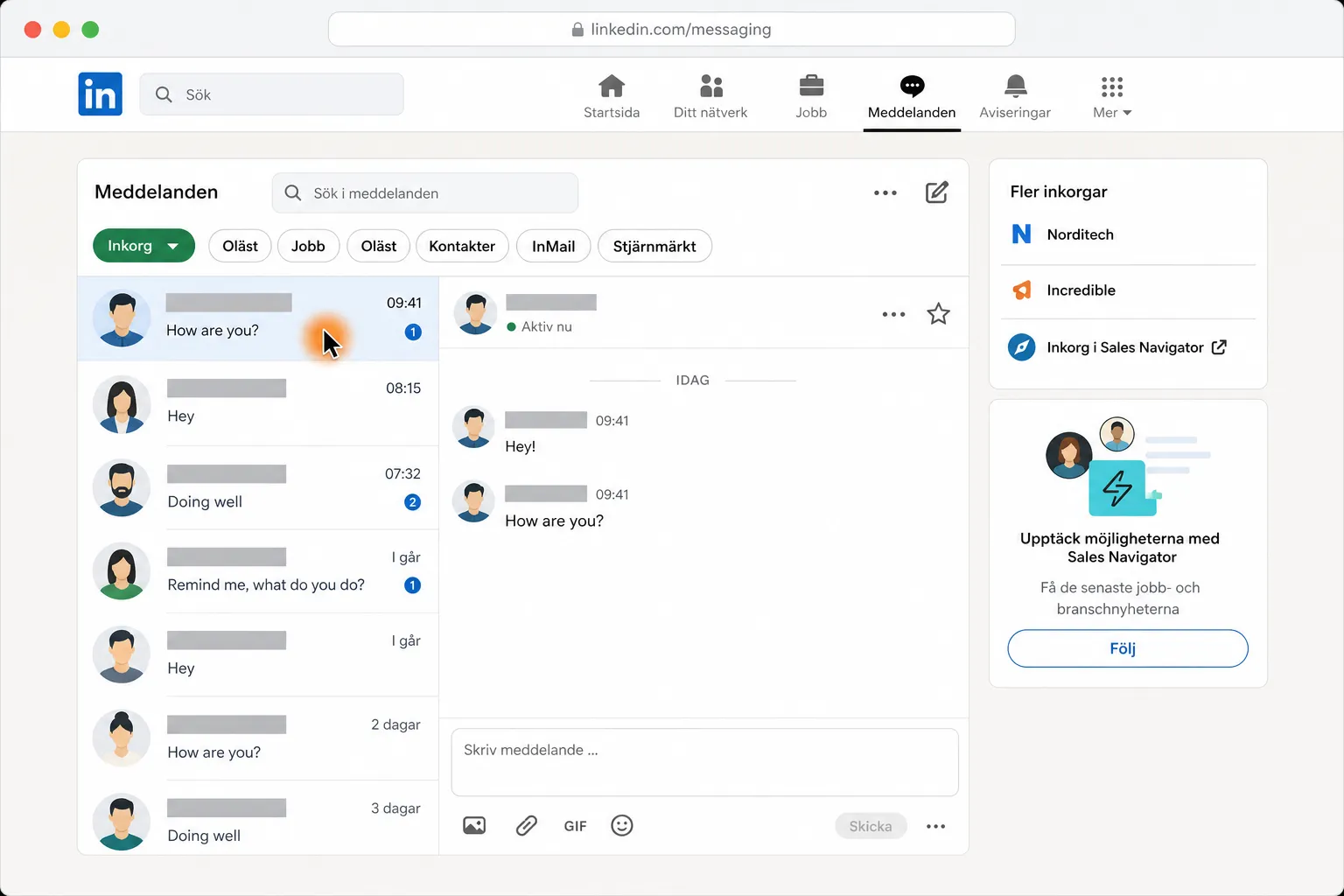
Find and answer the latest simple unread LinkedIn message