Завантажити для Mac
 Завантажити для Windows
How to Clean Up Your Downloads Folder (Mac and Windows 11)
Sort by Date Added, delete old installers, let Storage settings or Storage Sense help, or say one sentence and let AI sort every file into folders.
 Emil WagmanCTO
Коротка відповідь
On a Mac, open Downloads in Finder, switch to List view and sort by Date Added, then delete the installers and zips you already used and empty the Trash. On Windows 11, Storage Sense can delete Downloads files you have not opened in a set time, but only if you turn that on. To sort everything into folders in one go, hold Incredible’s key and say "organize my Downloads folder into folders."
7 днів безкоштовно. Mac і Windows.
Most Downloads folders look the same after a year: installers for apps you set up long ago, zips you already unpacked, screenshots, invoices, and three copies of the same PDF. Nothing in there is urgent, so it never gets cleaned.
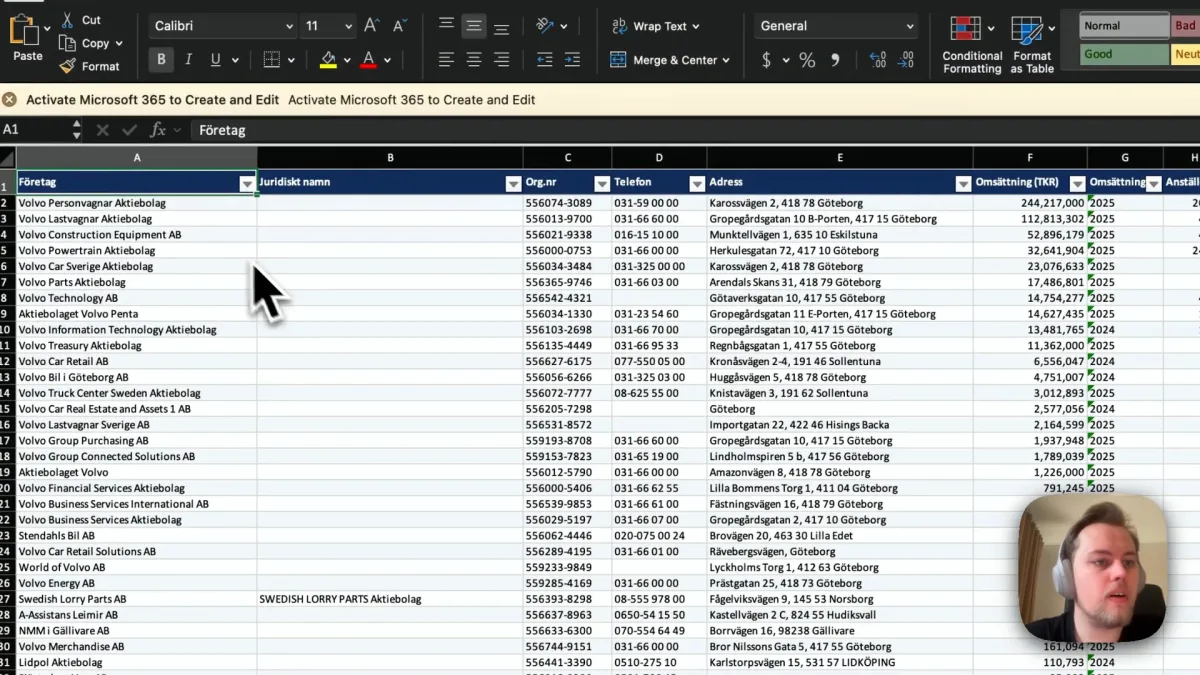
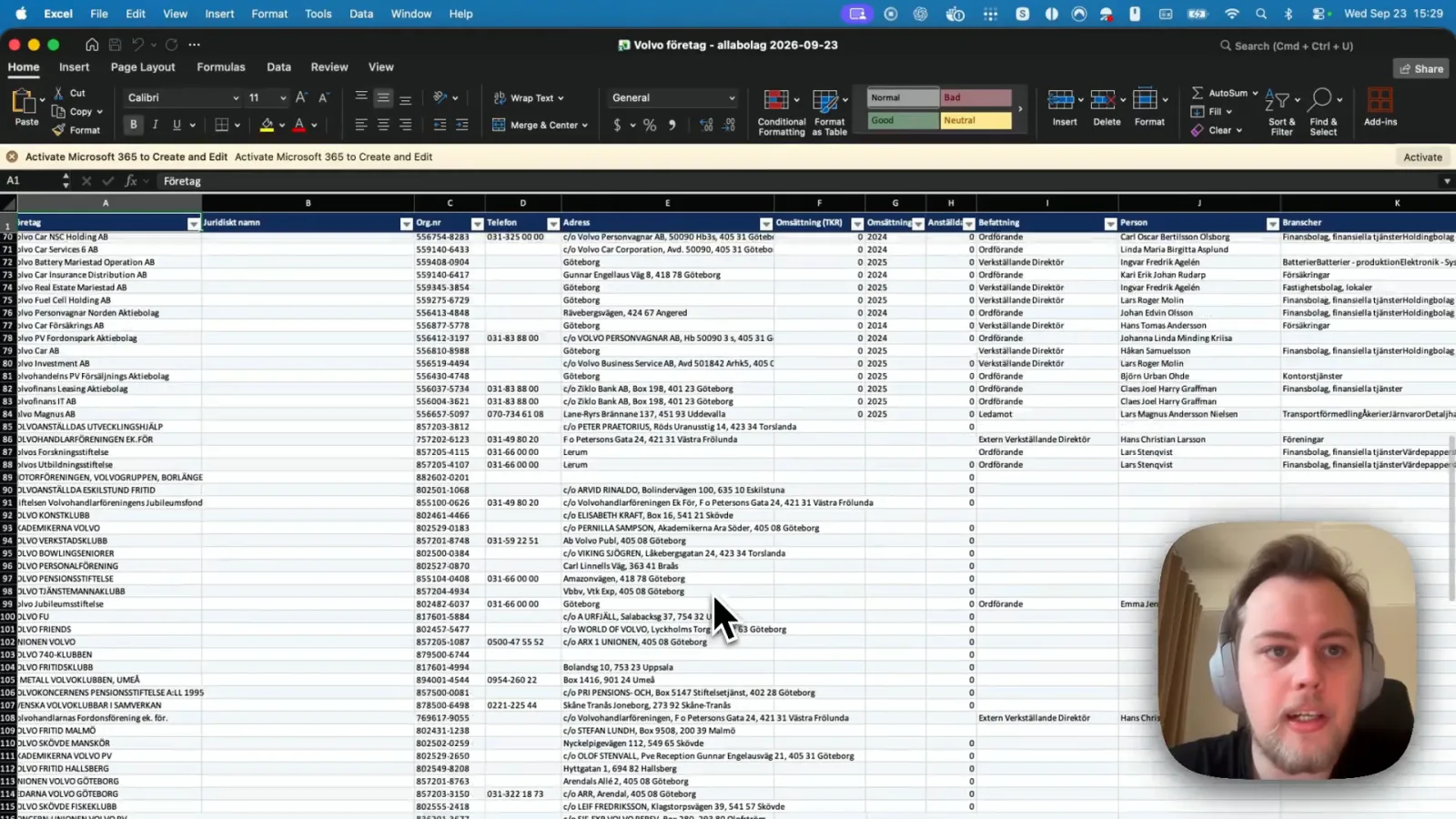
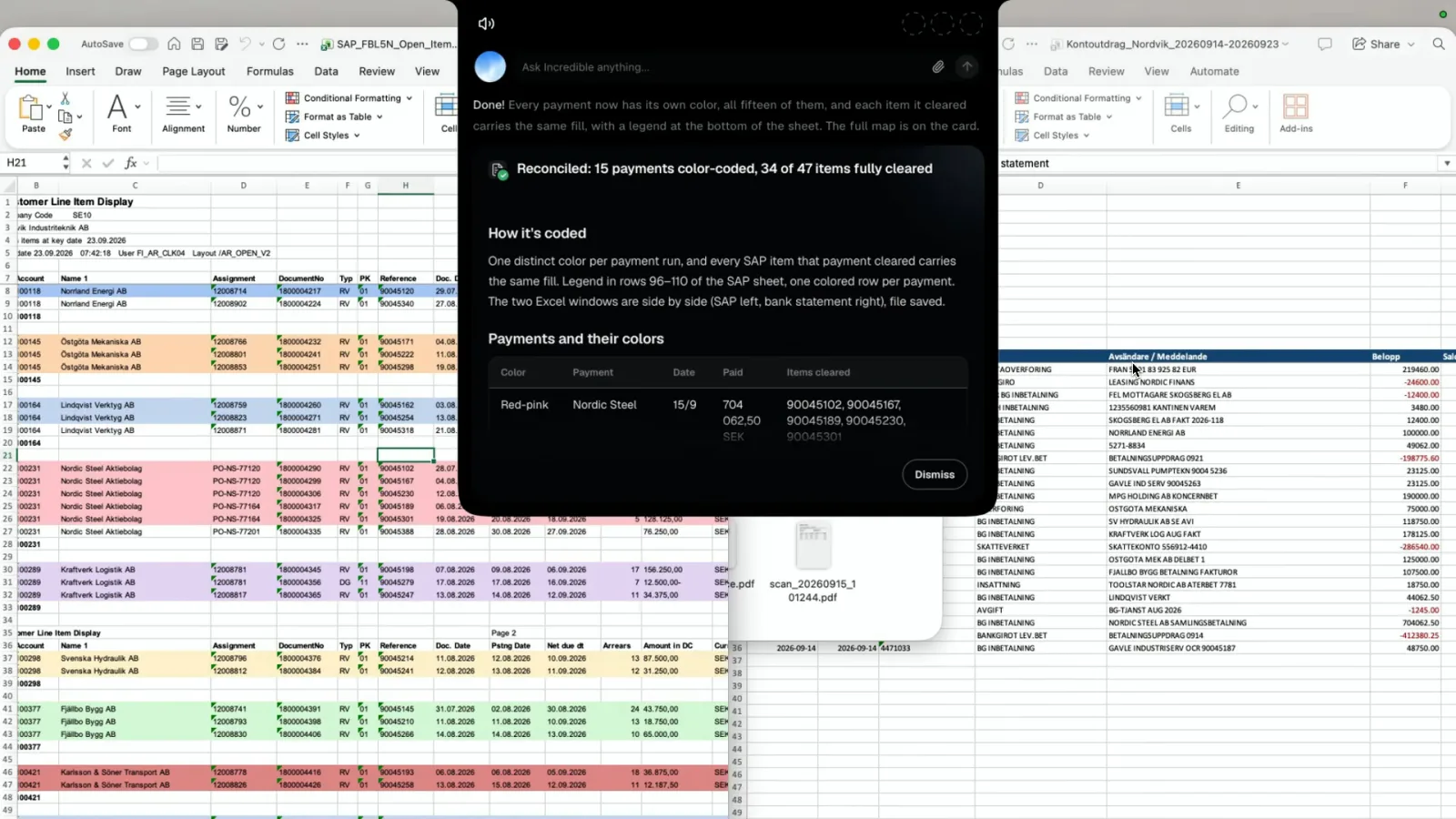
This guide covers the ways that work, by hand first: sorting by Date Added in Finder, deleting the installers you no longer need, the Storage settings on a Mac, and Storage Sense on Windows 11. Then the fast way: with Incredible you open the folder, hold one key and say how you want it sorted. The recording above shows it on a real Downloads folder on a Mac.
Everything below about macOS and Windows comes from Apple's and Microsoft's own help pages, read on 21 November 2026.
Clean up the Downloads folder on a Mac by hand
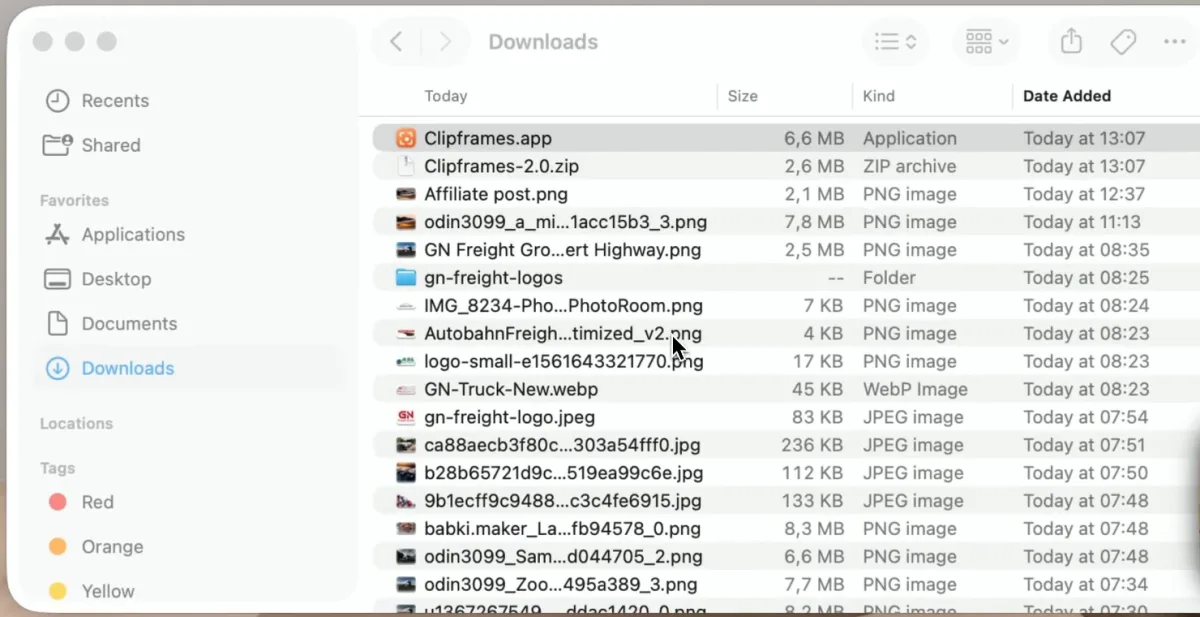
Open it. Apple's storage page lists three ways: from the Dock, by clicking Downloads in the sidebar of a Finder window, or by choosing Go > Downloads in the Finder's menu bar.
Sort by Date Added. In List view, click a column name to sort by it and click it again to reverse the order. If the Date Added column is missing, Control-click any column name and choose it. In any view you can also choose View > Show View Options and pick an order from the Sort By menu. Apple's Finder sorting page uses Date Added as its example and says the folder keeps that order the next time you open it. Newest on top, you can see what you still use and where the old files start.
Delete what you already used. Sorting by the Kind column puts the leftovers together: disk images (.dmg), installer packages (.pkg) and zip archives. Once an app is in your Applications folder and runs, the file it came in has done its job. In the folder above, Clipframes.app sits right next to Clipframes-2.0.zip, added at the same minute.
Empty the Trash. Apple's page is plain about this: when you move a file to the Trash, its space doesn't come back until you empty the Trash.
Let your Mac's Storage settings help
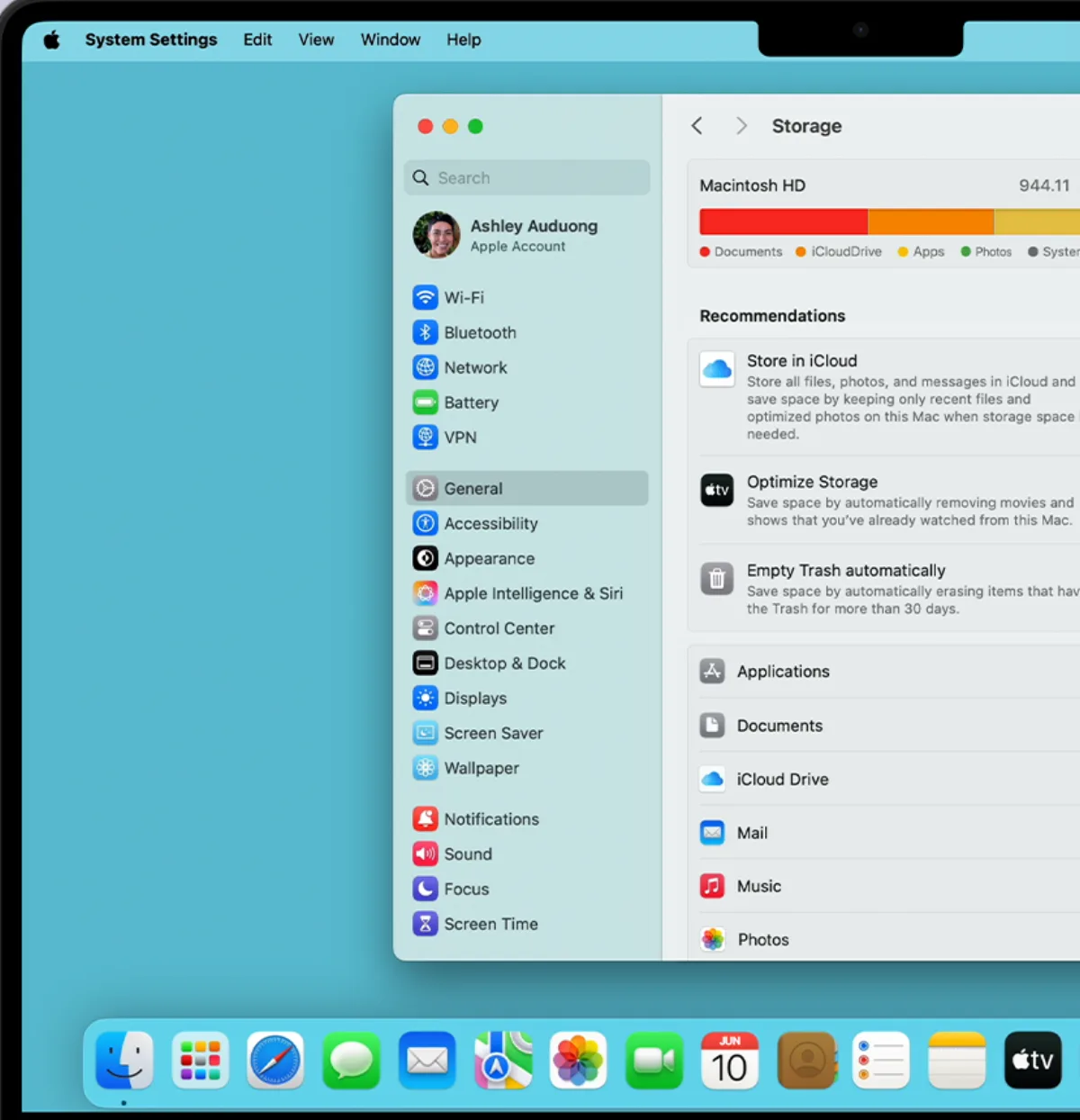
On macOS Ventura 13 or later, choose Apple menu > System Settings, click General, then Storage. Apple's Optimize storage page describes the recommendations you will see there:
- Store in iCloud keeps your Desktop and Documents files in iCloud Drive, and only recently opened files on the Mac when space is needed.
- Optimize Storage removes Apple TV movies and shows you already watched, and keeps only recent email attachments on the Mac.
- Empty Trash Automatically erases items that have been in the Trash for more than 30 days.
None of them clears Downloads for you. The Mac only does that for interrupted downloads, which it clears along with caches and logs when space is needed. Turning on Empty Trash Automatically does pair well with cleaning by hand, though: what you throw out of Downloads is gone for good after 30 days, and you have a month to change your mind.
Apple's storage page also lists "Delete files in your Downloads folder" among its ways to free space, and says the More Info button next to a category, such as Documents, gives you more options for managing it.
Clean up the Downloads folder on Windows 11 with Storage Sense
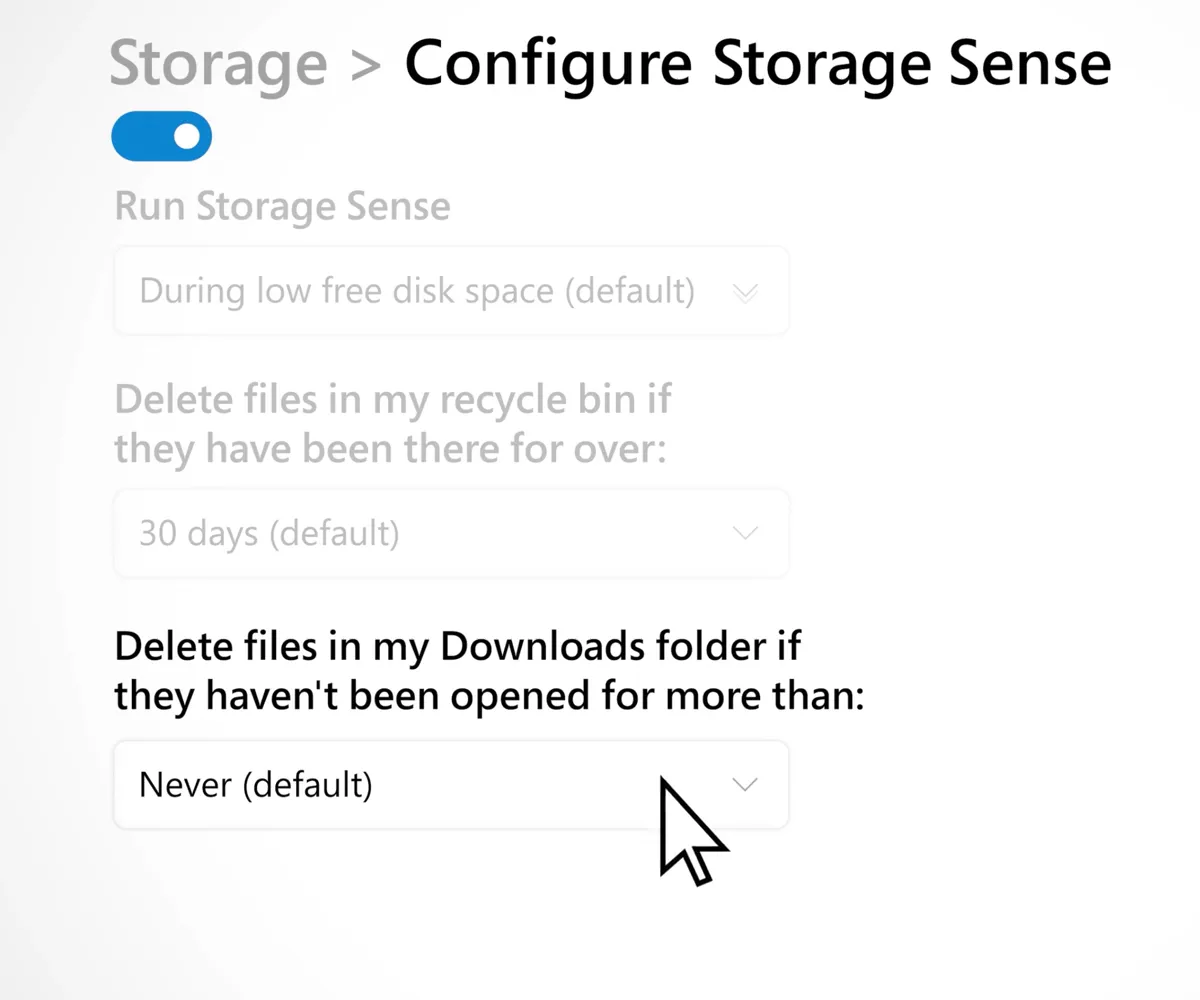
Windows has a built-in way to keep Downloads in check: Storage Sense. Microsoft's Storage Sense page, which applies to Windows 11 and Windows 10, explains two things worth knowing first. Storage Sense is off by default, and even when it is on, the Downloads folder "will not be managed unless you specify."
To set it up, go to Start > Settings > System > Storage and open Storage Sense. Switch it on, choose how often it runs, then find Delete files in my Downloads folder if they haven't been opened for more than and pick a time instead of Never. Microsoft notes that Storage Sense only works on your system drive, usually C:, and that the settings you choose apply only to you, not to other people who use the same PC.
Read that setting twice before you choose. It deletes files by when they were last opened, not by type, so an invoice you downloaded and never opened goes the same way as an old installer. If your Downloads folder is where important files live, move those out first.
For a company's computers, Microsoft's Storage Sense page for IT admins lists a Downloads cleanup threshold that can be set centrally, from 0 to 365 days, through Intune or Group Policy.
Or say it in one sentence to Incredible
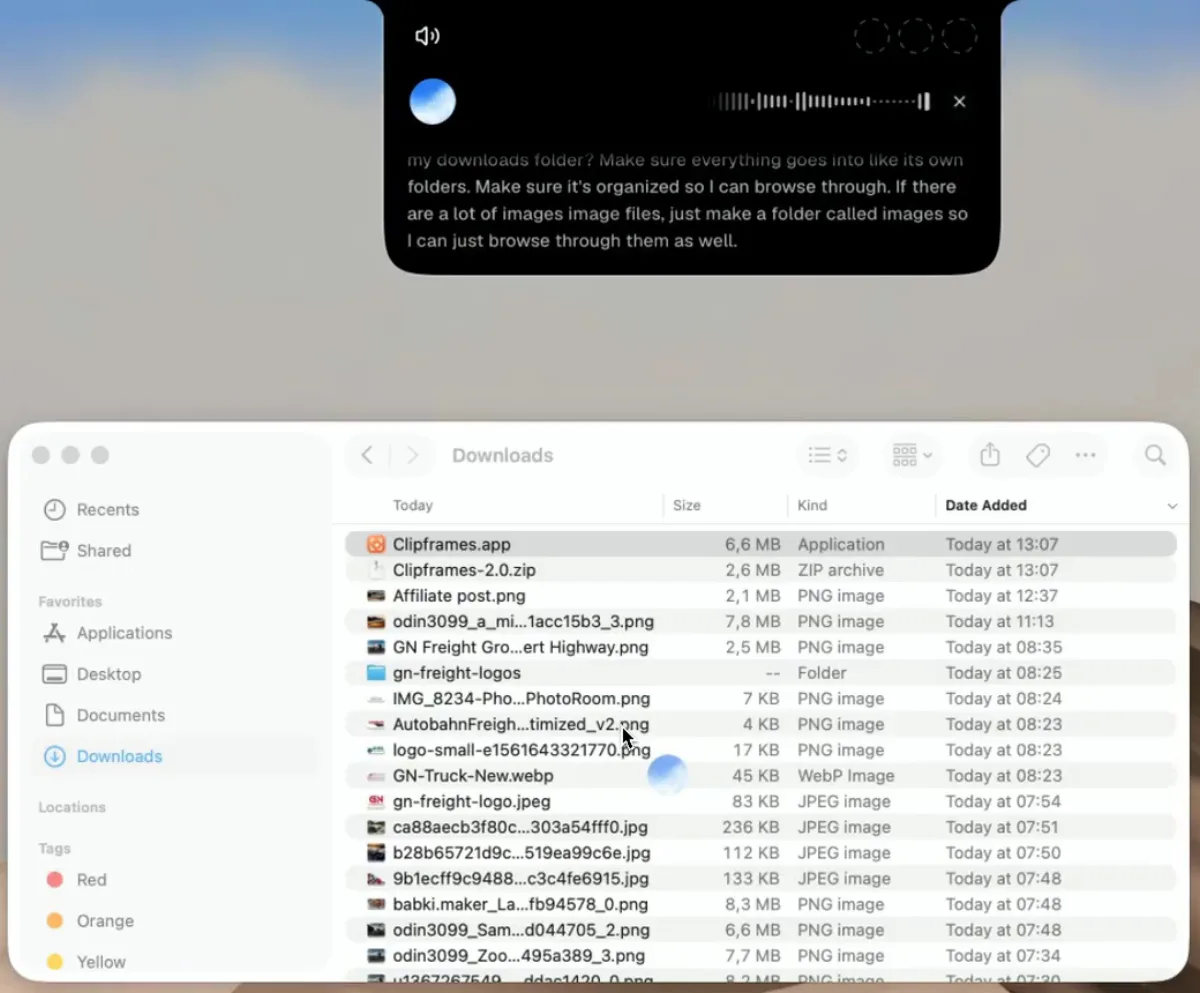
Sorting and deleting by hand works, but it is still you going through every file. With Incredible you open the folder, hold the talk key (fn on a Mac, Ctrl and Space on Windows) and say how you want it, the way you would to a colleague. In the recording:
"Organize my Downloads folder. Put everything into its own folders so I can browse through it, and if there are a lot of images, make a folder called Images."
You don't write rules, pick file types or name every folder. Incredible looks at what is in the folder and decides where each file goes, following what you asked for, such as the Images folder here.
What the folder looks like after
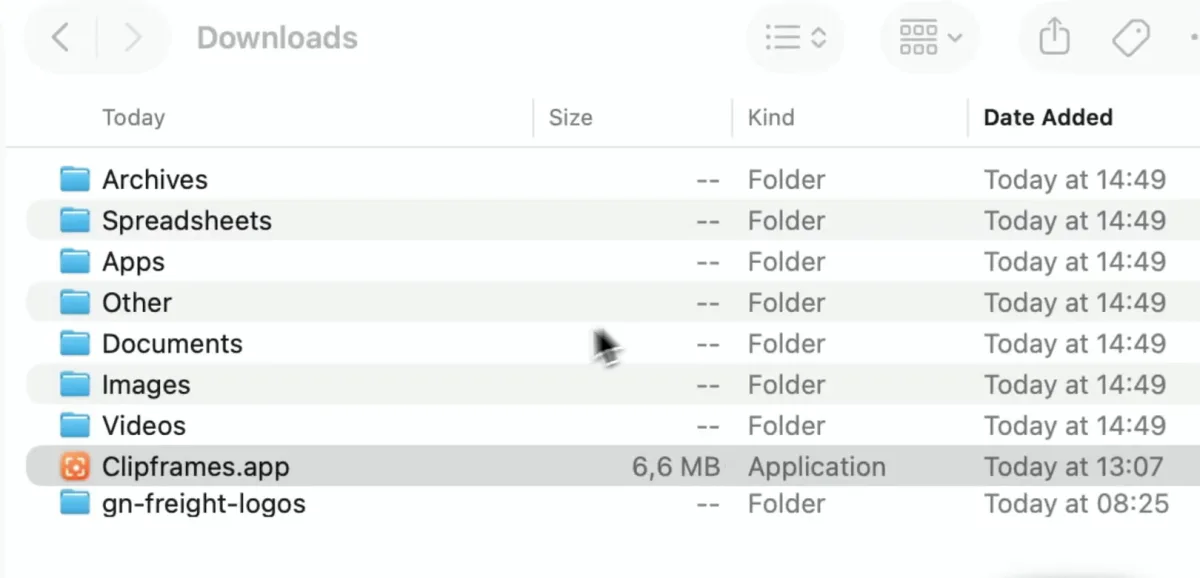
Incredible answered "Downloads organized: 112 files sorted into folders", with 112 of 112 moved. Its summary listed where everything went:
- Images: 66
- Videos: 23
- Documents: 6
- Invoices: 5, put into the Invoices folder that was already there
- Spreadsheets: 4
- Archives: 4
- Apps: 3
- Other: 1
The folders that were there before were left untouched, and so were the hidden settings files (.DS_Store and two .env files). It moved files and deleted none, which is the safe default for a folder you have not looked through. With the installers now together in Apps and the zips in Archives, deleting the ones you no longer need is a quick look at two folders instead of a hunt through a hundred files.
The same request works for a Desktop or a project folder that has filled up. For more on sorting, renaming and converting files, and how Claude, Sparkle and Hazel do it, see how to organize files with AI. And when you need one file back from a tidy folder, you can find a file by describing it.
Try this now. Open your Downloads folder, hold the key and say: "Organize my Downloads folder into folders by type." Incredible is free for 7 days on Mac and Windows. Download it, or read the Files guide first.
For more of what Incredible does on a Mac, see the best AI for Mac in 2026.
Поширені запитання
How do I clean up my Downloads folder on a Mac?
Open Downloads from the Dock, the Finder sidebar or Go > Downloads. Switch to List view and click the Date Added column so the newest files are on top, then work down: delete installers, disk images and zips you already used, move what you want to keep, and empty the Trash, since Apple says the space only comes back once you do. System Settings > General > Storage shows more ways to free space.
How do I clean up the Downloads folder in Windows 11?
Go to Start > Settings > System > Storage and open Storage Sense. Under "Delete files in my Downloads folder if they haven’t been opened for more than", pick a time. Microsoft says Storage Sense is off by default and does not touch the Downloads folder unless you choose this. It works on Windows 10 as well.
Is it safe to delete everything in my Downloads folder?
The folder holds what you downloaded, so the risk is losing a file you still need, such as an invoice or a contract you never saved anywhere else. Sort by Date Added and look before you delete, keep the folder itself, and remember that on a Mac a file in the Trash can still be put back until you empty it.
Is there a free way to clean up the Downloads folder?
Yes. Finder’s sorting and the Storage settings on a Mac, and Storage Sense on Windows 10 and 11, are built in and free. Incredible, which sorts the whole folder into folders when you ask, is free for 7 days on macOS 13 or later and Windows 10 or later.
Can AI clean up my Downloads folder?
Yes. In our recording, Incredible sorted 112 loose files in a real Downloads folder into folders such as Images, Videos, Documents, Spreadsheets, Apps and Archives, put 5 invoices into the Invoices folder that was already there, and left the existing folders alone. You hold a key and say how you want it sorted. For how Claude and other tools handle files, see our guide to organizing files with AI.